Follow the steps below to create a new Delivery, upload a delivery photo, and send a Google Review request using the Dealer Studio mobile app.
Step 1 – Add a New Delivery
Log in to the Dealer Studio Mobile App.
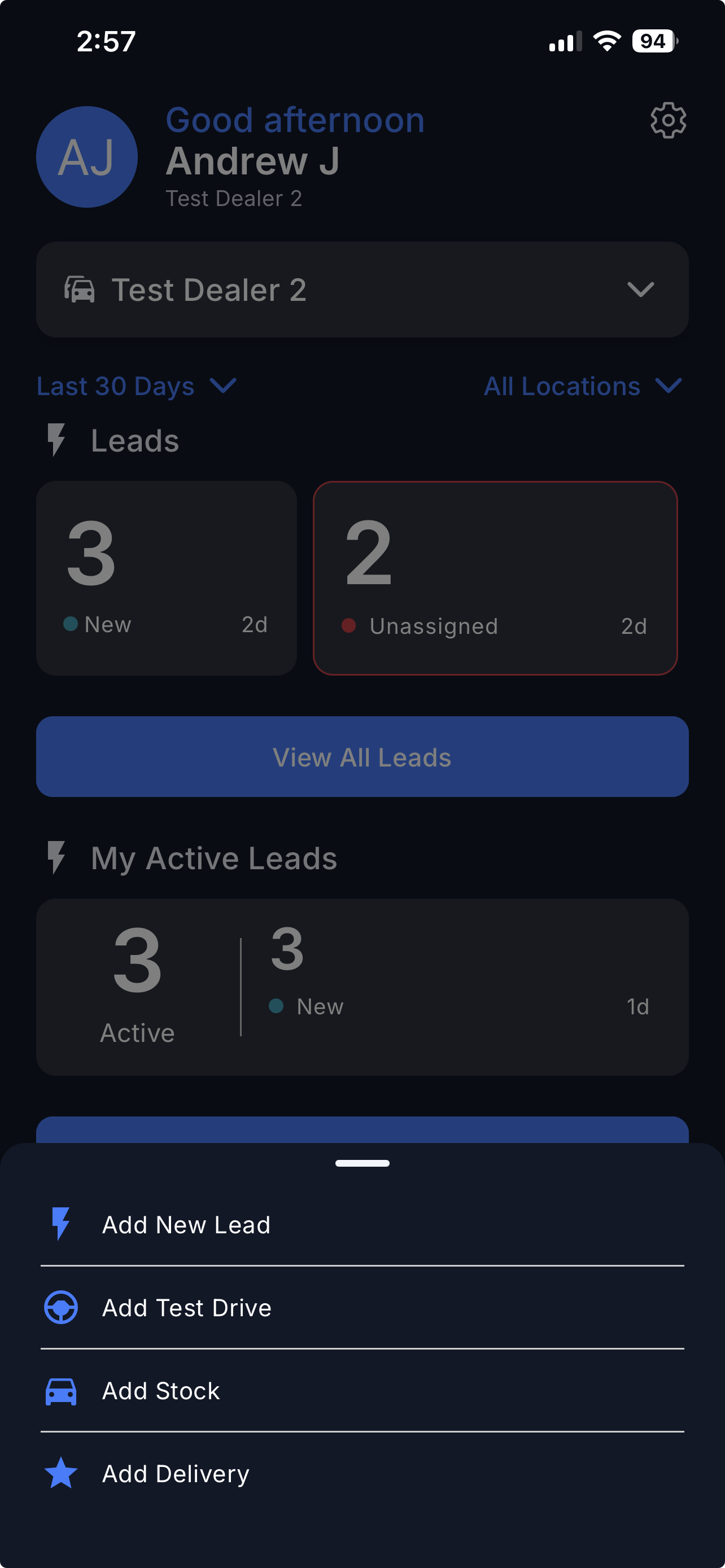
From the Dashboard, select your Dealership.
Tap the "+" button at the bottom of the screen.
Select Add Delivery.
Step 2 – Follow the Delivery Steps
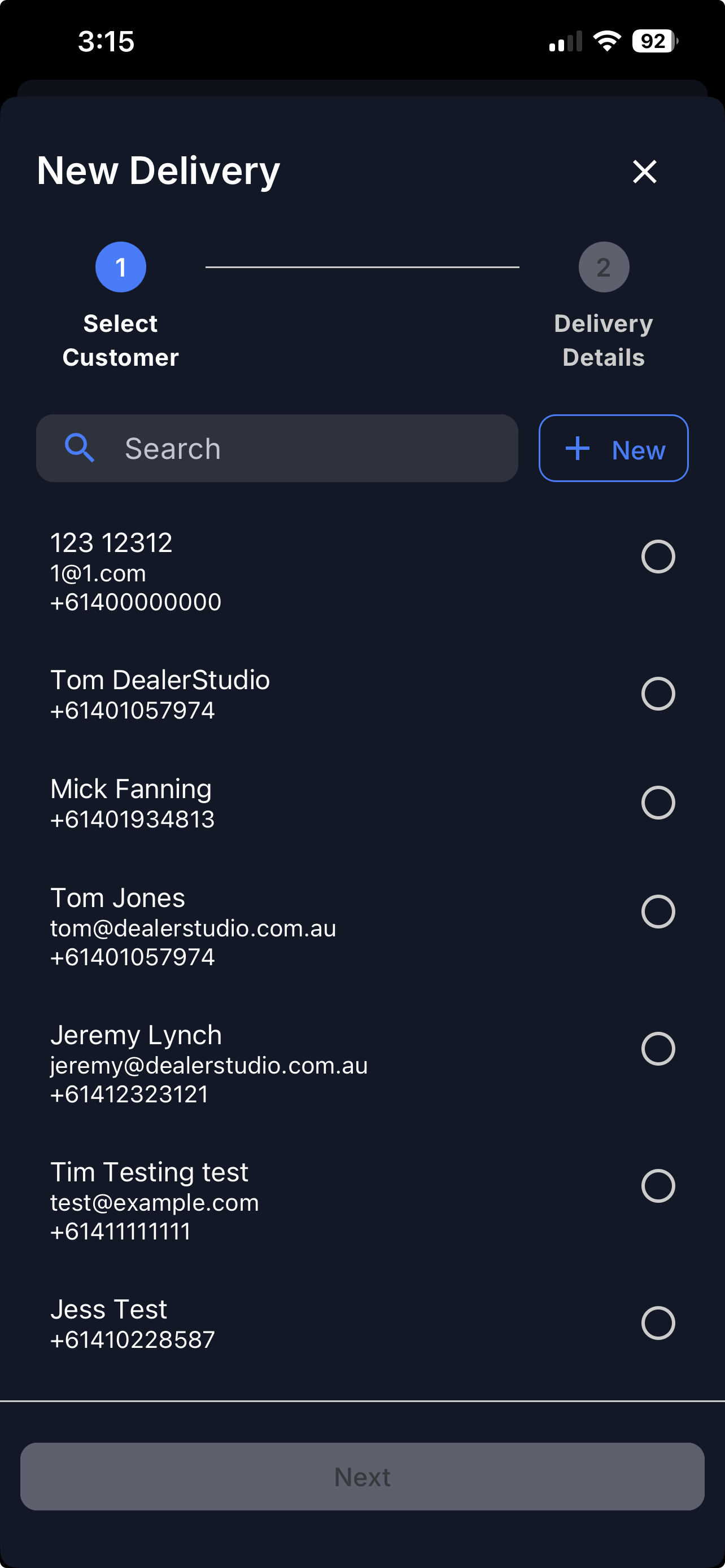
i. Select a Customer
Choose the customer involved in the delivery.
To create a new customer, tap "+ New" at the top right.
ii. Delivery Details
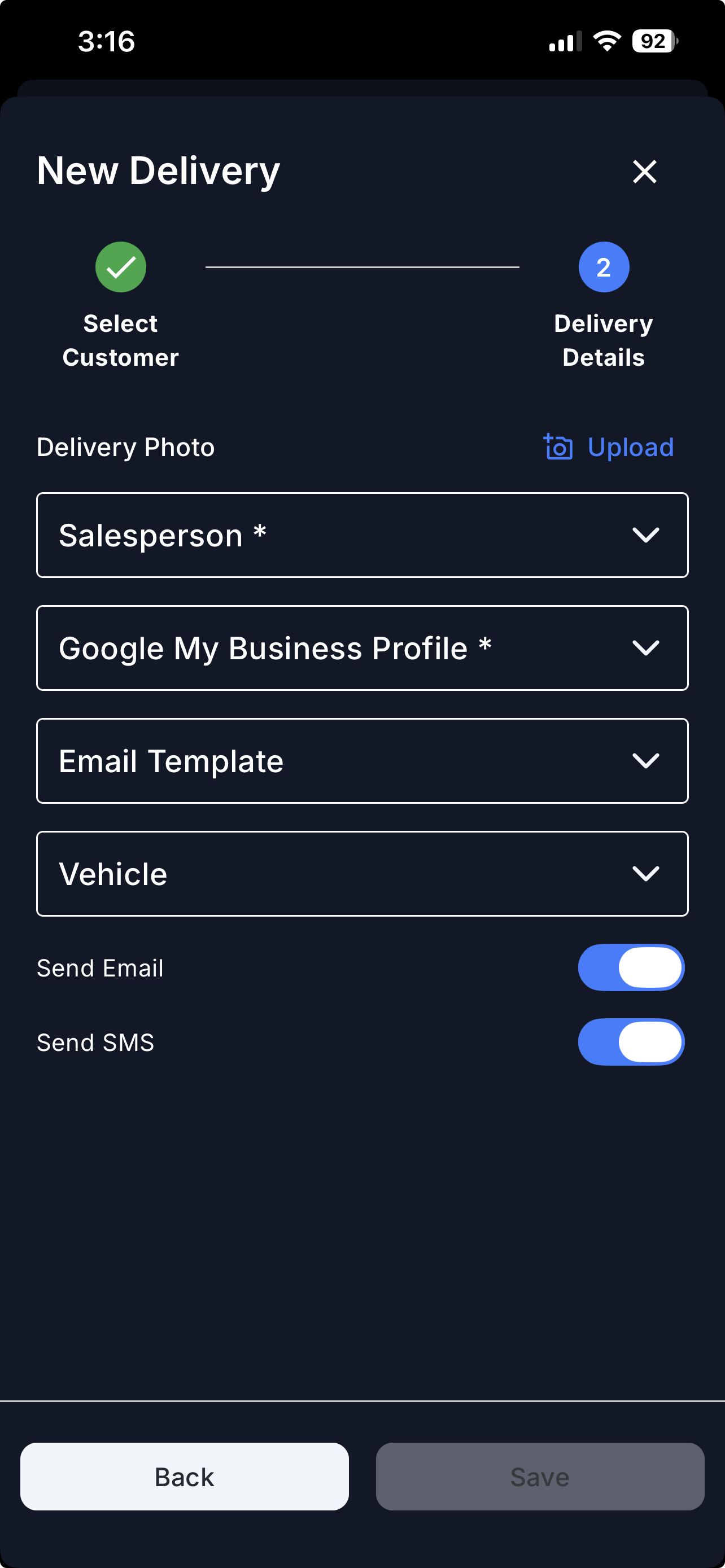
Upload the stock delivery photo.
Enter the required delivery details, such as:
Salesperson
GMB Profile
Email Template
Vehicle
Toggle Email or SMS if you want to send a Google Review request to the customer.
Tip:
Make sure your GMB Profile and Email Template are set up before creating a delivery.
Extra Guide:
How to link your Google My Business (GMB)
How to Set Up and Edit Email Templates
Step 3 – View Your Deliveries
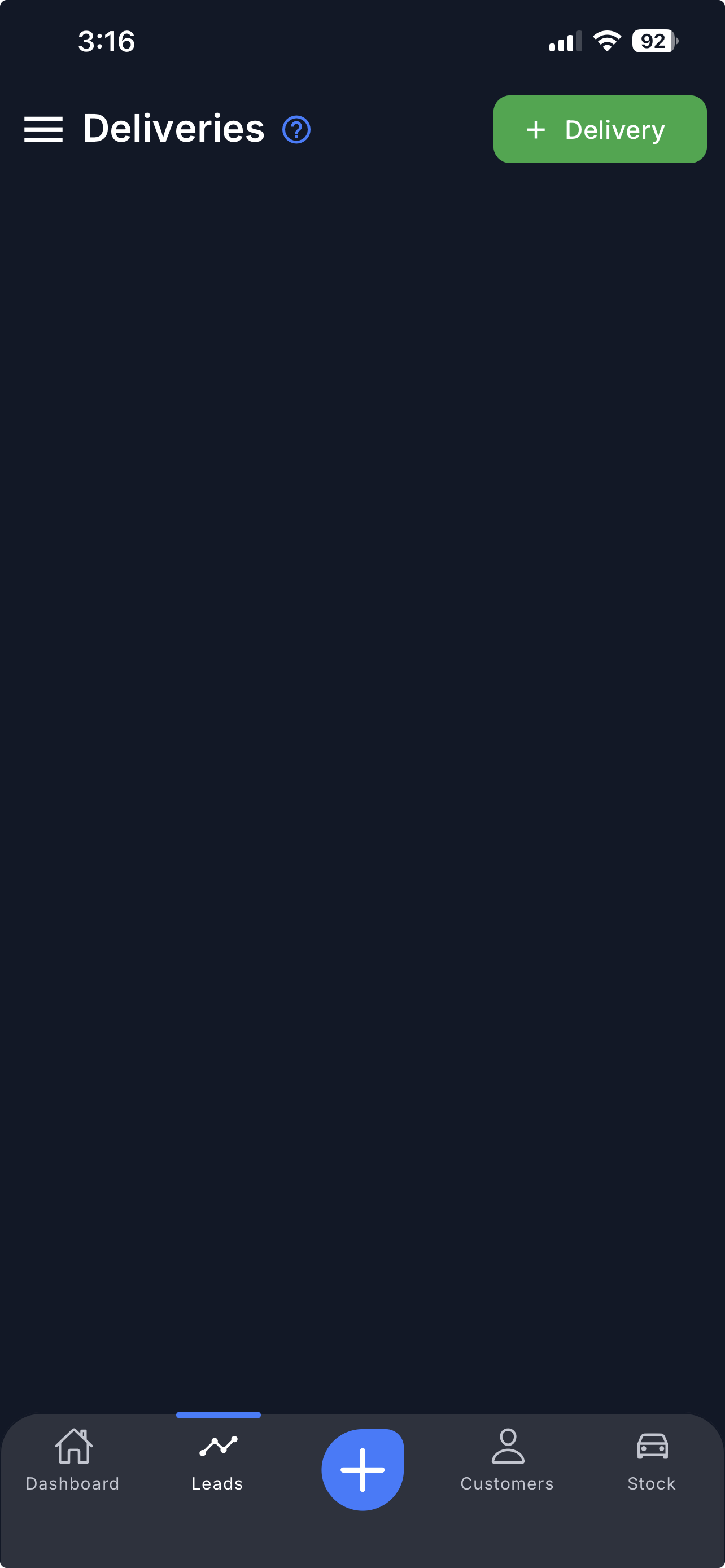
Tap Leads at the bottom of the screen.
Open the left-hand sidebar menu.
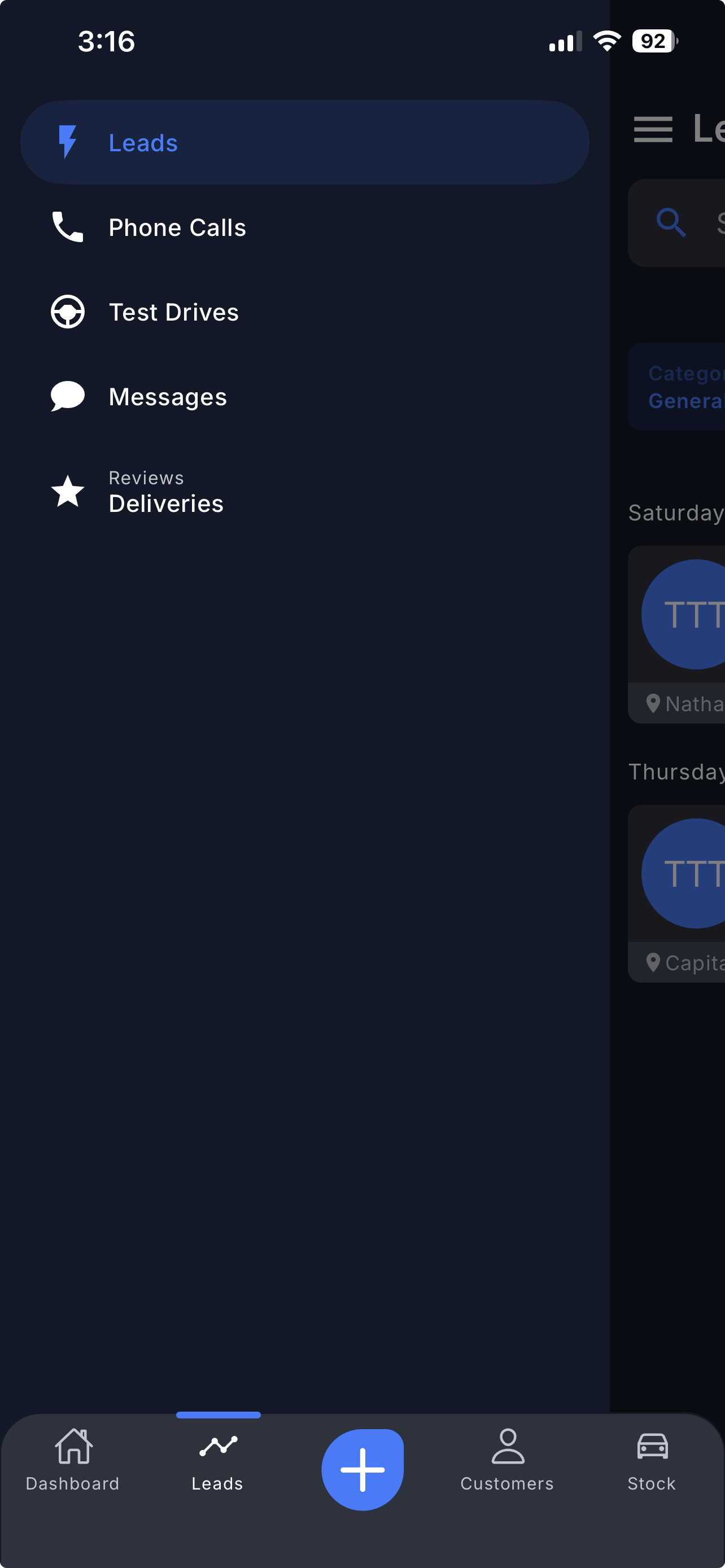
Select Deliveries.
Swipe down to refresh and view all Deliveries.
Video
Please refer to the attachment below.
Was this article helpful?
That’s Great!
Thank you for your feedback
Sorry! We couldn't be helpful
Thank you for your feedback
Feedback sent
We appreciate your effort and will try to fix the article