This article explains how to add a Test Drive using the Dealer Studio mobile app. Logging a test drive ensures the activity is recorded and linked to the correct customer and vehicle.
IMPORTANT NOTE:
This guide only explains how to add/create a Test Drive. For launching/starting a Test Drive,
please refer to: How to launch a Test Drive in Mobile App | Live Location Tracking
Step 1: Navigate to Add Test Drive
Log in to the Dealer Studio mobile app.
From the Dashboard, select your Dealership.
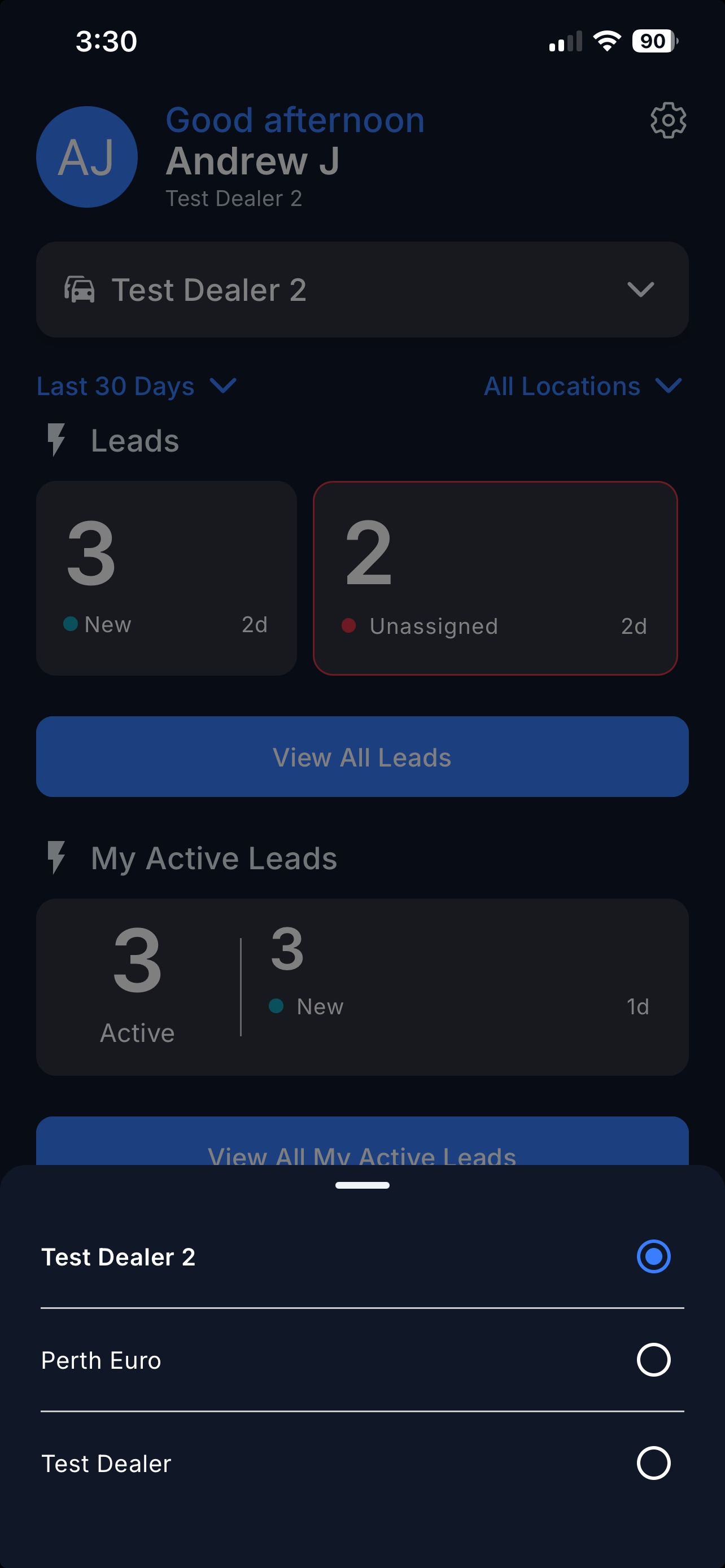
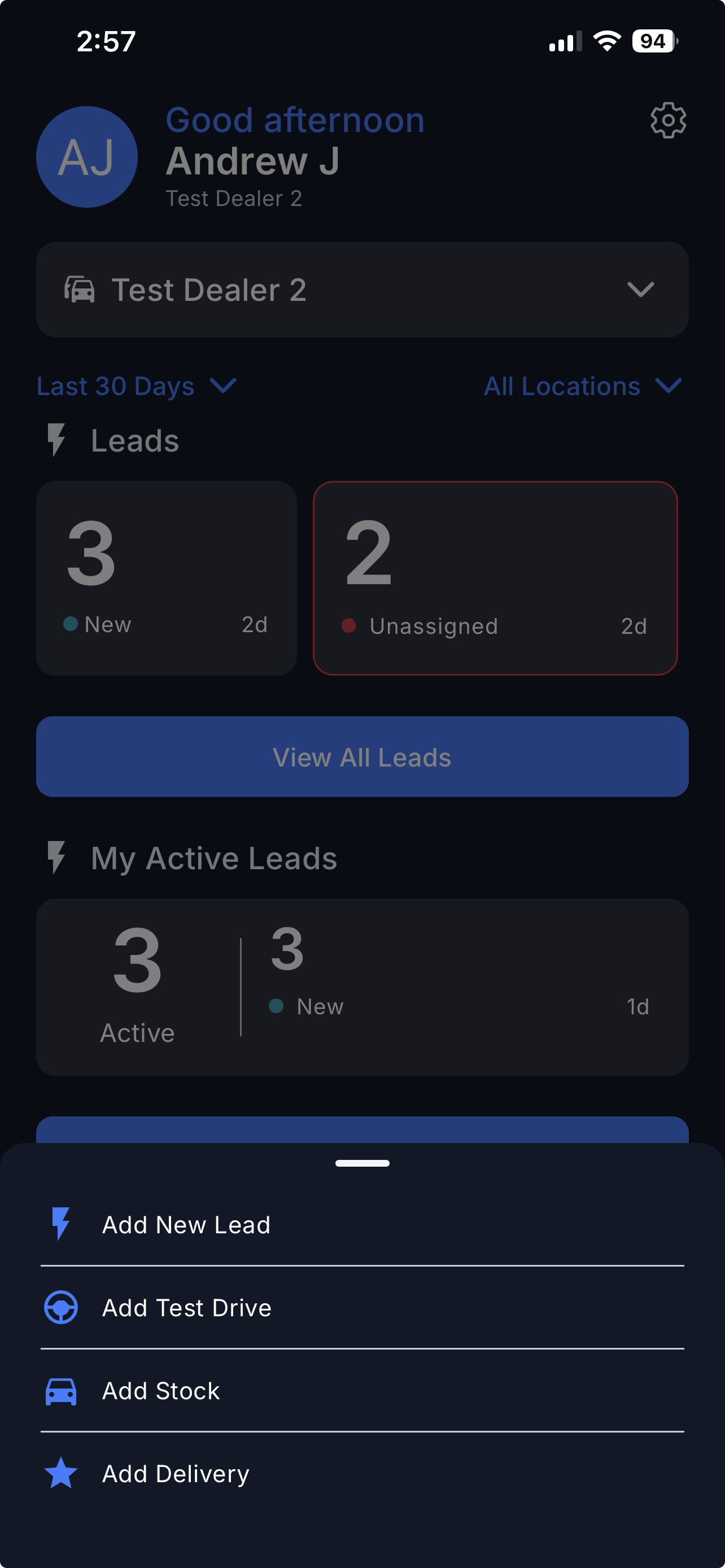
Tap the '+' button at the bottom of the screen.
Select Add Test Drive.
Step 2: Complete the Test Drive Steps
Follow the steps shown at the top of the screen: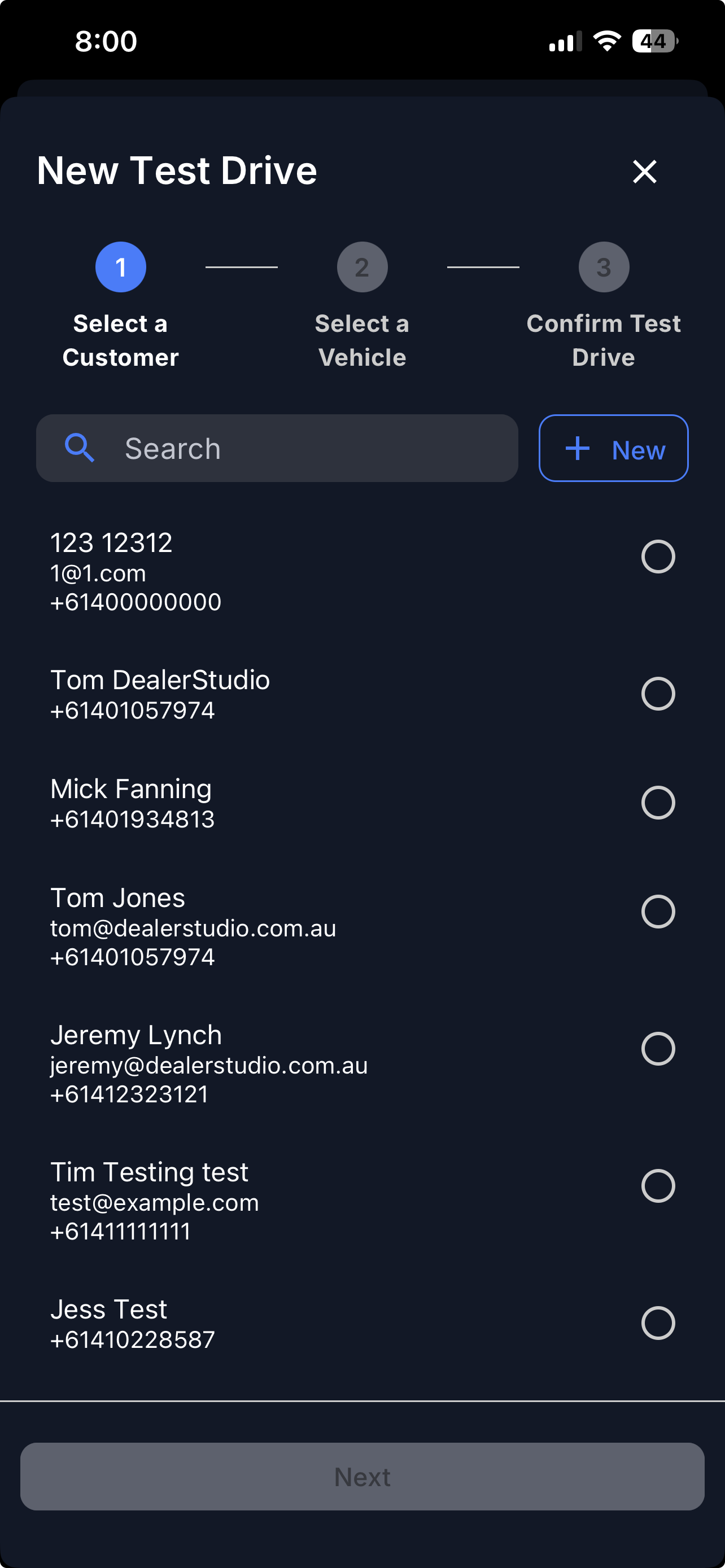
a. Select a Customer - Choose the customer who is taking the test drive.
b. Select a Vehicle - Select the vehicle being used for the test drive. (search by Stock Number)
c. Confirm the Test Drive - Review and confirm the test drive details.
- You may optionally choose to create a walk-in lead when lodging the test drive.
Step 3: Submit the Test Drive
Tap Submit to add the test drive.
Once submitted, the test drive will be recorded and linked to the lead.
To view added Test Drives
After submission, the test drive will appear in your Test Drives list.
i. Tap the 'Leads' button at the bottom of the screen.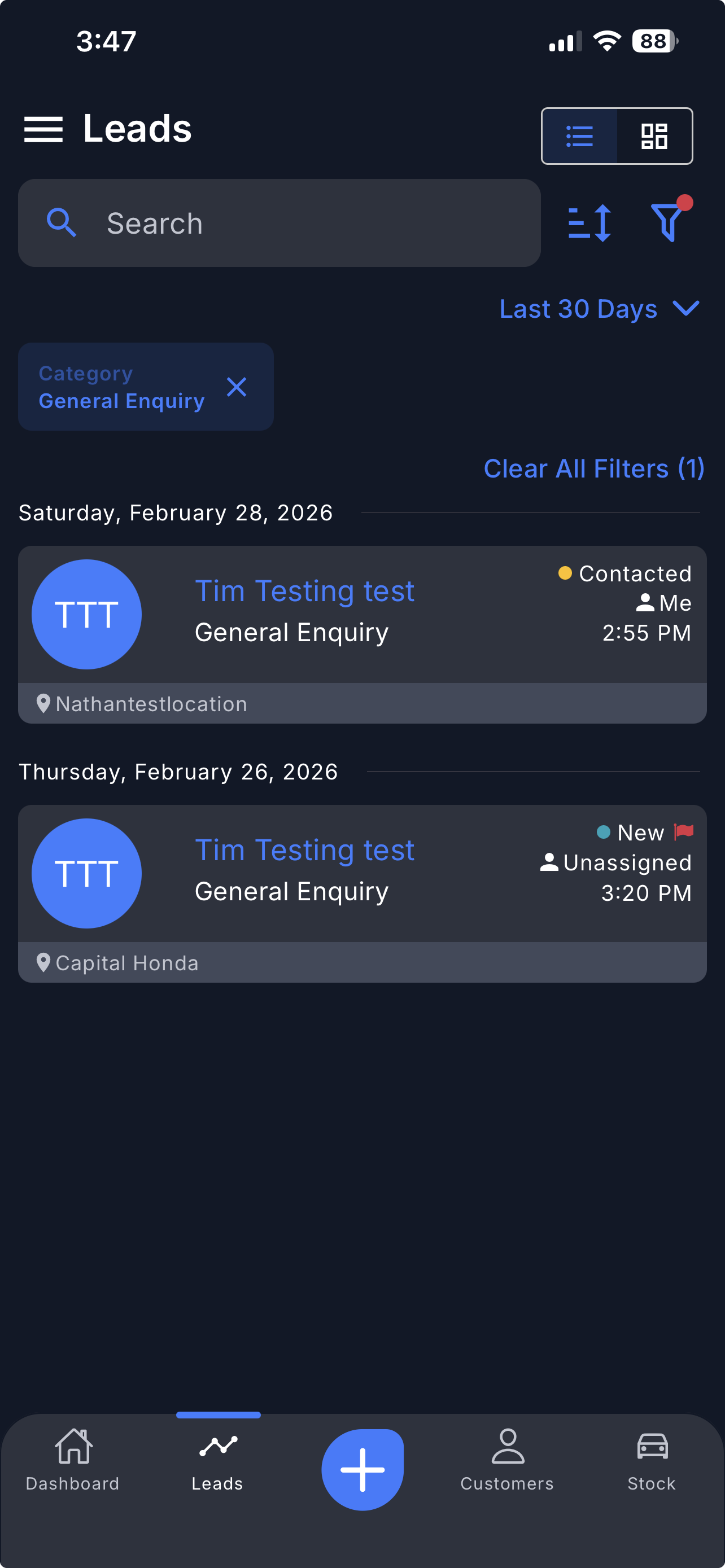
ii. Tap the sidebar menu on the top left corner, and select 'Test Drives' to view all test drives.
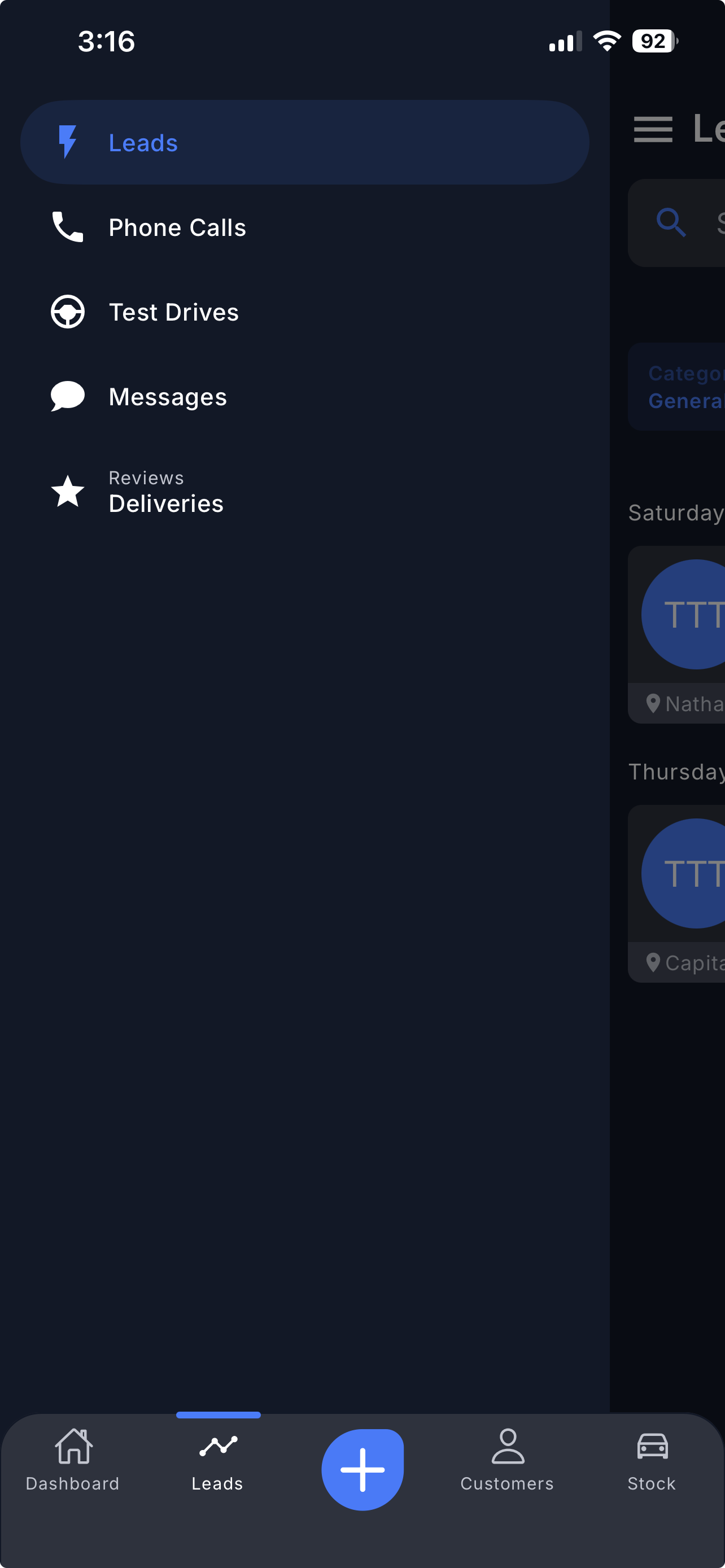
iii. Here you can view all your added test drives. You can also add a new test drive or manage existing test drives.
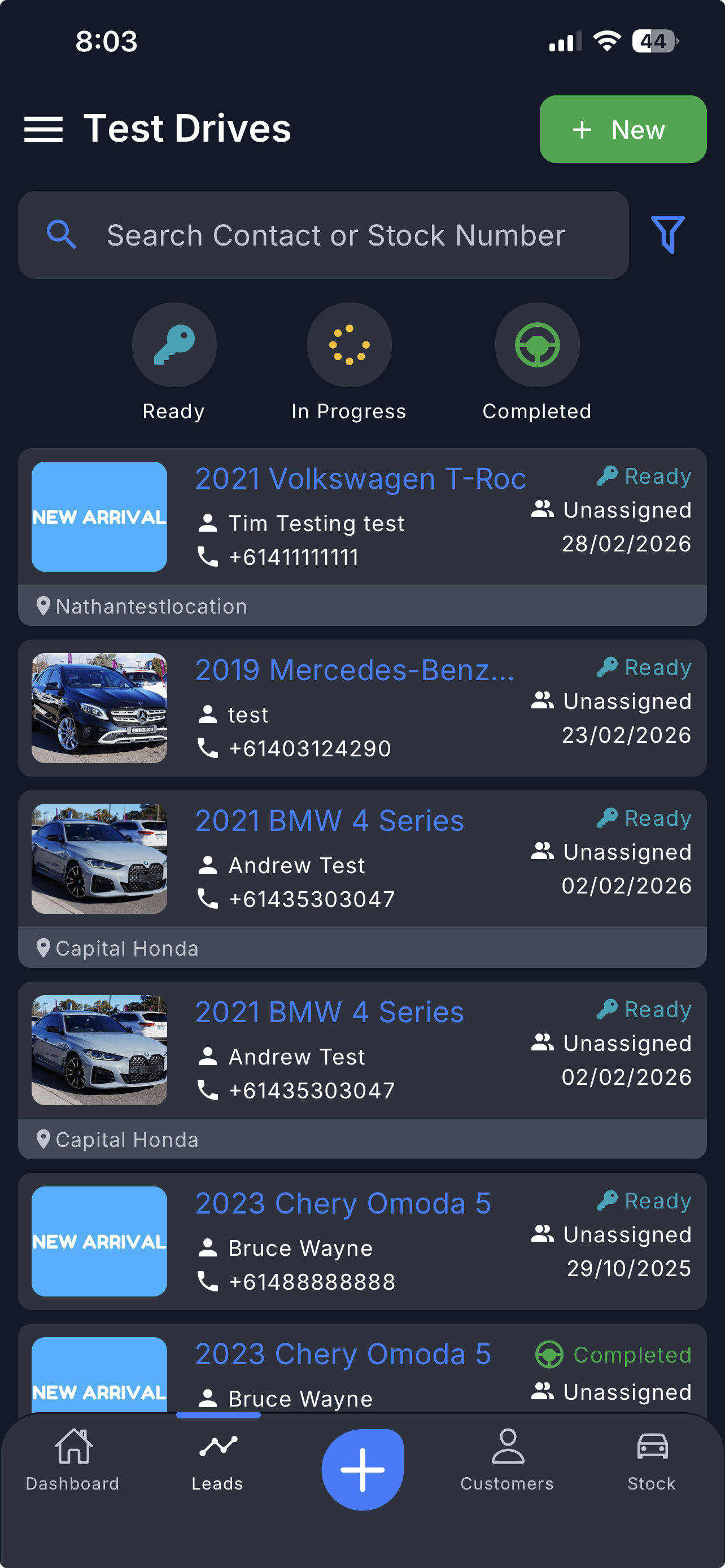
You're All Set
You have successfully added a test drive using the Dealer Studio mobile app.
What's next for Test Drive?
Please refer to next guide: How to launch a Test Drive in the Mobile App | Live Location Tracking
Video
Please refer to the attachment below.
Was this article helpful?
That’s Great!
Thank you for your feedback
Sorry! We couldn't be helpful
Thank you for your feedback
Feedback sent
We appreciate your effort and will try to fix the article