This article explains how to launch a Test Drive using the Dealer Studio mobile app, including how to set up insurance, capture a customer agreement, add a driver’s licence, and track the test drive in real time using Live Location Tracking.
IMPORTANT NOTE:
You must create/add a Test Drive before you launch a Test Drive.
- For more info and guidance, please refer to: How to add a Test Drive in Mobile App
Instructions
Step 1: Access Test Drives
- Login to the Dealer Studio mobile app.
- In the Dashboard, select your Dealership.
- At the bottom of the screen, tap the Leads button.
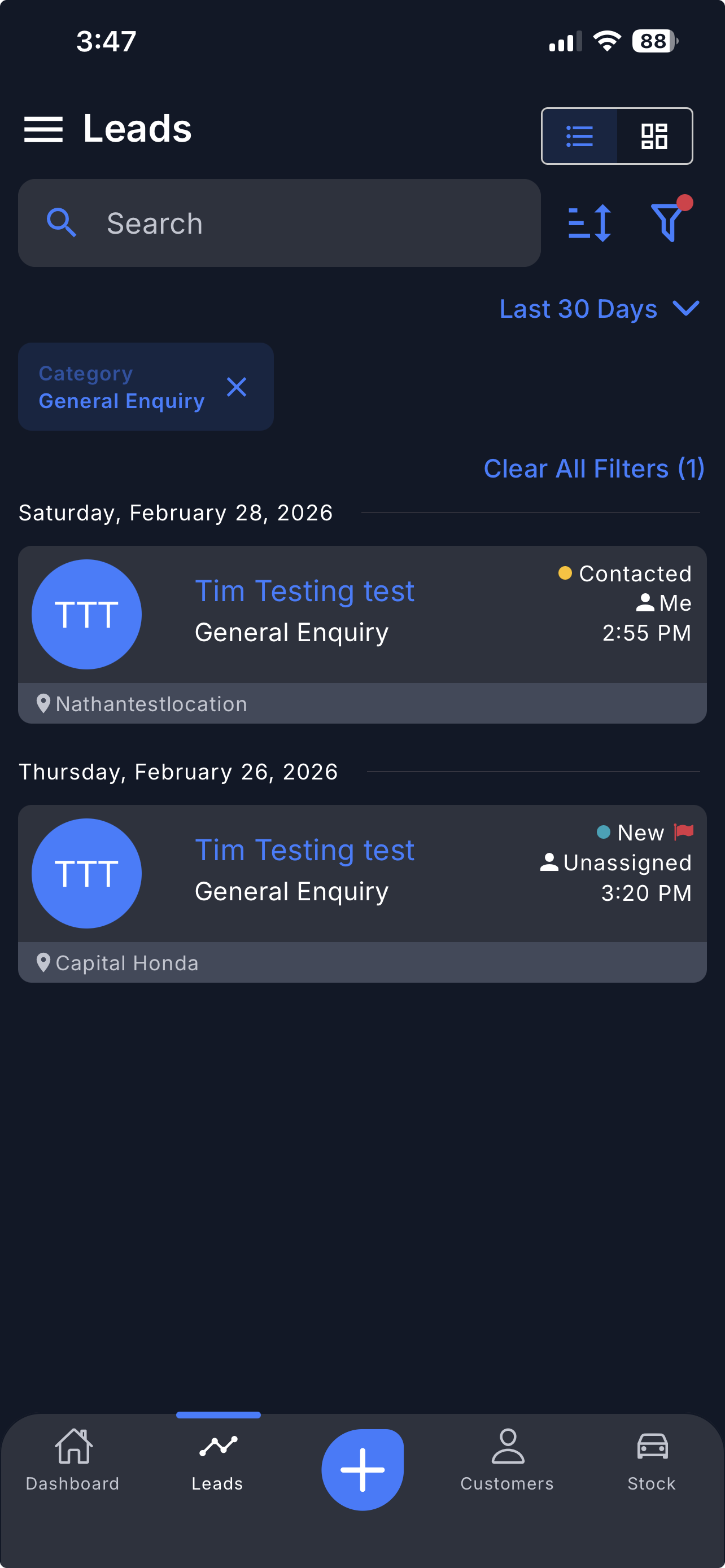
- In Leads, tap the sidebar menu icon on the top left corner, then select Test Drives to view all test drives.
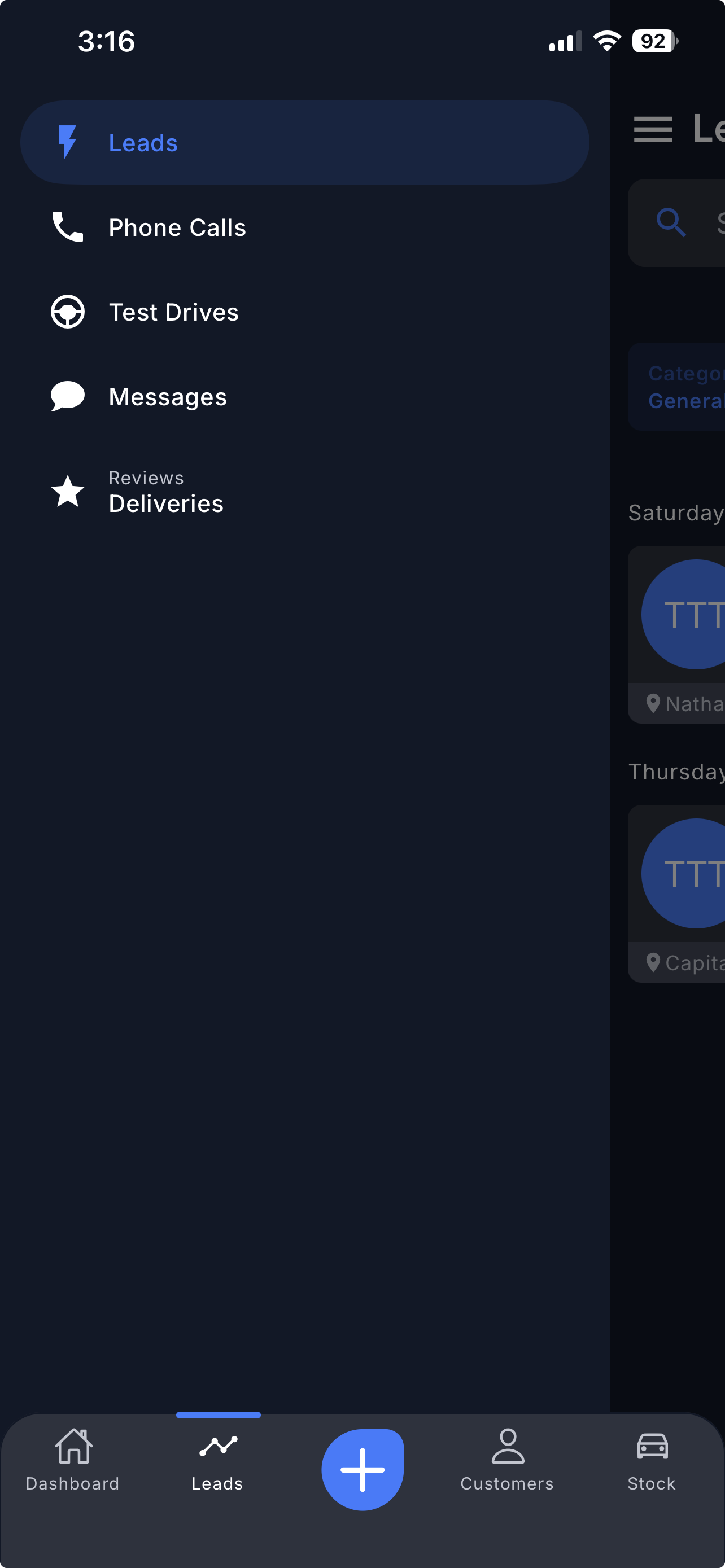
- From this view you can see all added test drives, add a new test drive, or manage existing ones.
Tip: Use the filter button (top right) to narrow down your search, or tap Ready to view only test drives that are ready to launch.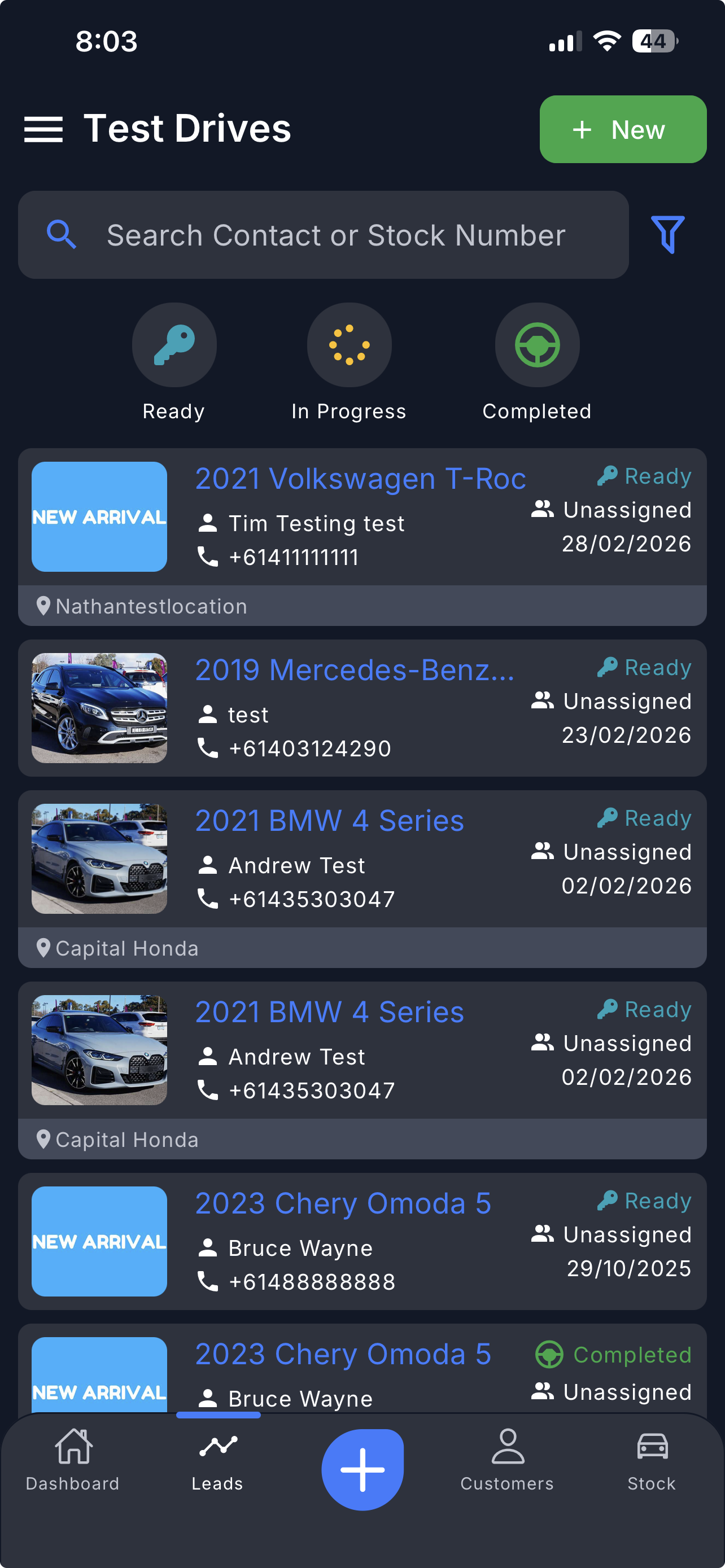
Step 2: Select a Test Drive and assign a Salesperson
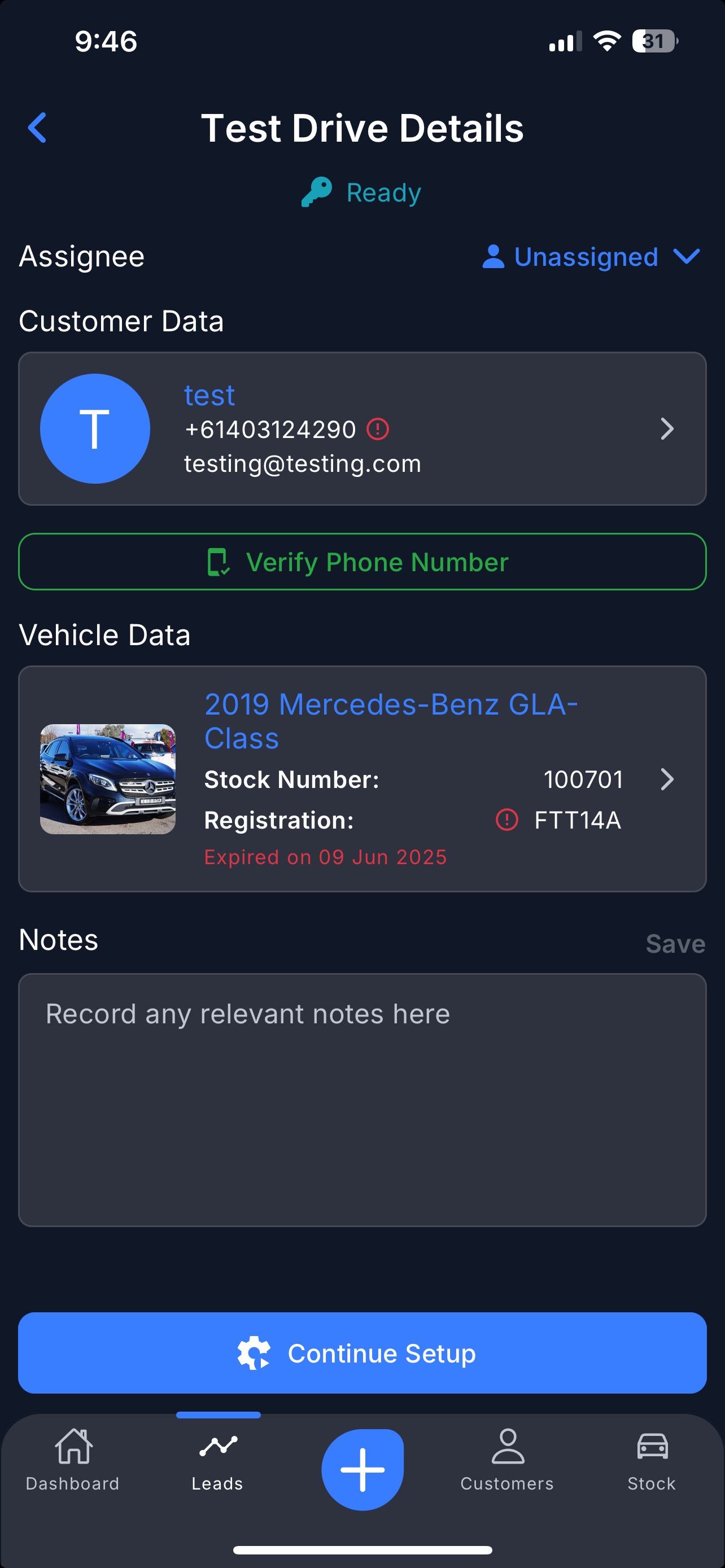
- Search and select the Test Drive you want to launch. This will open the Test Drive Details page
- In the Test Drive Details page, you can assign the test drive to a Salesperson.
- To proceed, tap Continue Setup at the bottom of the page.
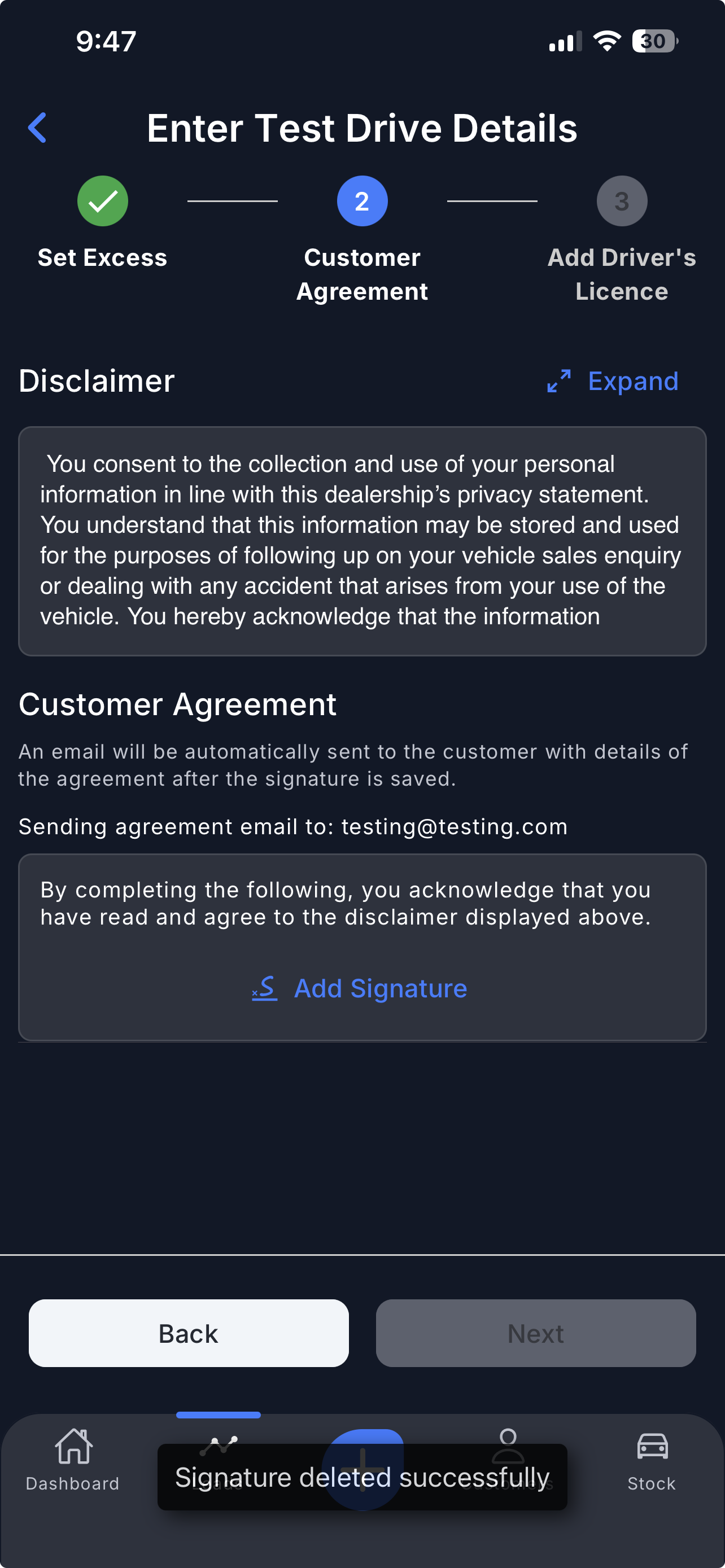
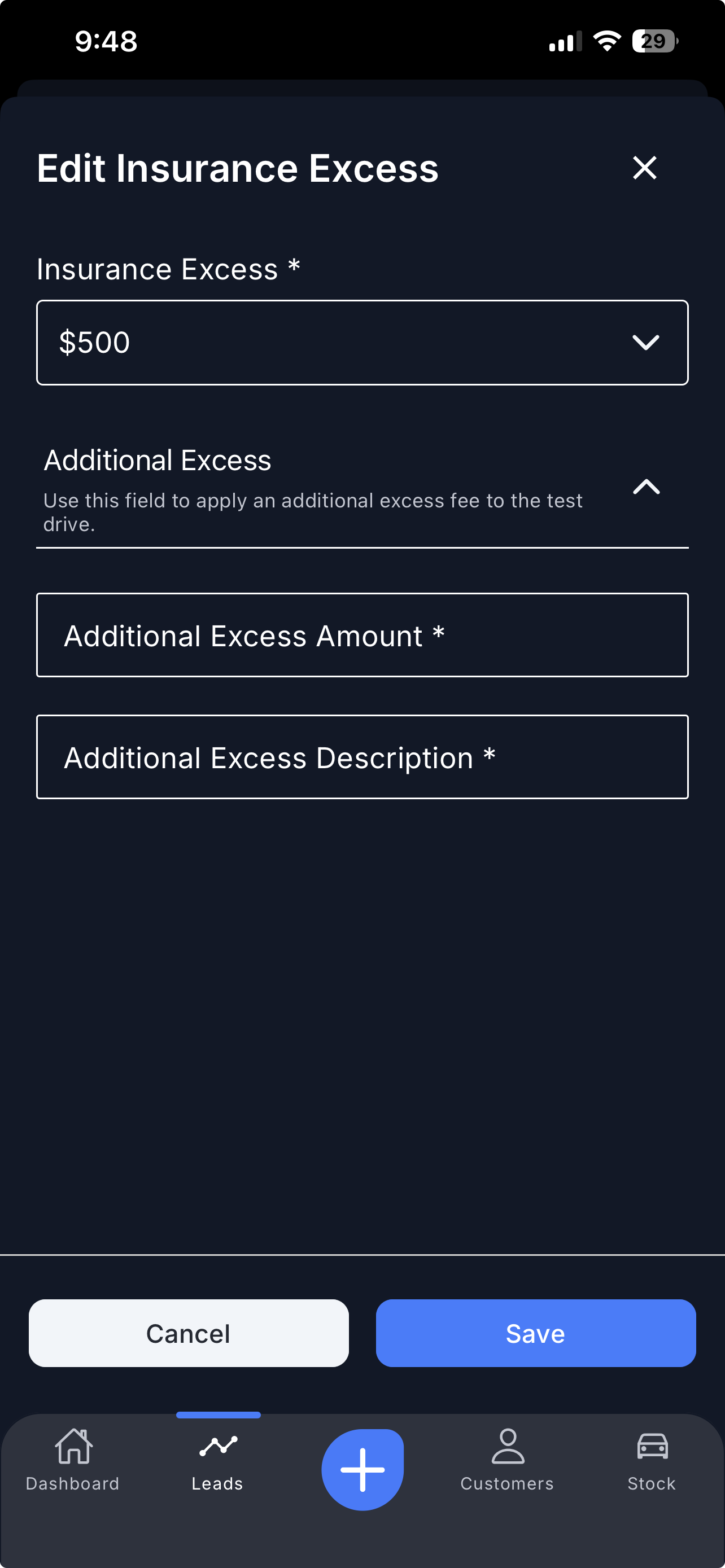
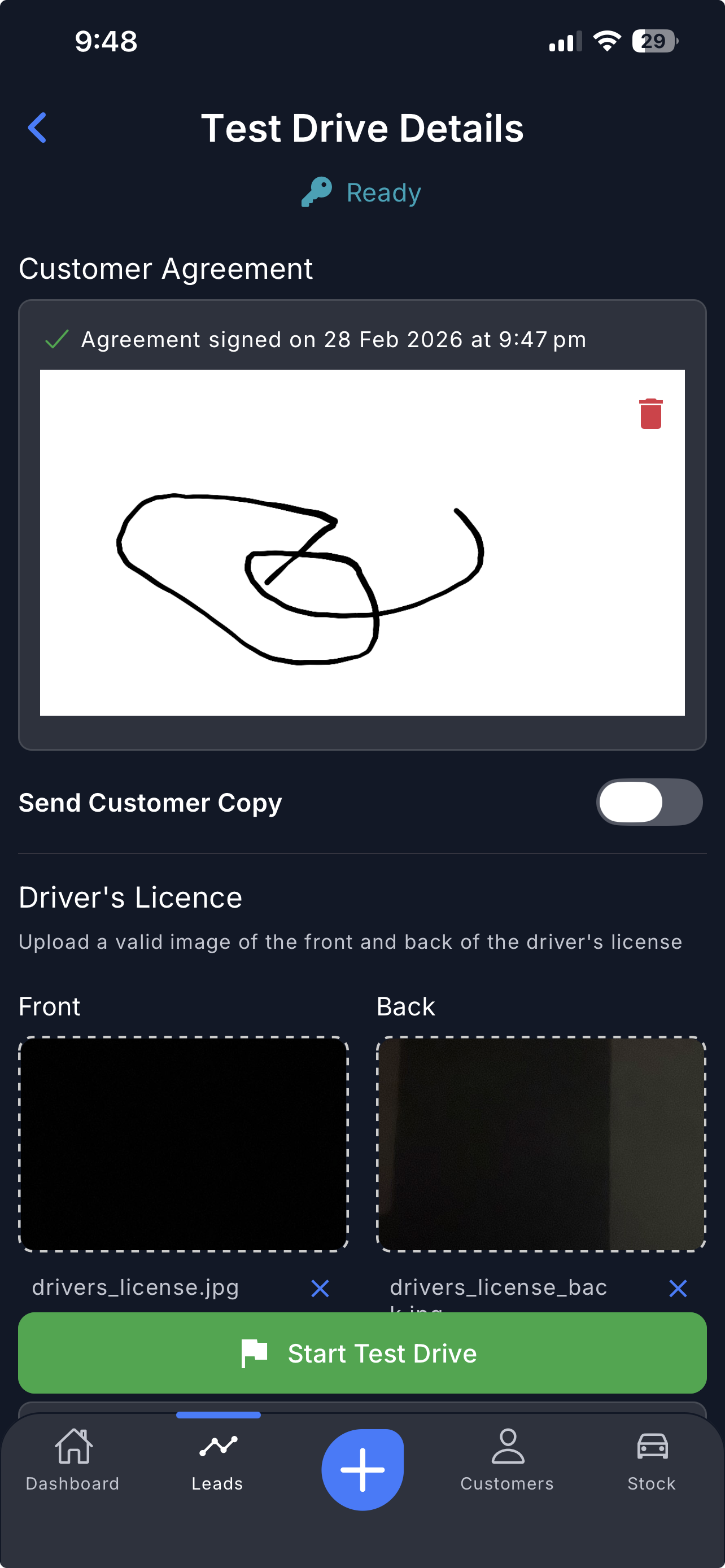
Step 4: Complete the 3-Step Setup
Follow the three-step setup process before launching the test drive:
- Set Excess – Configure the insurance excess amount.
- Customer Agreement – Present the disclaimer and capture the customer’s signature.
- Add Driver’s Licence – Capture or upload the driver’s licence details.
Step 5: Review Setup Before Starting
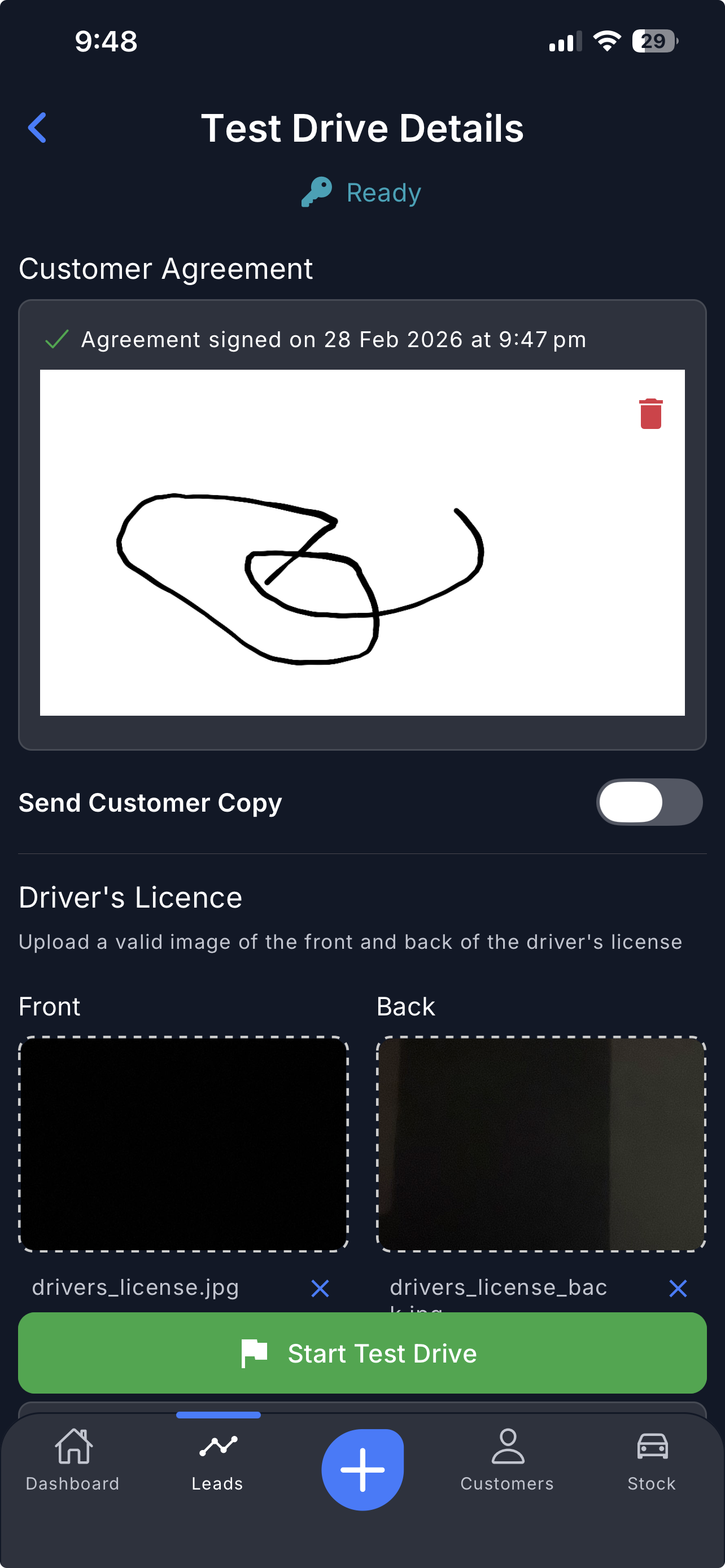
Review the following details before starting the test drive:
- Insurance excess
- Customer signature
- Driver’s licence
- Start time and date (WARNING: setting this will immediately start the Test Drive)
- Notes
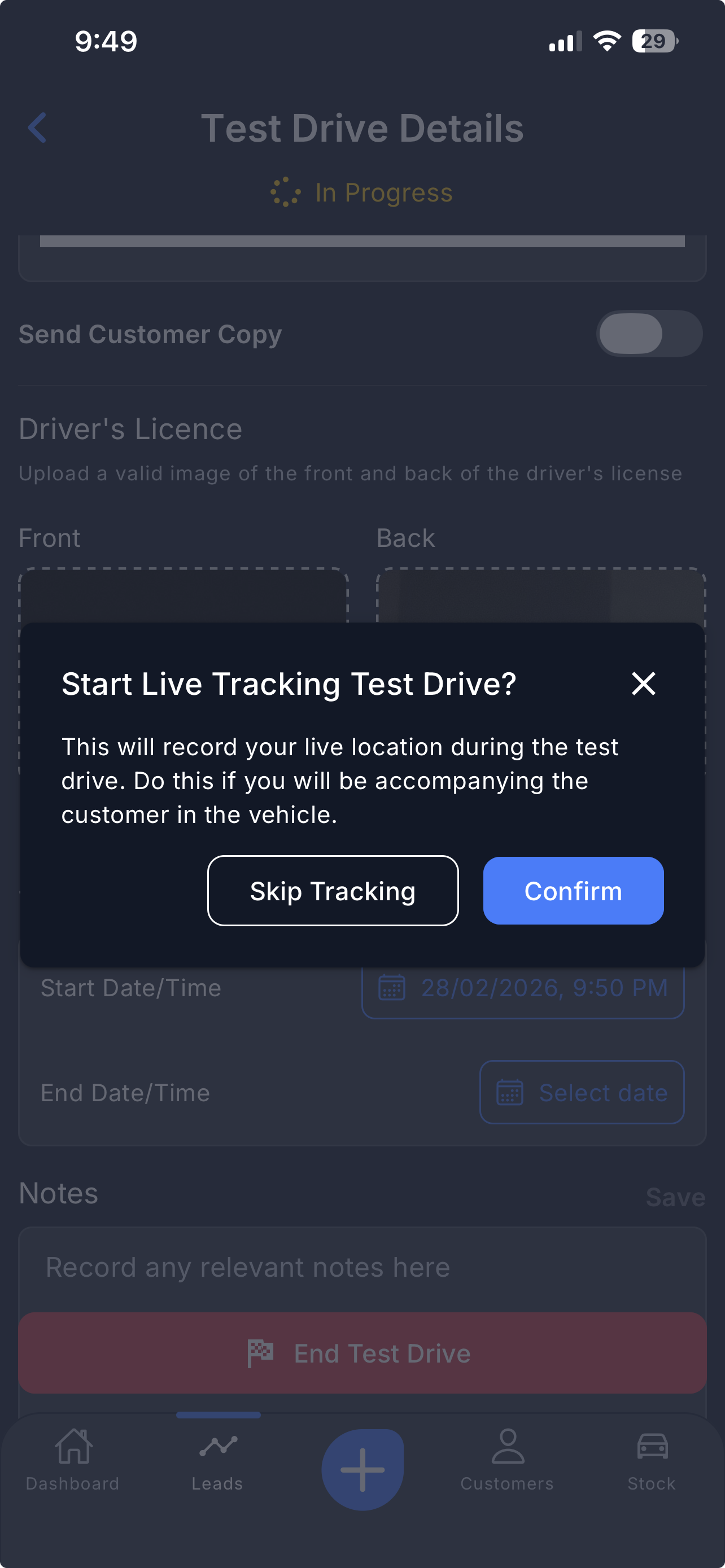
Step 6: Start Test Drive with Live Location Tracking
- Tap Start Test Drive to begin.
Important: Ensure that Location Sharing is enabled on the device before starting.
For iPhone users: go to Settings → Privacy → Location Services and allow access for Dealer Studio.
Step 7: Test Drive In Progress
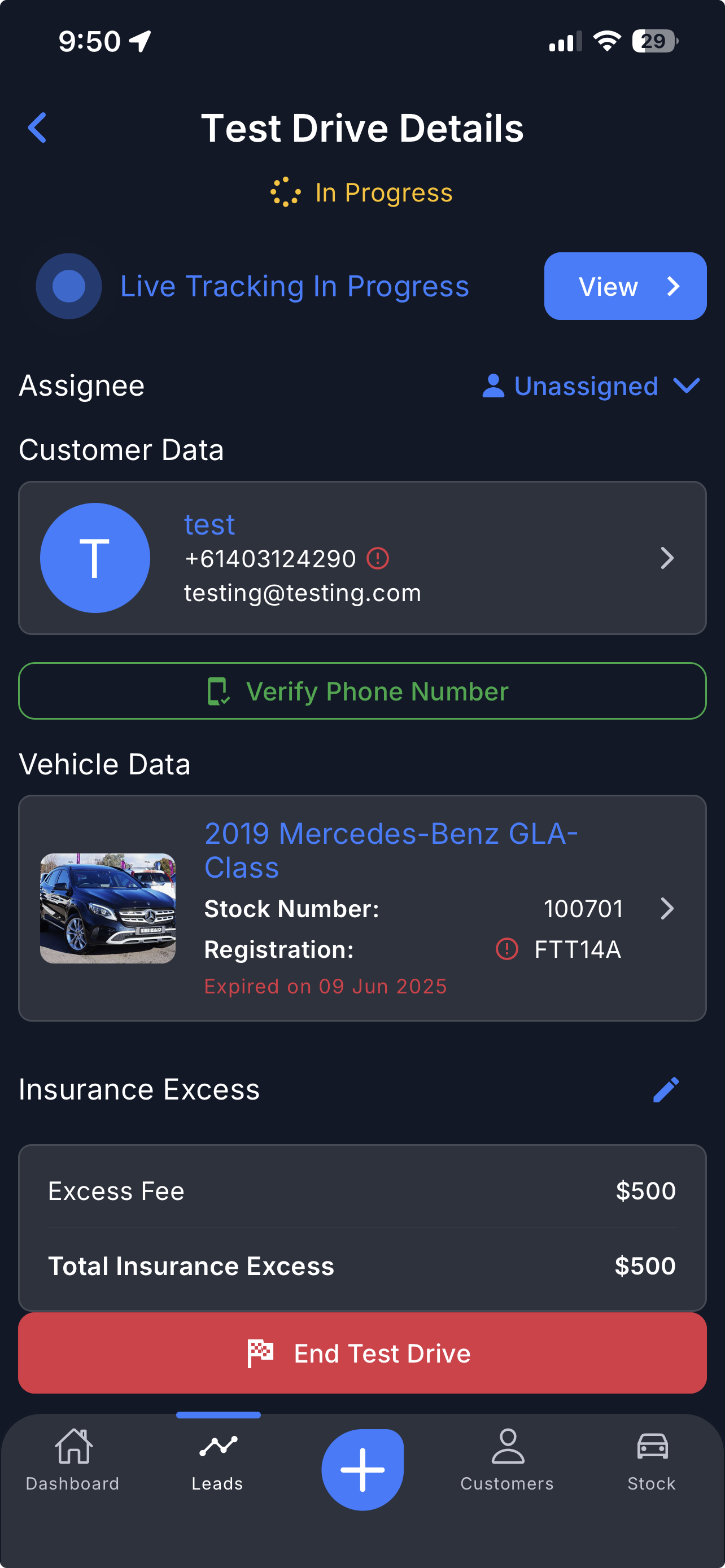
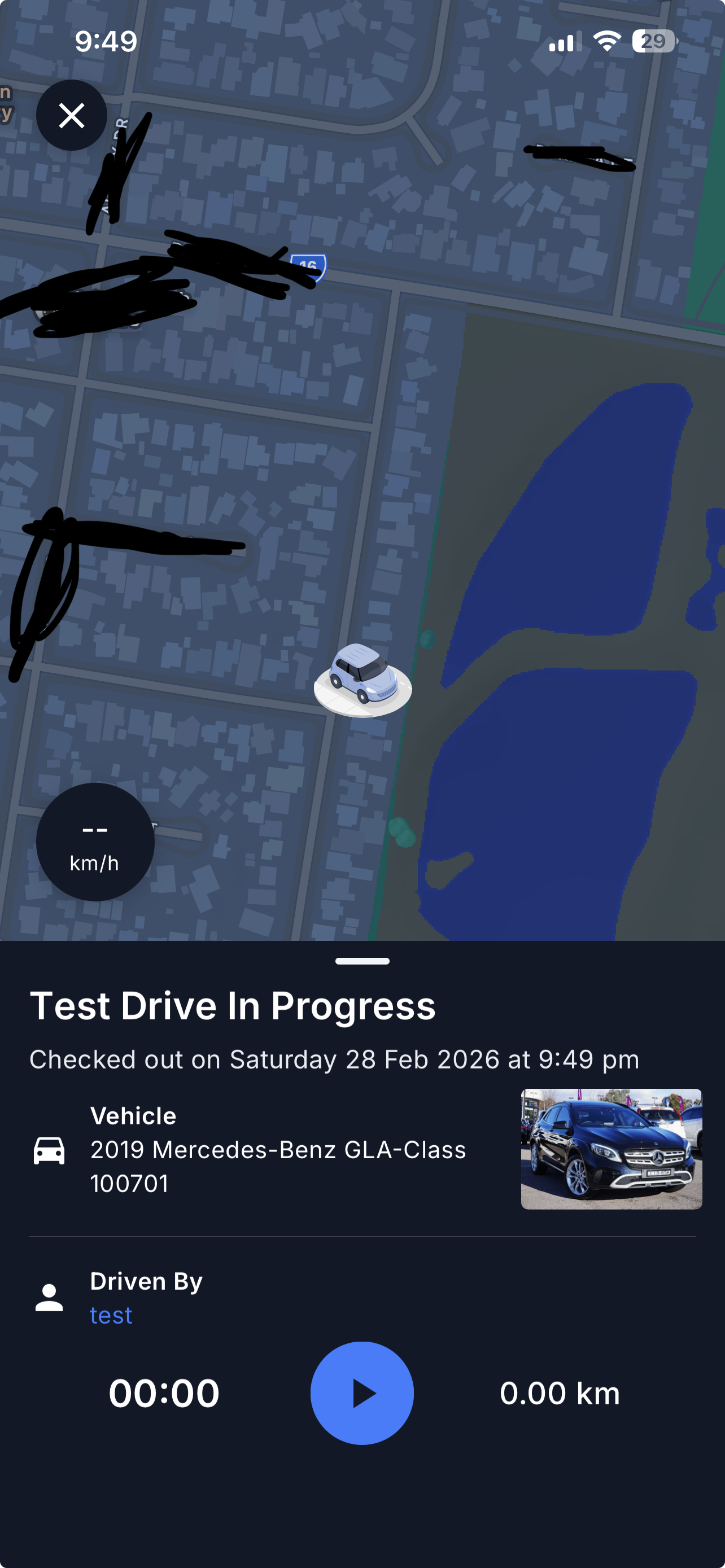
- Once started, the test drive status will change to 'In Progress'.
- You can track the live location of the driver and monitor the total distance travelled in real time.
Step 8: End the Test Drive
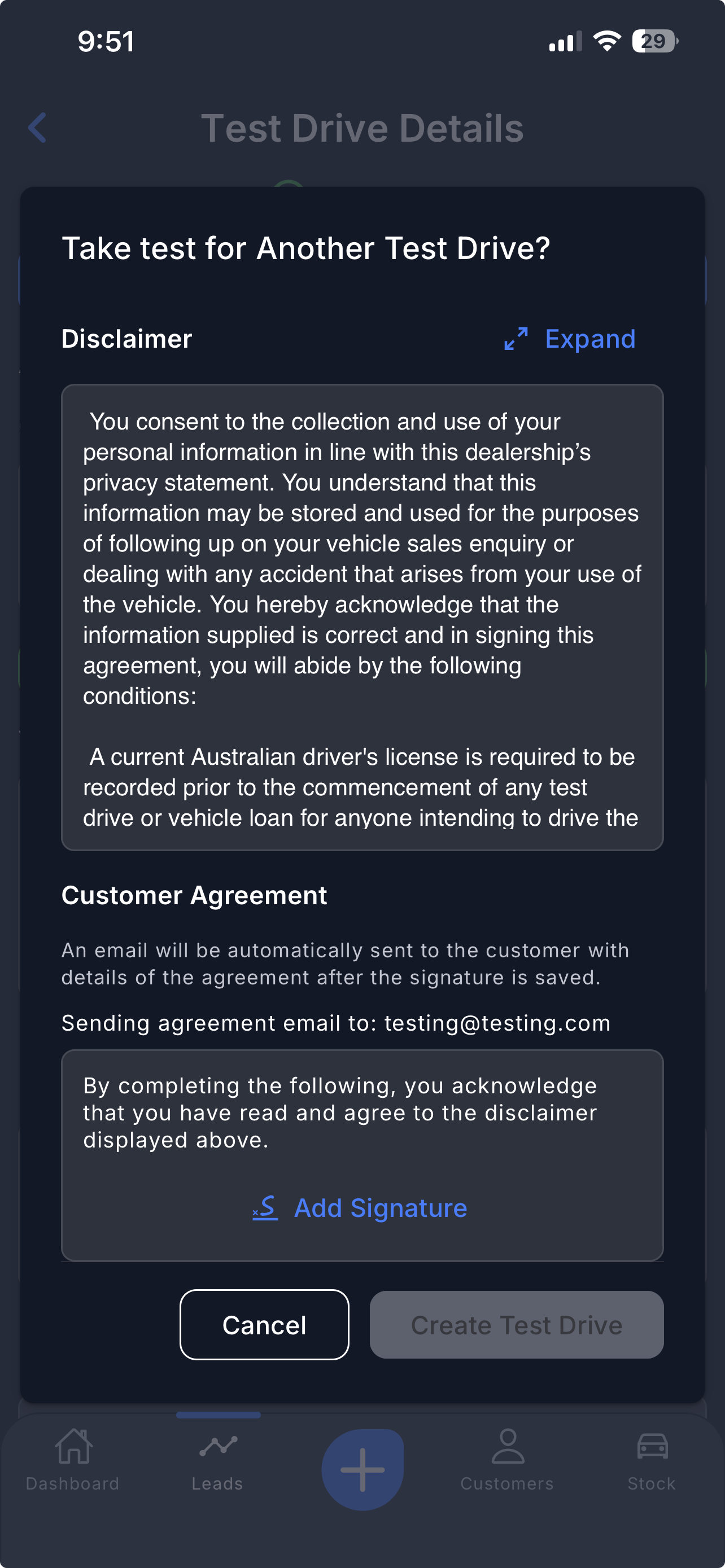
- Tap End Test Drive when the drive is complete.
- You will be prompted to start another test drive with the same customer if required.
Important: If an additional test drive is started, ensure the customer signs a new agreement before proceeding.
 Finally, after you've ended the Test Drive, you can always review past completed Test Drives by tapping the 'Completed' filter.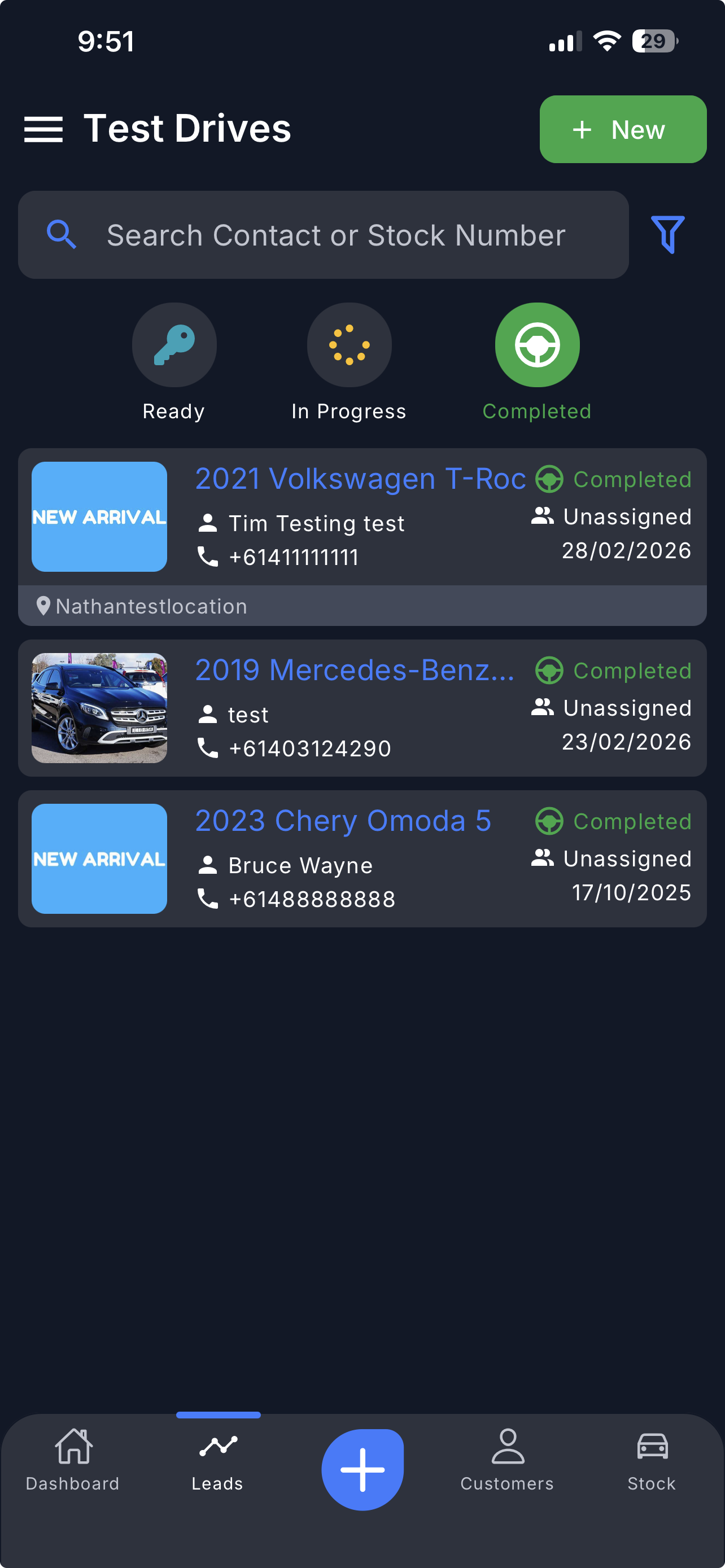
Video
Please refer to the attachment below for a visual walkthrough of the steps.
Was this article helpful?
That’s Great!
Thank you for your feedback
Sorry! We couldn't be helpful
Thank you for your feedback
Feedback sent
We appreciate your effort and will try to fix the article