Appointment Calendar in Dealer Studio Mobile App
This guide explains how to use the new Appointment Calendar feature in the Dealer Studio mobile app.
The Appointment Calendar provides a dedicated calendar view for all dealership appointments, making it easier to manage daily schedules, upcoming bookings, and customer activities in one place. The app also highlights today’s pending appointments directly on the Dashboard, allowing users to quickly view and manage their upcoming tasks.
Follow the steps below to learn how to access and manage appointments using the new calendar feature.
Video: Available at the bottom of this page
Before You Start
Before using the Appointment Calendar feature, please refer to the article:
How to Add an Appointment to a Lead (Mobile App)
This guide explains how to create and manage appointments linked to leads within the Dealer Studio mobile app.
Step 1: Access the Appointment Calendar
- Log in to the Dealer Studio Mobile App.
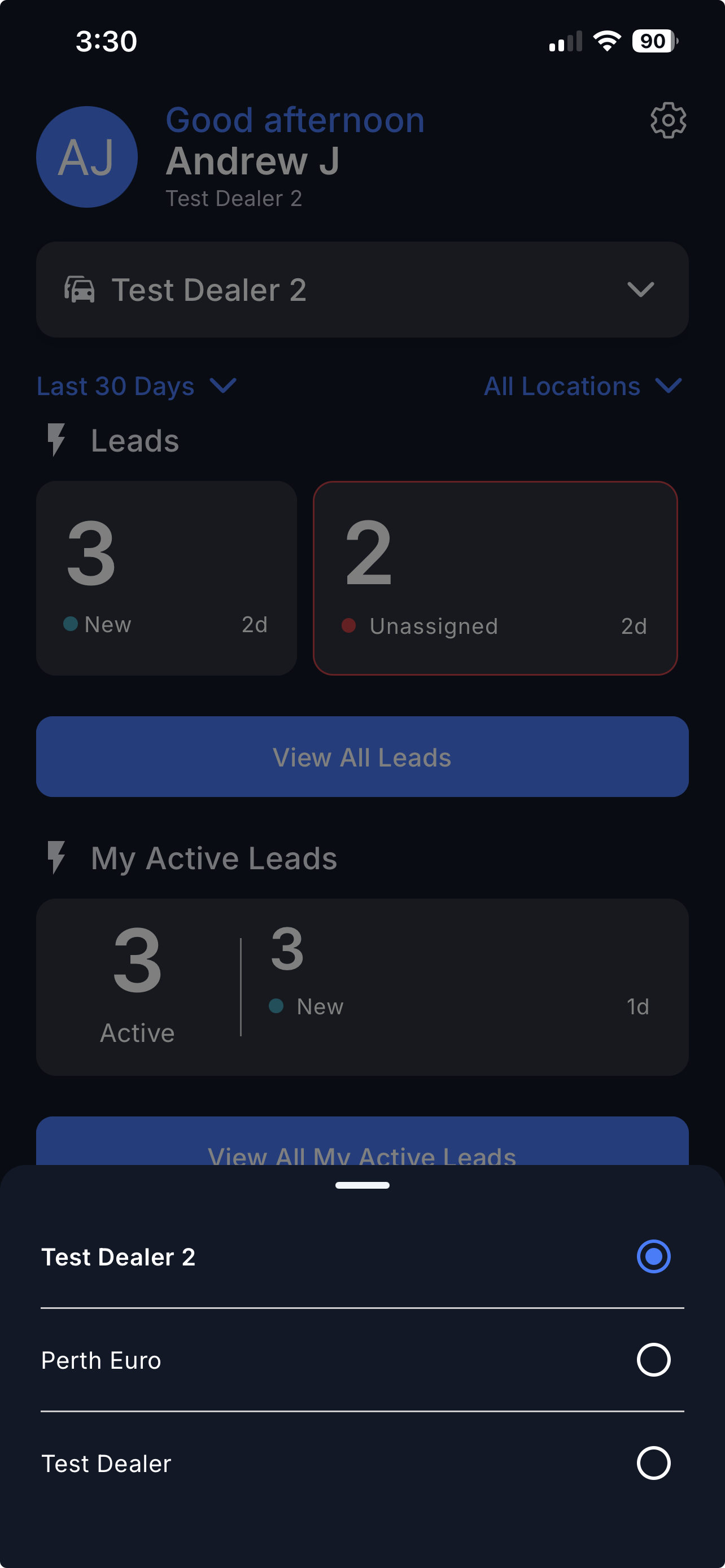
- From the Dashboard, select your Dealership.
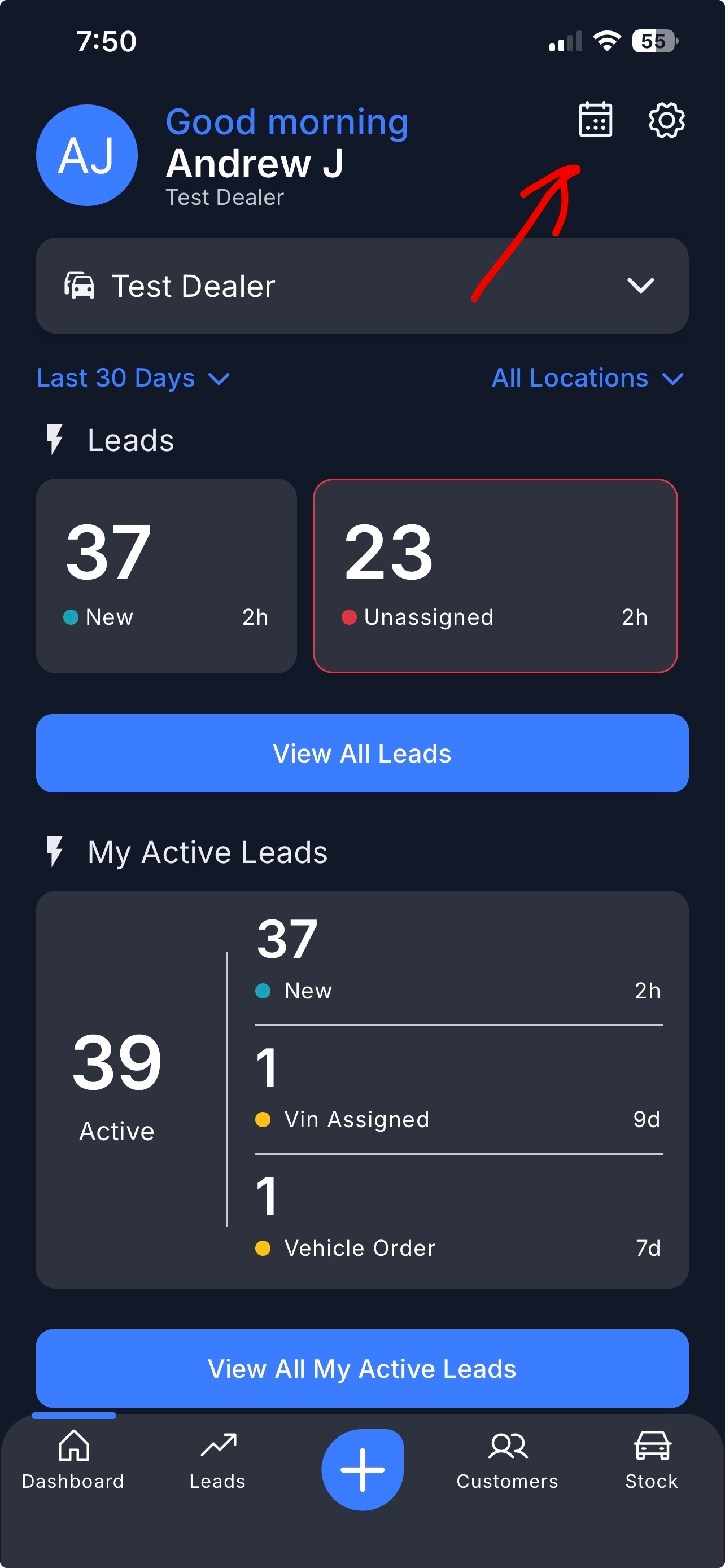
- At the top right corner of the screen, select the Calendar icon.
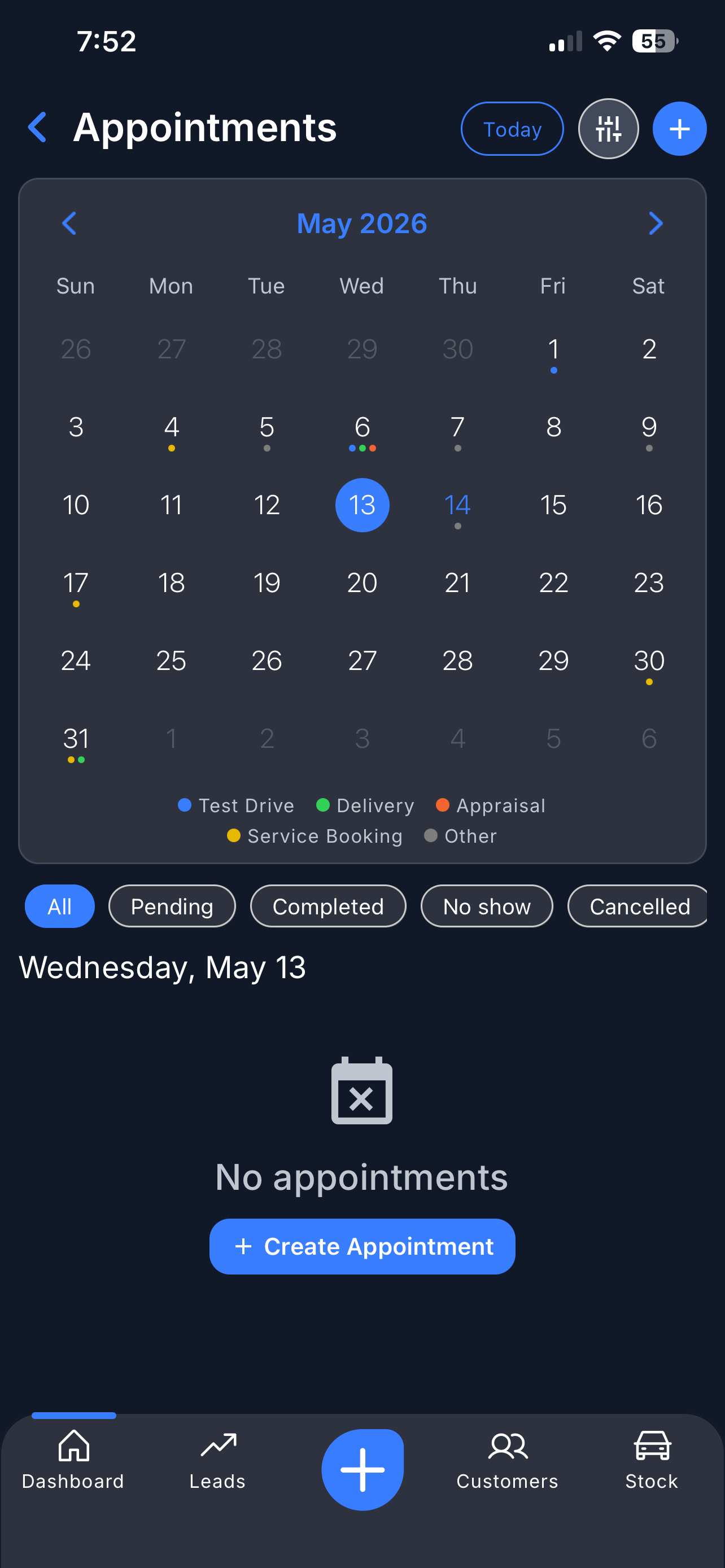
You will now see the dedicated appointment calendar view.
Step 2: View and Filter Appointments
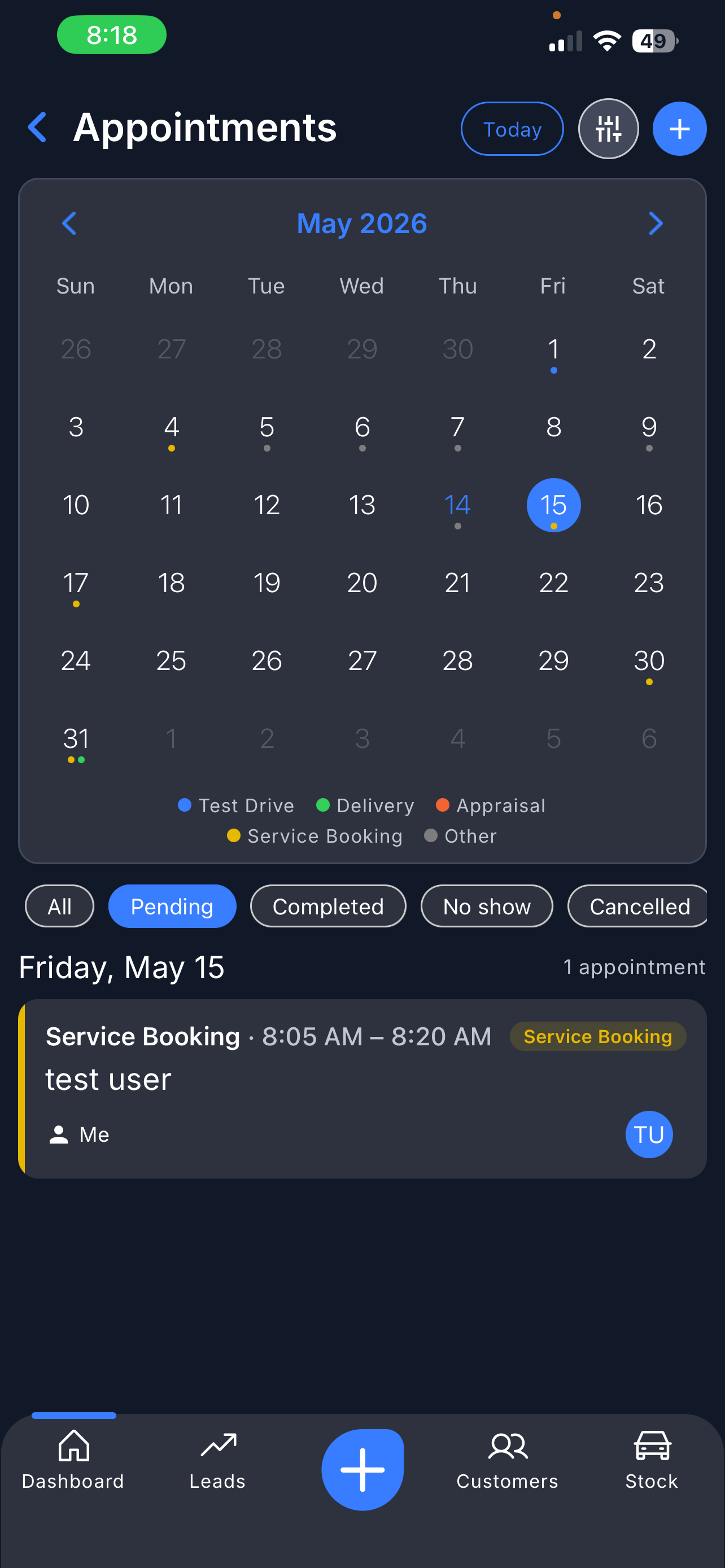
The Appointment Calendar displays appointments in a calendar format with colour indicators for different appointment types.
Appointment types may include:
- Blue - Test Drive
- Green - Delivery
- Orange - Appraisal (valuation)
- Yellow - Service Booking
- Grey - Other
You can:
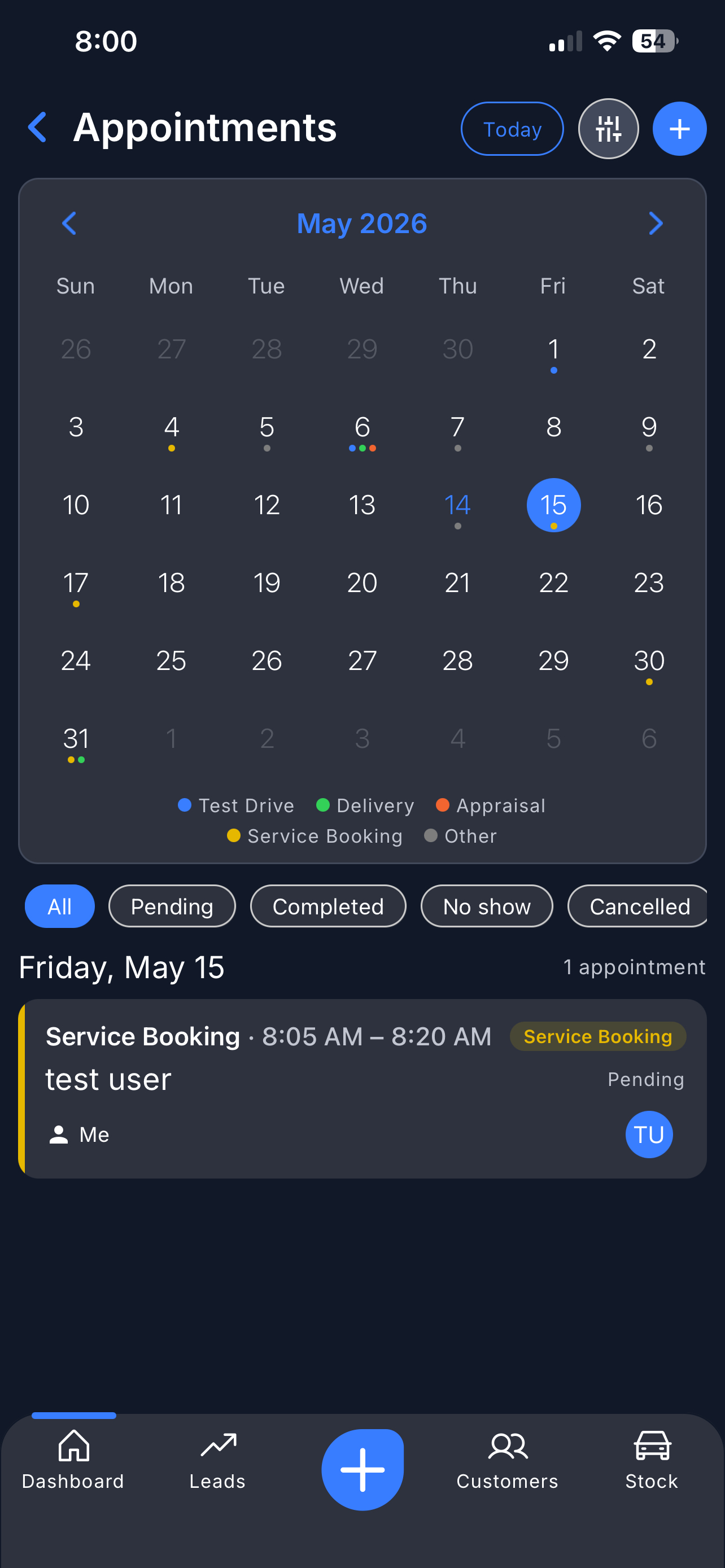
- Tap a specific date to view appointments scheduled for that day
- Scroll through upcoming or previous months
- Use the filter options to display:
- All
- Pending
- Completed
- No Show
- Cancelled
- Interest registered
This helps your team quickly organise and track appointment activity.
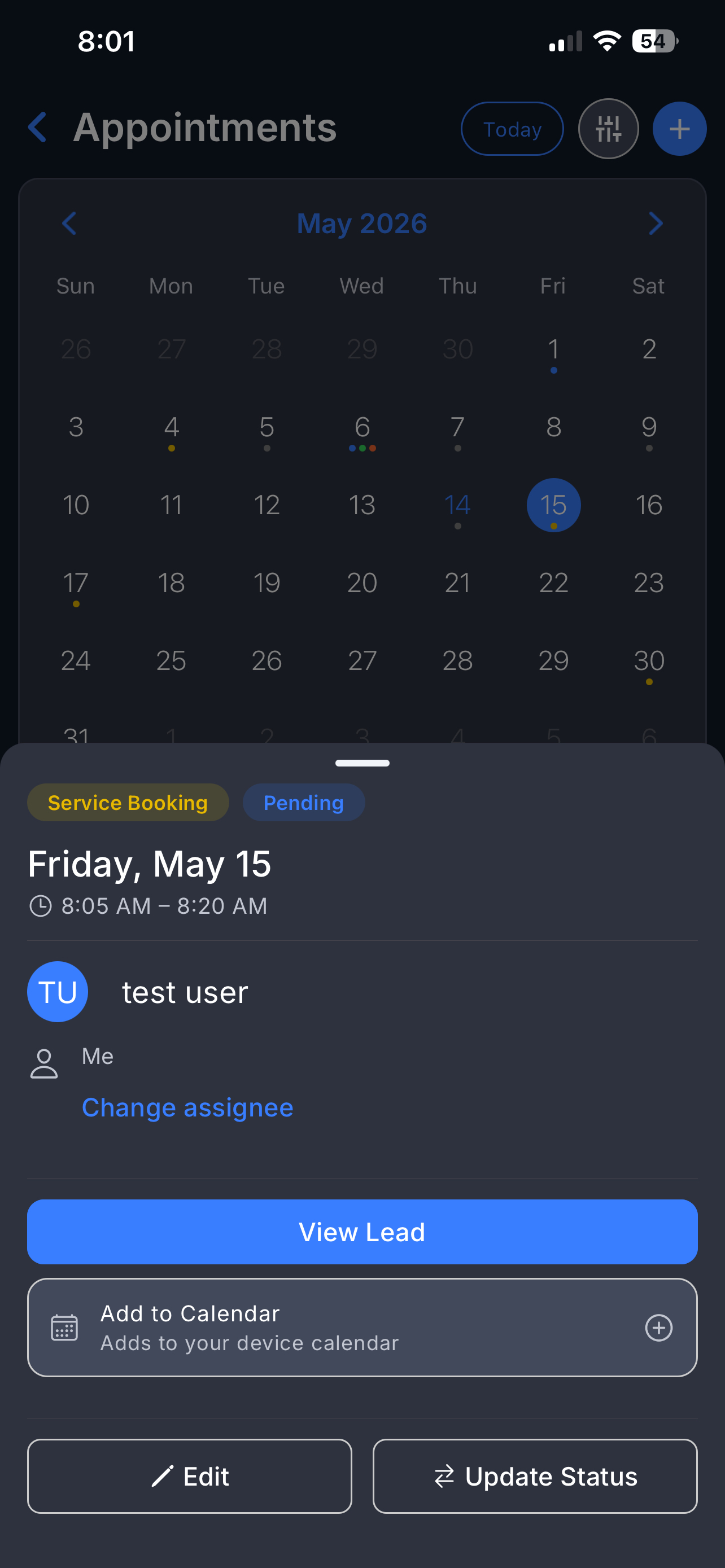
Step 3: Manage Appointment Details
Selecting an appointment will open the appointment details panel.
From here, you can:
- View the customer and appointment details
- Open the associated lead
- Change the assignee
- Add the appointment to your device calendar
- Edit the appointment
- Delete the appointment
This makes it easier to manage customer bookings directly from the app.
Step 4: Create New Appointments
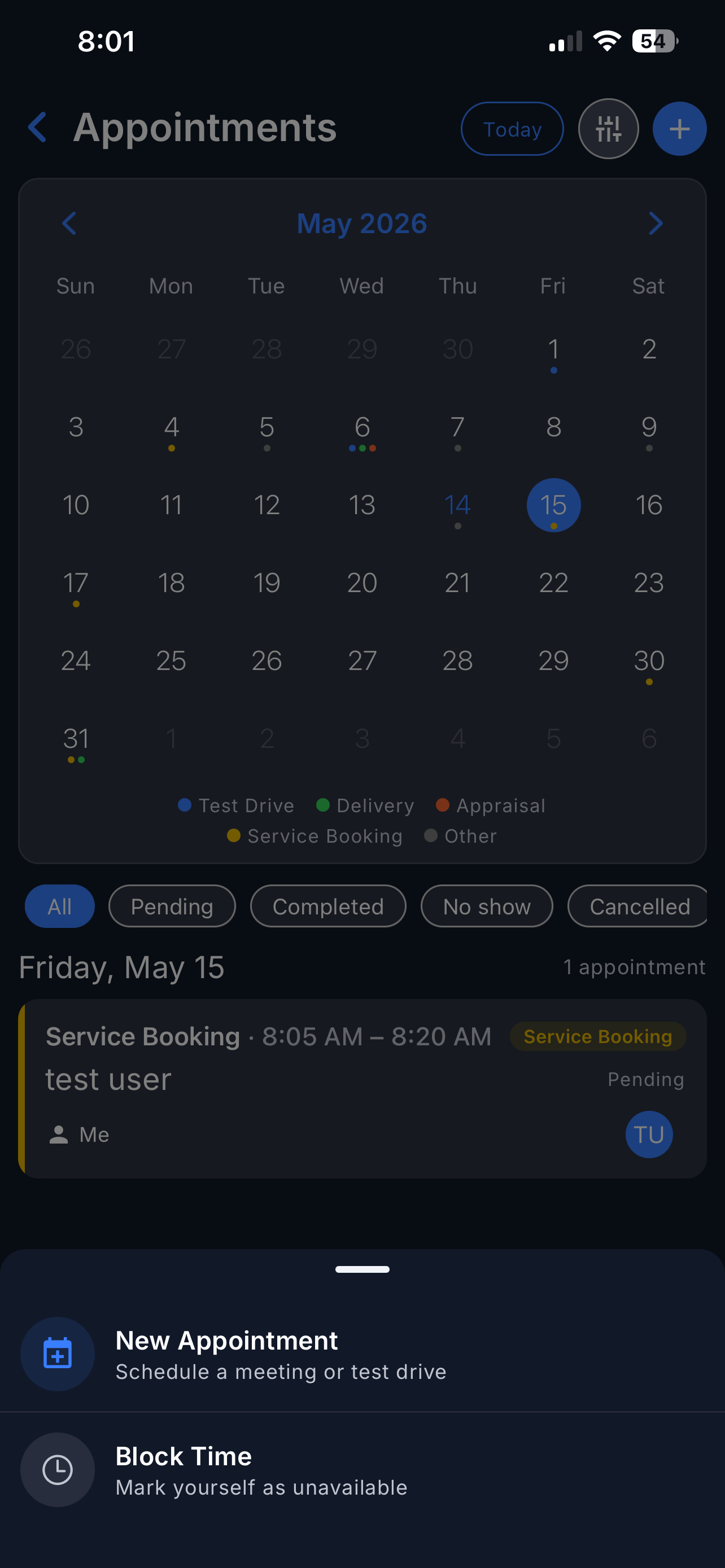
To create a new appointment:
- Tap the + button in the top-right corner of the Appointment Calendar.
- Complete the appointment form as prompted.
- Save the appointment.
The appointment will then appear in the calendar view.
Today’s Pending Appointments on Dashboard
The mobile app Dashboard now surfaces today’s pending appointments automatically.
This allows users to quickly:
- See upcoming appointments
- Open related leads
- Access appointment actions faster
Tapping a pending appointment from the Dashboard will open the appointment details directly.
Important notes
Appointment colours help identify appointment types quickly within the calendar view.
- Blue - Test Drive
- Green - Delivery
- Orange - Appraisal (valuation)
- Yellow - Service Booking
- Grey - Other
Use the filter options to display:
- All
- Pending
- Completed
- No Show
- Cancelled
- Interest registered
Changes made to appointments in the calendar are reflected instantly throughout the Dealer Studio mobile app.
Video
Was this article helpful?
That’s Great!
Thank you for your feedback
Sorry! We couldn't be helpful
Thank you for your feedback
Feedback sent
We appreciate your effort and will try to fix the article