Overview
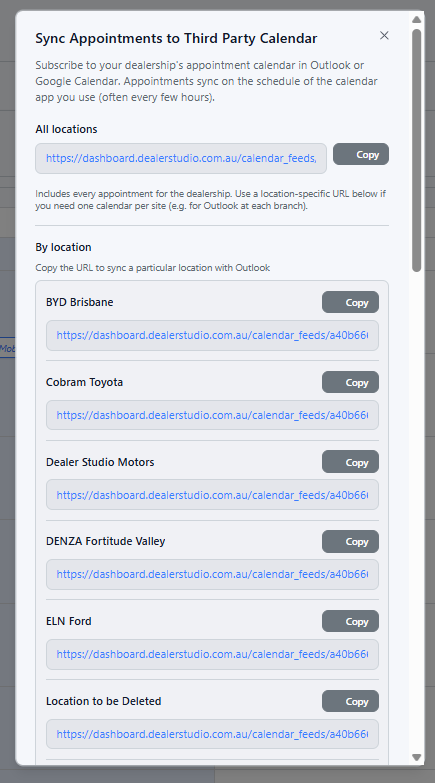
Dealer Studio generates a live calendar feed for each of your locations. These feeds update automatically as appointments are booked, rescheduled, or cancelled, so your external calendar always reflects the latest information.
You can subscribe to either:
- A combined feed covering all locations
- A feed for a specific location
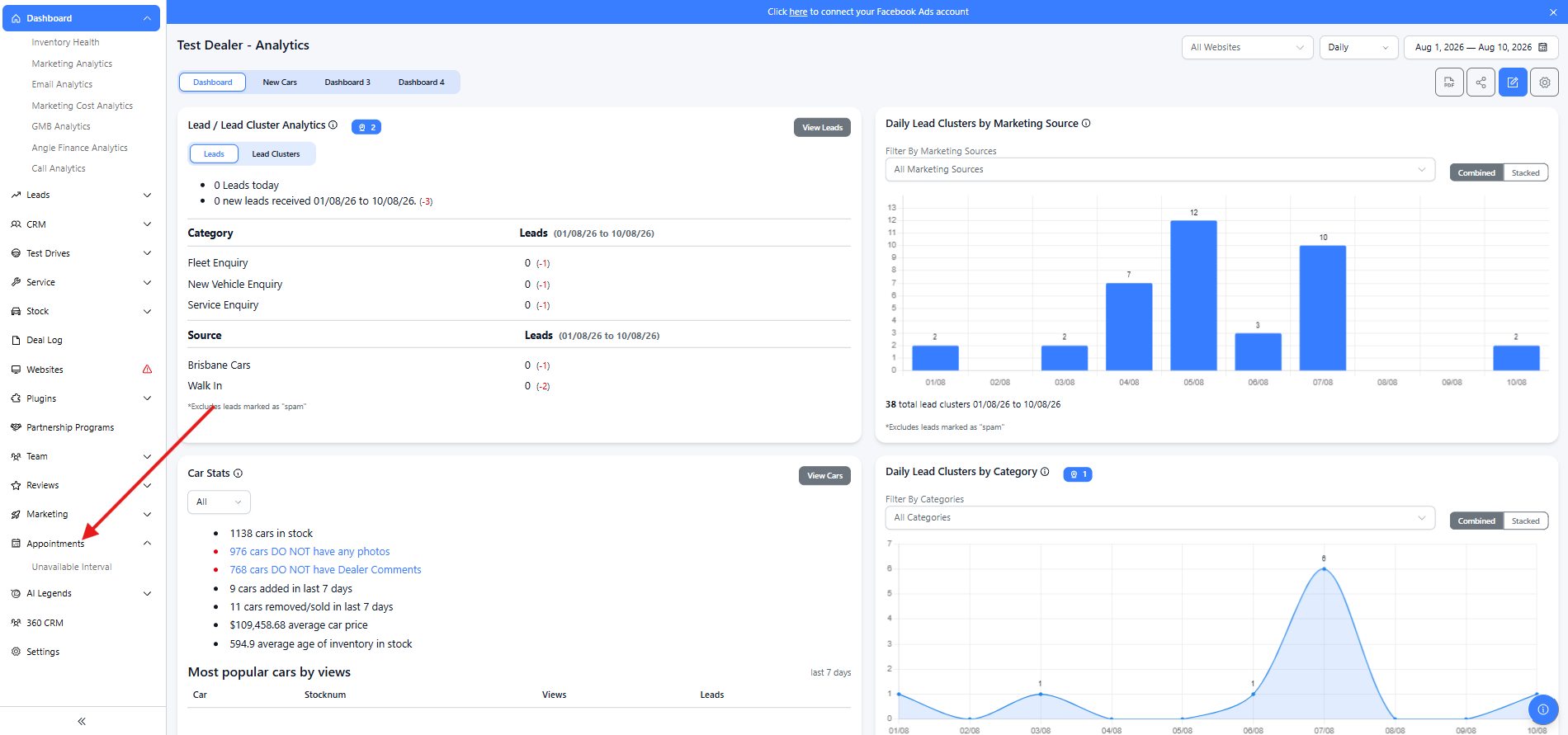
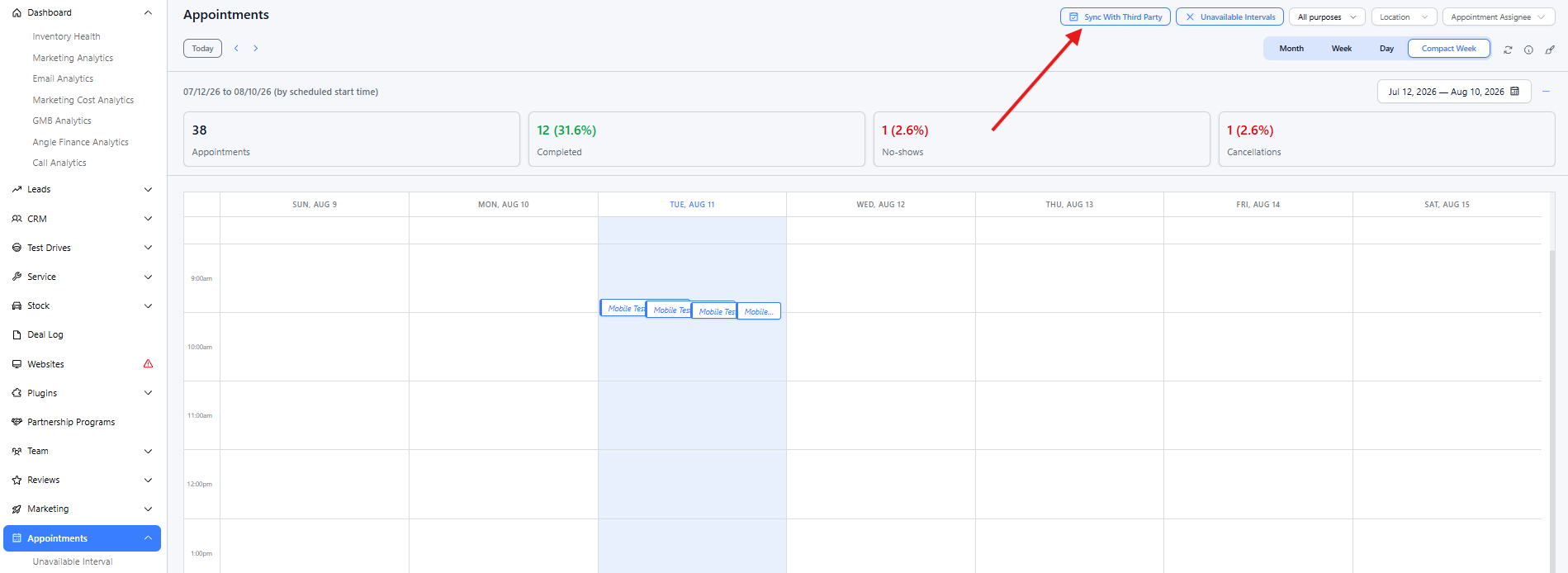
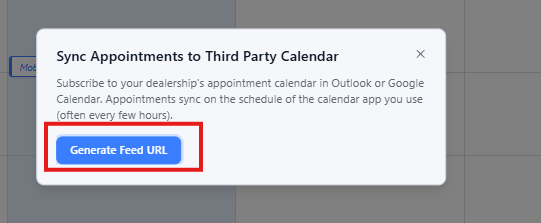
To find your feed URLs, go to Appointments > Calendar Sync > Generate Feed URL > Copy URL based on preference.
Setting Up with Outlook
Outlook Desktop (Windows/Mac)
- Open Outlook and go to the Calendar view.
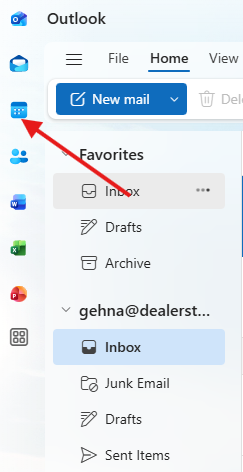
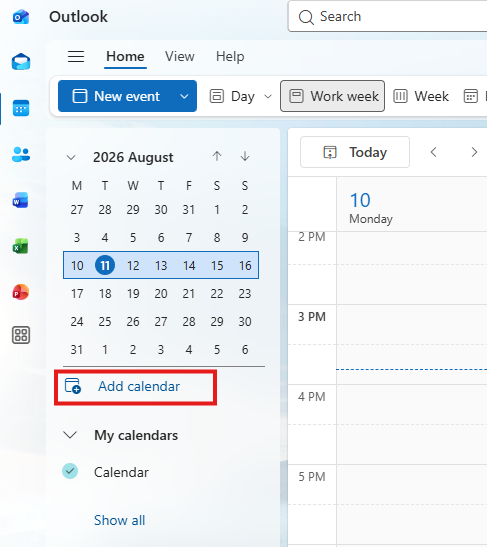
- In the Home tab, click Add Calendar, then select Subscribe from web
- Paste your Dealer Studio calendar feed URL and click OK.
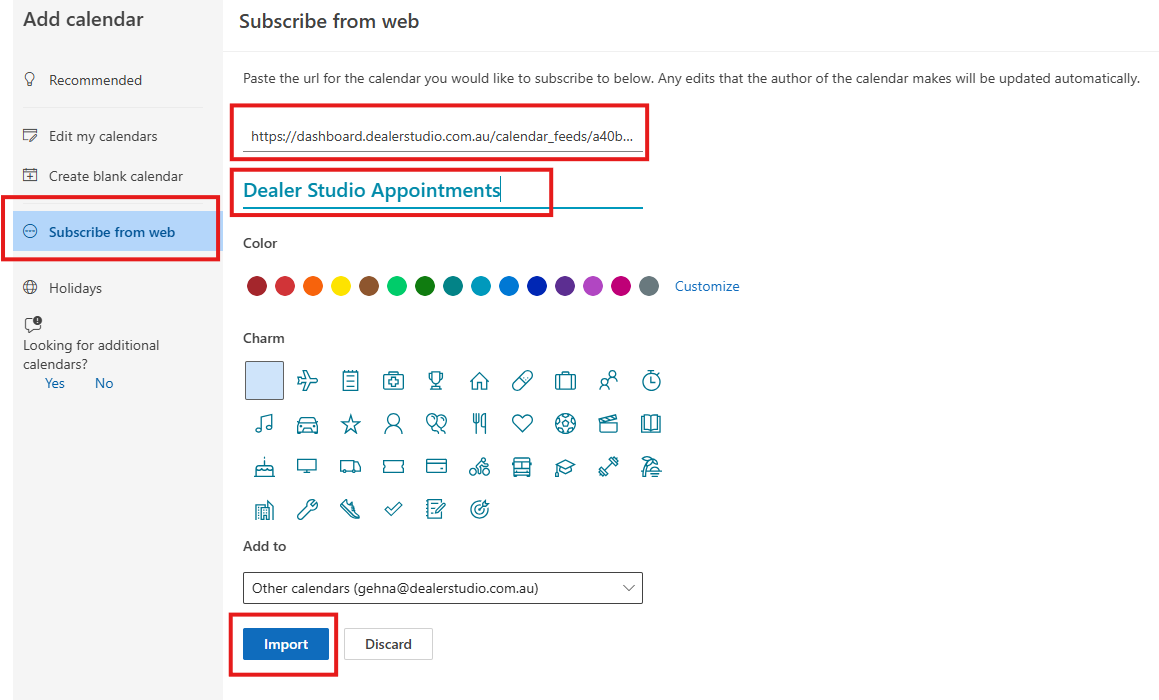
- Give the calendar a name (e.g. "Dealer Studio Appointments") and click OK.
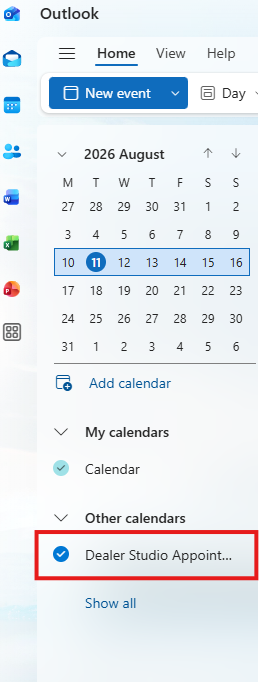
The calendar will appear in your Outlook sidebar under Other Calendars.
Outlook Web (outlook.com / Microsoft 365)
- Open Outlook Web and go to Calendar.
- In the left sidebar, click Add calendar.
- Select Subscribe from web.
- Paste your Dealer Studio calendar feed URL.
- Give it a name and choose a colour, then click Import.
Outlook Mobile (iOS / Android)
Outlook Mobile syncs through your connected Microsoft or Exchange account. The easiest approach is to add the calendar via Outlook Web or Desktop first. Once added to your account, it will sync automatically to the mobile app.
If you need to add it directly on mobile:
- Open Outlook Mobile and tap the calendar icon at the bottom.
- Tap the menu icon (top left), then scroll down and tap Add Calendar.
- Select Add from URL and paste your feed URL.
Setting Up with Google Calendar
Google Calendar Desktop (Web)
- Open Google Calendar in your browser.
- In the left sidebar, click the + next to Other calendars.
- Select From URL.
- Paste your Dealer Studio calendar feed URL and click Add calendar.
The calendar will appear under Other calendars in the sidebar.
Google Calendar on Android
Google Calendar on Android syncs from your Google account. Add the calendar via the web (above) first, and it will appear automatically in the Android app within a few minutes.
Note: Google Calendar for Android does not currently support adding subscribed calendars directly from the app. You must use the web interface.
Google Calendar on iOS
- On your iPhone or iPad, go to Settings > Calendar > Accounts > Add Account > Other.
- Tap Add Subscribed Calendar.
- Paste your Dealer Studio calendar feed URL and tap Next.
- Confirm the details and tap Save.
The calendar will appear in your iOS Calendar app and in Google Calendar if your Google account is also connected.
Tips
- Refresh timing: External calendars do not refresh in real time. Outlook typically refreshes every few hours; Google Calendar can take up to 24 hours to reflect changes. For the most up-to-date view, log in directly to Dealer Studio.
- Location-specific feeds: If you manage multiple locations, use individual location feeds rather than the combined feed to keep each team's calendar separate and easier to manage.
- Feed URL security: Your calendar feed URLs contain a unique token. Do not share them publicly. If a URL is compromised, contact Dealer Studio support to reset it.
Was this article helpful?
That’s Great!
Thank you for your feedback
Sorry! We couldn't be helpful
Thank you for your feedback
Feedback sent
We appreciate your effort and will try to fix the article