This article explains how to create a lead report to track and analyse customer enquiries. It covers what information is included in a lead report, how to generate one, and how to use the data to measure performance, identify trends, and improve follow-up processes. The guide is designed to help teams better understand lead sources, statuses, and conversion outcomes.
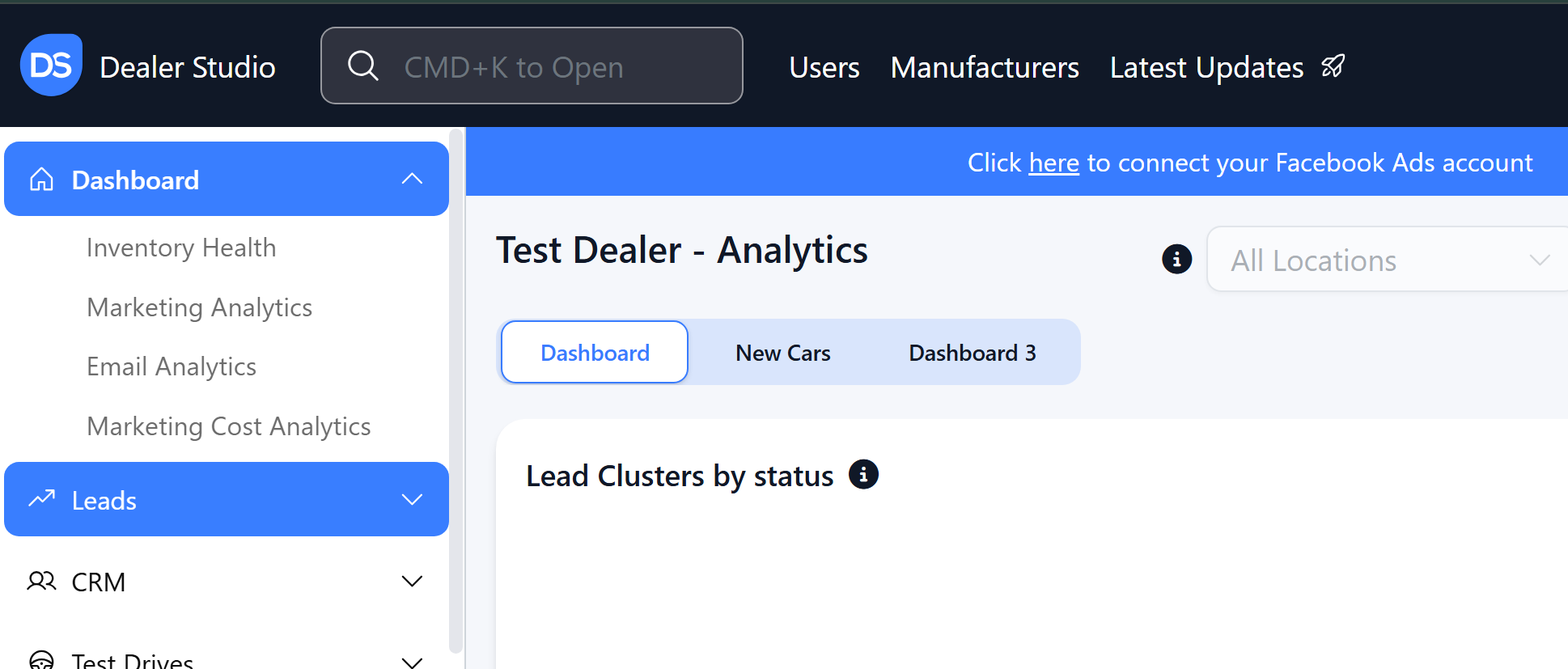
Step 1: On the Dealership Dashboard, select Leads on the Left-hand menu
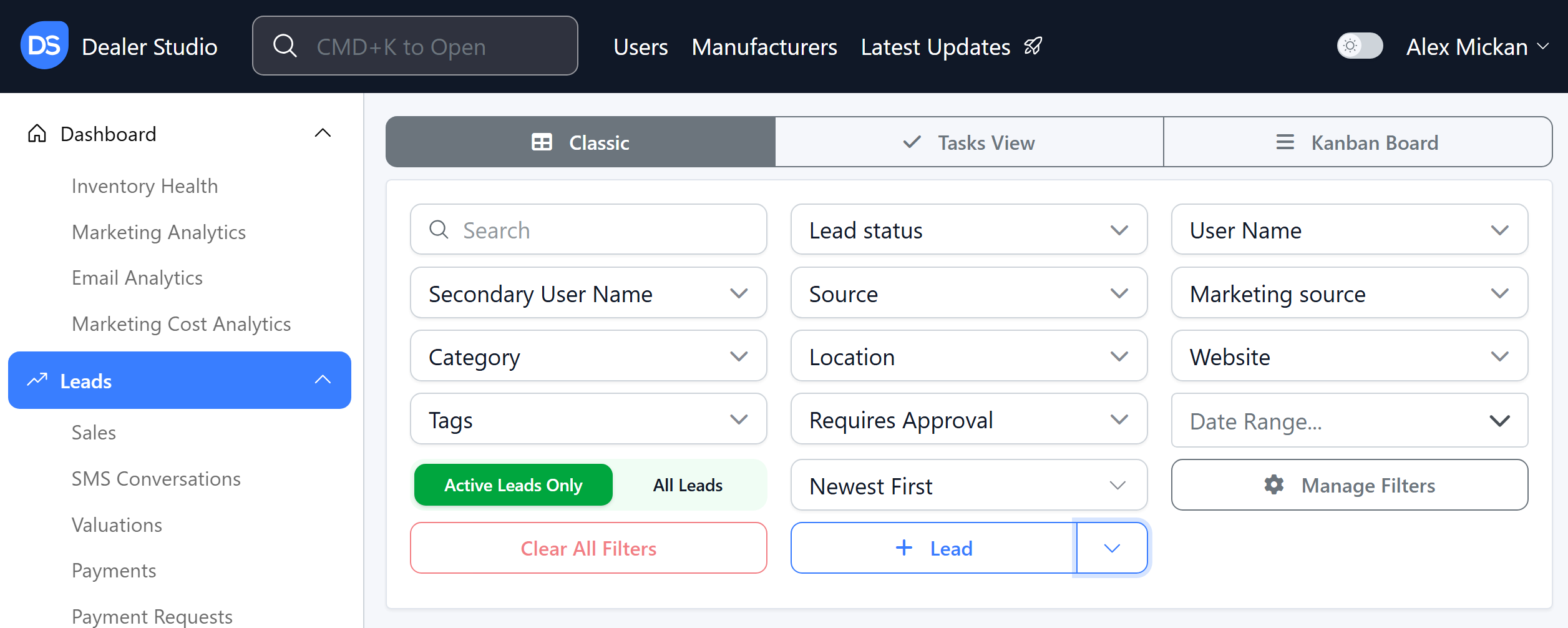
Step 2. Enter the filters here of date range, categories, assigned sales person etc;
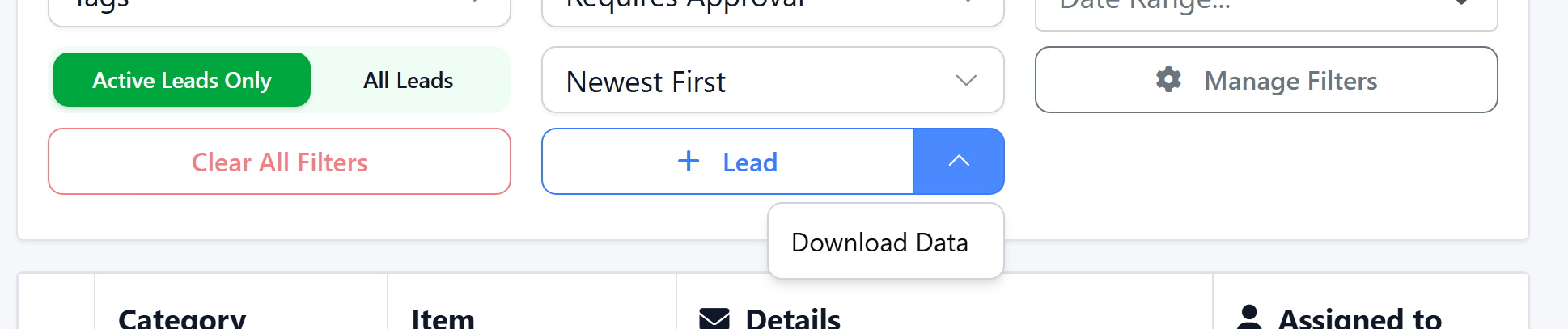
Step 3: Click ‘Download Data’:
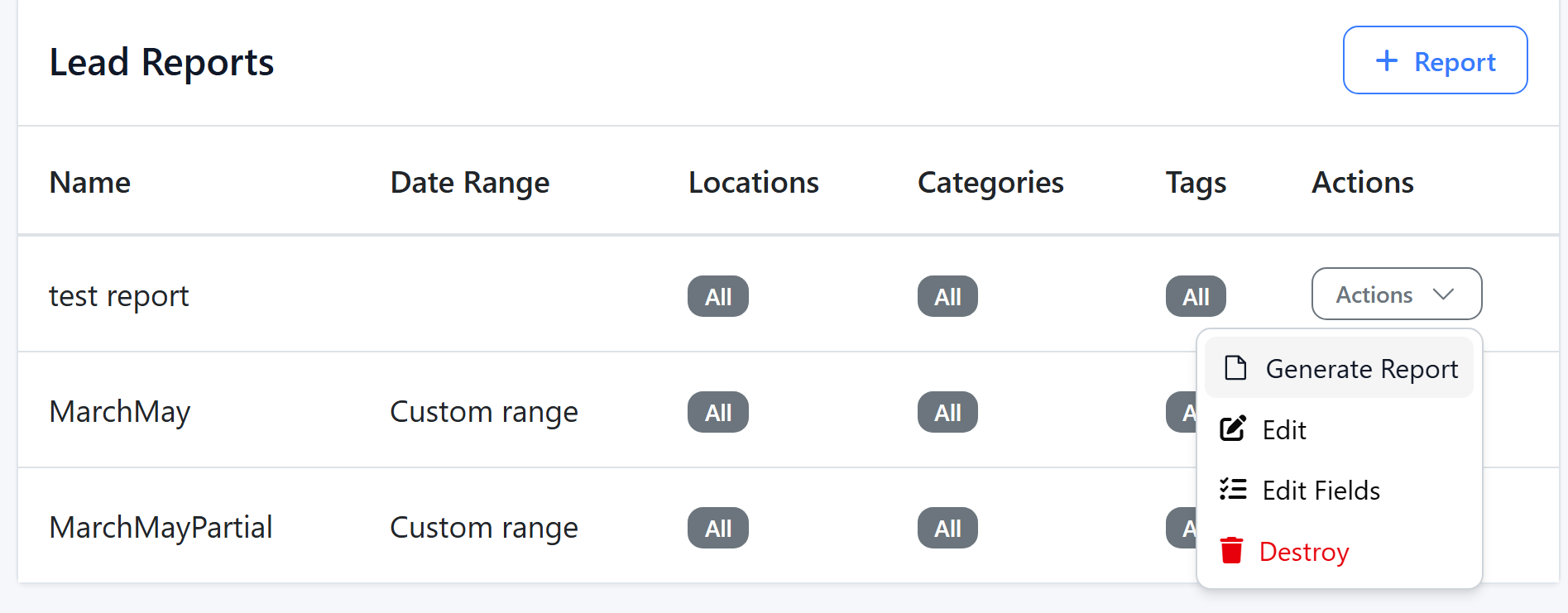
You will then be taken to this page where you can check on progress; /dealerships/[Dealership-Slug]/lead_clusters/reports

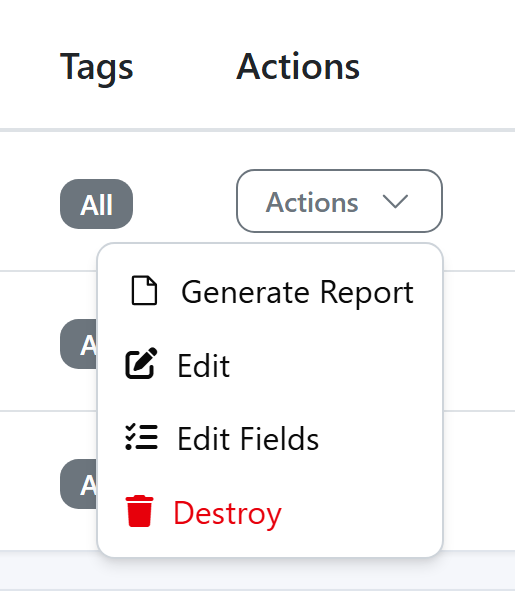
Step 4. You can then click Actions > Generate Report
Alternate Way of Generating the Report
Step 1: Click ‘Download Data’ from the leads page like before,
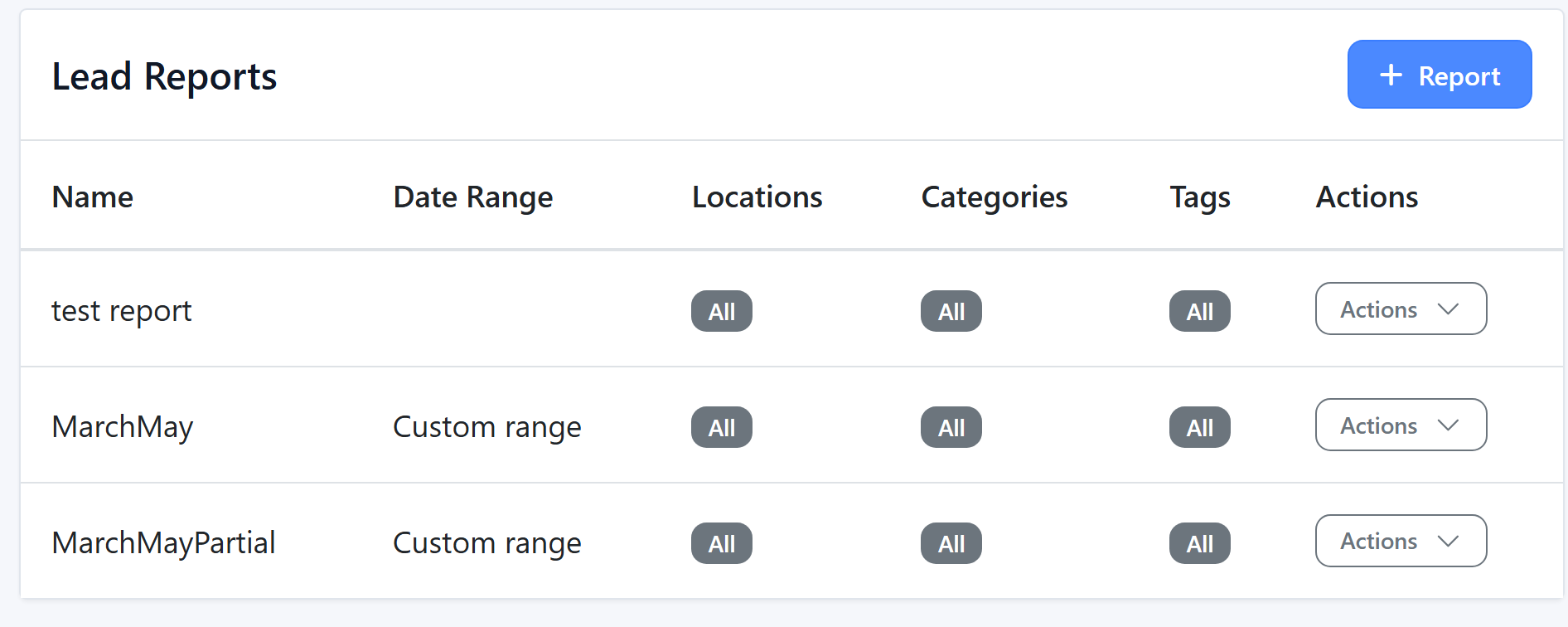
You will then be taken to this page where you can create custom reports; /dealerships/[Dealership-Slug]/lead_clusters/reports
Step 2: Go to ' + Report'
Step 3: You can then filter as needed;
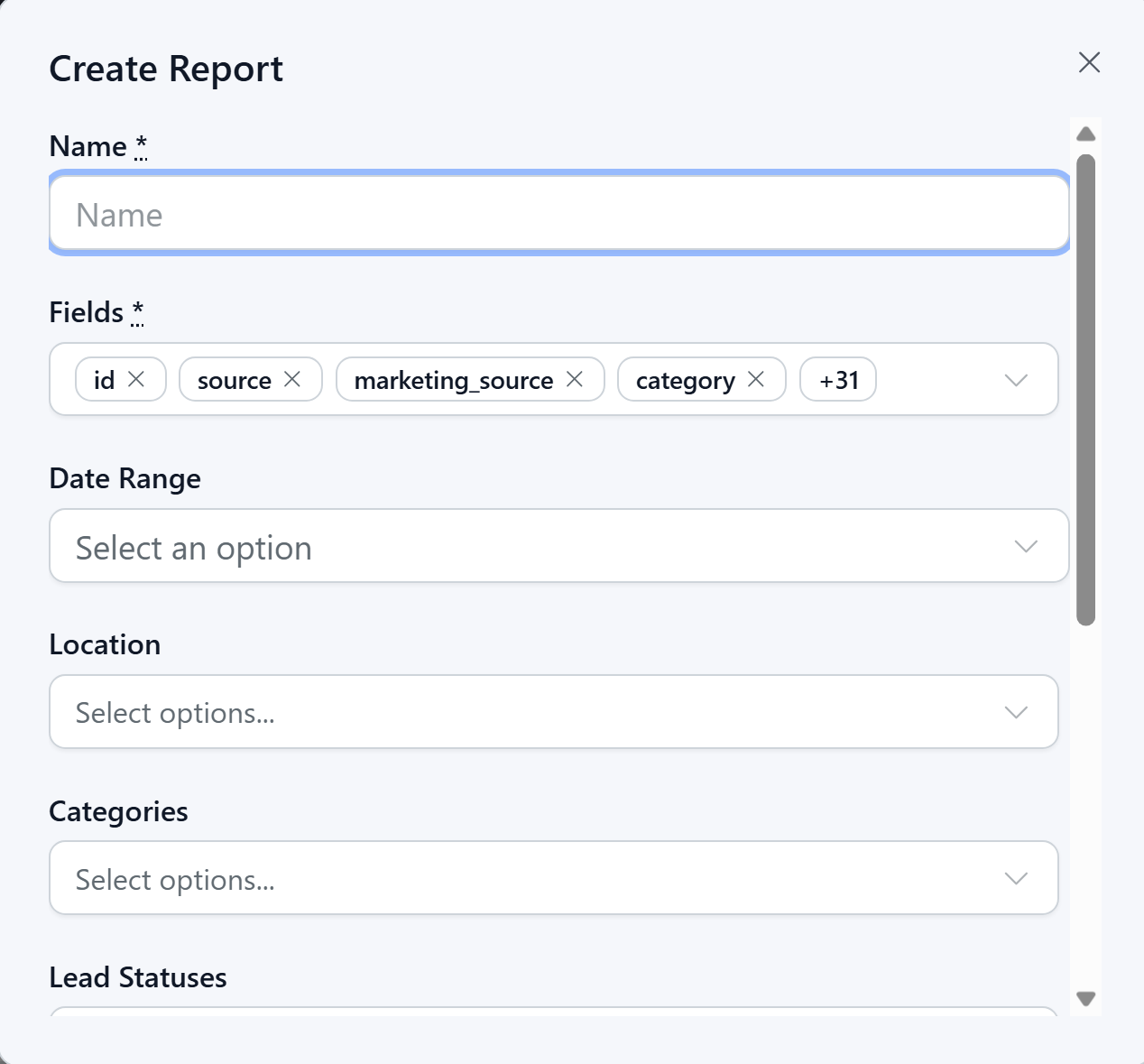
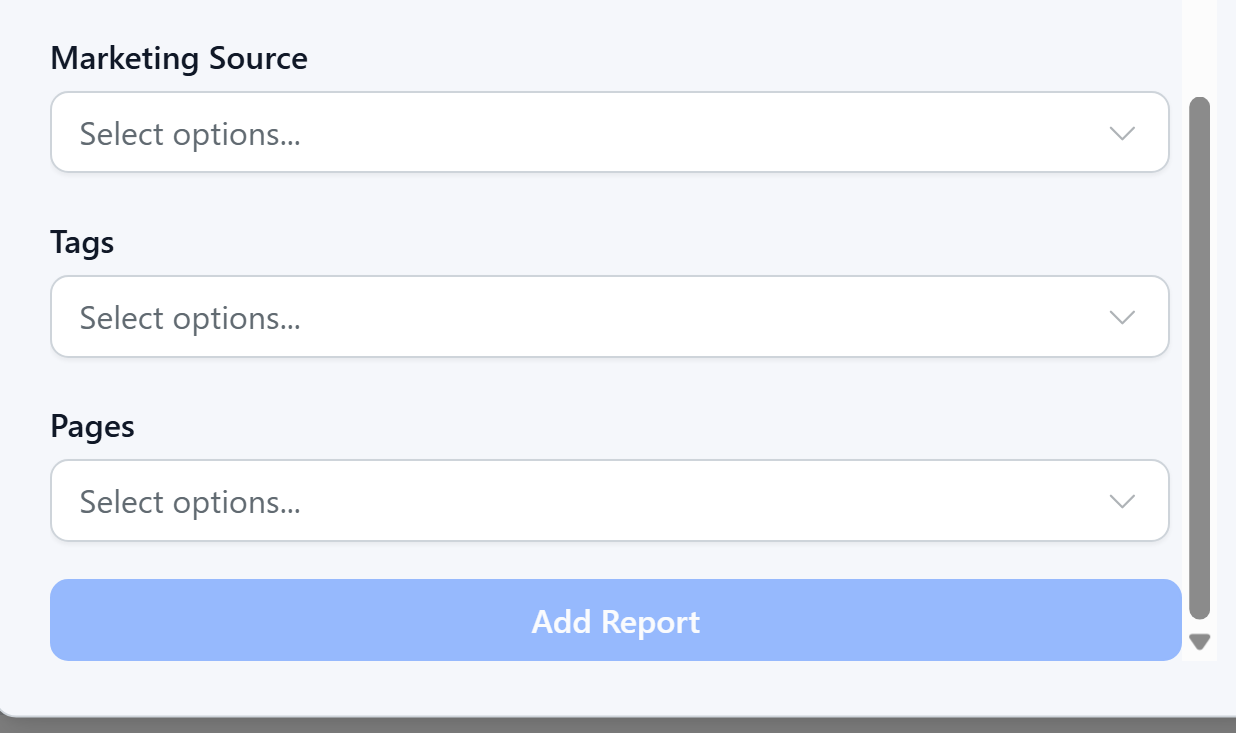
Step 4: Once you are happy with the filters, please click 'Add' Report
Step 5: Then from there, please click the arrow and 'Generate Report'
Was this article helpful?
That’s Great!
Thank you for your feedback
Sorry! We couldn't be helpful
Thank you for your feedback
Feedback sent
We appreciate your effort and will try to fix the article