Creating SMS templates allows you to standardise your messaging, save time, and personalise communication using dynamic shortcodes. Once set up, templates can be quickly applied to leads when sending SMS messages.
Follow the steps below to create and use an SMS template in the dashboard.
Step 1: Access SMS Templates
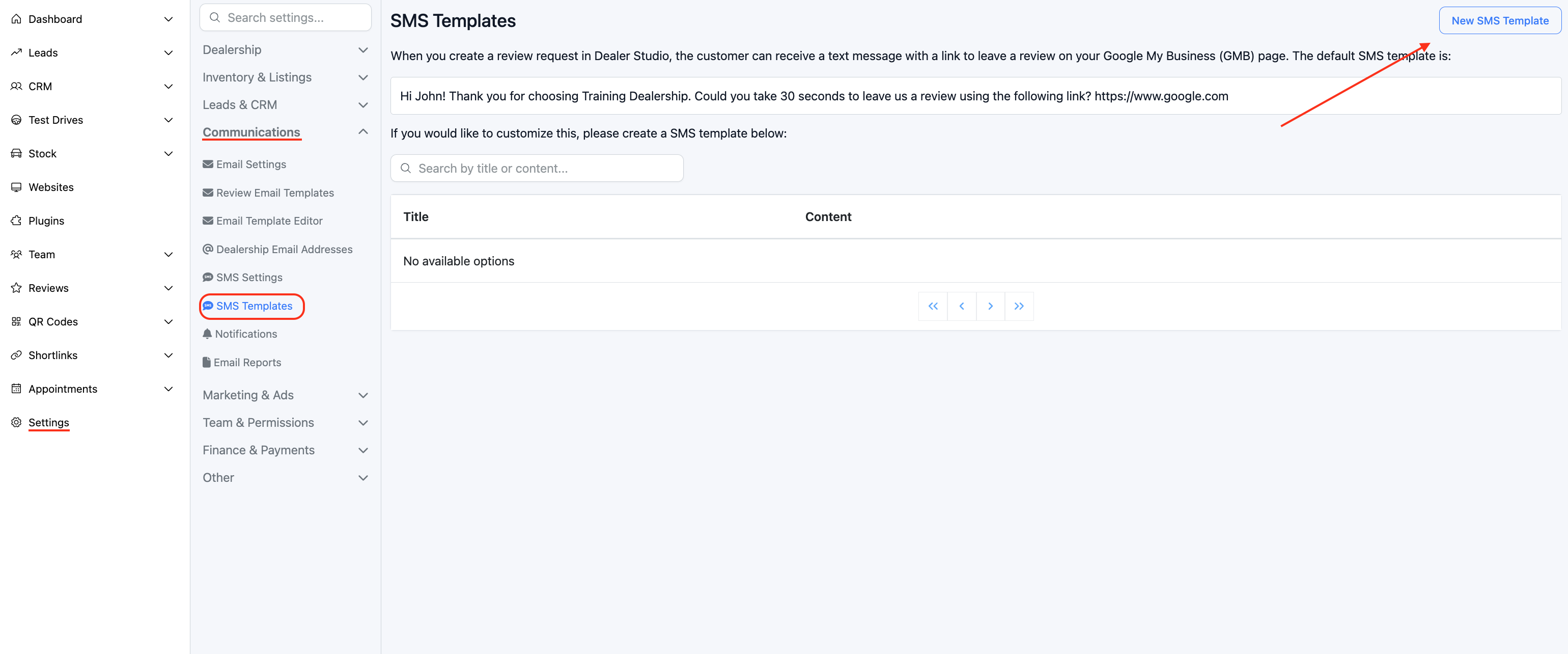
Log in to your dashboard and navigate to:
Settings > Communications > SMS Templates
This will open the SMS template management screen where you can view existing templates or create a new one.
Click New SMS Template to begin.
Step 2: Create Your SMS Template
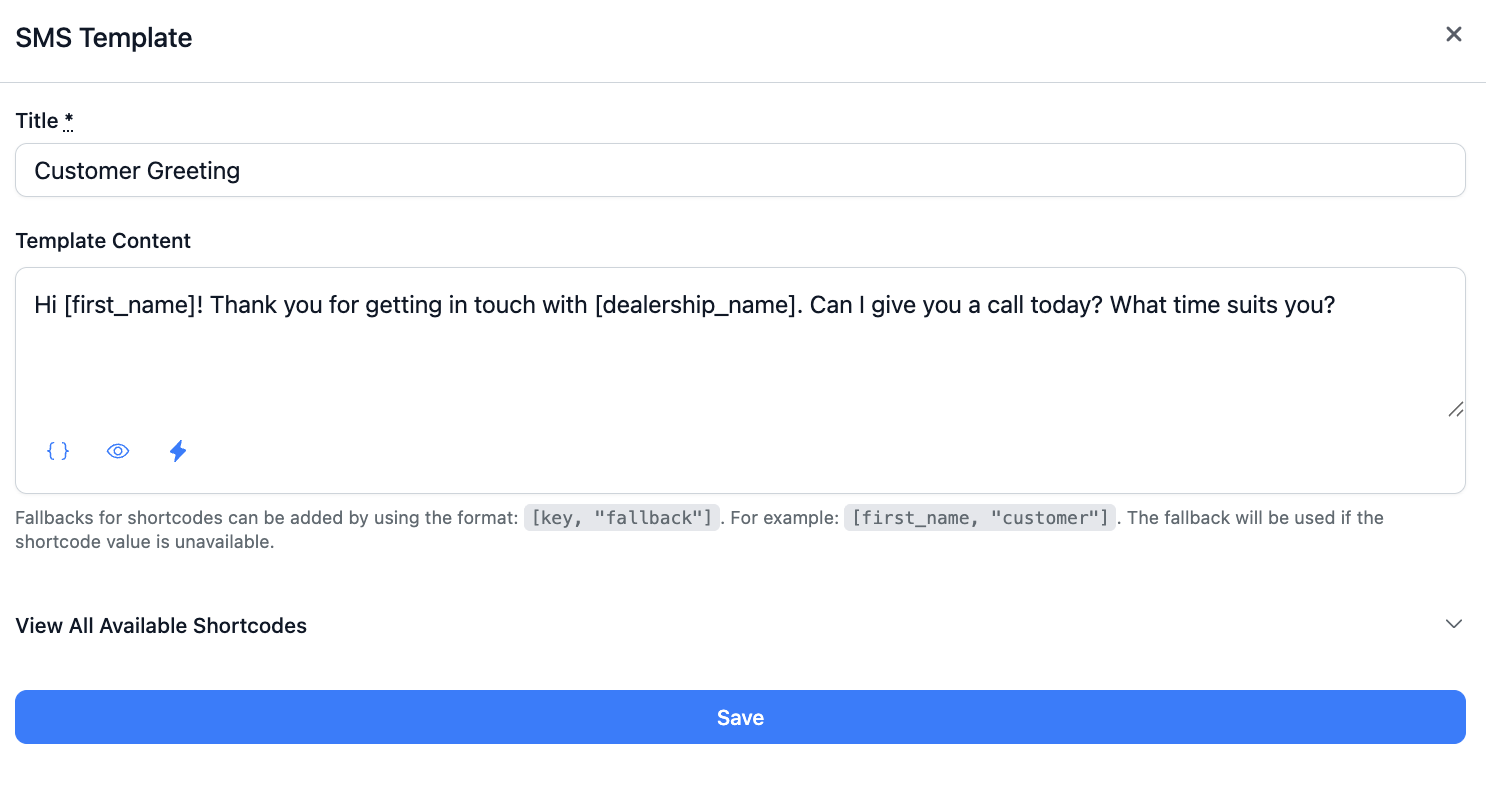
First, enter a clear and recognisable name for your template.
For example: Customer Greeting
Next, type your SMS message content into the template editor.
Example:
Hi [first_name]! Thank you for getting in touch with [dealership_name]. Can I give you a call today? What time suits you?
Using Shortcodes
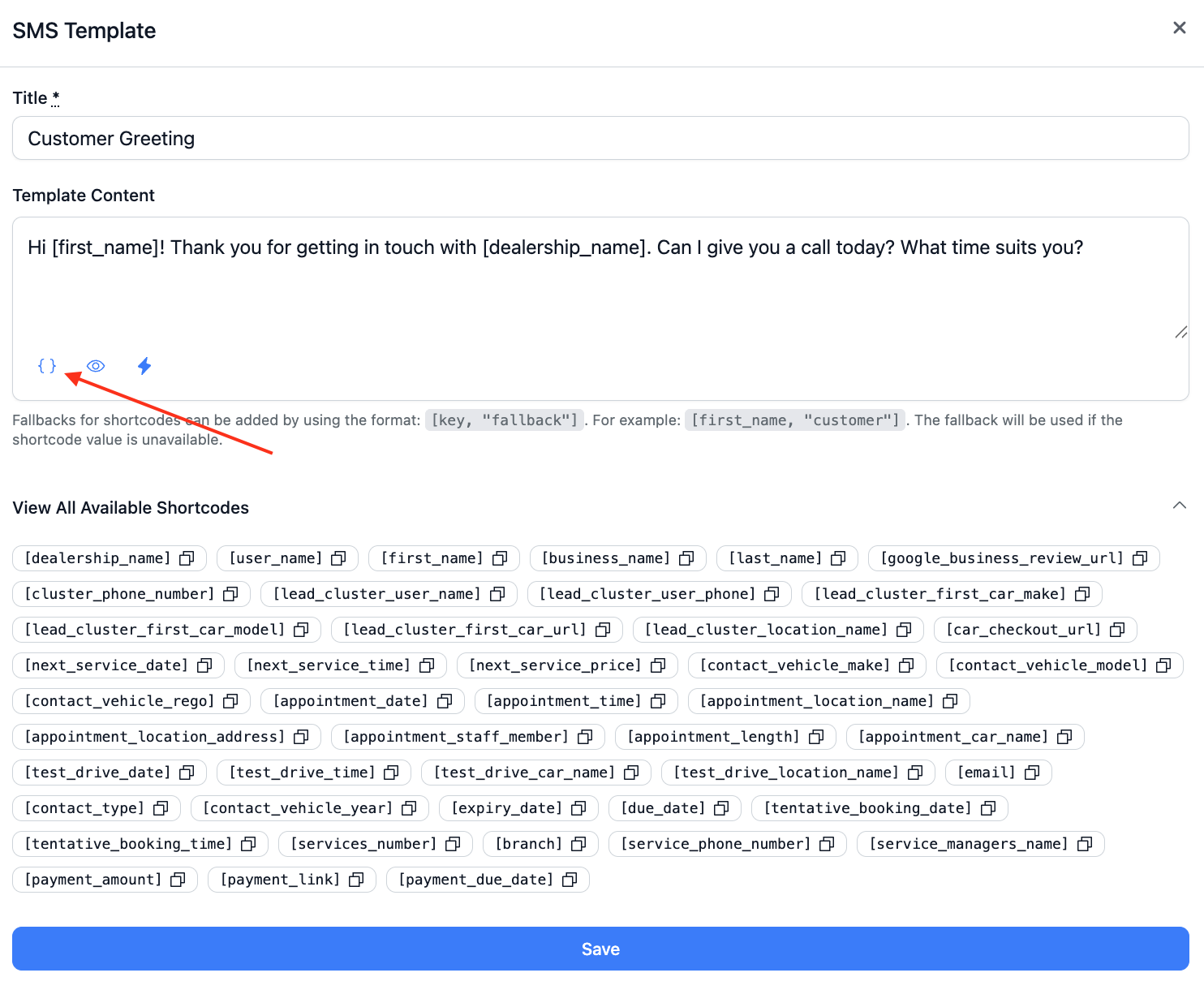
Shortcodes allow you to automatically insert dynamic information into your SMS messages.They are shown inside square brackets, for example:
[first_name]
[dealership_name]
When the SMS is sent, these placeholders are automatically replaced with the relevant contact or dealership data from the system.
You can view all available shortcodes within the SMS template screen (as shown in the shortcode panel). Simply copy and paste the required shortcode into your message.
They can also be inserted using the { } icon, here:
Adding Fallback Values
If a contact record does not contain data for a specific shortcode, you can define a fallback value.
Use the following format:
[key, "fallback"]
Example:
[first_name, "customer"]
If the contact’s first name is unavailable, the SMS will display “customer” instead.
Once your template content is complete, click Save.
Step 3: Apply the Template to an SMS
To use your template:
Open the relevant lead.
Navigate to the SMS Conversation tab > select SMS Templates.
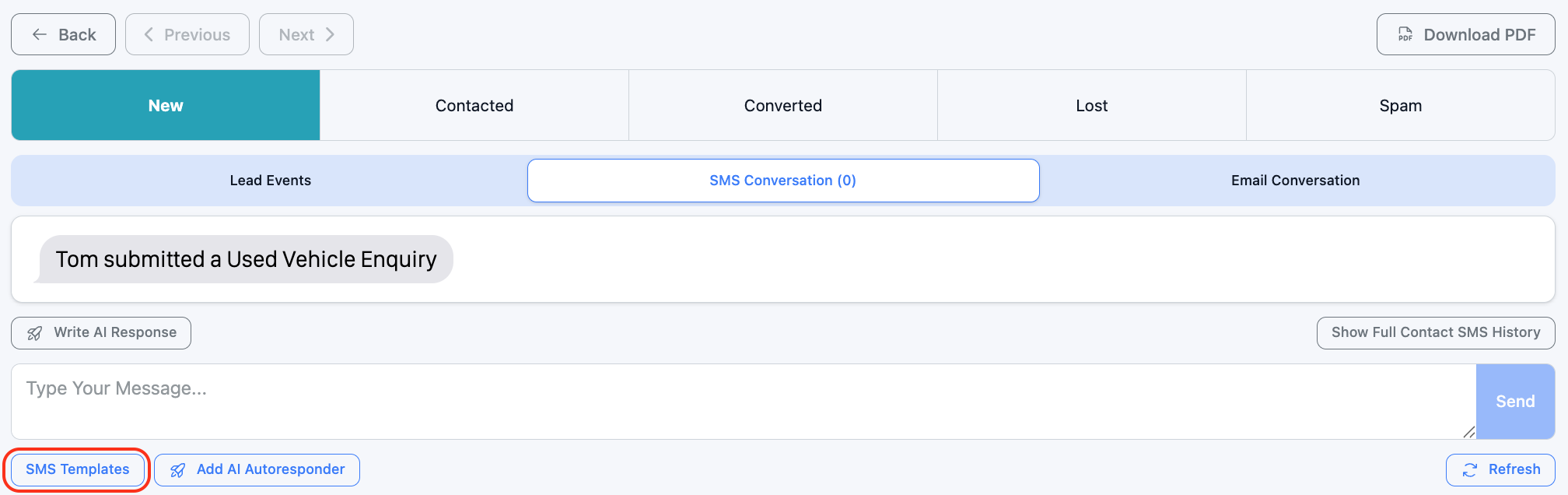
Choose the appropriate template from the list.
The message will populate automatically, including any shortcodes, and you can then send the SMS as usual.
Was this article helpful?
That’s Great!
Thank you for your feedback
Sorry! We couldn't be helpful
Thank you for your feedback
Feedback sent
We appreciate your effort and will try to fix the article