This article explains how to create and manage SMS templates in the Dealer Studio mobile app. SMS templates save time when messaging customers by allowing you to reuse pre-written message content. Note that each dealership has its own set of SMS templates, so settings are managed per dealership.
Instructions
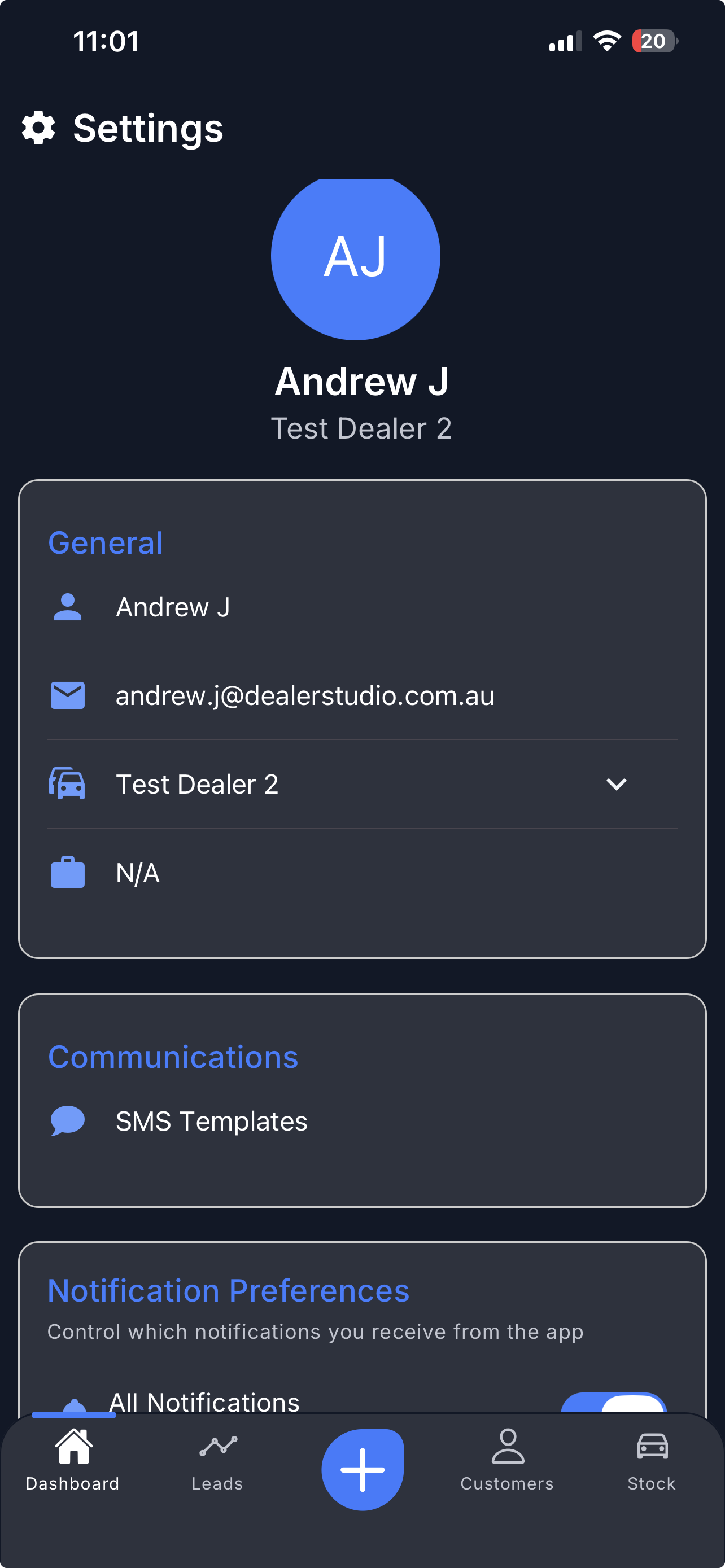
Step 1: Access Settings
- Login to the Dealer Studio mobile app.
- In the Dashboard, select your Dealership.
- At the top right corner of the screen, tap the gear icon to open Settings.
Important: Each dealership has its own respective settings. Make sure you have selected the correct dealership before making any changes to SMS templates.
Step 2: Navigate to SMS Templates
- In Settings, scroll down to the Communications section.
- Tap SMS Templates to open the template listing page.
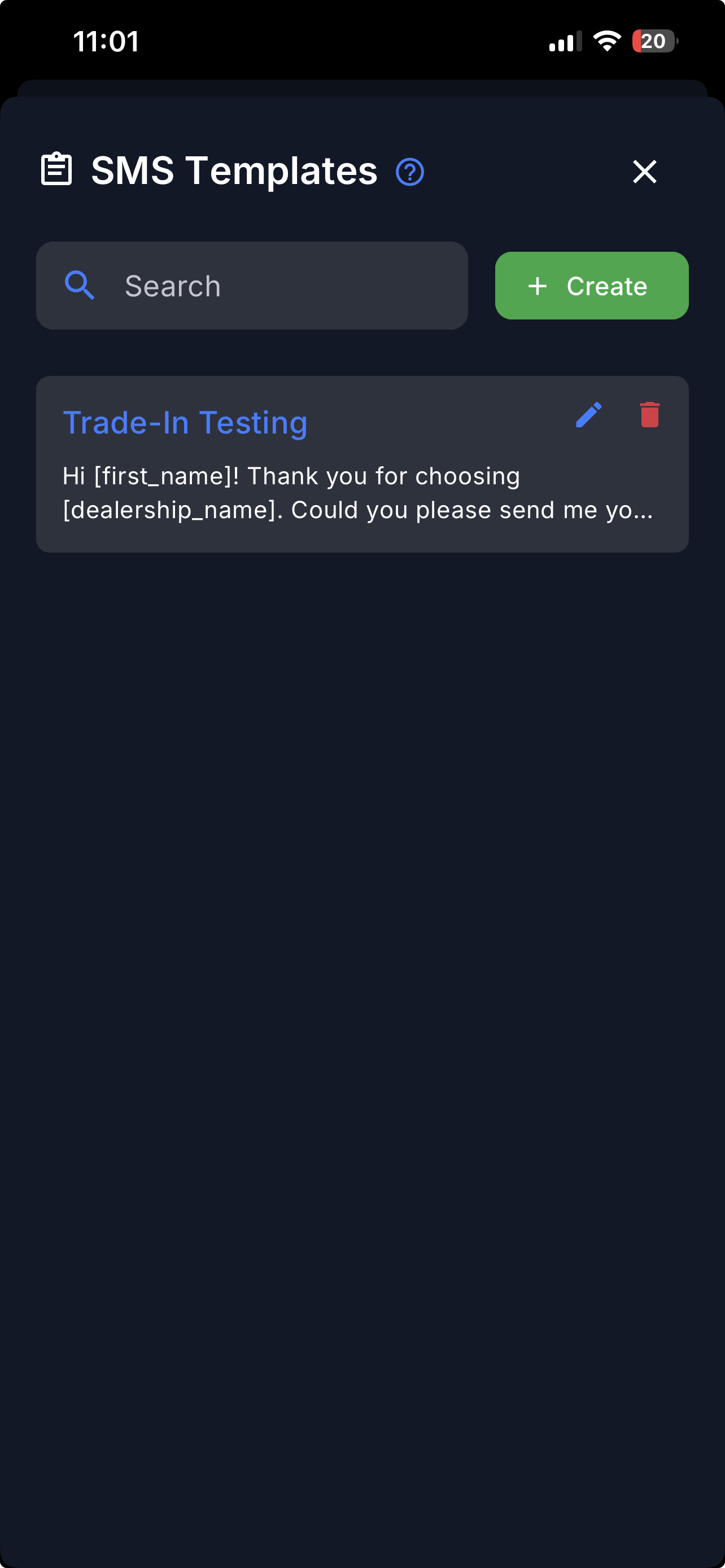
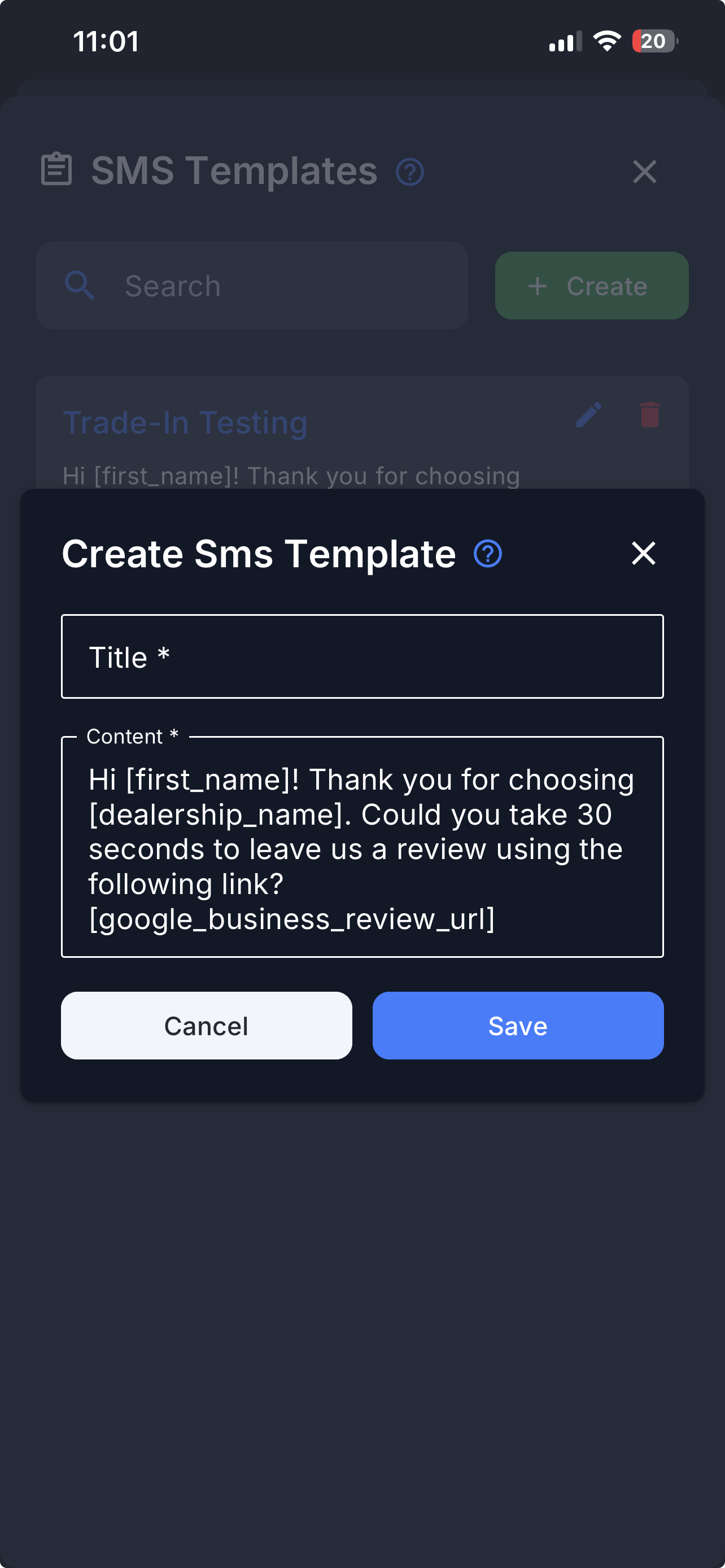
Step 3: Create a New SMS Template
- Tap + Create to begin creating a new template.
- Enter a Title for the template (used to identify it in the list).
- Enter the Content field with the message body you want to reuse.
- Tap Save when done.
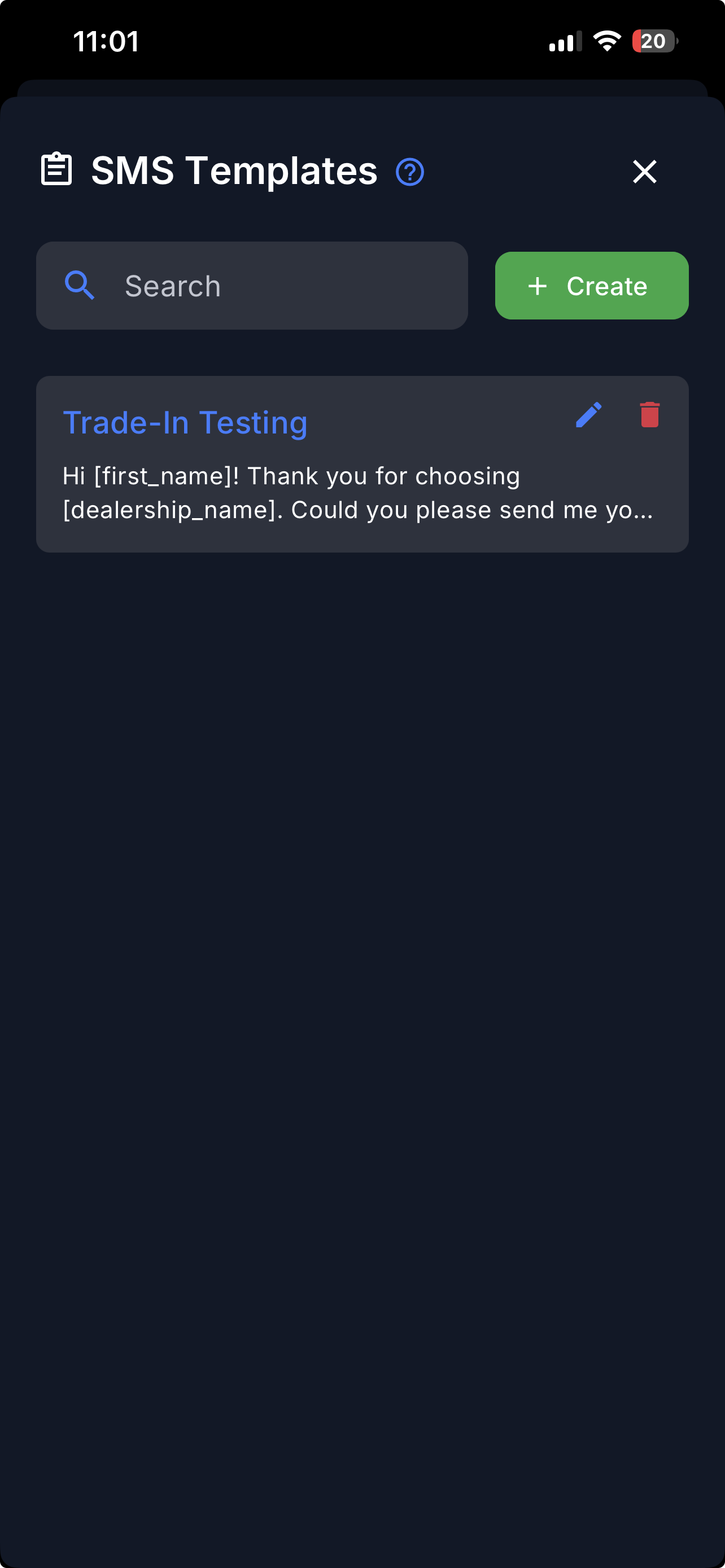
Step 4: Edit or Delete an SMS Template
From the SMS Templates listing page, you can manage your existing templates:
- Edit: Tap the pencil icon next to a template to update its title or content, then tap Save to apply changes.
- Delete: Tap the bin icon next to a template to permanently remove it.
That’s it! Your SMS templates are now ready to use. When messaging a customer in Dealer Studio, you can quickly select a template to populate your message instead of typing it from scratch.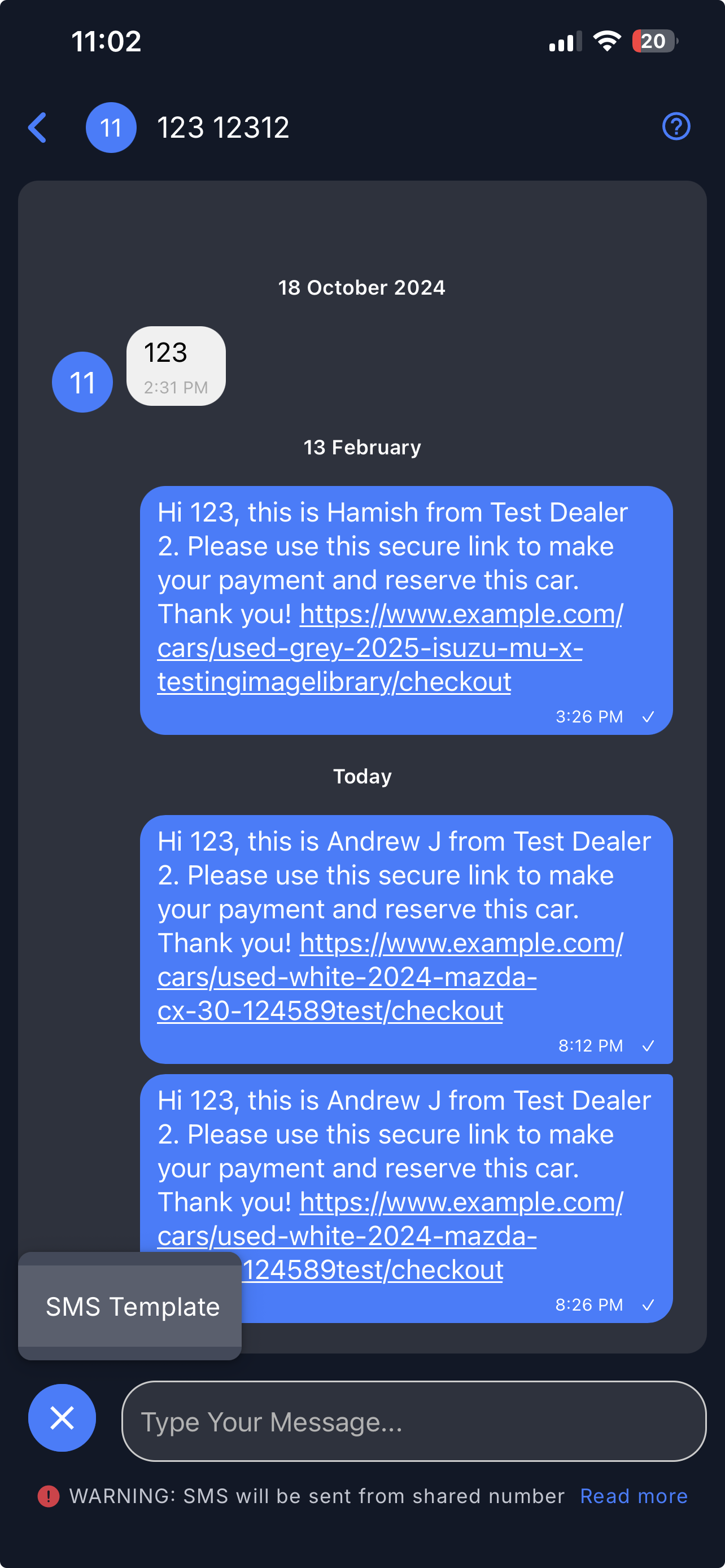
Related Article:
For more tips on messaging customers, please refer to How to SMS customers in DS Messages | Quick swipe actions on Lead (Mobile App)
Video
Please refer to the attachment below for a visual walkthrough of the steps.
Was this article helpful?
That’s Great!
Thank you for your feedback
Sorry! We couldn't be helpful
Thank you for your feedback
Feedback sent
We appreciate your effort and will try to fix the article