This article explains how to send a Payment Request to a customer using the Dealer Studio mobile app. Follow the steps below to locate a customer, send a payment request, and verify it was successfully delivered.
Instructions
Step 1: Access the Customer List
- Login to the Dealer Studio mobile app.
- In the Dashboard, select your Dealership.
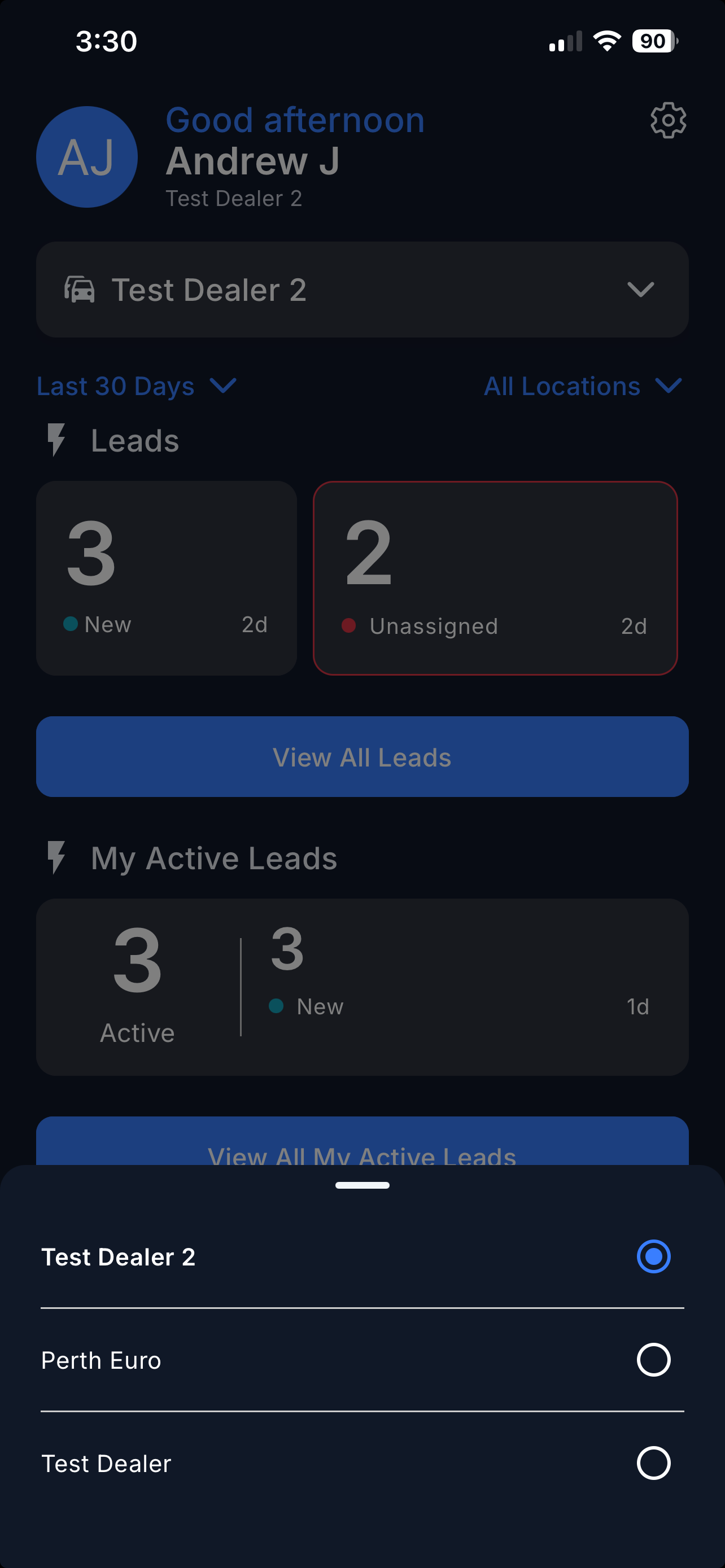
- At the bottom of the screen, tap Customers.
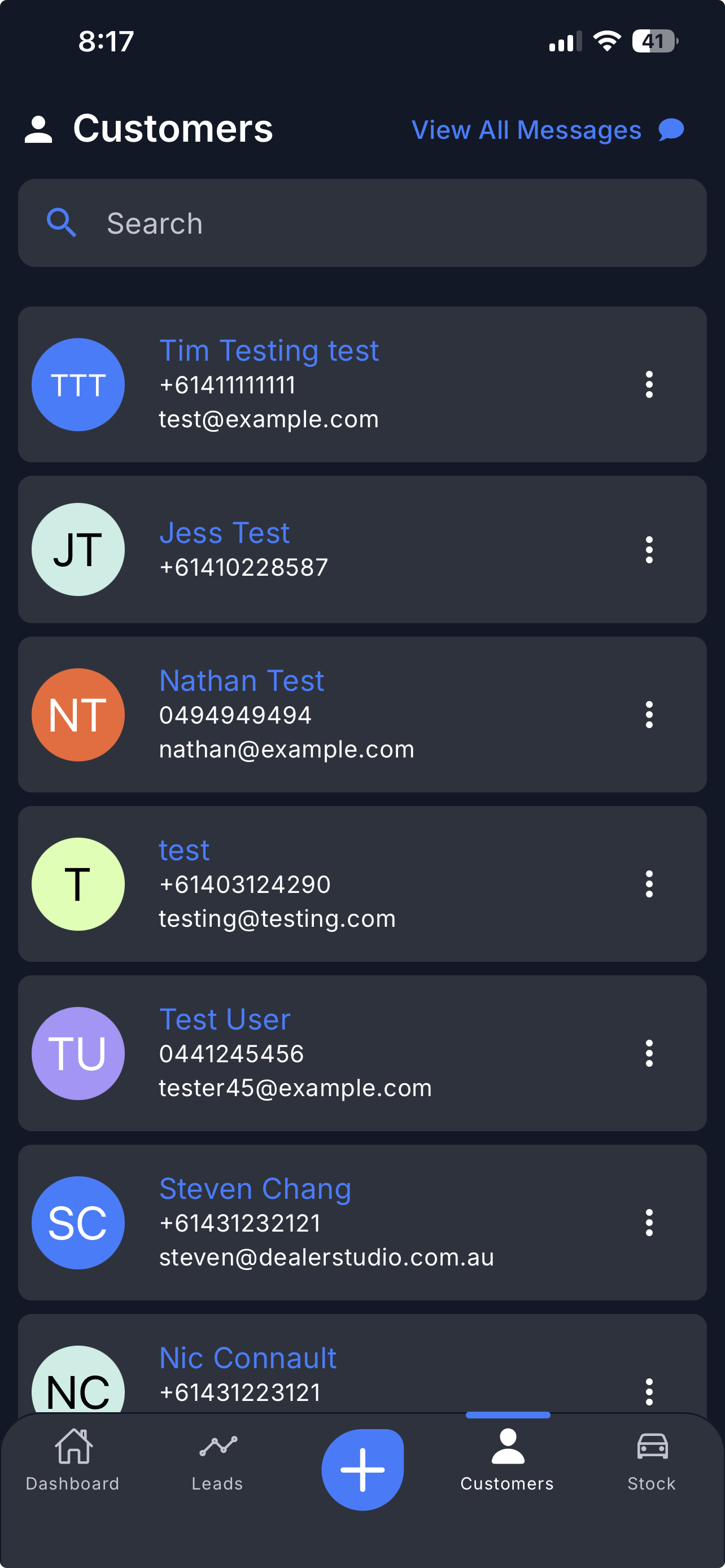
- Search for the customer you want to send the payment request to.
Step 2: Send the Payment Request
There are two ways to initiate a payment request:
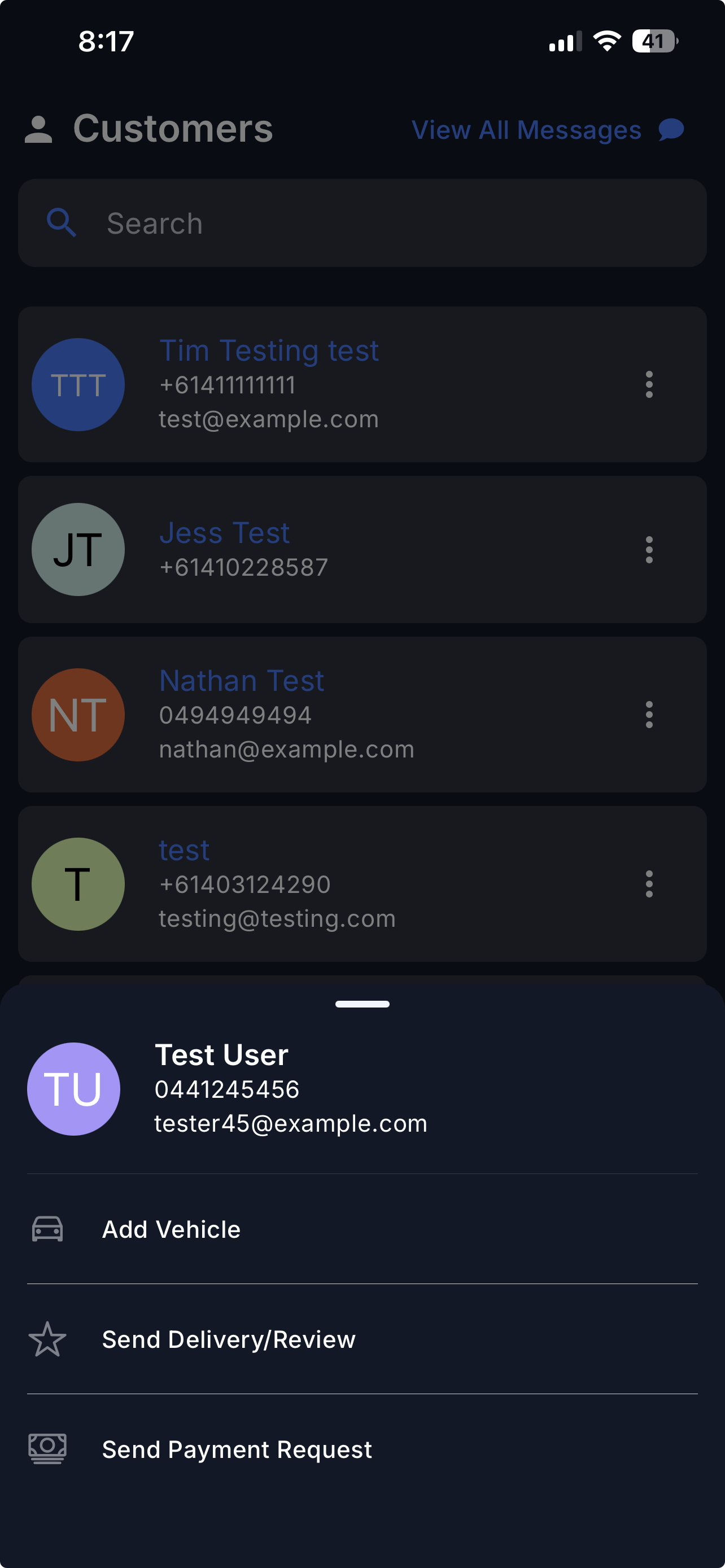
- Option A: From the customer list, tap the 3 vertical dots icon on the right side of the customer row, then select Send Payment Request.
- Option B: Tap on the customer to open their profile.
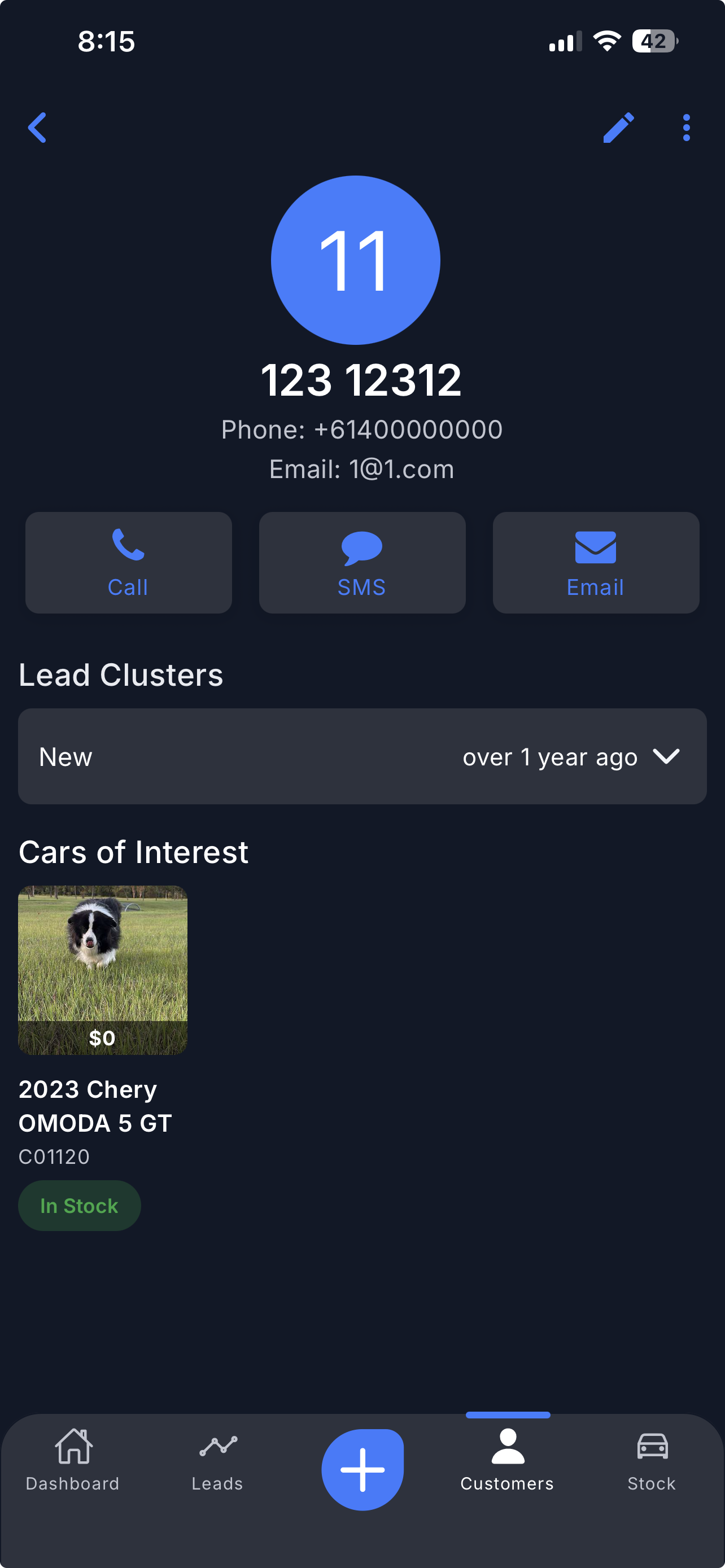
- In the top right corner, tap the 3 vertical dots icon, then select Send Payment Request.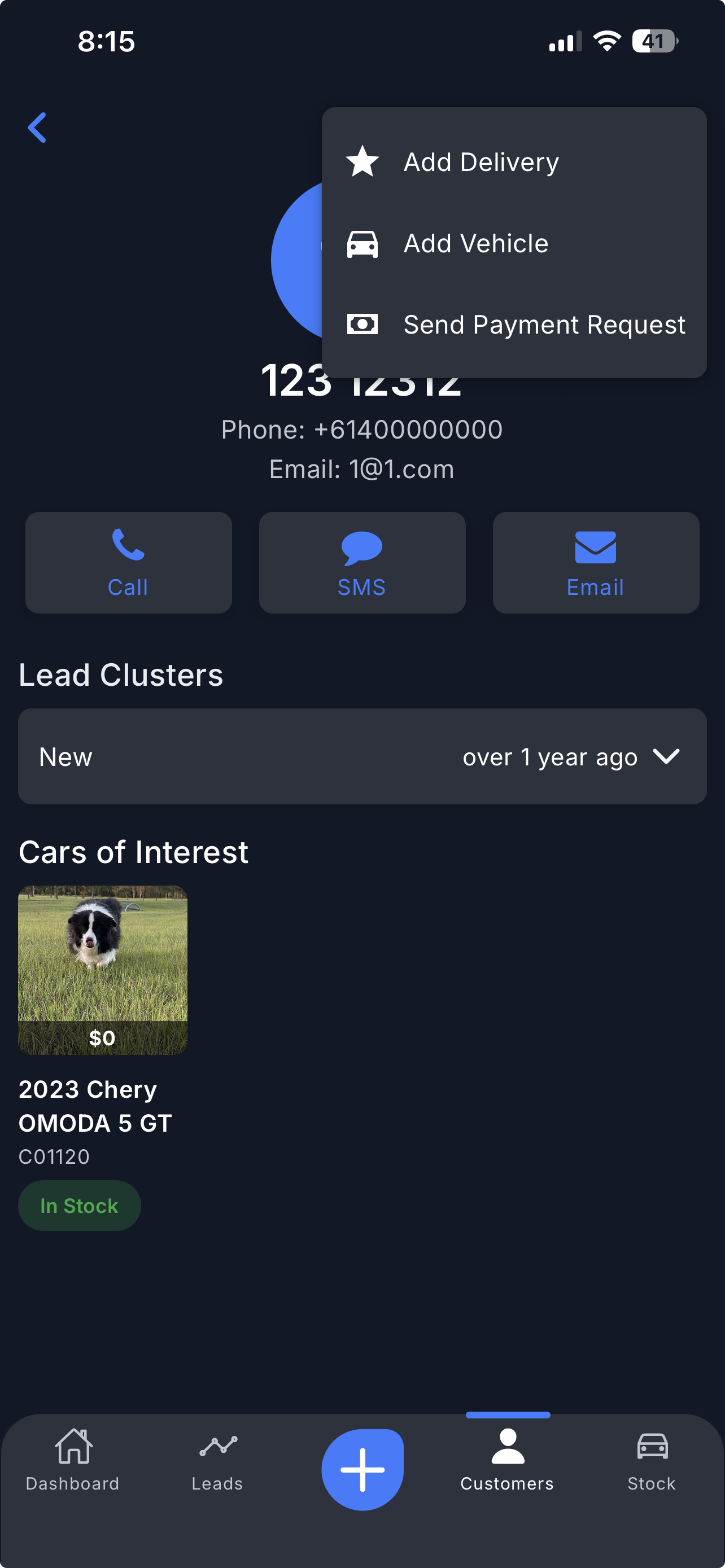
Step 3: Complete and Send the Payment Request
- Search for or add the stock to be used for the payment request.
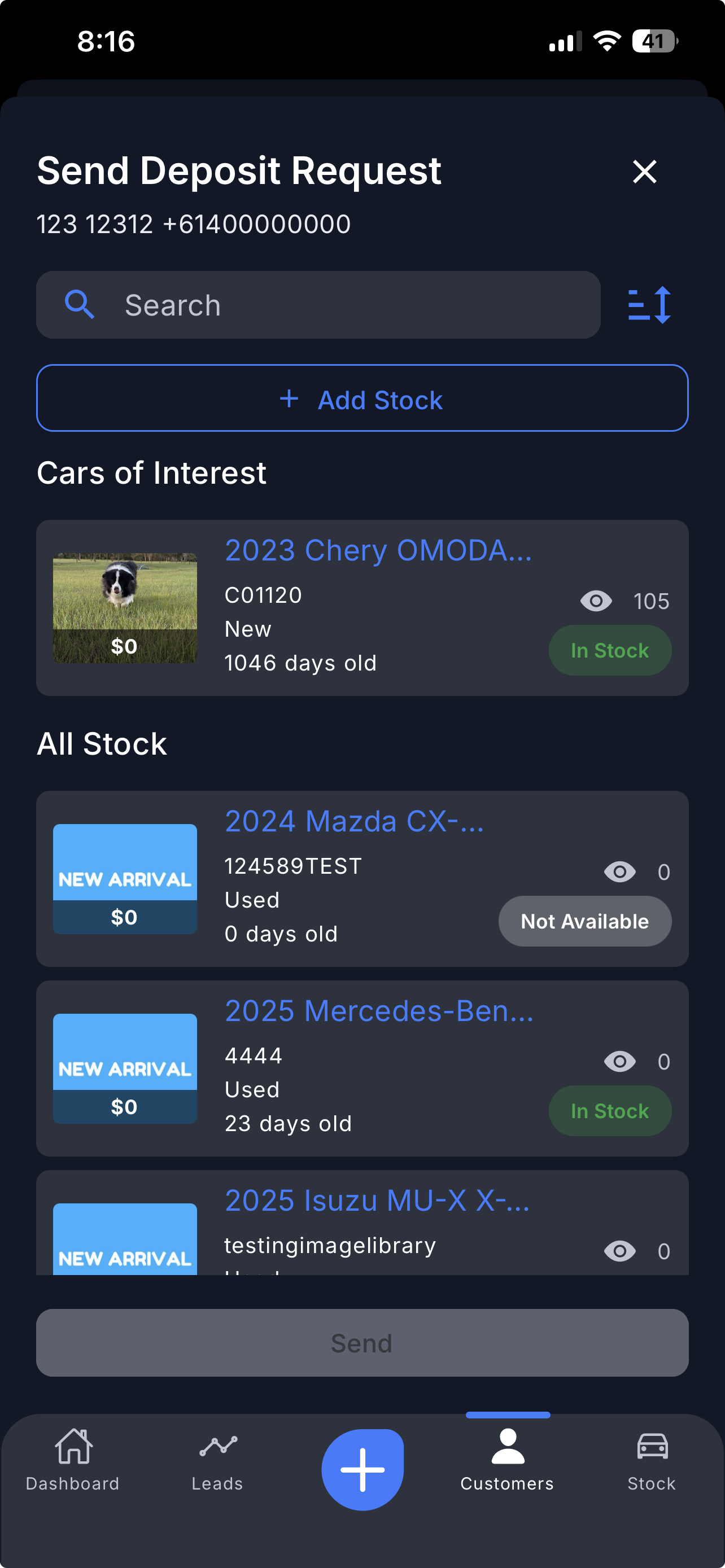
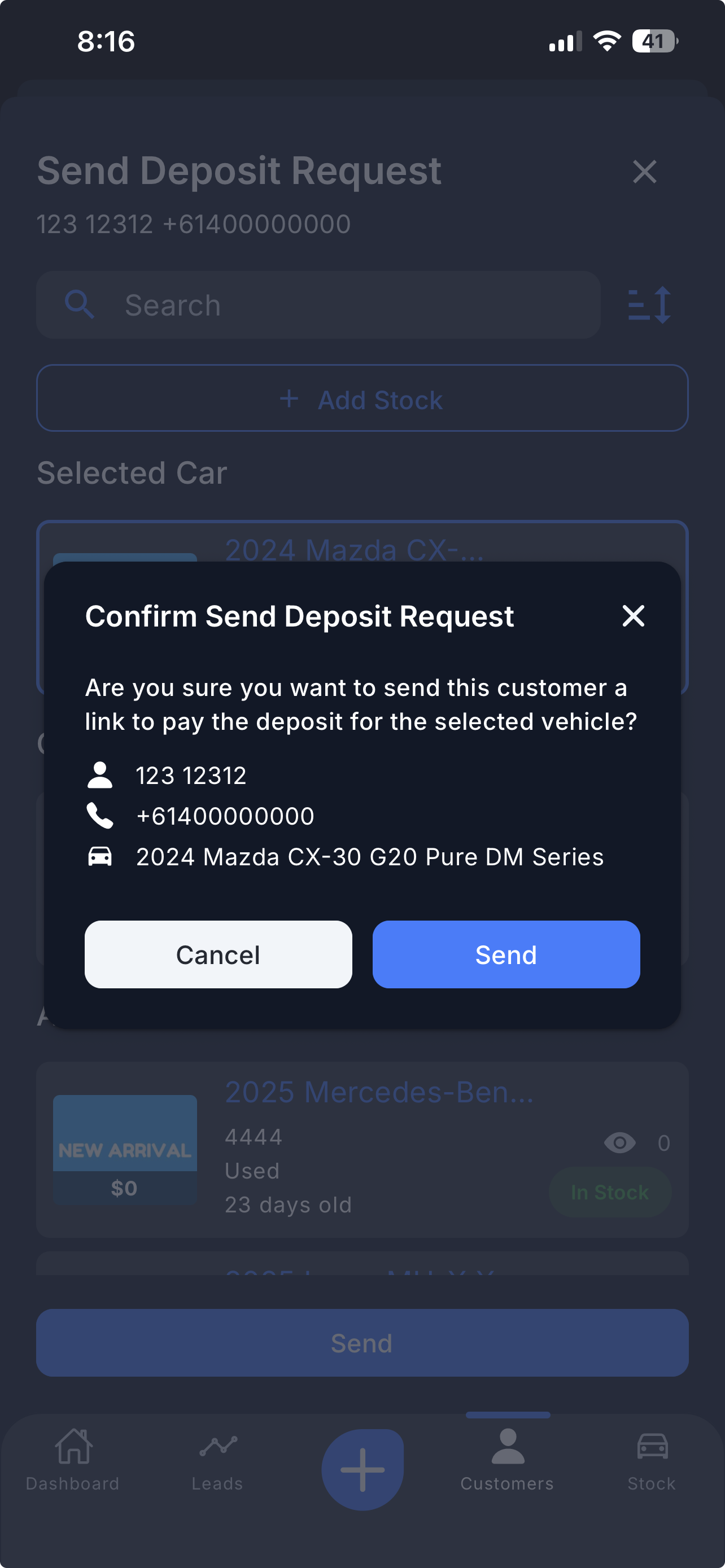
- Once confirmed, tap Send. A confirmation prompt will appear.
- Tap Send again to confirm and dispatch the payment request.
Step 4: Verify the Payment Request Was Sent
To confirm the payment request was successfully sent:
- Go back to the same customer and tap their name to open the Customer Details page.
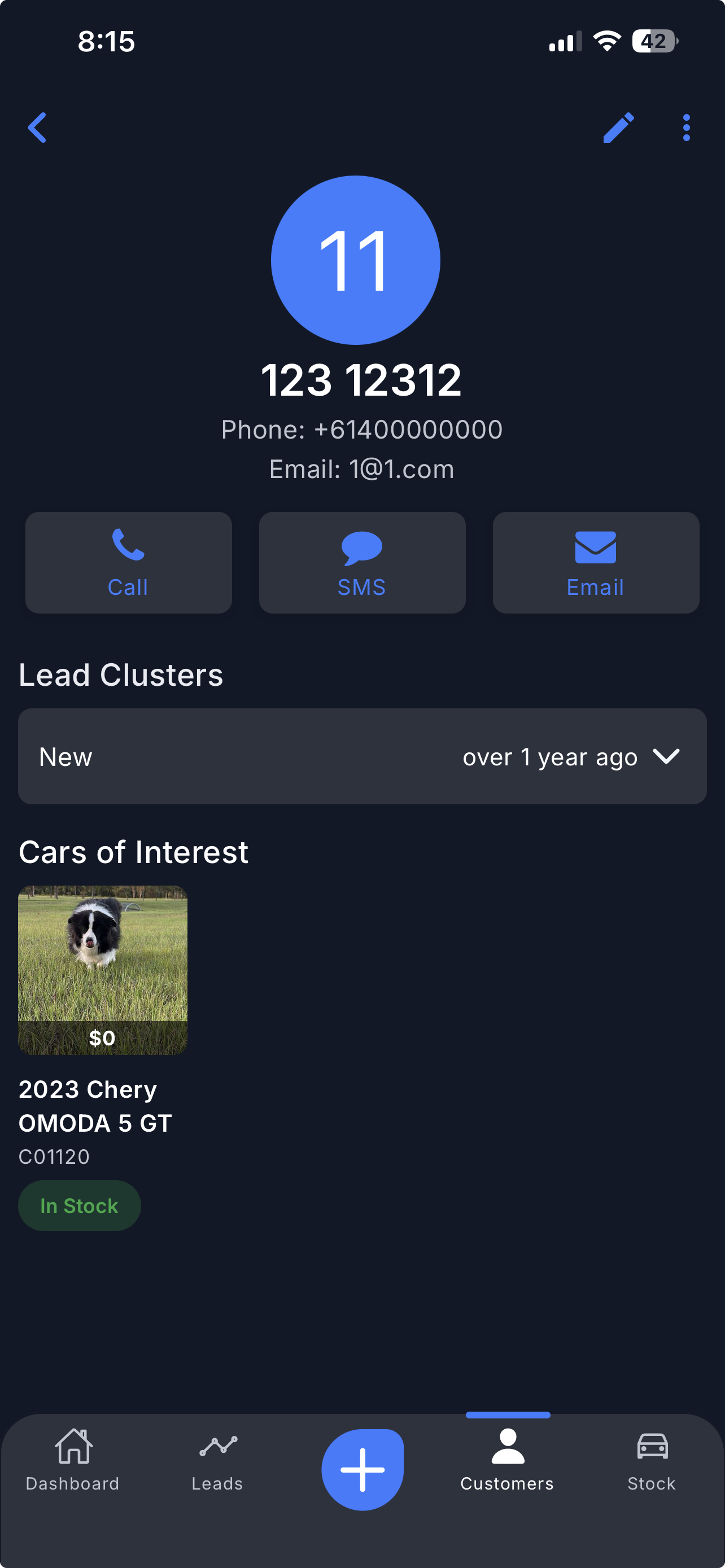
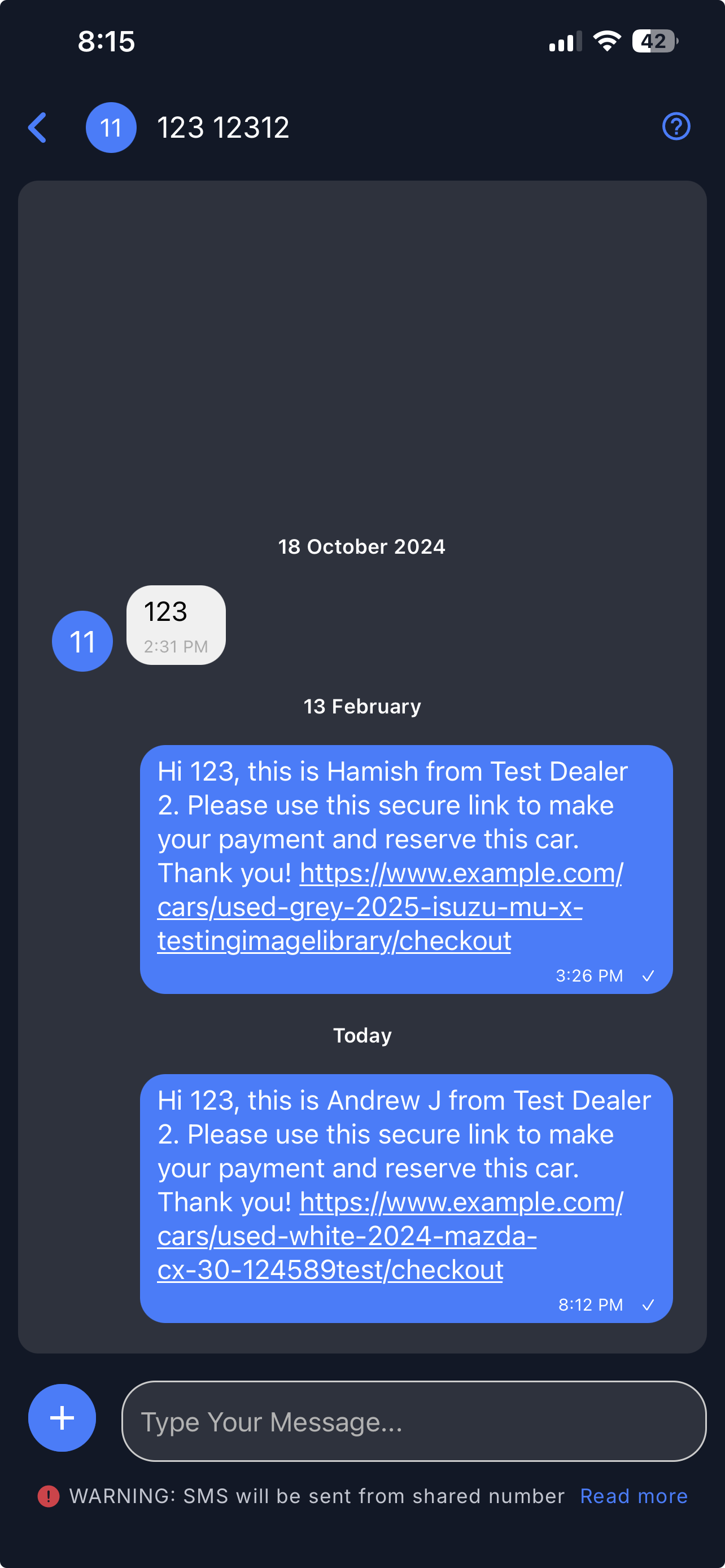
- Tap SMS, then tap Open in Dealer Studio.
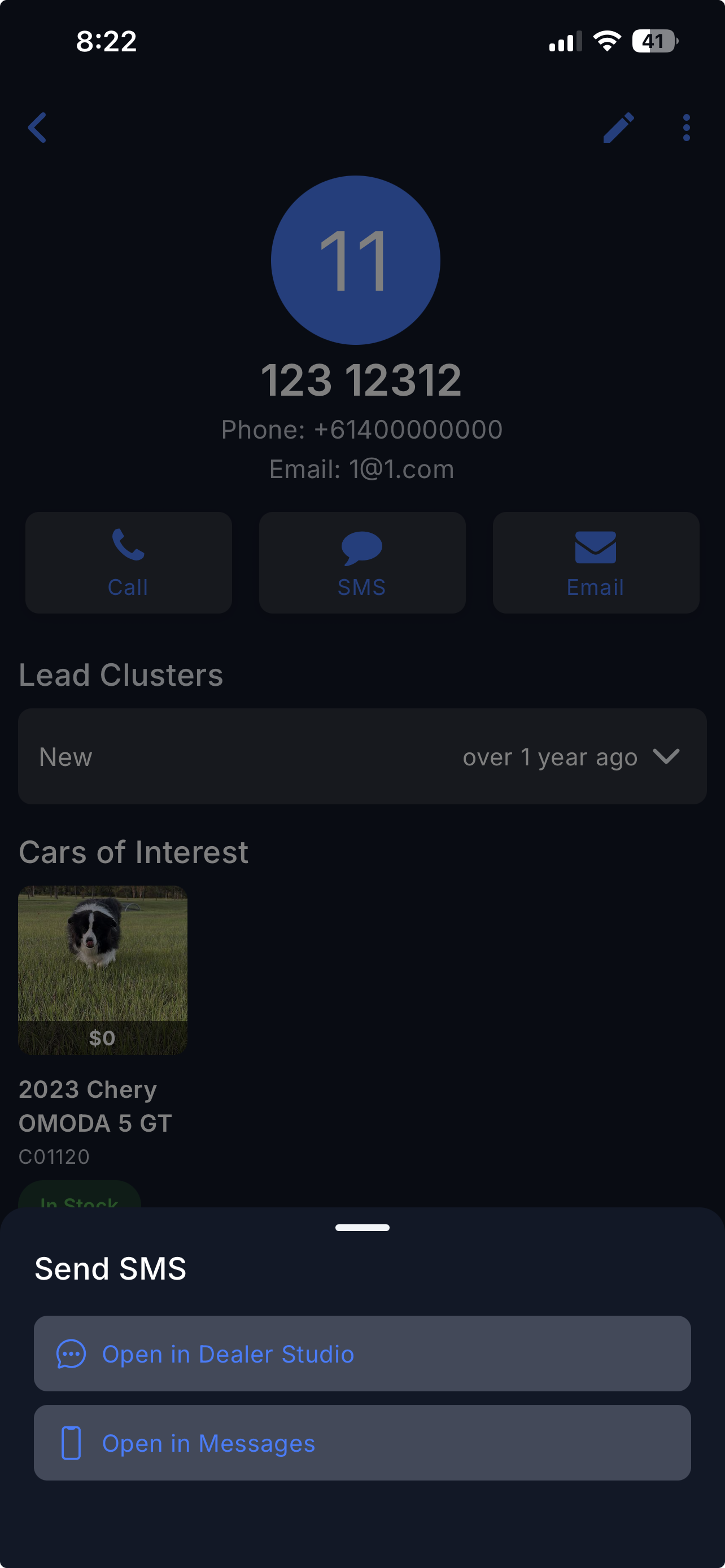
- You will be able to see the payment request message that was sent to the customer.
Important: Ensure the correct stock is selected before sending the payment request, as this cannot be changed after it has been dispatched.
Video
Please refer to the attachment below for a visual walkthrough of the steps.
Was this article helpful?
That’s Great!
Thank you for your feedback
Sorry! We couldn't be helpful
Thank you for your feedback
Feedback sent
We appreciate your effort and will try to fix the article