Please note: to use this feature, you must have the Stripe payment processor setup in the dashboard. See a guide on setting that here.
Navigate to the lead and generate the deposit request
Click on Send Payment Request.
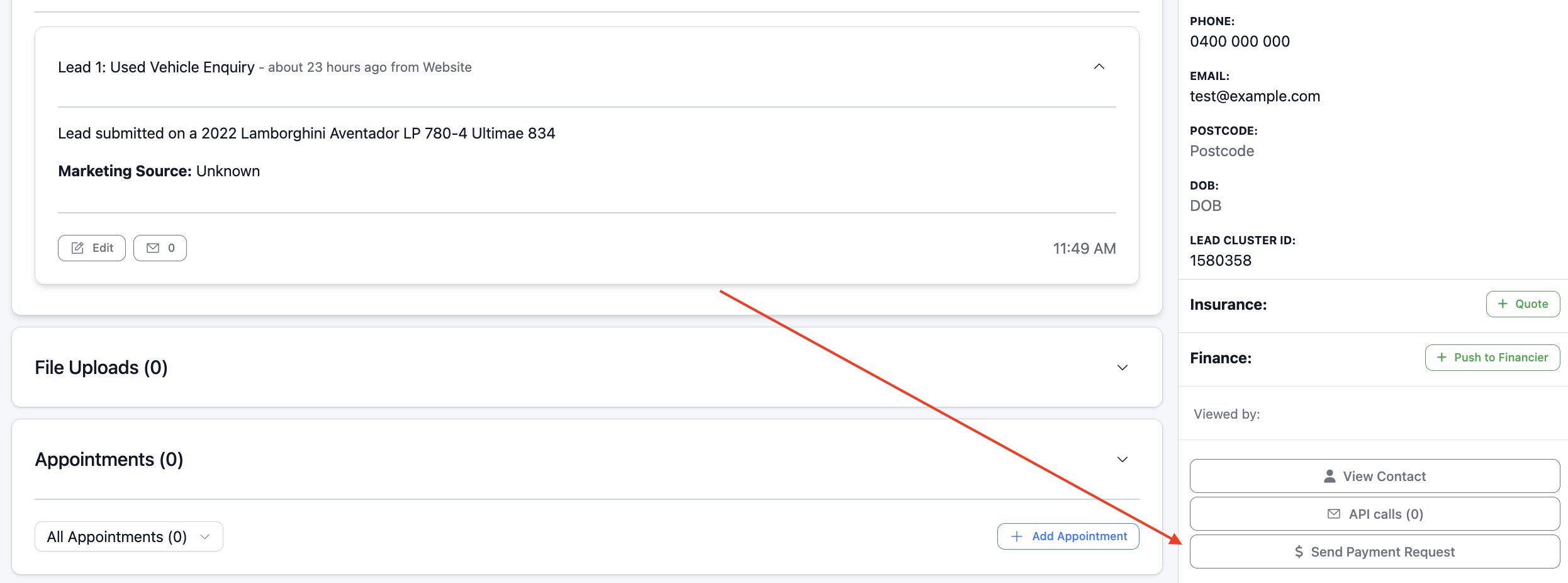
You will be prompted to enter some details regarding the deposit including:
- Amount
- Payment Type (Vehicle Reservation or Invoice)
- Invoice ID
- Invice PDF
- Vehicle - relevant for Vehicle Reservation. Please note, the vehicle will have to be attached to the lead before it can be selected here.
- Description
- Due Date
- Template Content - this is where you can edit the text that sends to the customer.
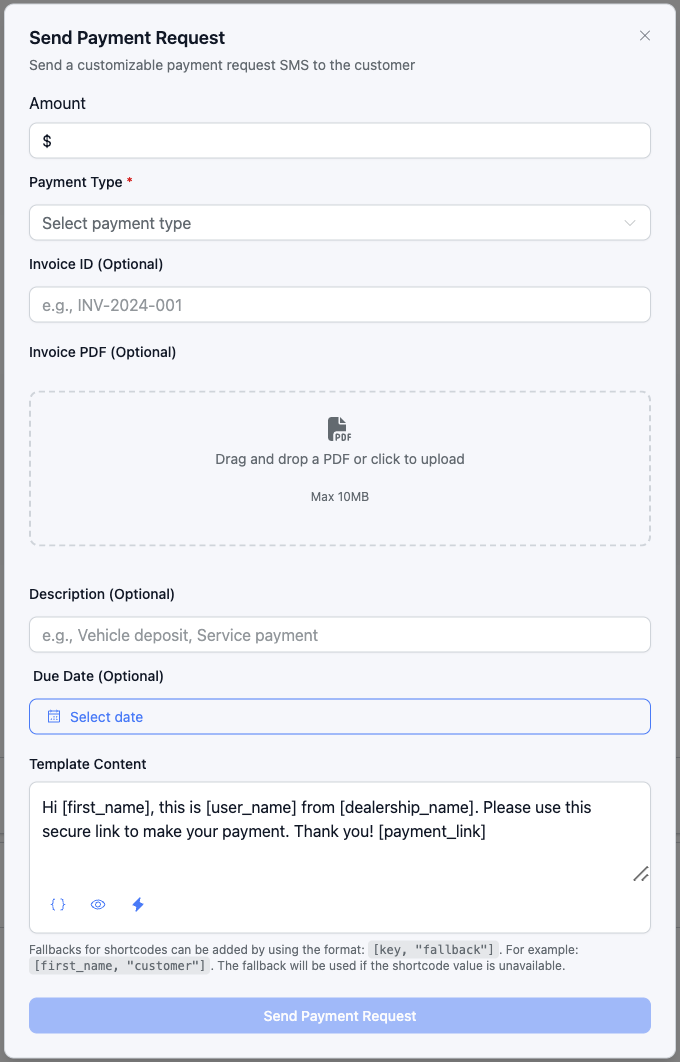
Once you have entered that information, click Send Payment Request.
The customer will then be sent an SMS with a link, that takes them to this page:

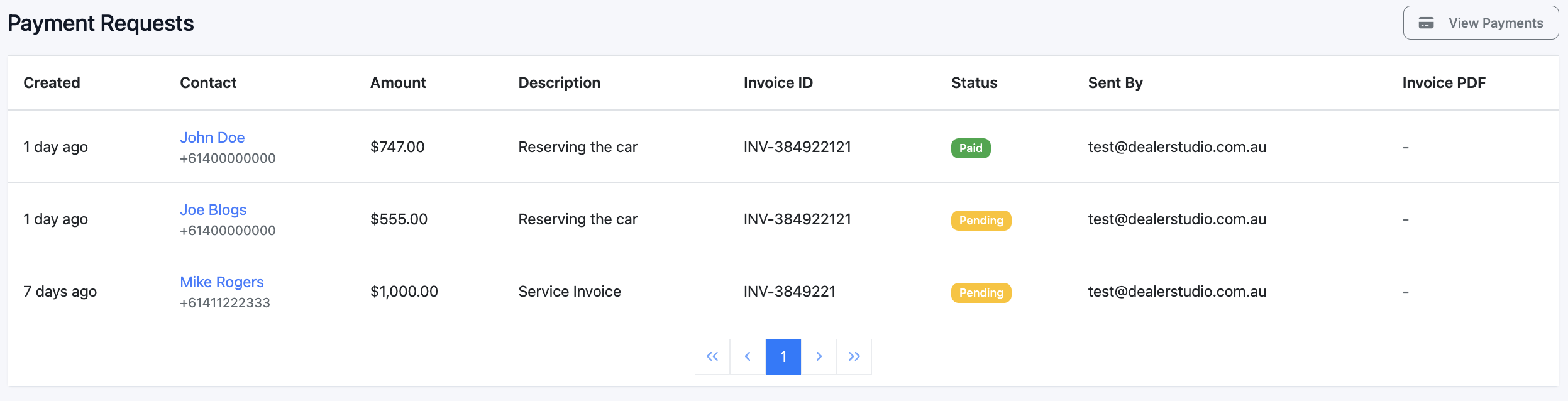
Monitoring deposit requests
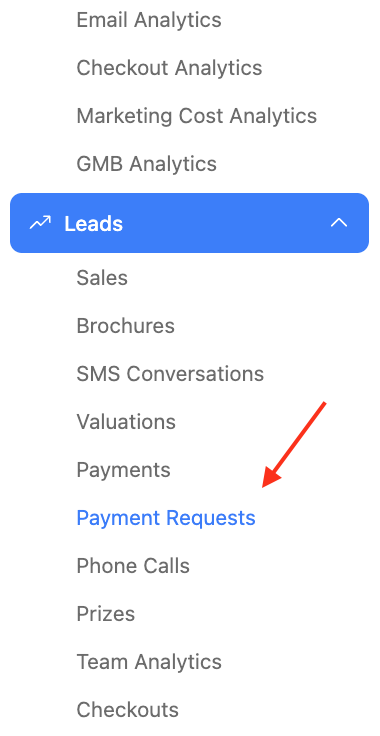
To see the requests that have been requested and their status, use the sidebar to navigate to Payment Requests.
Was this article helpful?
That’s Great!
Thank you for your feedback
Sorry! We couldn't be helpful
Thank you for your feedback
Feedback sent
We appreciate your effort and will try to fix the article