In some situations, you may wish to copy a customer’s signing link and send it to them directly using your own email inbox, SMS, or another communication method.
To do this:
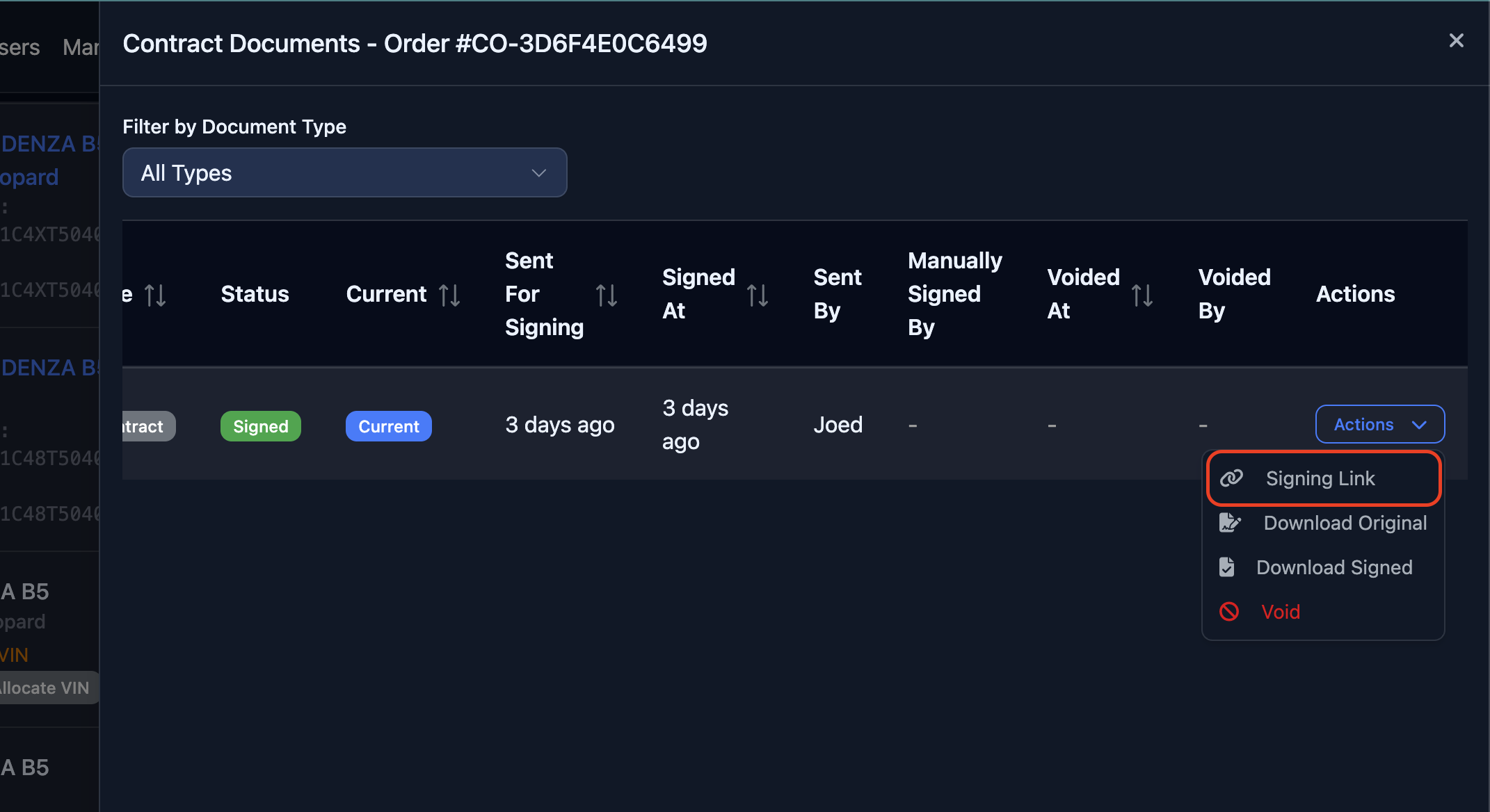
Open the “View Documents” slide-in panel.
Locate the document you would like the customer to sign.
Click the “Actions” dropdown next to the document.
Select “Signing Link” from the dropdown options.
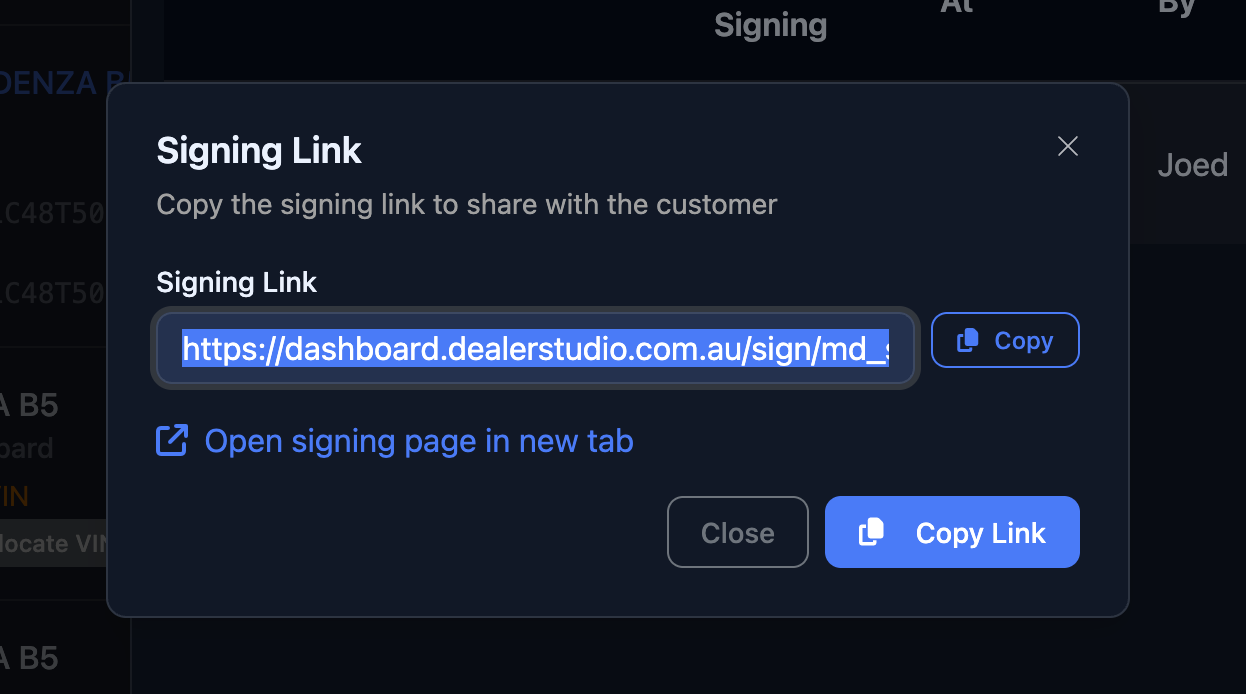
A dialog will appear displaying the customer’s signing link. From here, you can copy the link and paste it into an email, SMS, or other message to send directly to the customer.
Was this article helpful?
That’s Great!
Thank you for your feedback
Sorry! We couldn't be helpful
Thank you for your feedback
Feedback sent
We appreciate your effort and will try to fix the article