This article walks through creating a loan car in Dealer Studio for either a customer or a staff member, from choosing the driver and vehicle through to the driver uploading their licence and signing by SMS, starting the loan and ending it when the car comes back.
Before you start, have the driver's mobile number and date of birth, the insurance excess, and the car's odometer reading and fuel level ready.
TABLE OF CONTENTS
- Start a new loan car
- Choose the customer or staff member
- Choose the vehicle
- Enter the excess, DOB and accept the disclaimer
- Send the licence and signature link by SMS
- Driver uploads their licence and signs
- Enter the loan details and start the loan
- Manage the loan
- End the loan when the car is returned
Start a new loan car
- Go to Test Drives > Loan Cars in the left menu and click New Loan Car.
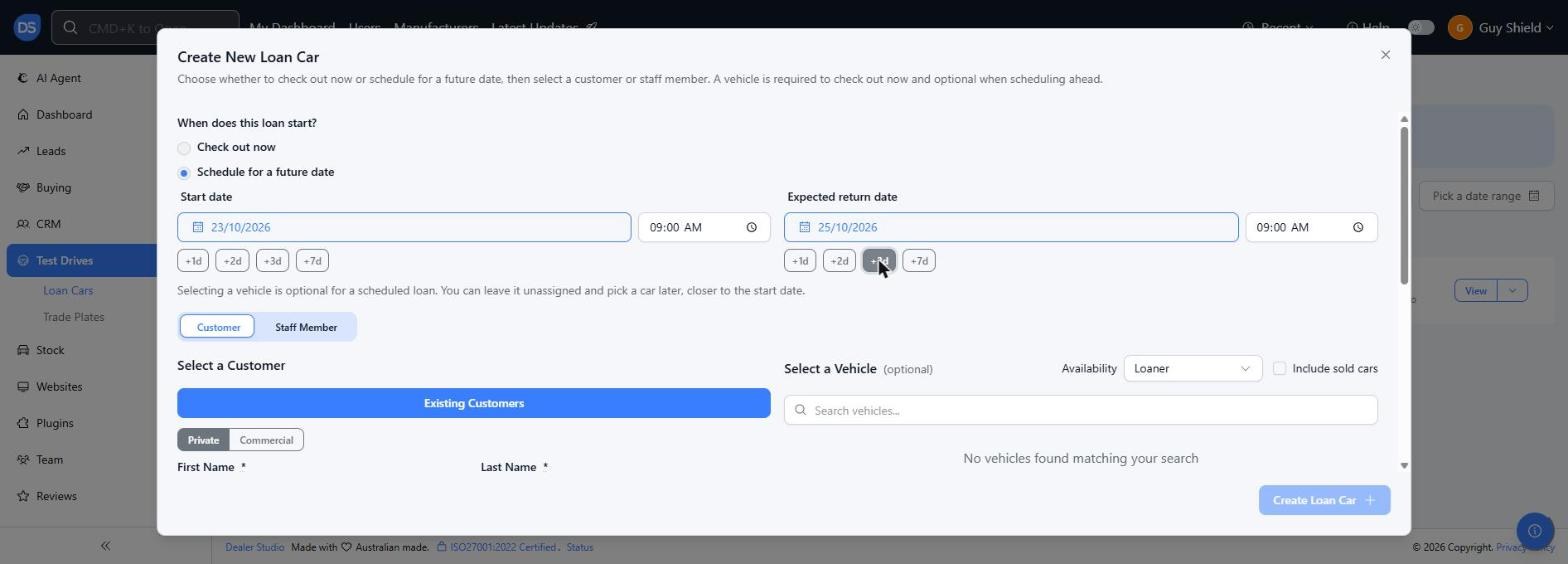
- Under "When does this loan start?", choose either:
- Check out now - the car is leaving today..
- Schedule for a future date - set the Start date and Expected return date with the calendar, time, or the buttons below. Selecting a vehicle is optional, so you can book the loan now and assign a specific car closer to the start date.
Choose the customer or staff member
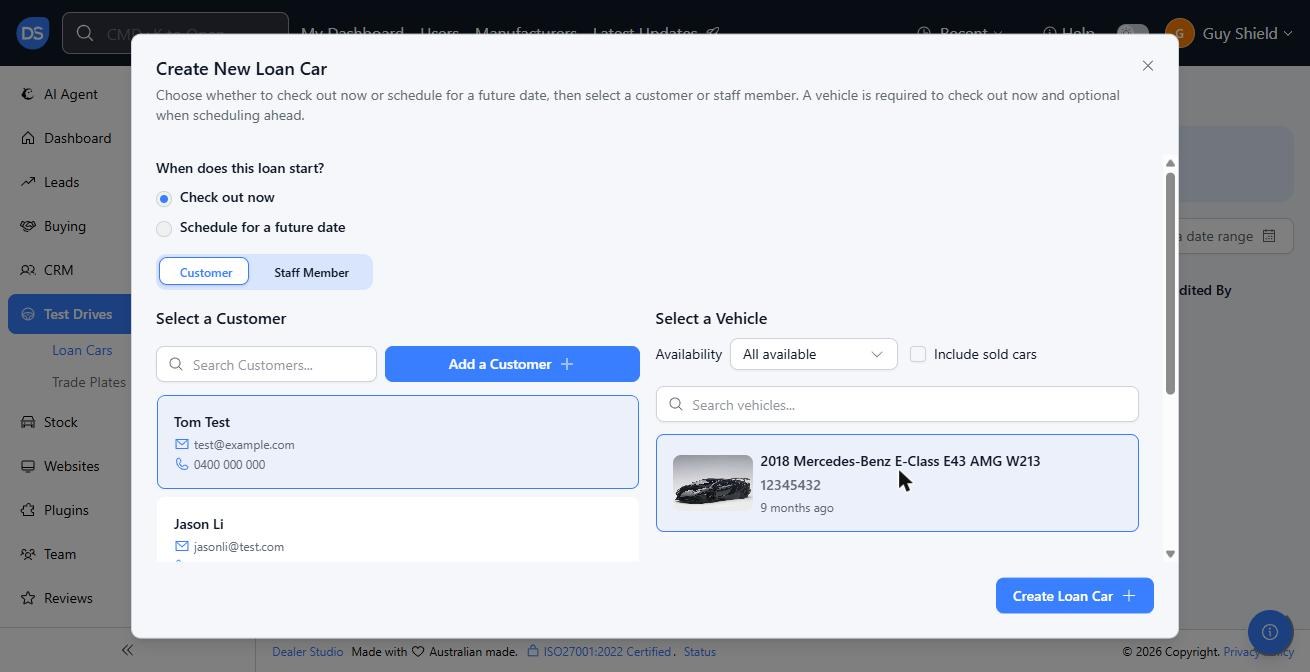
- Use the Customer / Staff Member toggle to choose who the loan is for.
- Customer:search by name, email or phone and click the customer's card.
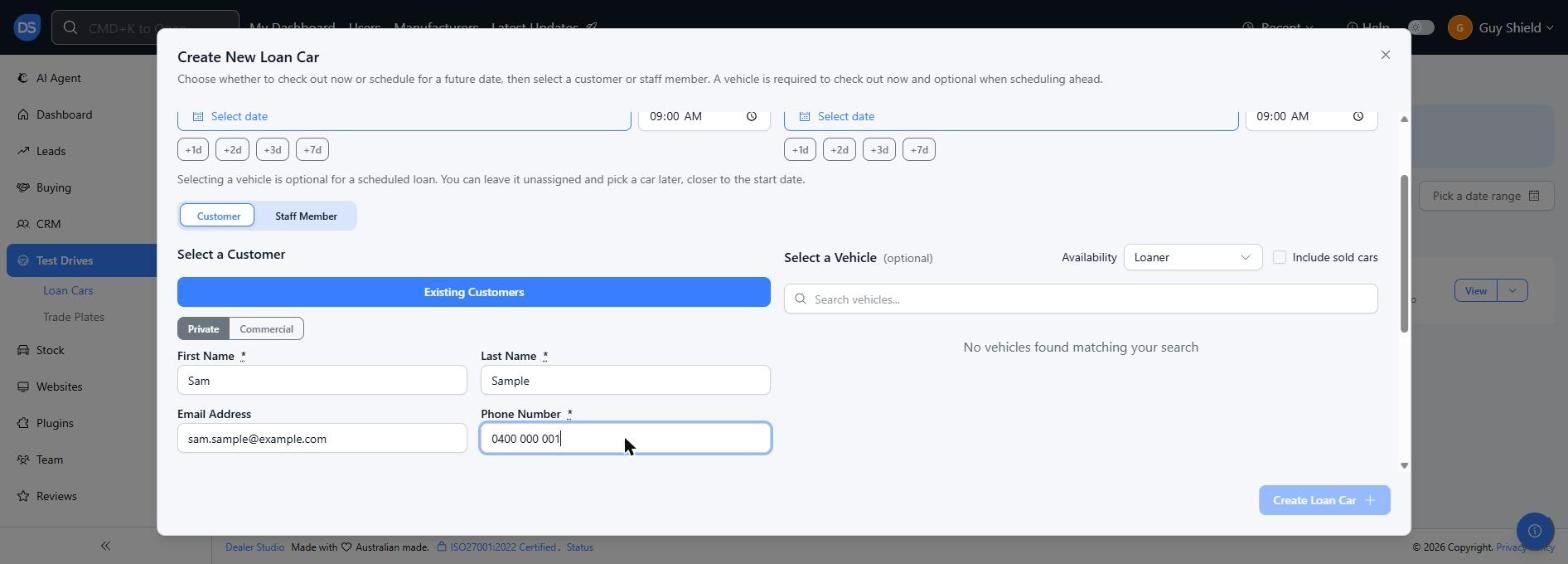
- New customer? Click Add a Customer, choose Private or Commercial, and add in their details as requested. Click Save and the new customer is selected automatically.
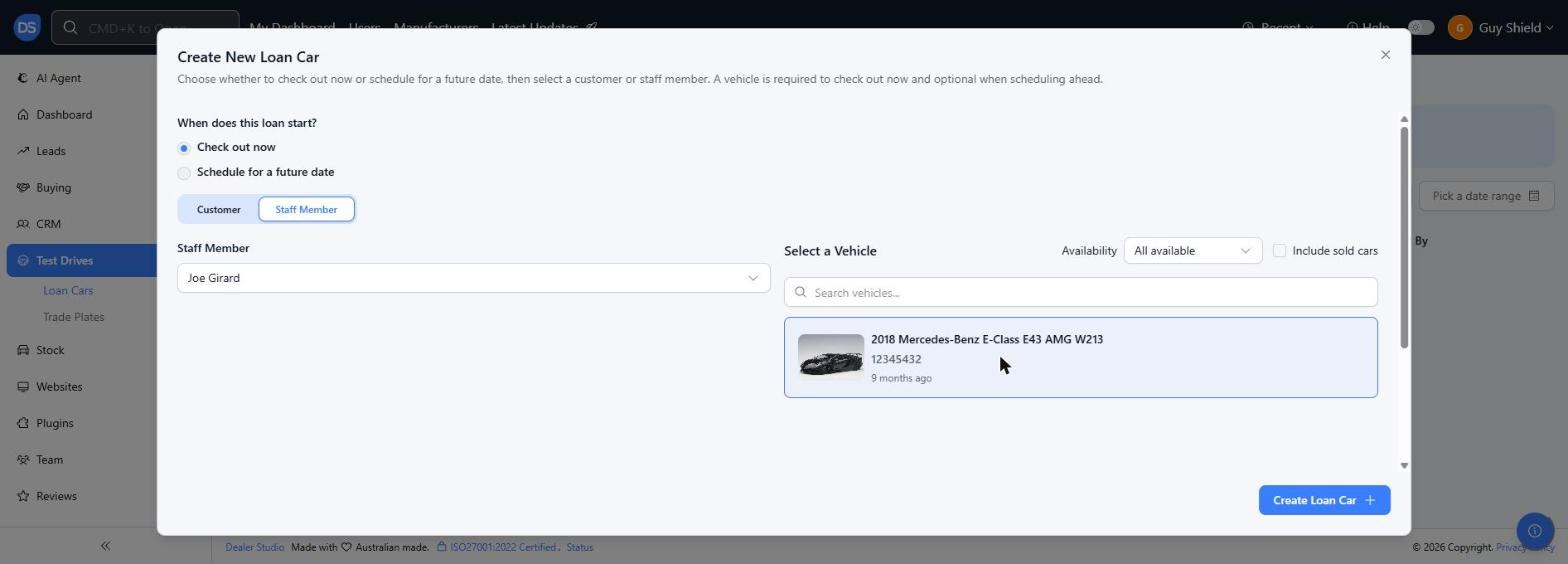
- Staff member: pick the person from the "Select a staff member" dropdown menu.
Choose the vehicle
- Under Select a Vehicle, set the Availability filter: Loaner (default), In stock, Coming soon or All available. Tick Include sold cars only if needed.
- Search by stock number, make or model and click the car so it's highlighted.
- Click Create Loan Car. This step is the same for customers and staff.
- Scheduled loan without a car: it shows in the list as Scheduled with a blank car image. When you're ready, click Edit on the loan and pick the car from the Select a Vehicle panel on the right
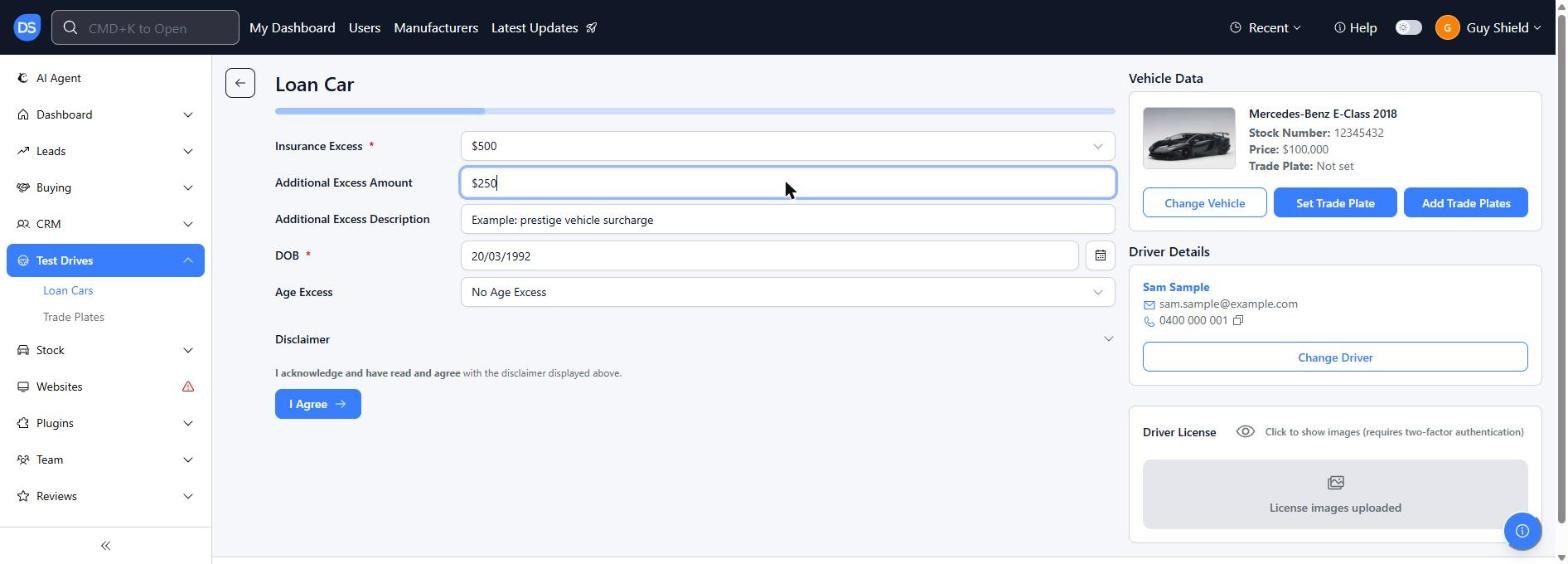
Enter the excess, DOB and accept the disclaimer
- Choose the Insurance Excess (required).
- Optionally add an Additional Excess Amount and description.
- Enter the driver's DOB as DD/MM/YYYY (required) and set Age Excess if required.
- Expand Disclaimer to review it and click agree when ready.
Send the licence and signature link by SMS
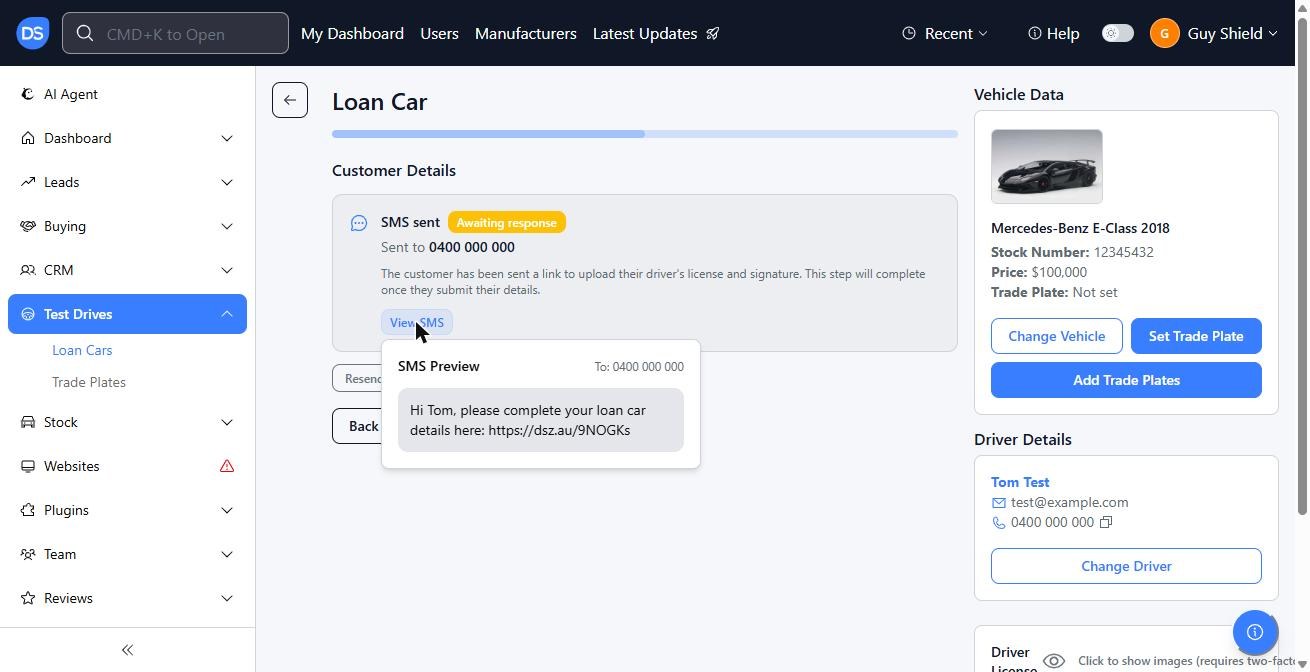
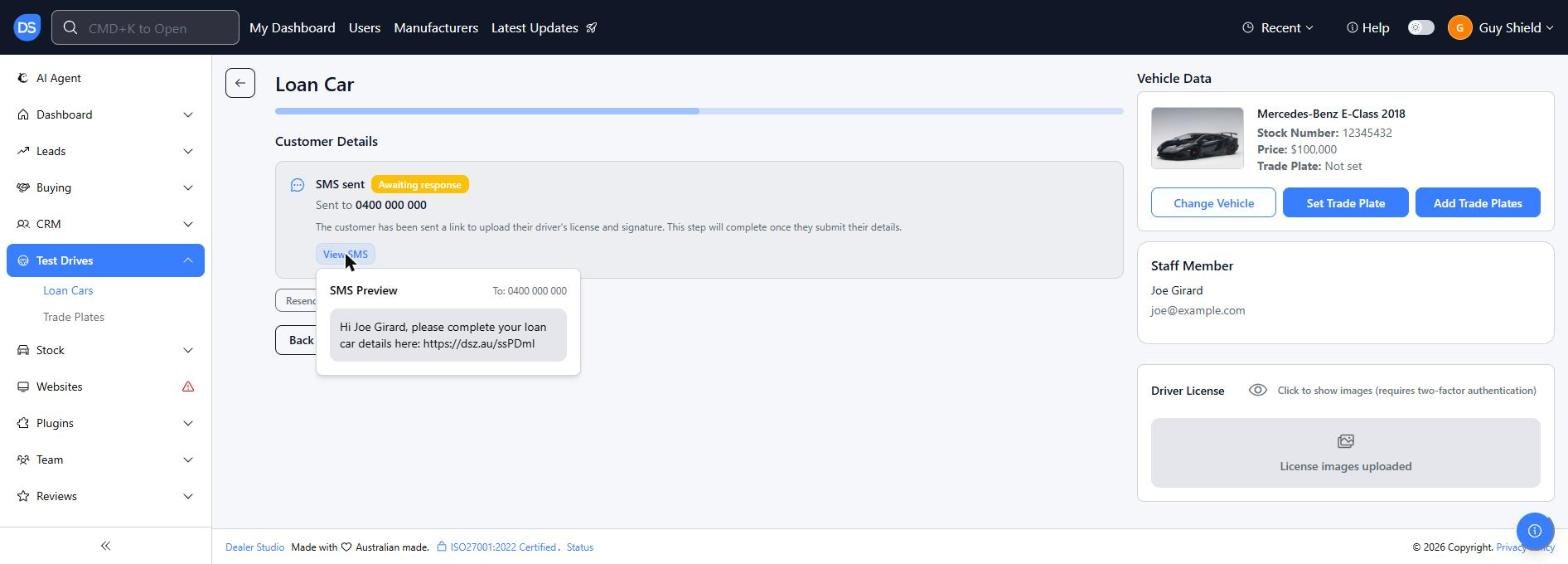
- Check the number displayed is correct, then click "Send SMS For Customer Details".
- The status changes to SMS sent - Awaiting response. Click View SMS to preview the message and link, or Resend SMS if it didn't arrive.
- Customer: the SMS goes to the customer's mobile.
- Staff member: the SMS goes to the staff member's mobile, as listed on their profile.
Driver uploads their licence and signs
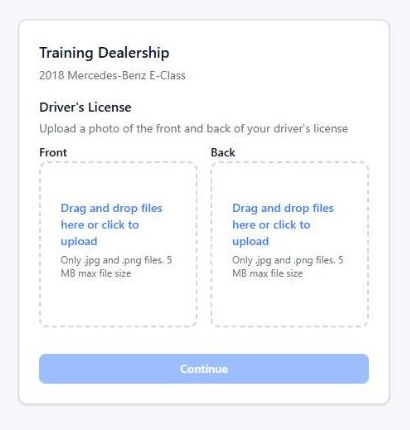
- The driver opens the link on their phone.
- Customer: Must upload a photo of the front and back of their driver's licence/
- Staff member: The licence step will be marked optional, and they have the option to skip. They can upload both sides or tap Skip.
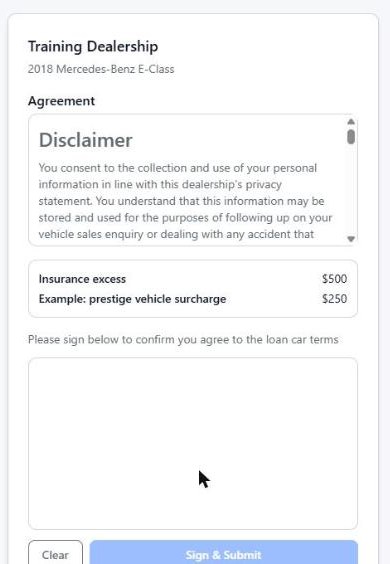
- Both then review the agreement, insurance excess and any additional excess, sign in the box and tap Sign & Submit.
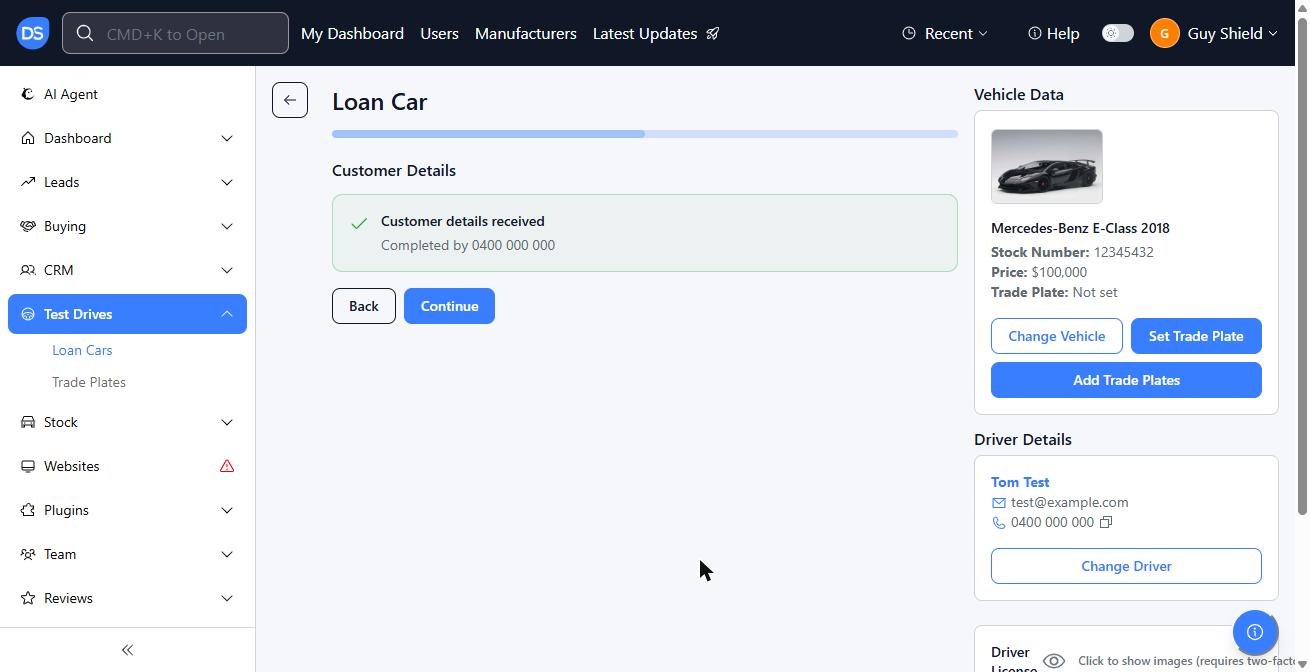
- Back in the dashboard, the page will update and you can click continue.
Enter the loan details and start the loan
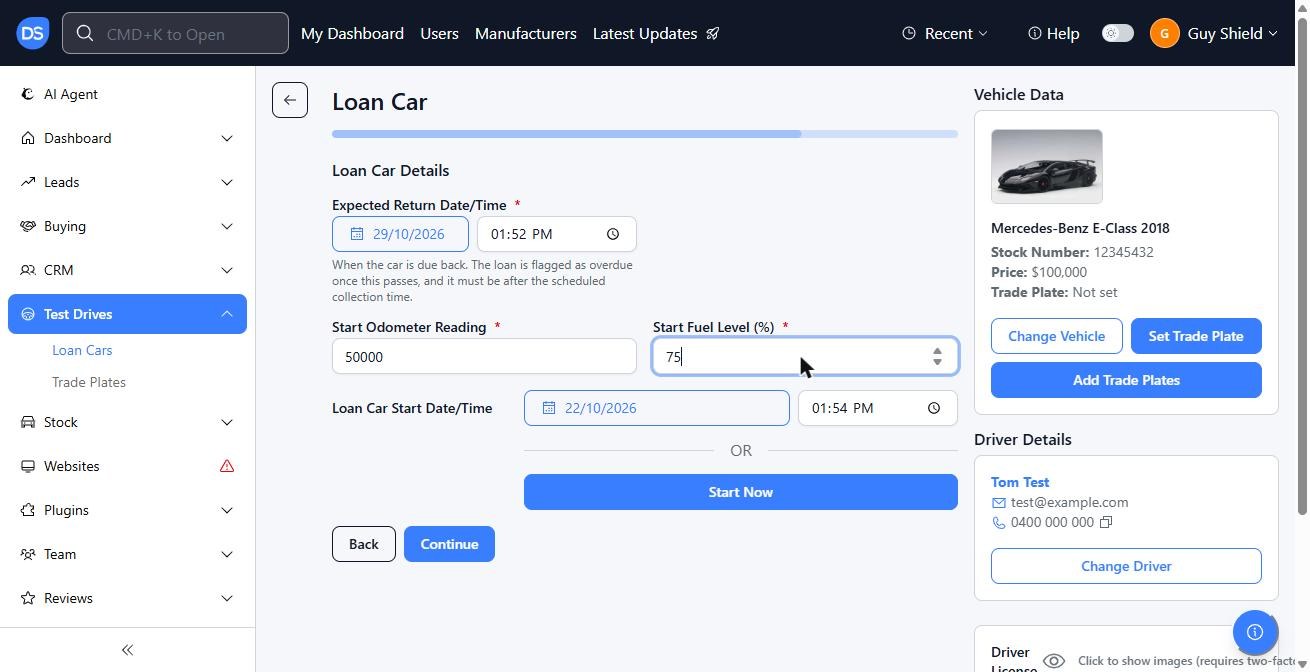
- Customer: Check the Expected Return Date/Time. Enter the Start Odometer Reading and Start Fuel Level (both required).
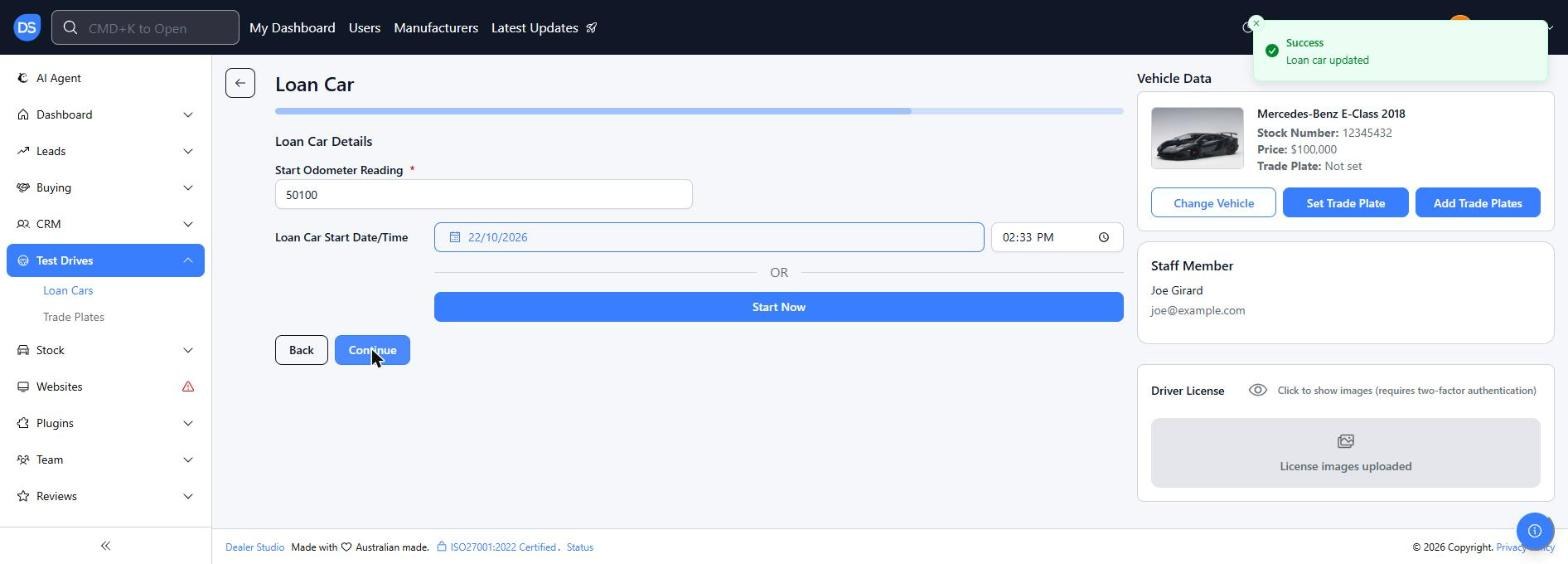
- Staff member: Only the Start Odometer Reading is required. There is no return date or fuel level.
- Scheduled loans also show Scheduled Collection Date/Time. The loan stays Scheduled until this time passes - correct it here if needed.
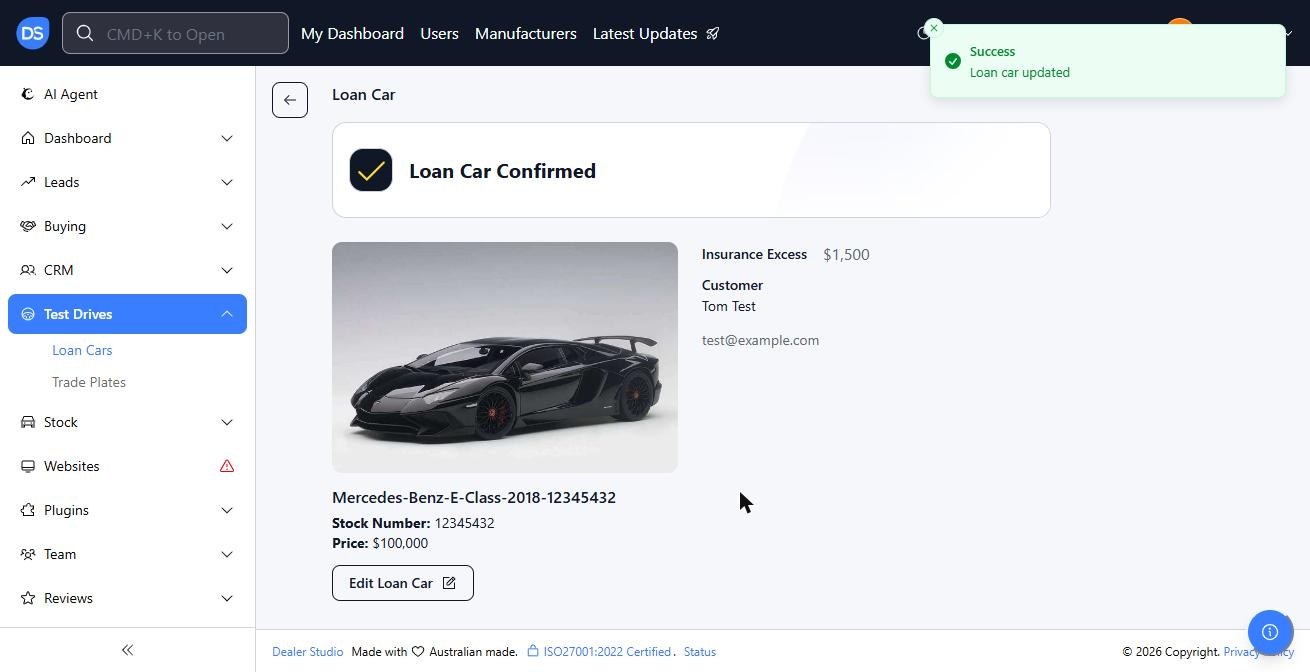
- Click Start Now when the keys are handed over. The loan becomes In Progress and you'll see Loan Car Confirmed.
- Clicking Continue instead saves the details without starting the loan, you can use this if the driver hasn't come to collect the car yet.
Manage the loan
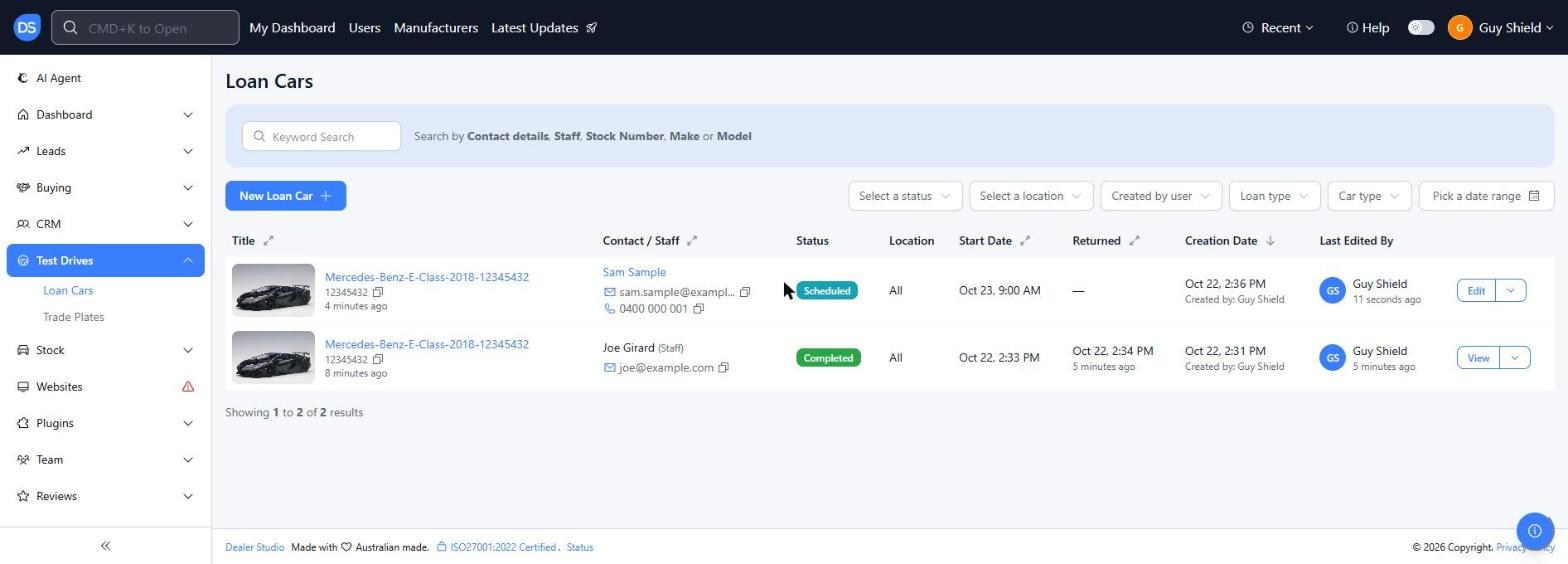
- Loans appear in Loan Cars with a status: Scheduled (booked, not yet collected), In Progress, or Completed.
- Staff loans show next to the name. Use the Loan type filter to show only Customer or Staff loans.
- Other filters: status, location, created by user, car type (New, Used, Demo) and date range.
- On the loan page, use Change Vehicle to swap cars and Set Trade Plate to attach one of your dealership's trade plates. Change Driver is also an option on customer loans only.
End the loan when the car is returned
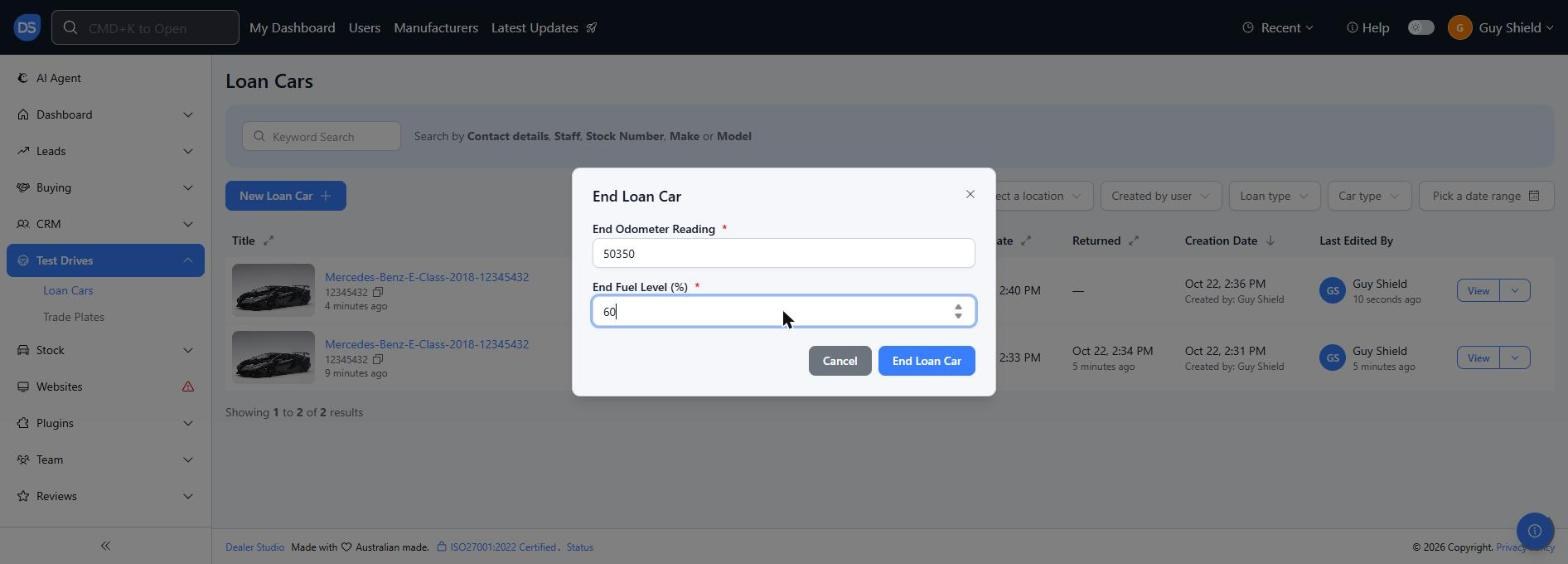
- In Loan Cars, click the arrow next to View on the loan and choose End Loan Car.
- Customer: Enter the End Odometer Reading and End Fuel Level.
- Staff member: Enter the End Odometer Reading only.
- Click End Loan Car. The status changes to Completed and the Returned date and time are recorded.
Was this article helpful?
That’s Great!
Thank you for your feedback
Sorry! We couldn't be helpful
Thank you for your feedback
Feedback sent
We appreciate your effort and will try to fix the article