Using the Page Editor, you can quickly add tags to a car listing, customise them to match your categories, and manage them efficiently across multiple listings. Tags can highlight features such as fuel type, body style, or special promotions, helping your audience find relevant vehicles faster.
Follow the steps below to learn how to add and manage tags effectively on your car listings.
How to Check Pre-Existing Tags and Add New Ones
1. Please login to your Dashboard
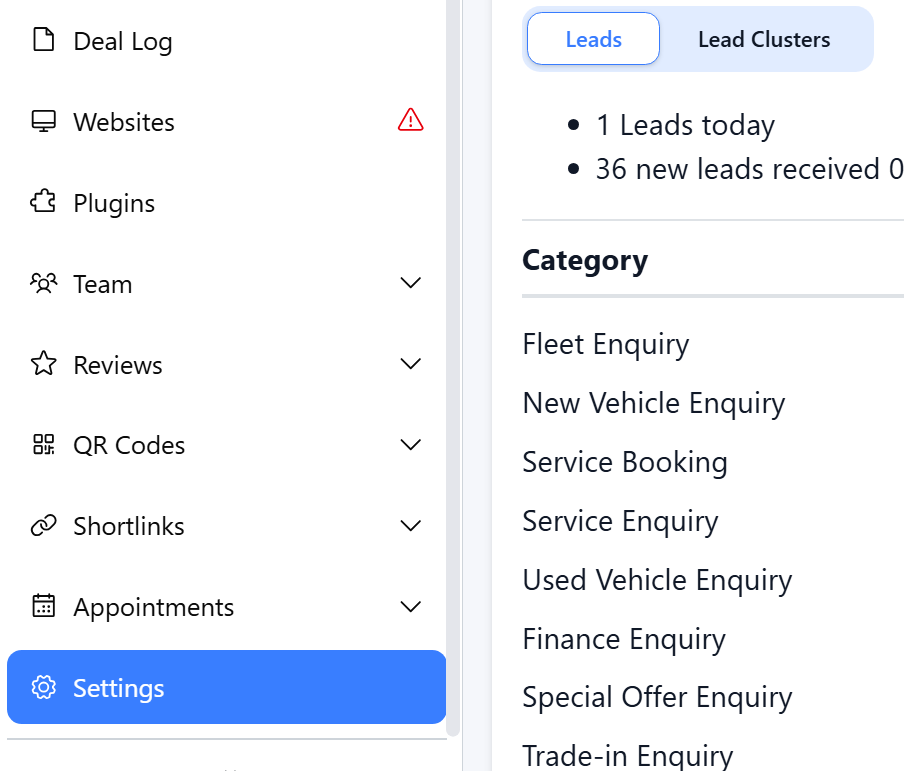
2. Navigate from The Dashboard to Settings
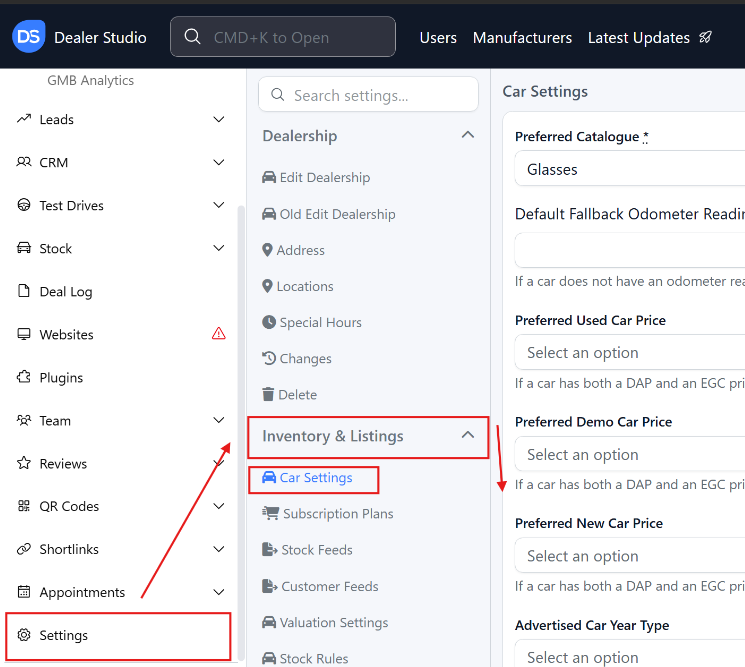
3. From Settings > Inventory/Listings > Car Settings
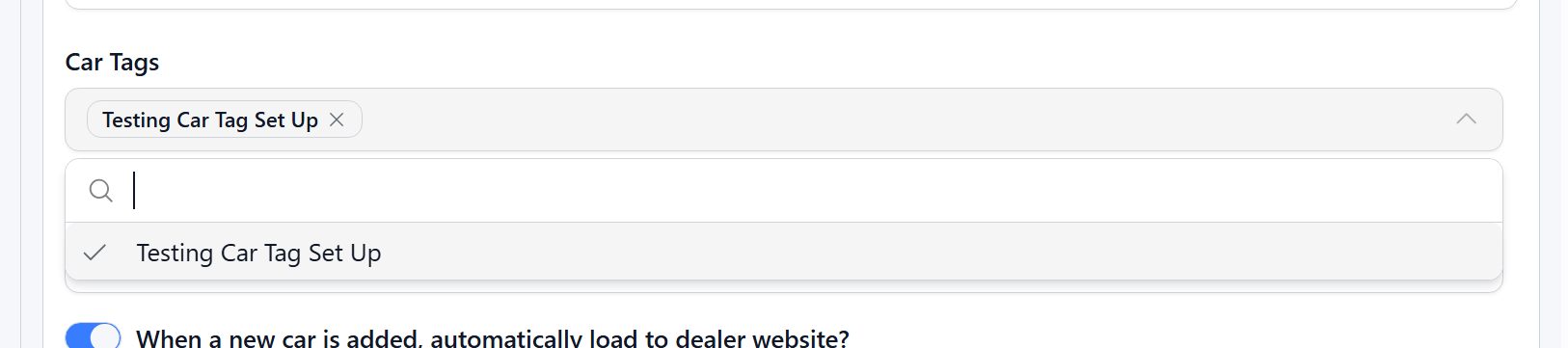
4. Check what tags exist.
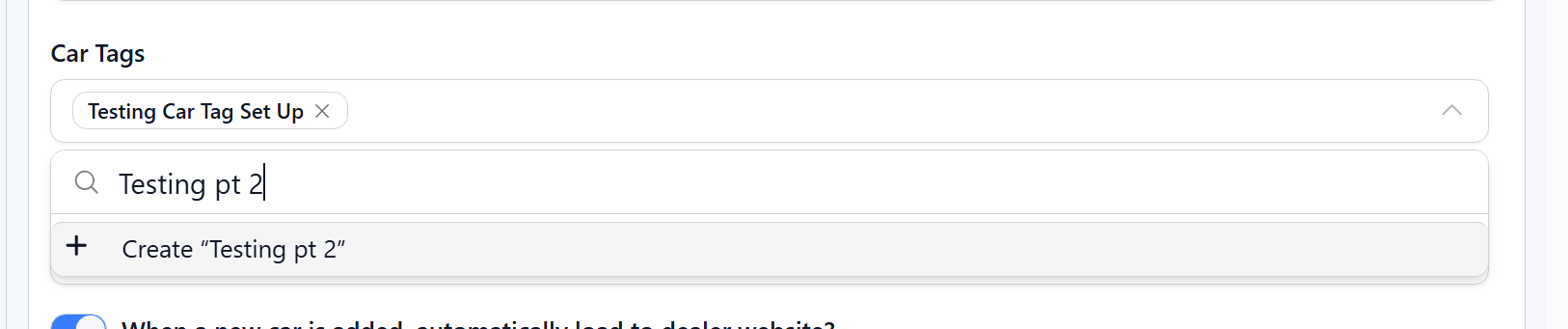
5. Please type into the box what you wish to add and click ' Create "[Tag Name]" '
If you want to Add a Tag to a Vehicle
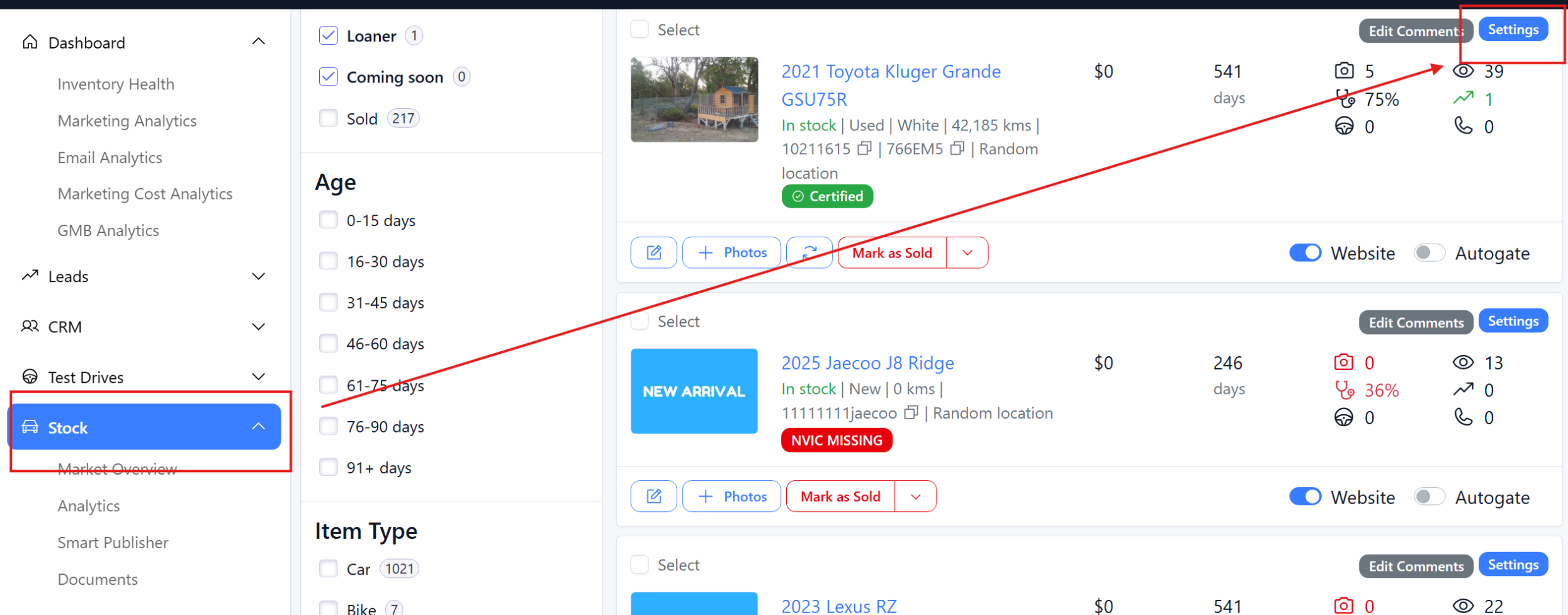
Step 1: Search or select the stock item, and press Settings
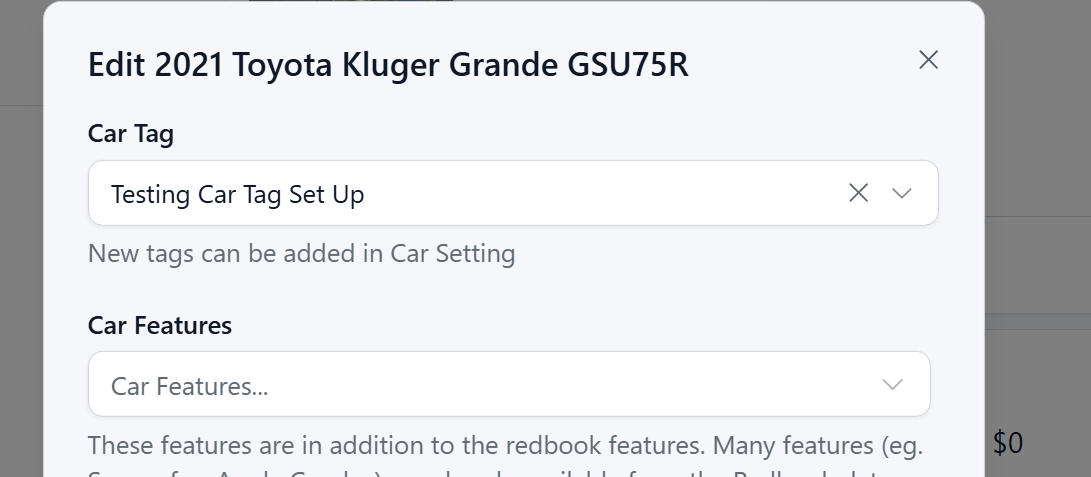
Step 2: Select the tag
You can then see the tag and can also search in 'Stock'
Please see video to clarify:
https://res.cloudinary.com/total-dealer/video/upload/v1763351201/Tagging_Vehicles_unxaqn.mkv
Was this article helpful?
That’s Great!
Thank you for your feedback
Sorry! We couldn't be helpful
Thank you for your feedback
Feedback sent
We appreciate your effort and will try to fix the article