Dealer Studio allows you to generate AI-powered dealer comments for your vehicle listings, saving time while keeping descriptions consistent and engaging.
This guide walks you through setting up your value propositions and generating AI comments on a car listing.
Step 1: Access Dealer Studio Settings
Log in to the Dealer Studio Dashboard.
Use the sidebar to navigate to Settings.
Select Car Settings.
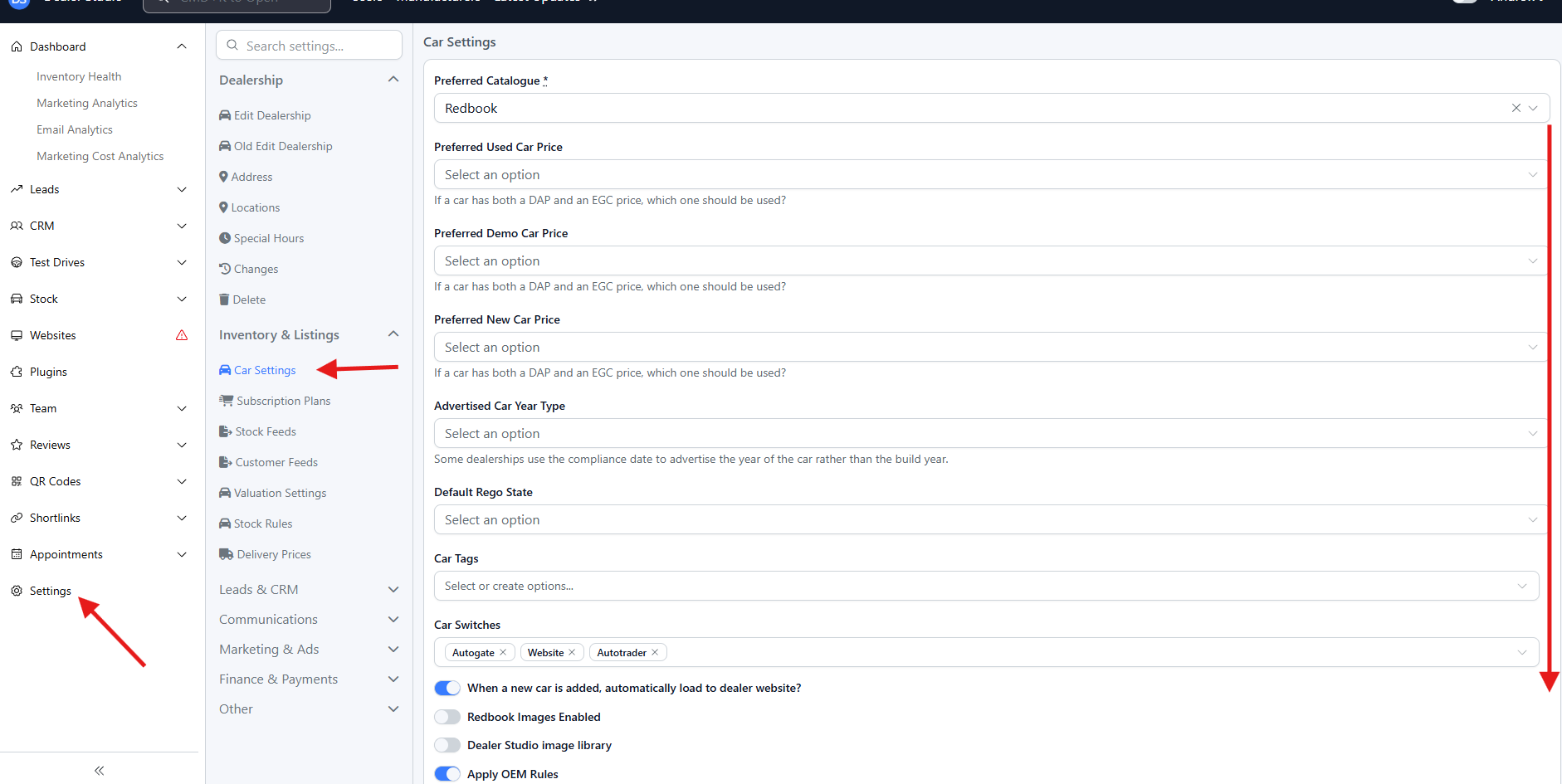
Step 2: Add Your Value Propositions
In Car Settings, select "New Template" locate the field:
“Value propositions used to generate AI comments”Enter the key points you want the AI to use when generating dealer comments.
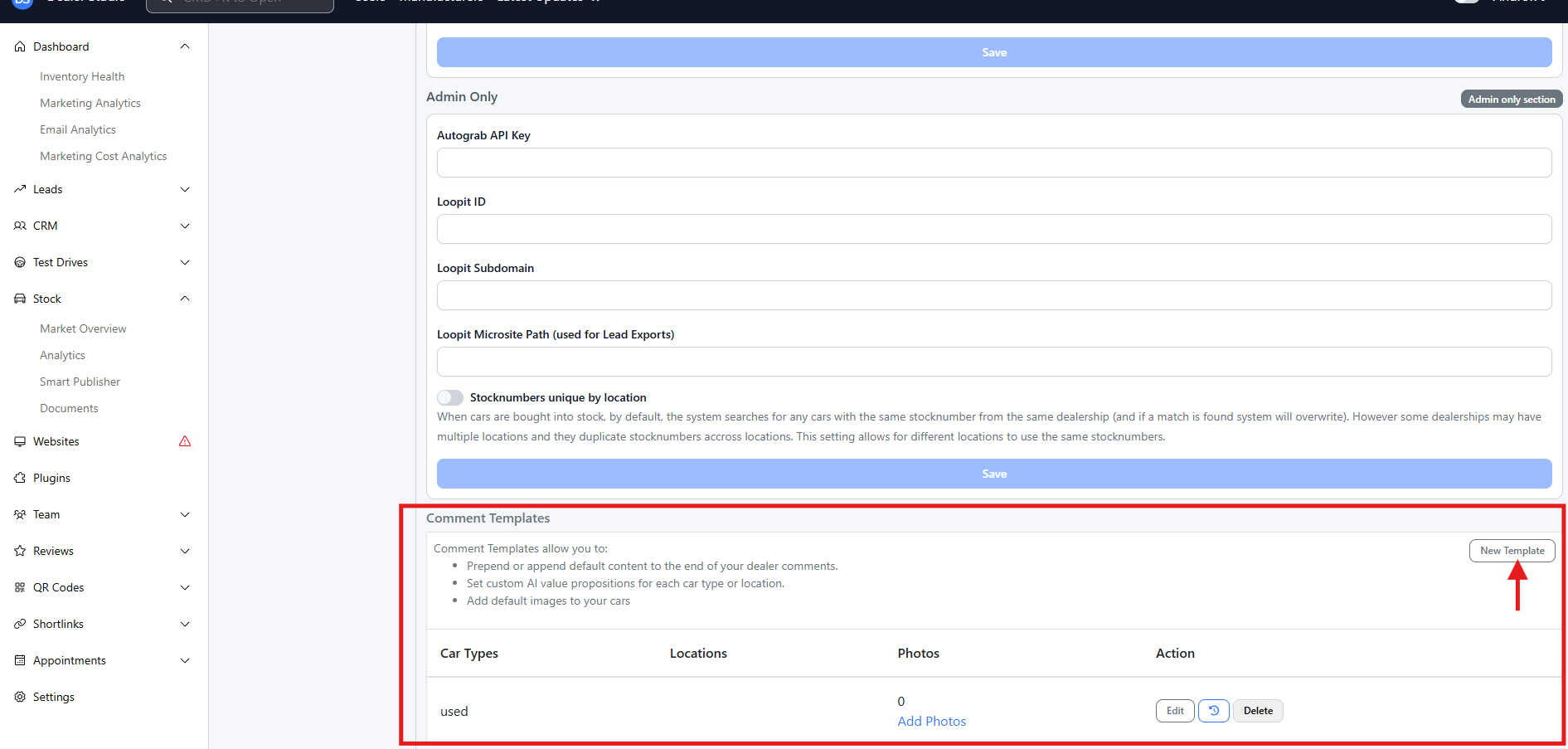
Examples of value propositions:
Family-owned dealership
Competitive finance options available
Full service history
Extended warranty options
Trusted local dealer
These value propositions guide the AI and help ensure comments align with your dealership’s tone and offerings.
Once entered, your changes are saved automatically (or click Save if prompted).
Step 3: Generate AI Comments for a Car Listing
Use the sidebar to navigate to Stock.
Select the vehicle listing you want to update.
Click Edit on the listing.
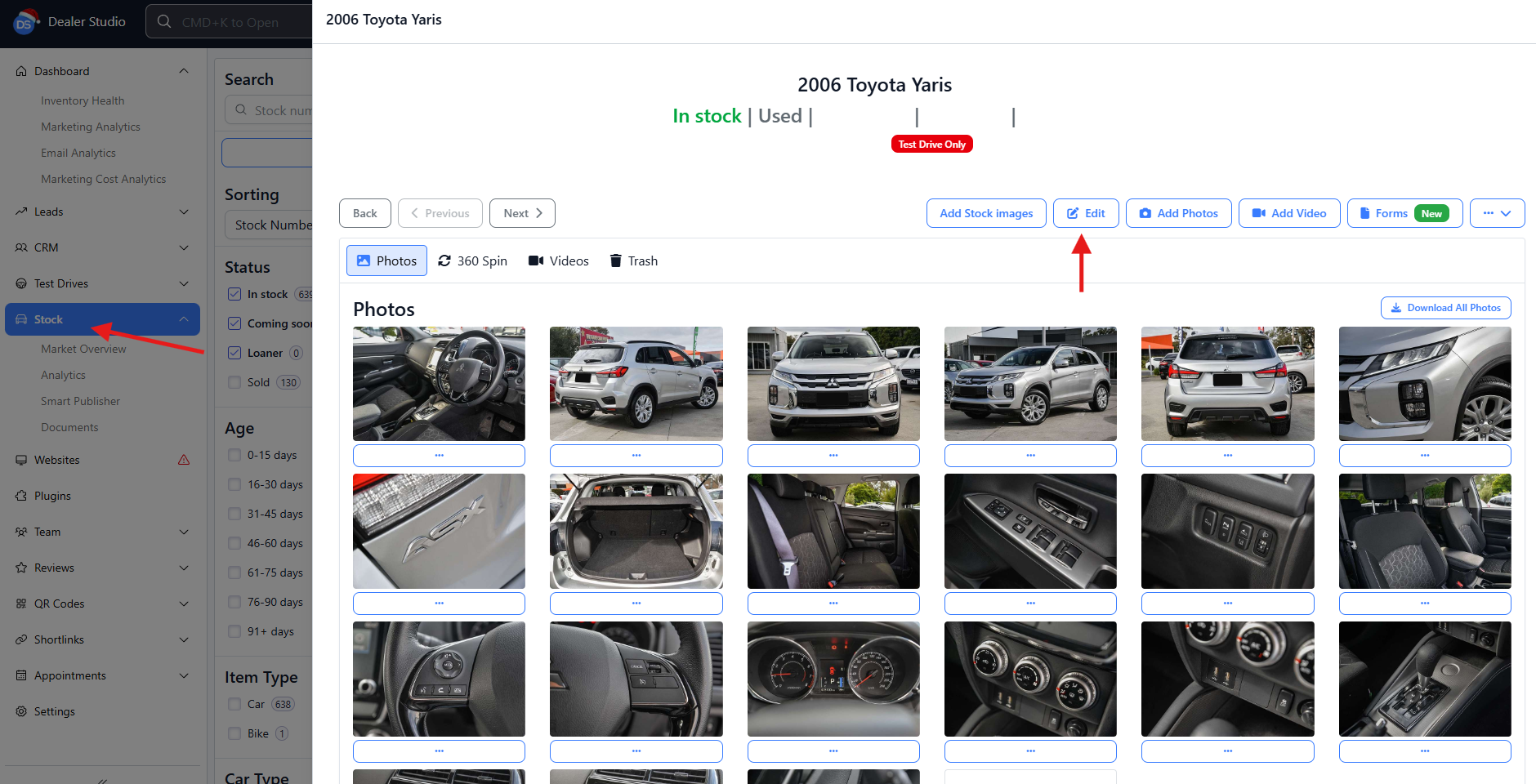
Step 4: Generate Dealer Comments
Scroll down to the Dealer Comments section.
Click Generate AI Comments.
Allow a few moments for the AI to generate the content.
The generated comments will automatically appear in the Dealer Comments text box.
Step 5: Review and Adjust (Recommended)
While AI comments are generated automatically, we recommend:
Reviewing for accuracy
Adjusting tone or wording if needed
Adding any vehicle-specific highlights
That’s It!
You’ve successfully created AI-generated dealer comments using Dealer Studio.
You can repeat this process for any vehicle listing, and update your value propositions at any time to refine future AI-generated comments.
Was this article helpful?
That’s Great!
Thank you for your feedback
Sorry! We couldn't be helpful
Thank you for your feedback
Feedback sent
We appreciate your effort and will try to fix the article