Follow the steps below to add dealer comments or generate AI comments for a vehicle using the Dealer Studio mobile app.
1. Log in and open Stock
Log in to the Dealer Studio mobile app
From the Dashboard, select your Dealership
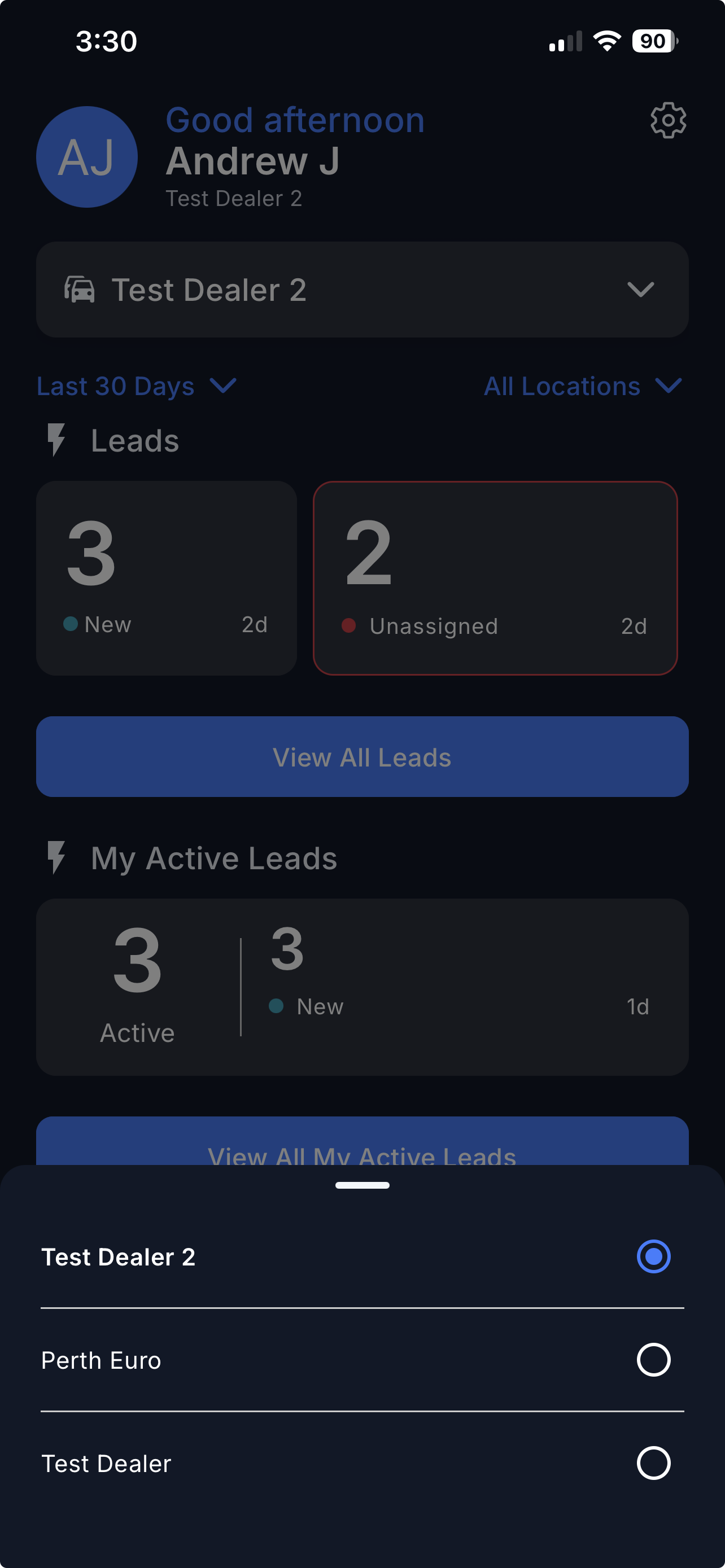
Tap Stock at the bottom of the screen
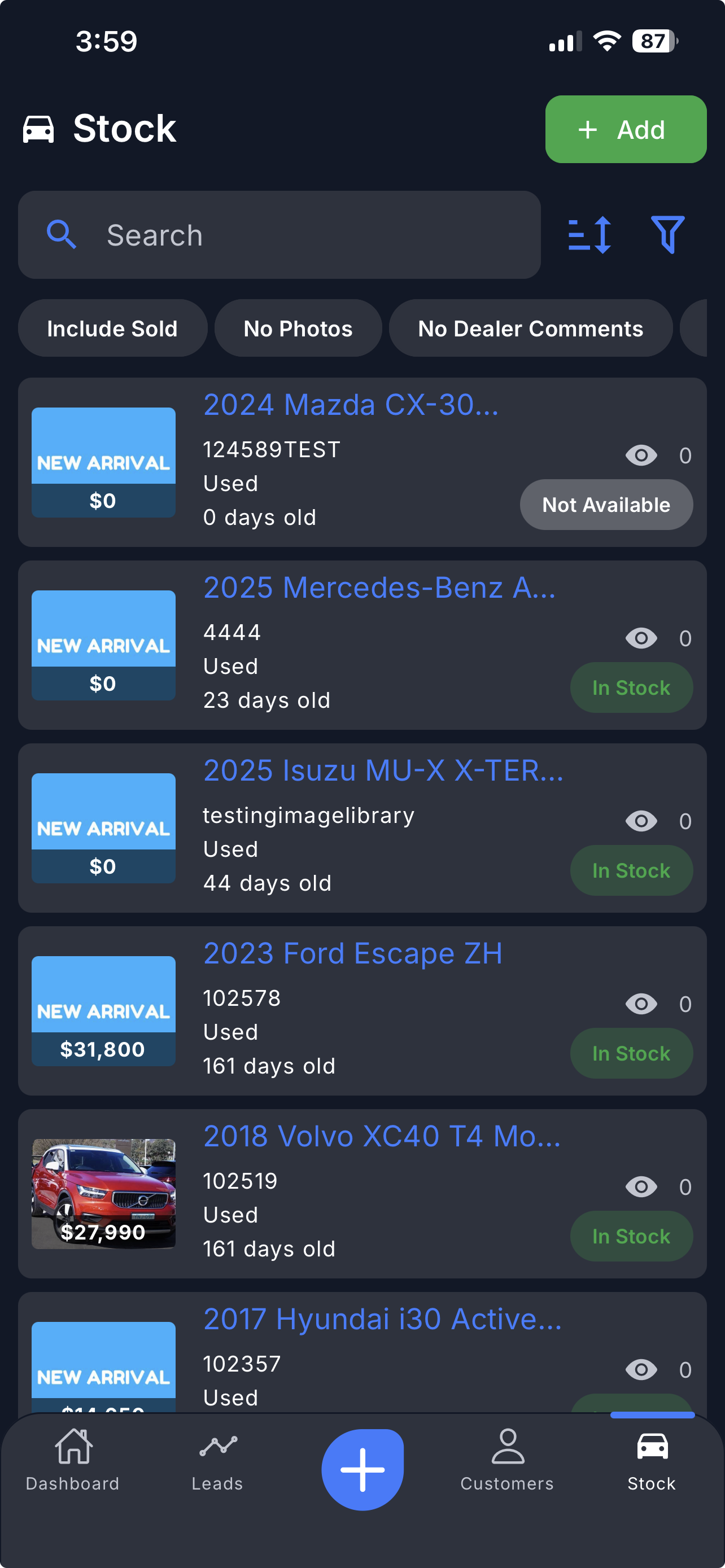
2. Select a vehicle
Select the stock item you want to add comments to
Tip: Search by Stock Number or use the Filter option (top right) to narrow your search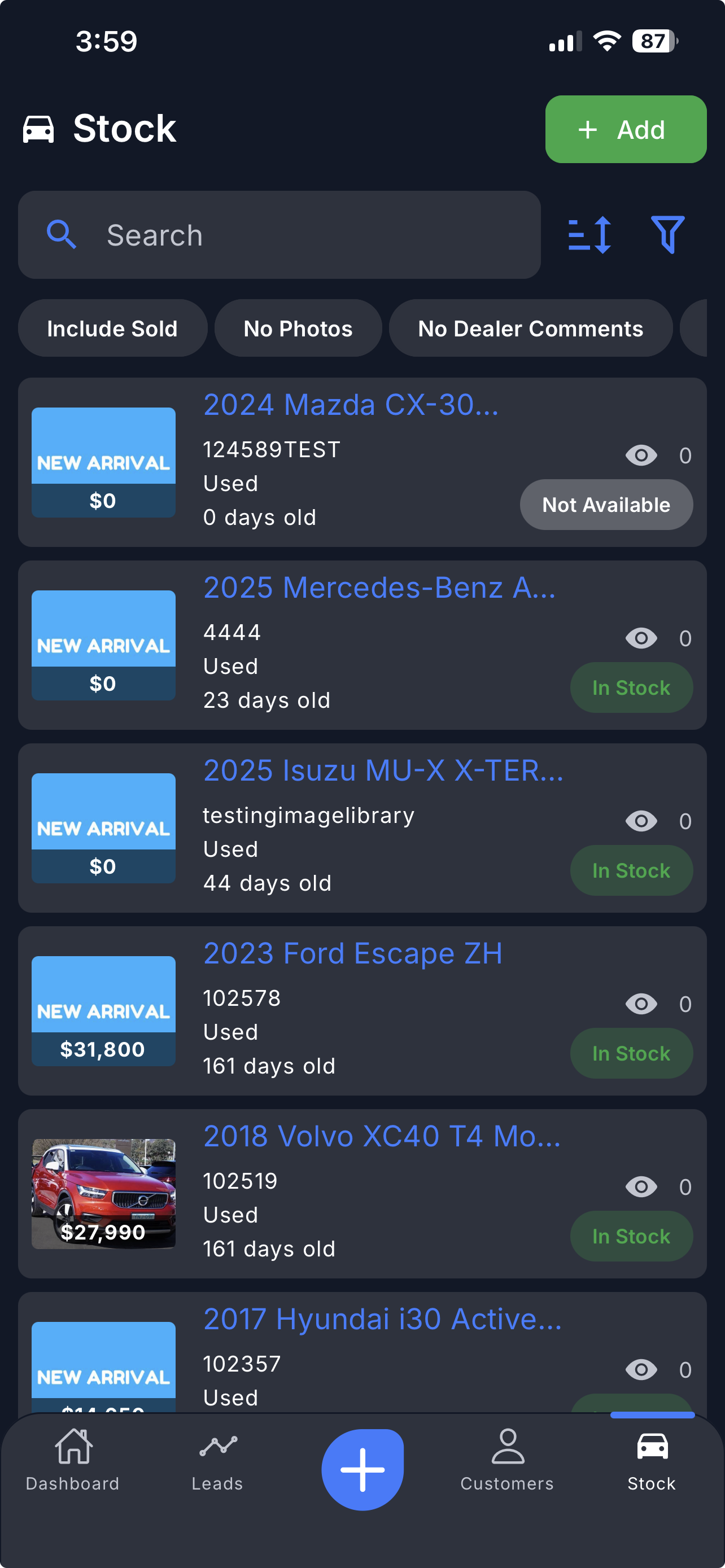
3. Add Dealer Comments
Scroll down to Dealer Comments
Tap Add Dealer Comments
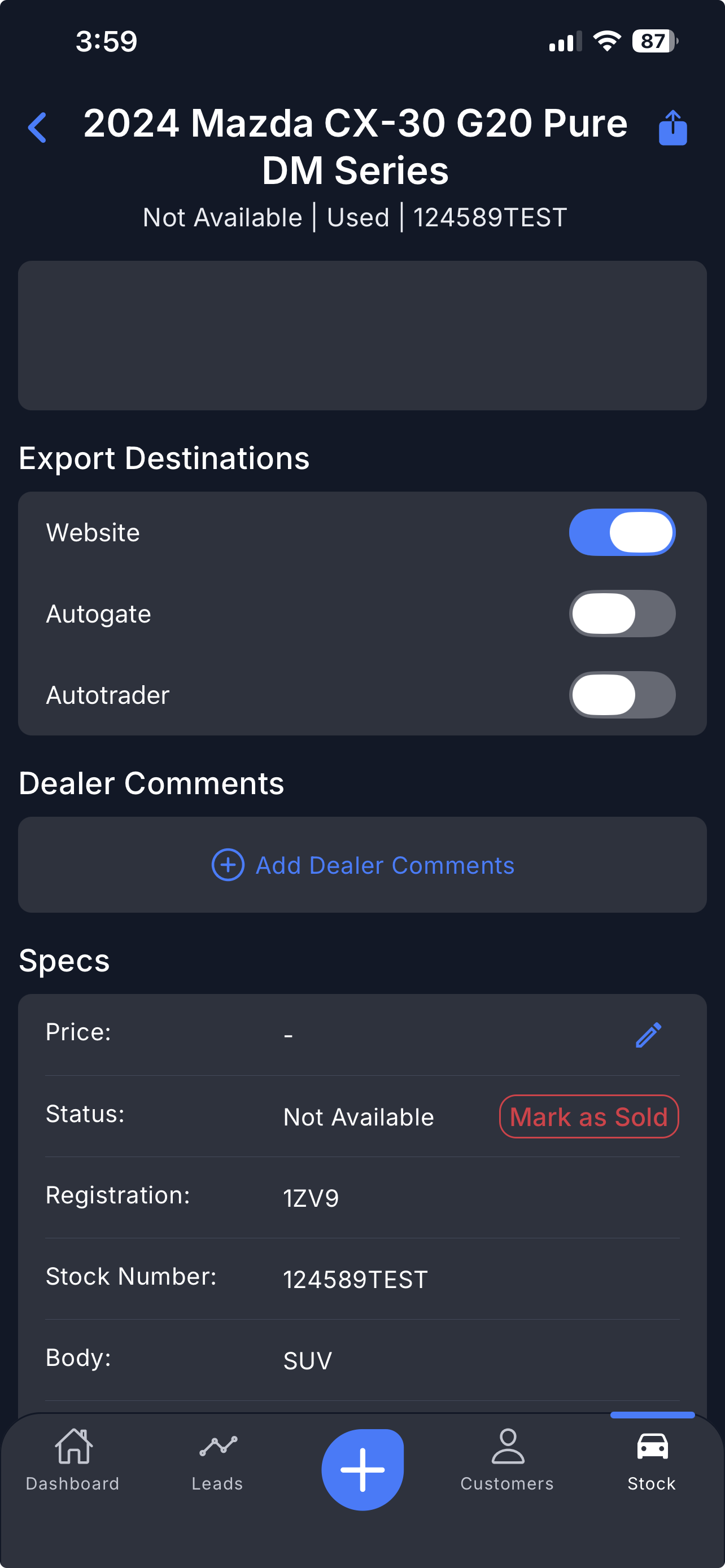
Enter your comments manually or generate AI Comments if required
Tap Save
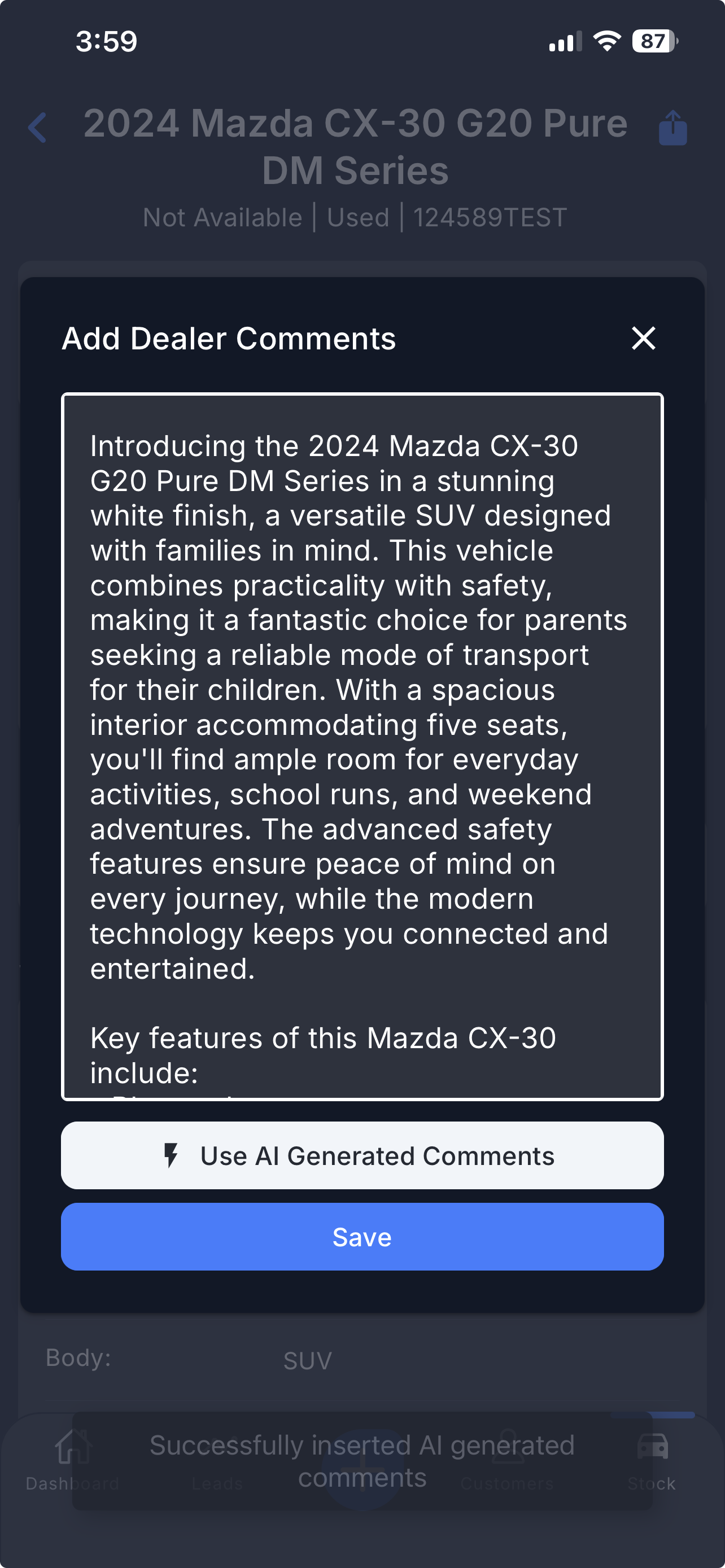
4. Edit comments if needed
The comments will be added to the stock item
Select Edit anytime to update the comments
- Empty the comments to delete comments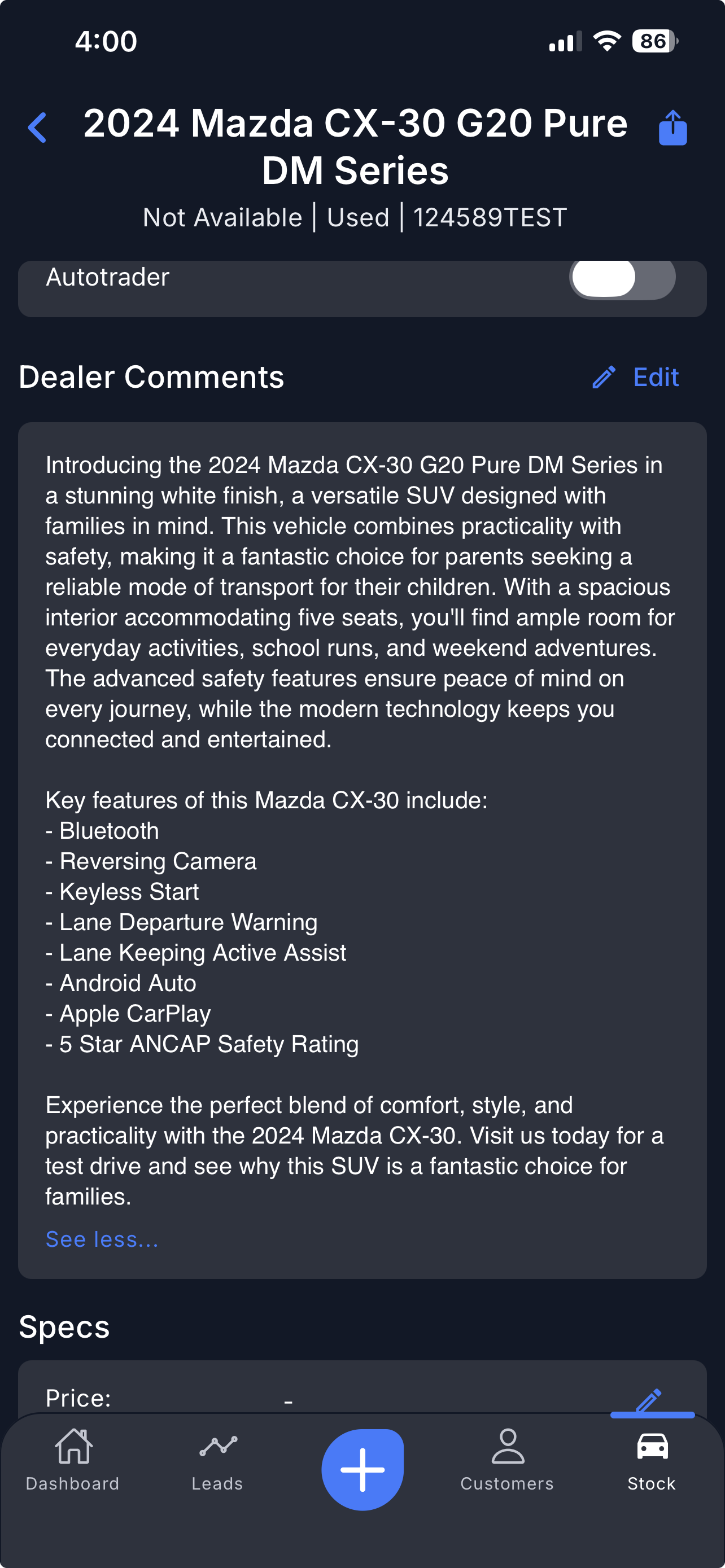
That's it!
Video
Please see the attachment below.
Was this article helpful?
That’s Great!
Thank you for your feedback
Sorry! We couldn't be helpful
Thank you for your feedback
Feedback sent
We appreciate your effort and will try to fix the article