Adding features to your vehicle listings in Dealer Studio improves the customer experience and delivers important SEO and marketing benefits.
Features such as Bull Bar, Roof Racks, 7 Seats, or Seat Heating help:
Customers quickly find vehicles that match their needs
Improve visibility on your dealership website
Enhance listing performance on third-party platforms like Carsales and Gumtree
Support AI-generated dealer comments by providing richer vehicle data
A video walkthrough is available at the bottom of this article.
Step-by-Step Guide
Step 1: Navigate to Stock
Log in to the Dealer Studio Dashboard.
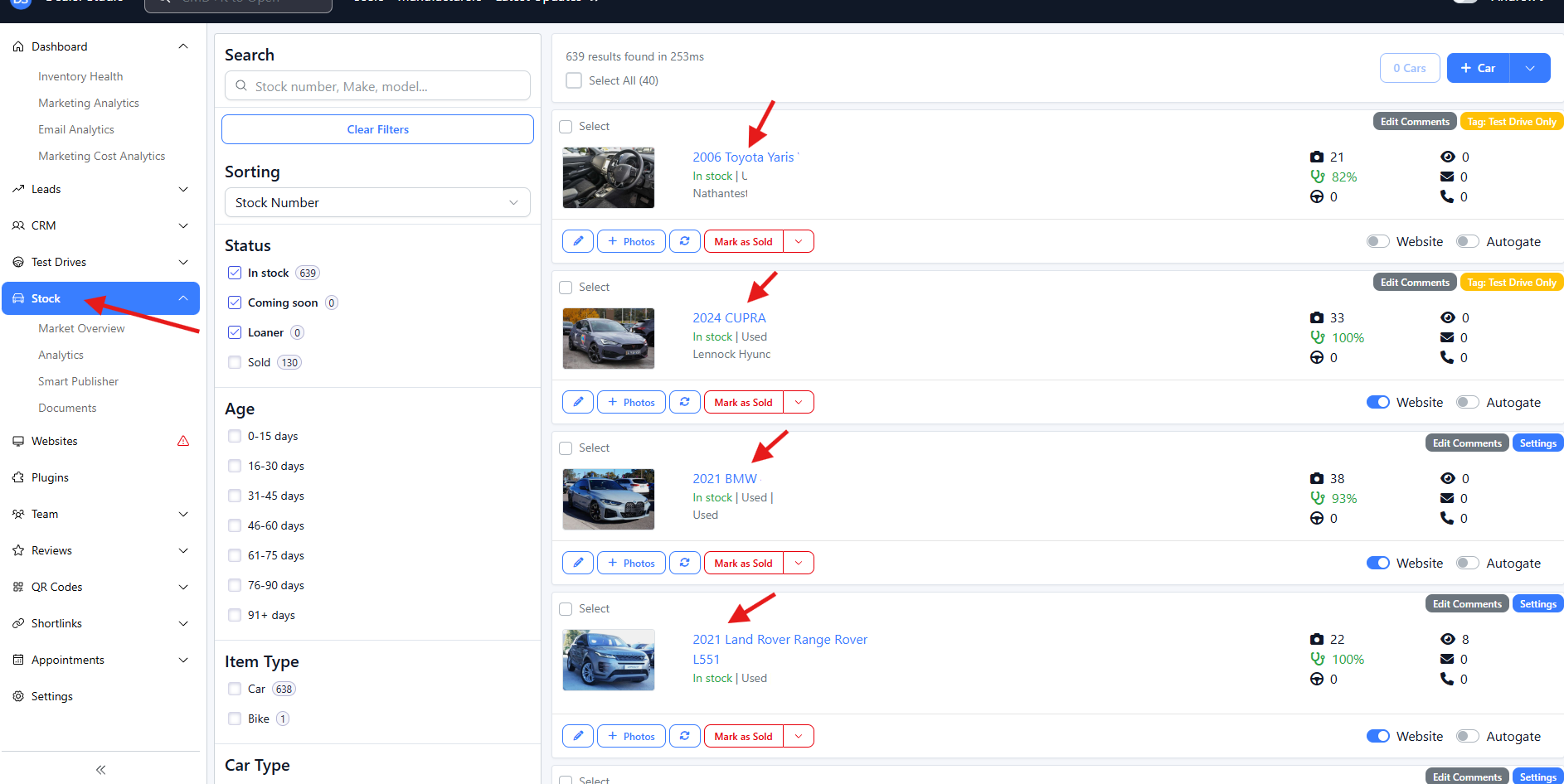
Use the sidebar to navigate to Stock.
This page displays all vehicles currently in your inventory.
Step 2: Select a Vehicle
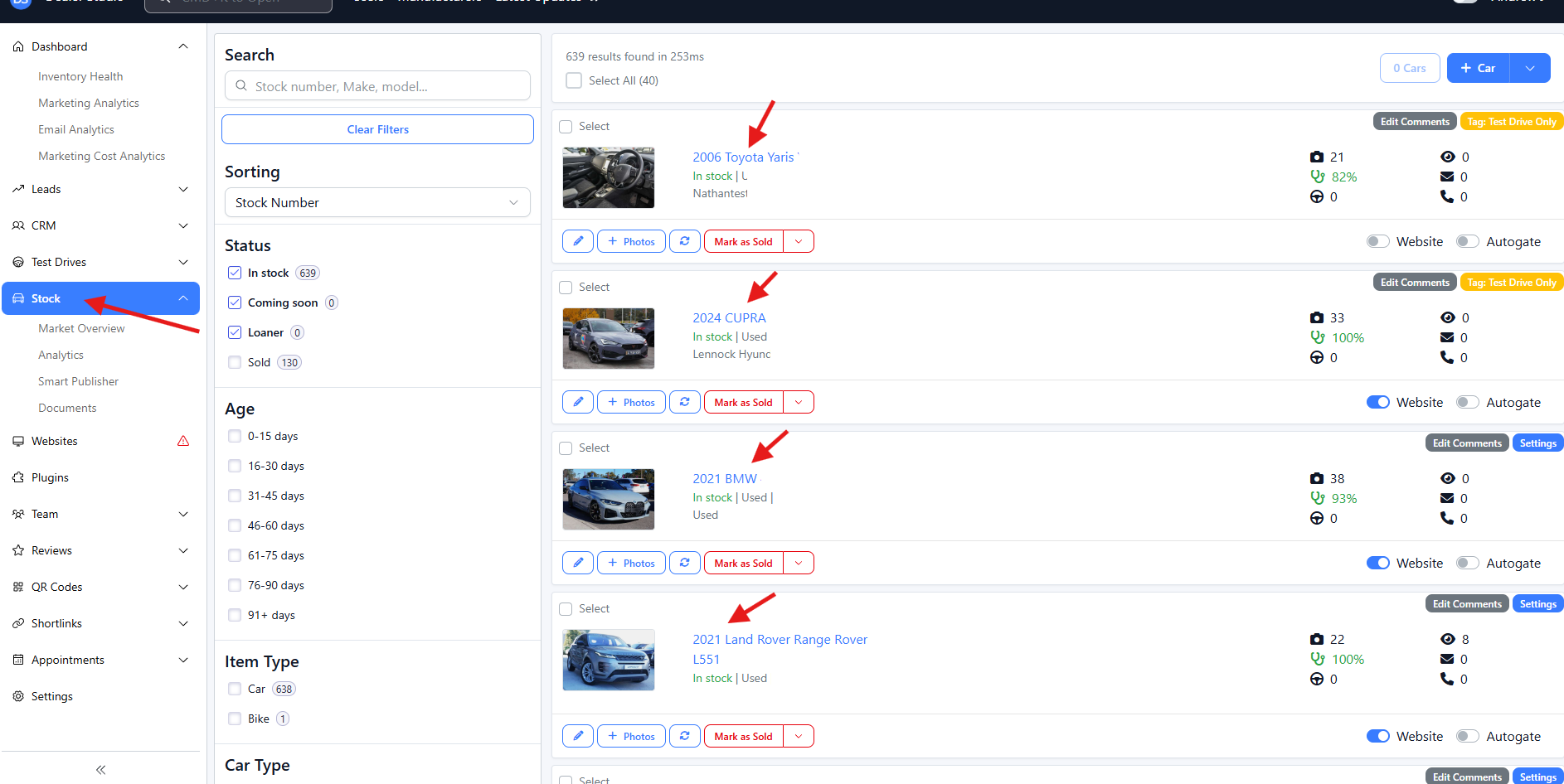
Locate the vehicle you want to update.
Click on the listing to open it.
Step 3: Add Features to the Vehicle
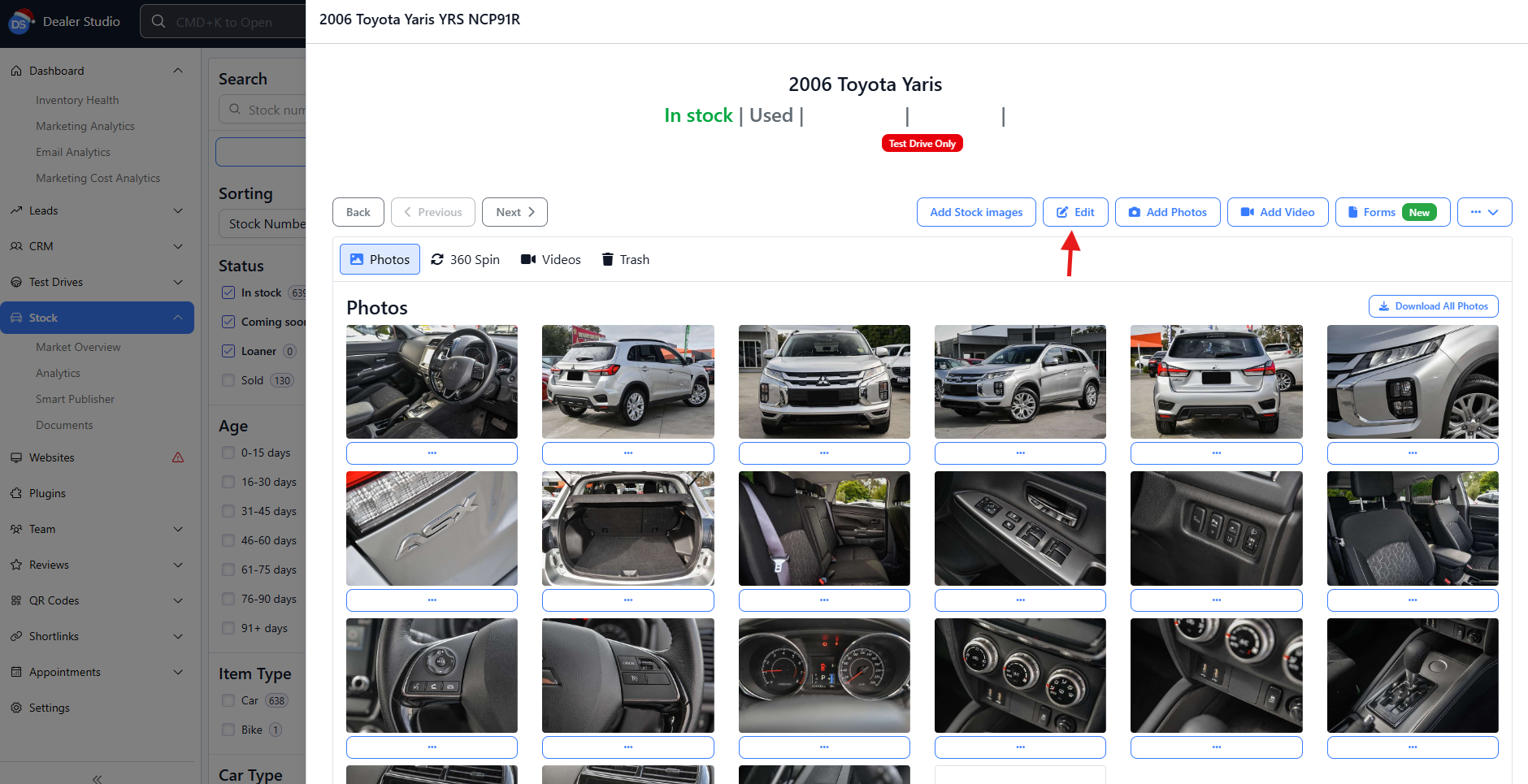
Within the vehicle listing, click Edit and locate the Tag dropdown option.
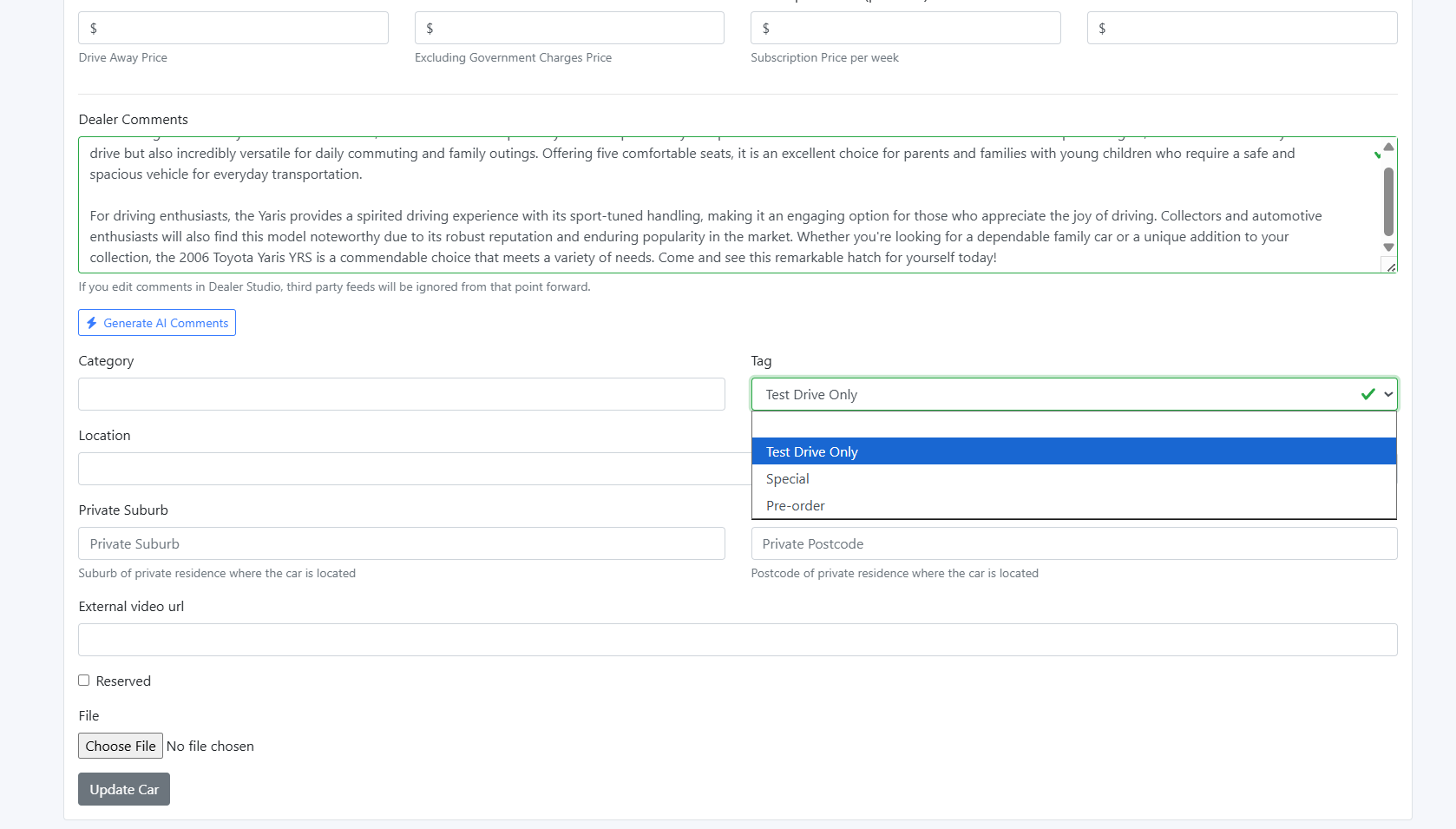
Click Update Car to save your changes.
Alternatively, you can select + Features from the stock details page.
This opens the feature selection panel: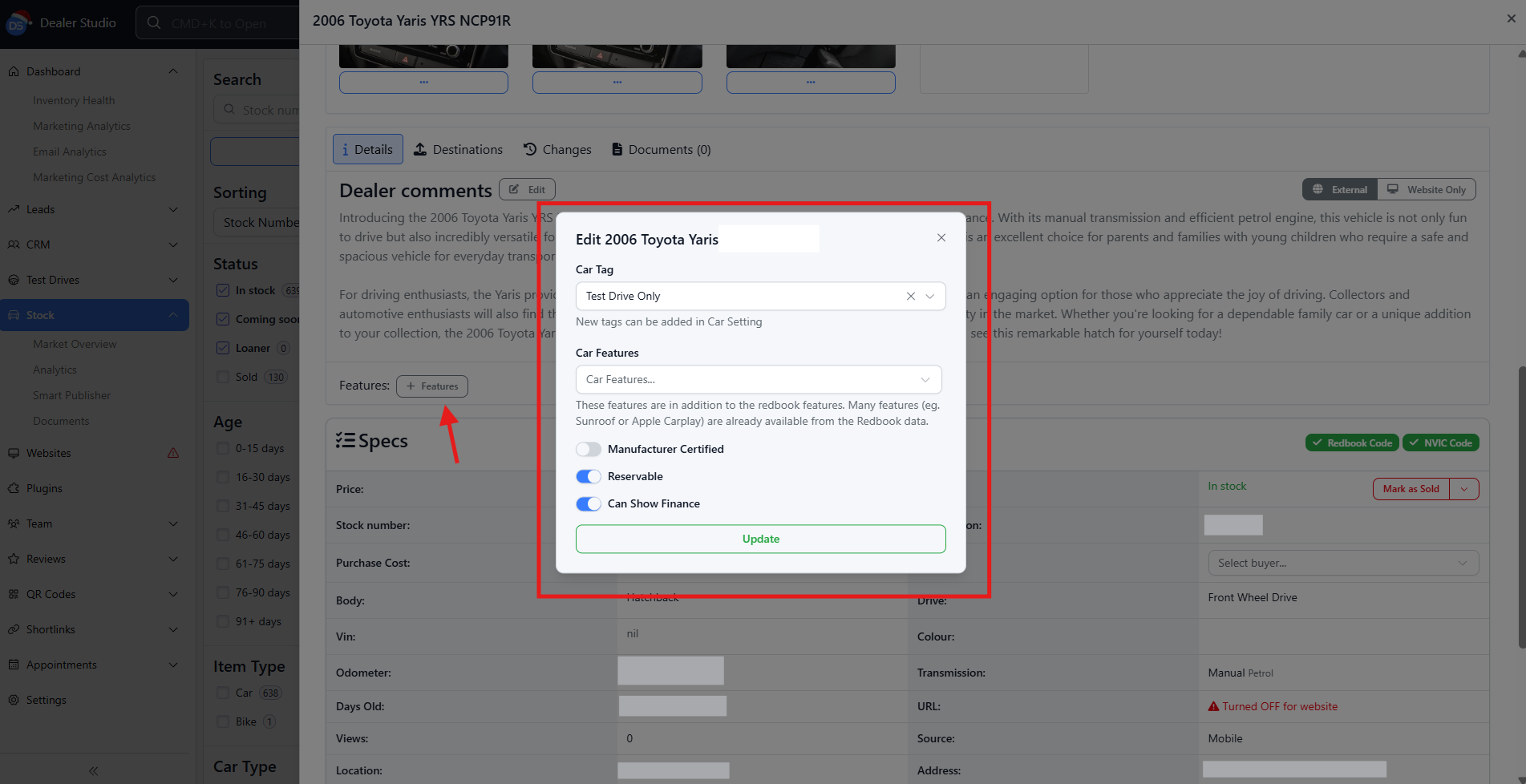
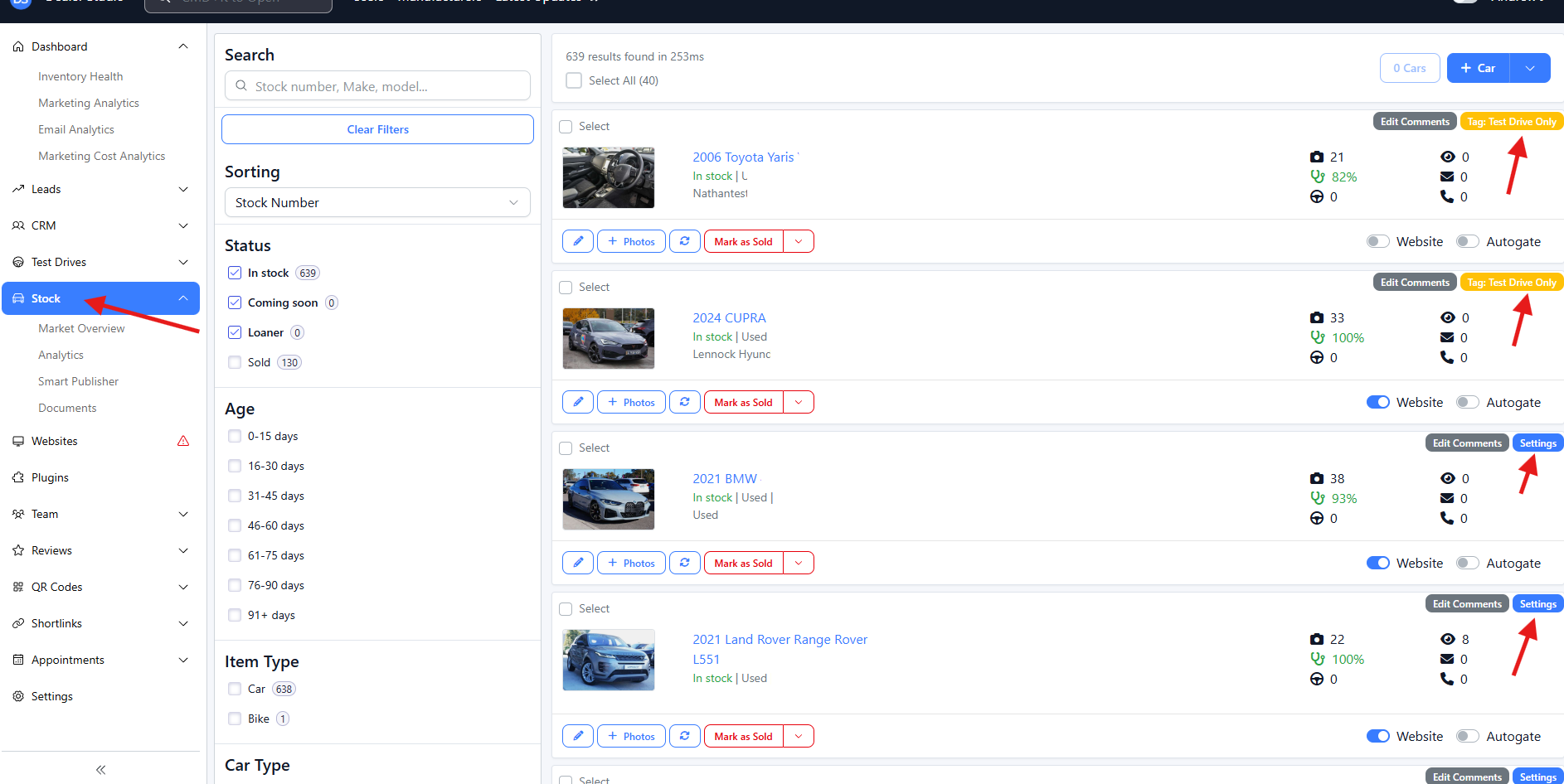
Tips: Quick-add Features to the VehicleWithin the vehicle listing, click location the vehicle you want to update.
Select Tag to change/update features, or select Settings to add new features.
Step 4: Choose or Create Features
Select the features that apply to the vehicle from the available list.
Examples: Bull Bar, Roof Racks, 7 Seats, Seat Heating
If required, create a new feature by entering a custom feature name.
Only add features that accurately describe the vehicle to avoid customer confusion.
Step 5: Review and Save
Review the selected features for accuracy and relevance.
Click Update to attach the features to the vehicle listing.
Step 6: Verify Feature Display
After saving:
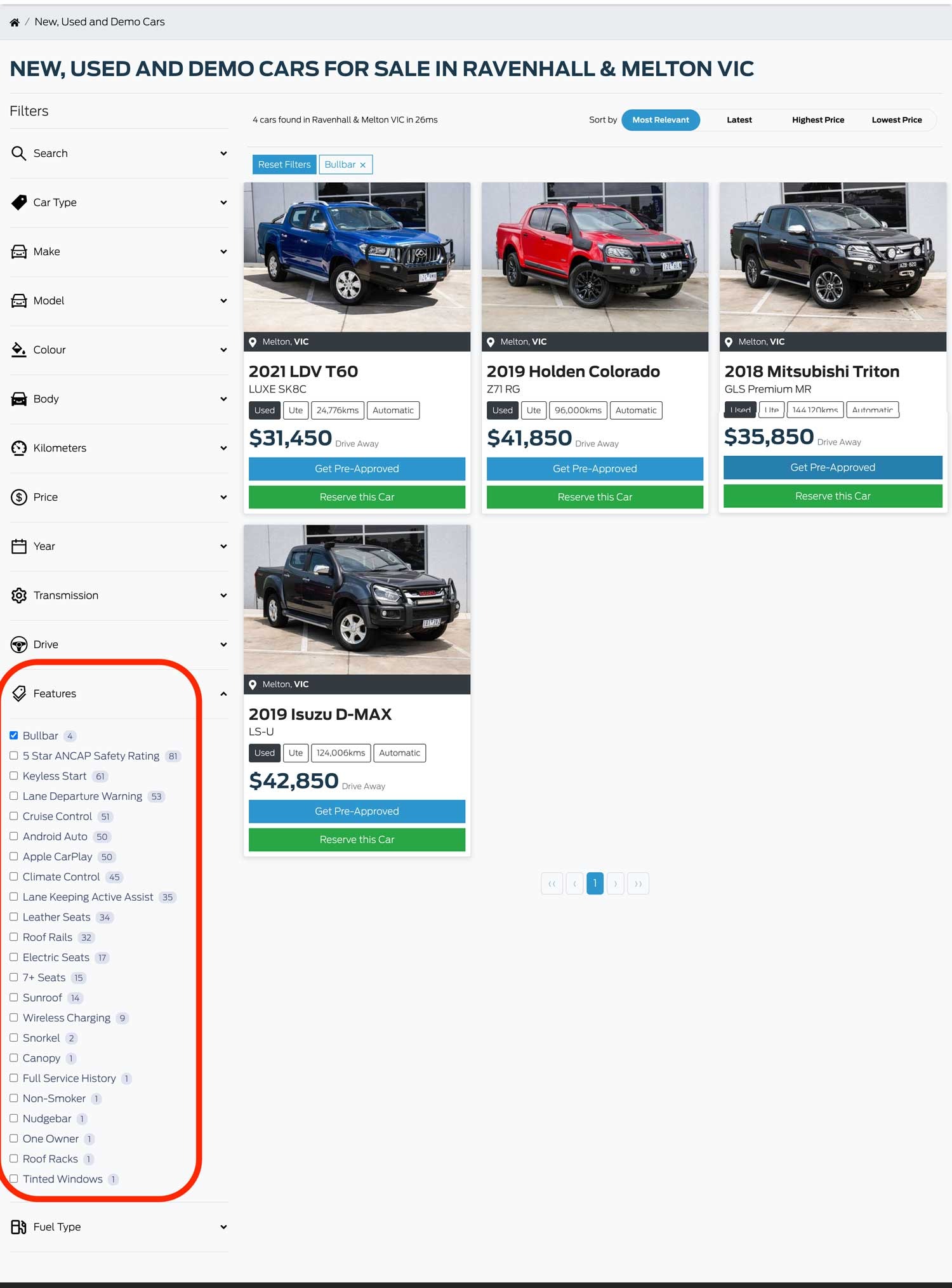
View the vehicle’s listing on your dealership website.
Confirm that all selected features are:
Displayed correctly
Easy for customers to find and understand
This ensures the features are visible both on your website and any connected third-party platforms.
Best Practices for Adding Features
Use clear, commonly understood feature names
Avoid duplicating similar features (e.g. “Seat Warmer” vs “Seat Heating”)
Add all applicable features to maximize SEO and search filtering
Keep features up to date when stock changes
That’s it!
You’ve successfully added features to a car listing in Dealer Studio
Was this article helpful?
That’s Great!
Thank you for your feedback
Sorry! We couldn't be helpful
Thank you for your feedback
Feedback sent
We appreciate your effort and will try to fix the article