This article provides a quick, step-by-step overview of how to add cars within the Pages Editor. It explains where to navigate, how to insert the correct content block, and how to configure settings so vehicles display correctly on the page. Ideal for users managing website content who need to quickly add or update car listings without touching code.
Step 1: On the Dealership Dashboard, select Websites
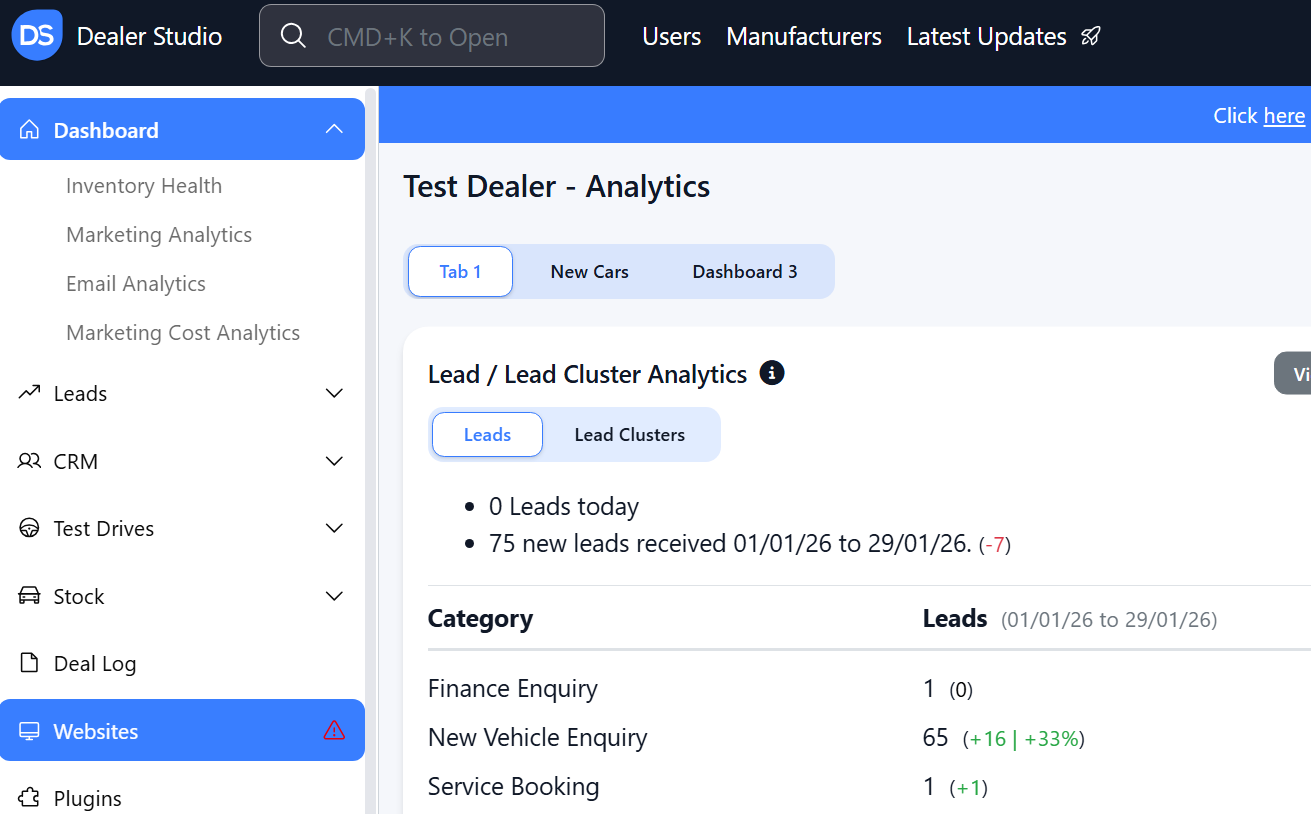
Step 2: Select the Desired Website to edit
Step 3: Once on the Website Dashboard, select Pages
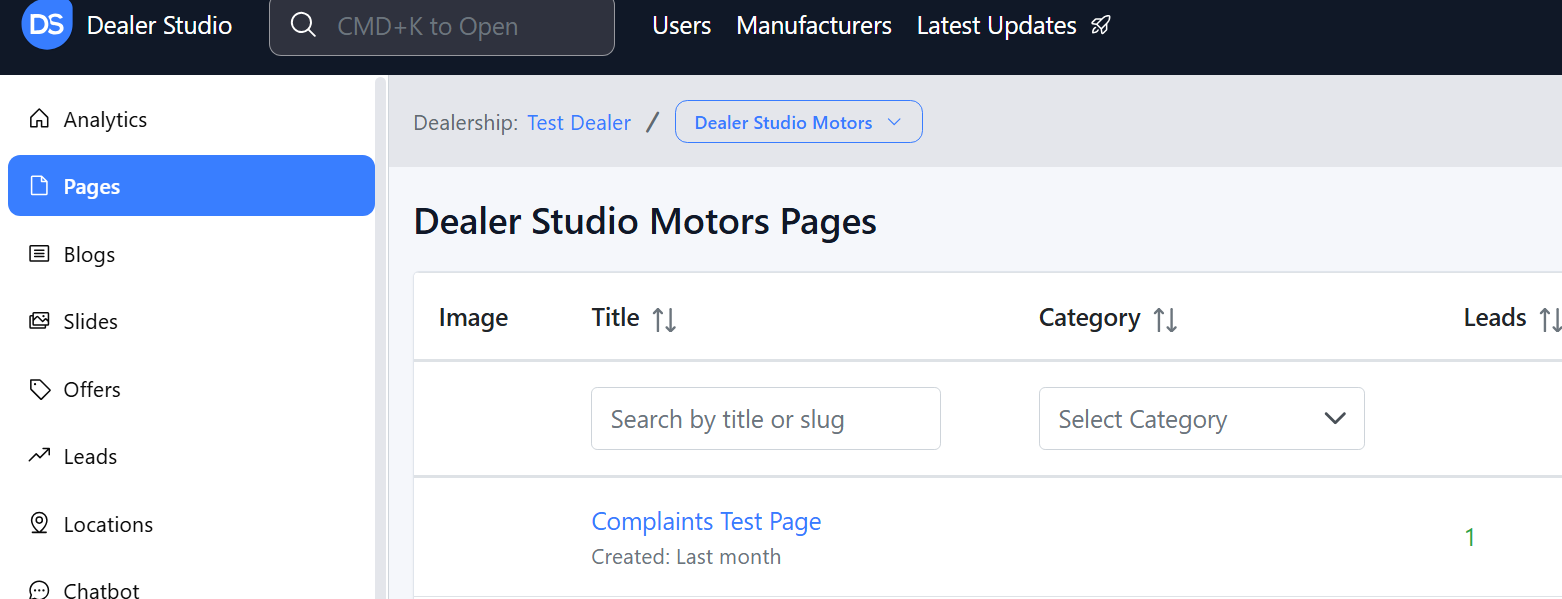
Step 4: Select the page you want to edit
How to Add Cars in the Pages Editor
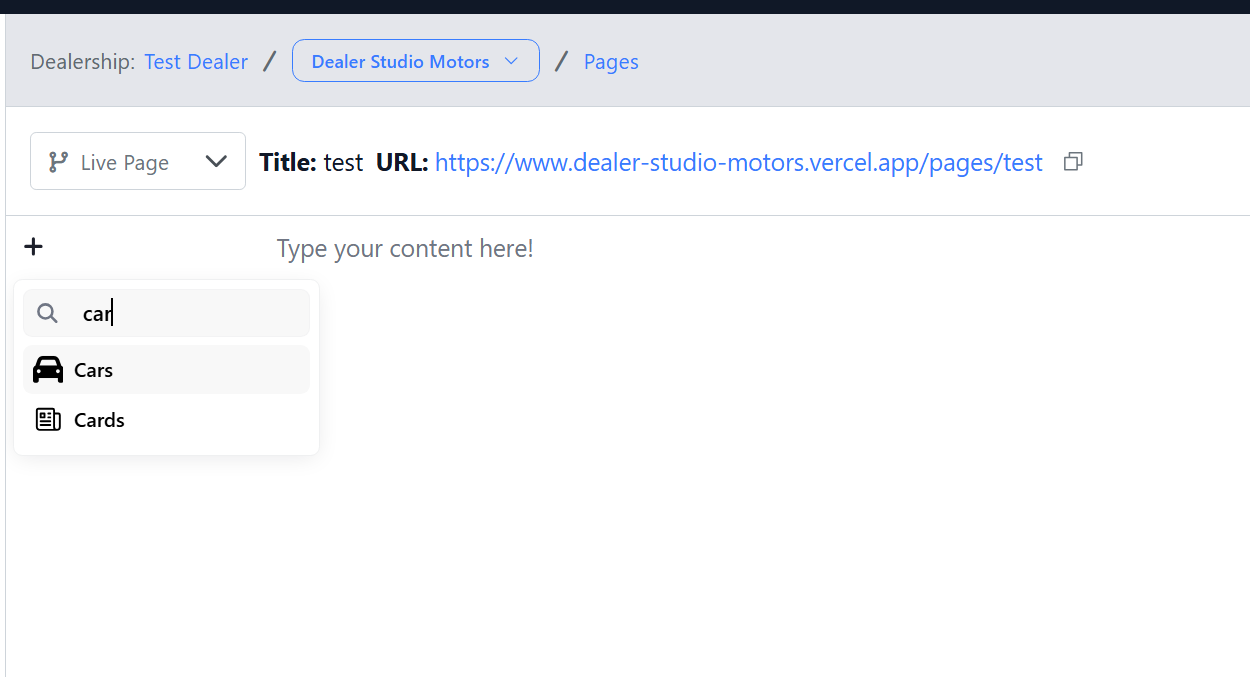
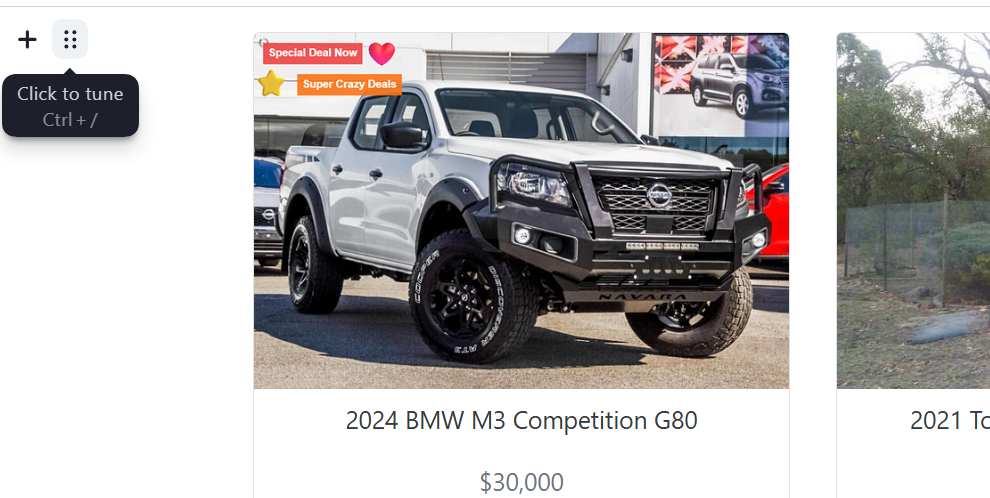
1. Navigate to the desired area of the page. Hover your mouse over the left-hand side until the '+' icon appears. Click on the icon, then scroll down and select the Cars button.
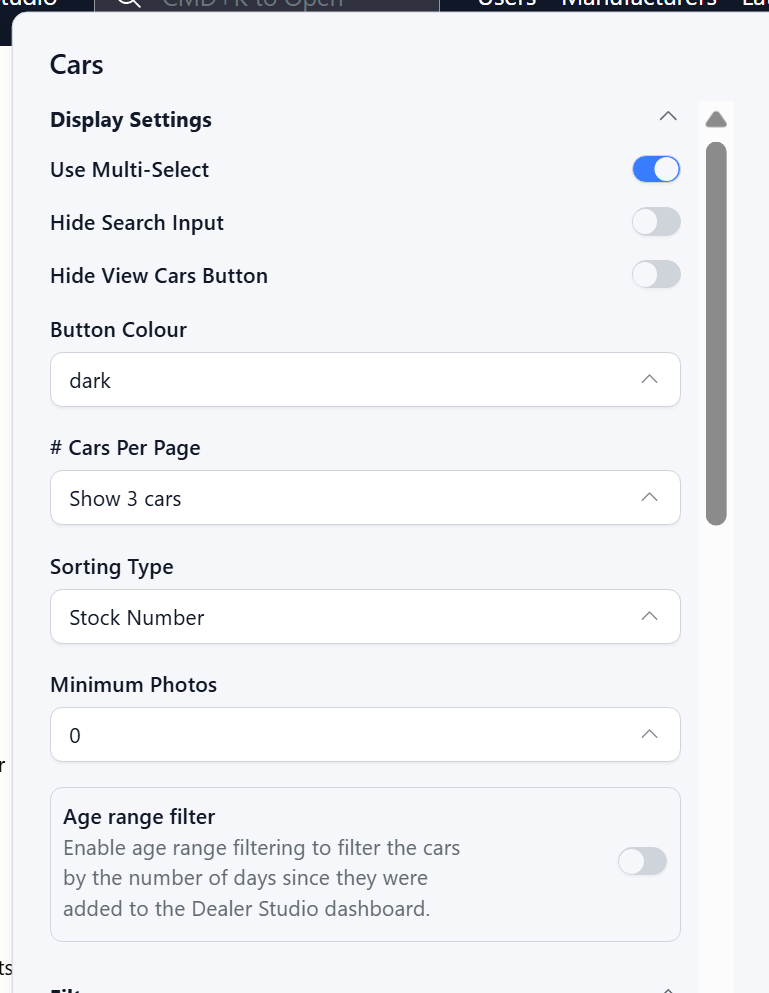
2. To Edit what generates, please hover and click the 6 dots, then edit Settings;
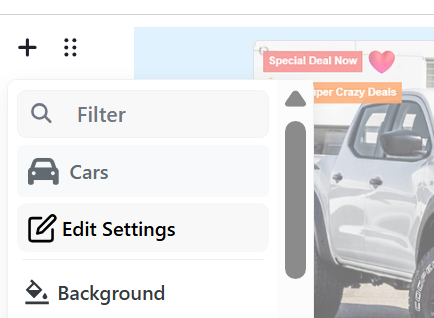
3. You will be able to select numerous filters to assist with the displaying;
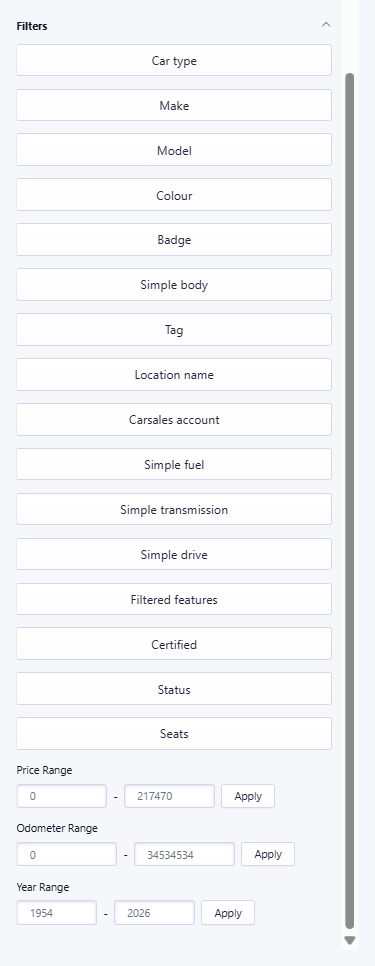
4. You may then click out of it- and publish your page.
Was this article helpful?
That’s Great!
Thank you for your feedback
Sorry! We couldn't be helpful
Thank you for your feedback
Feedback sent
We appreciate your effort and will try to fix the article