This article introduces users to the Forms and Form Builder tool within the Pages Editor. It explains how to create, customize, and manage forms on your pages, including adding fields, configuring submission settings, and styling the form to match your site. Ideal for users who want to capture leads, inquiries, or feedback directly through their website without coding.
Step 1: On the Dealership Dashboard, select Websites
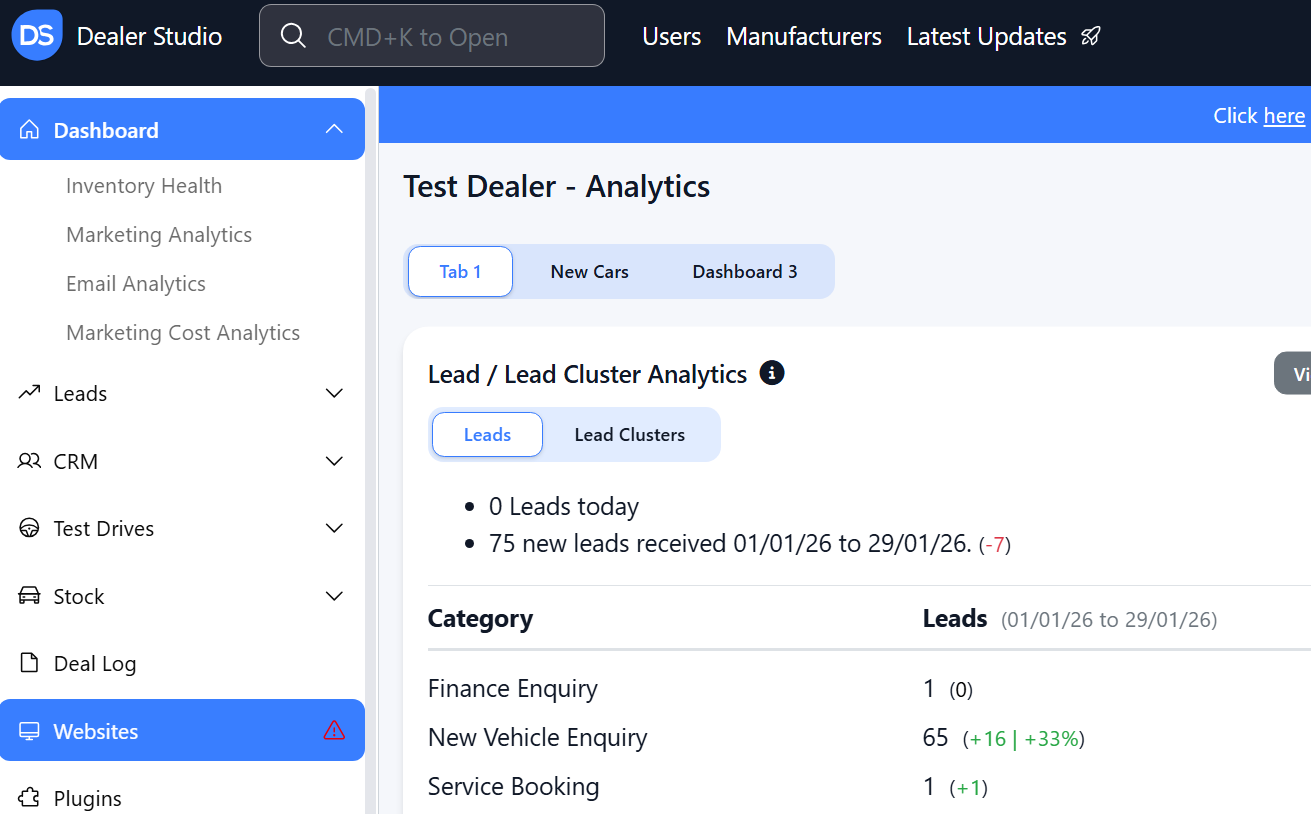
Step 2: Select the Desired Website to edit
Step 3: Once on the Website Dashboard, select Pages
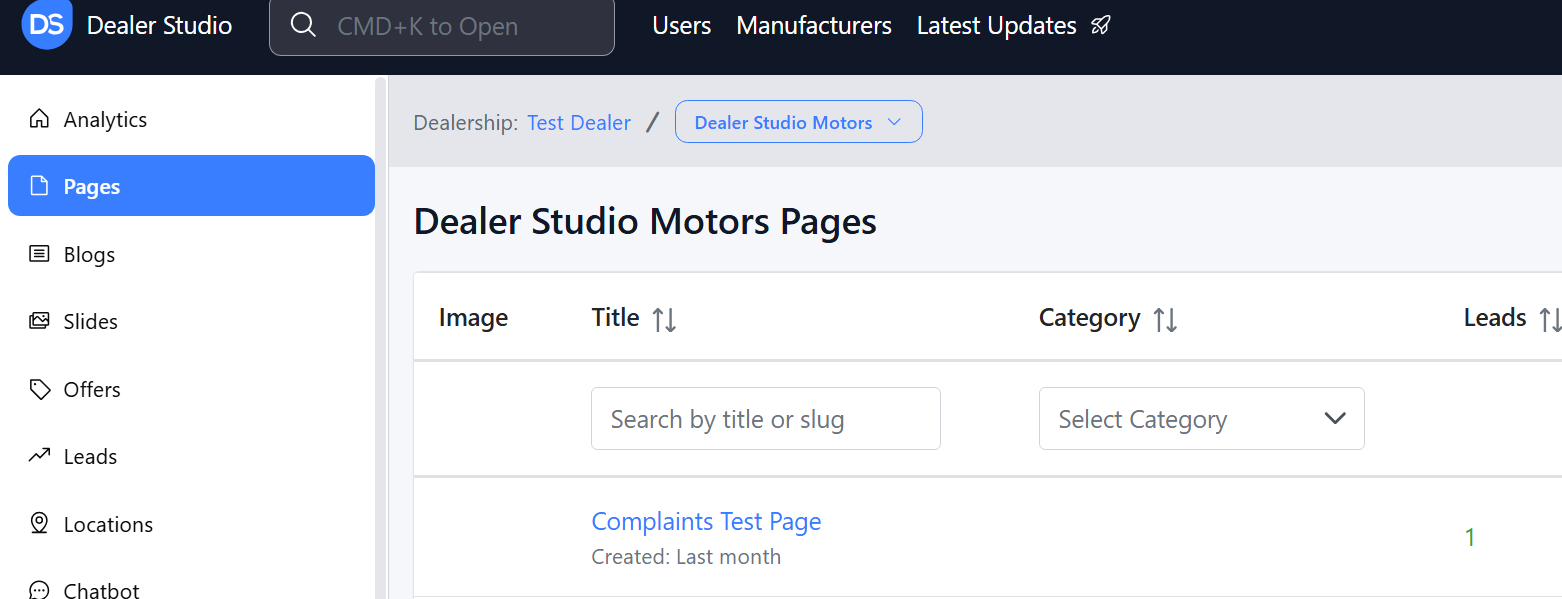
Step 4: Select the page you want to edit
Adding Forms to the Pages Editor
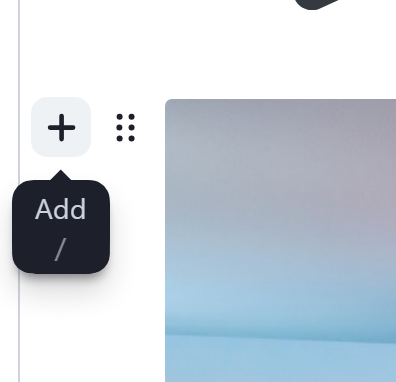
1. Once you have navigated to your page, hover and click the '+' on the left
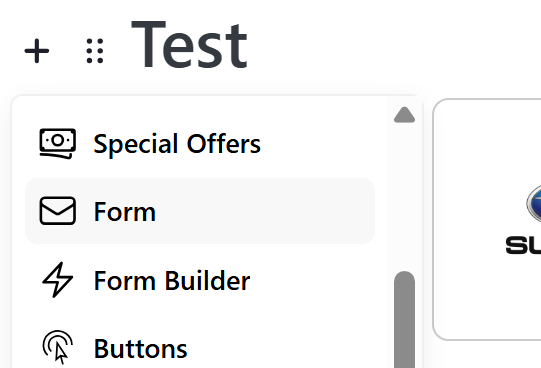
2. Please select 'Form'
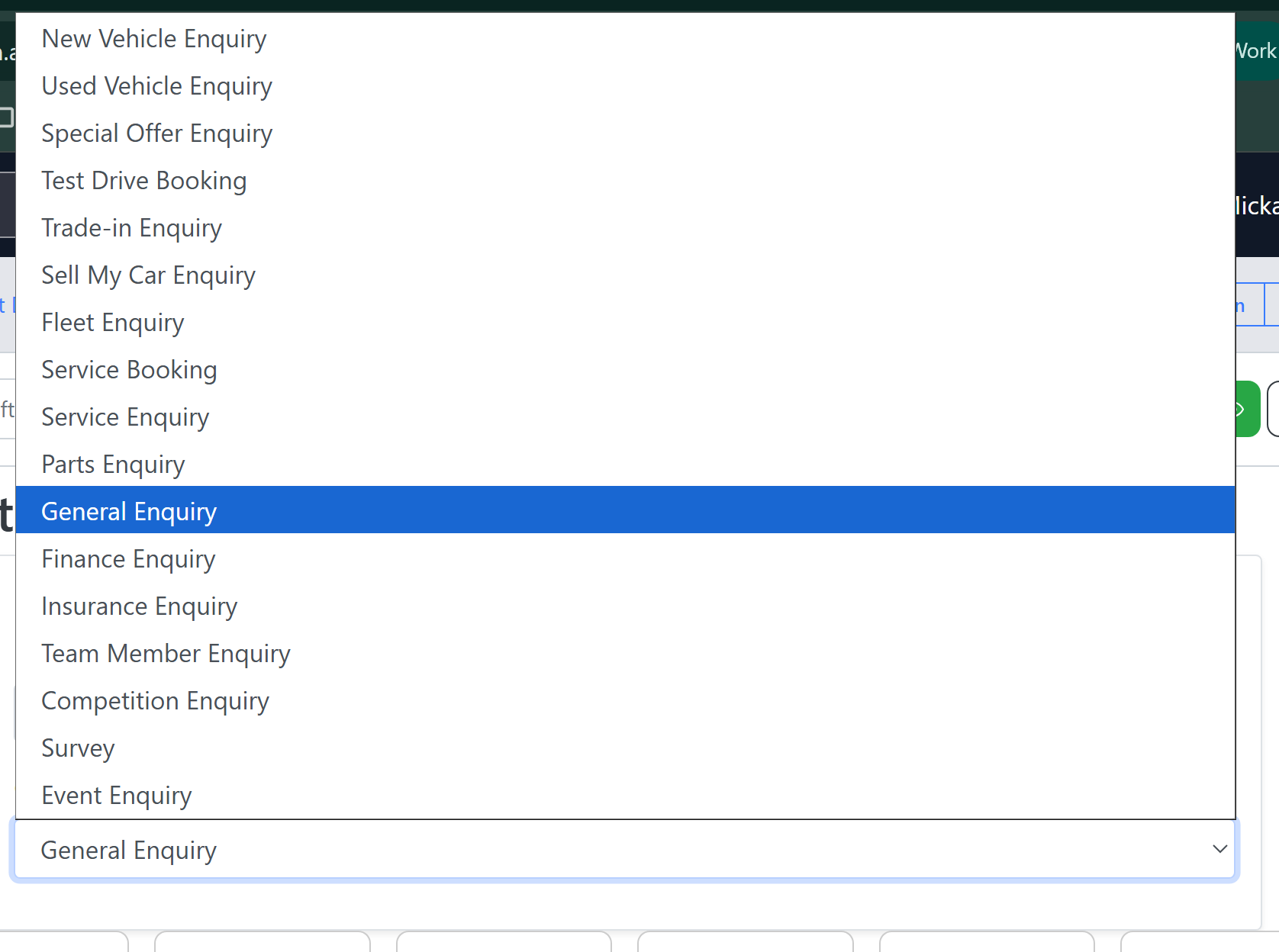
3. You will then have the ability to change they type of form;
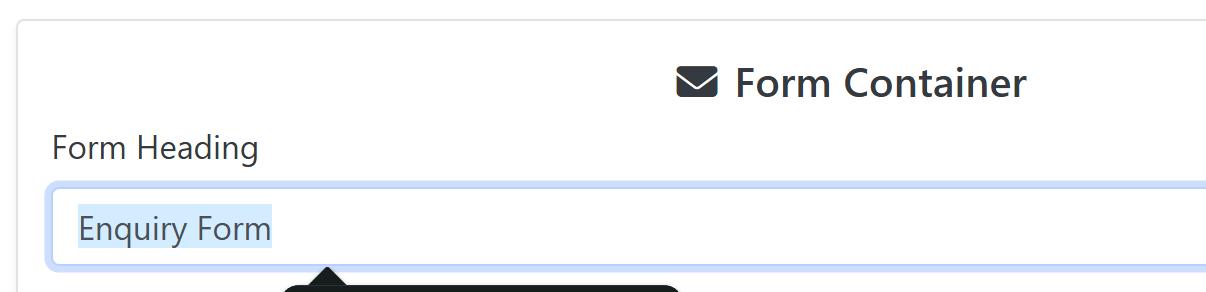
4. You can also edit the title e.g. Enquire Now, Sign up for the Event etc
Building your own Forms to the Pages Editor
1. Once you have navigated to your page, hover and click the '+' on the left
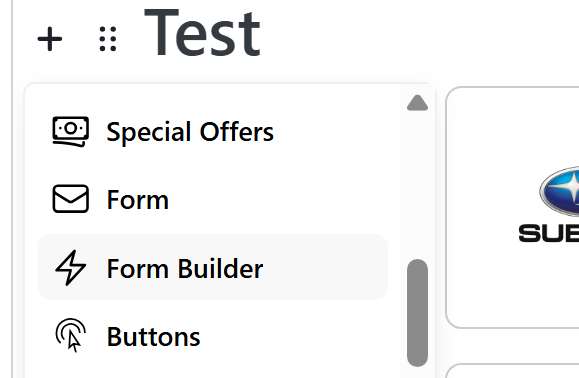
2. Please select 'Form Builder'
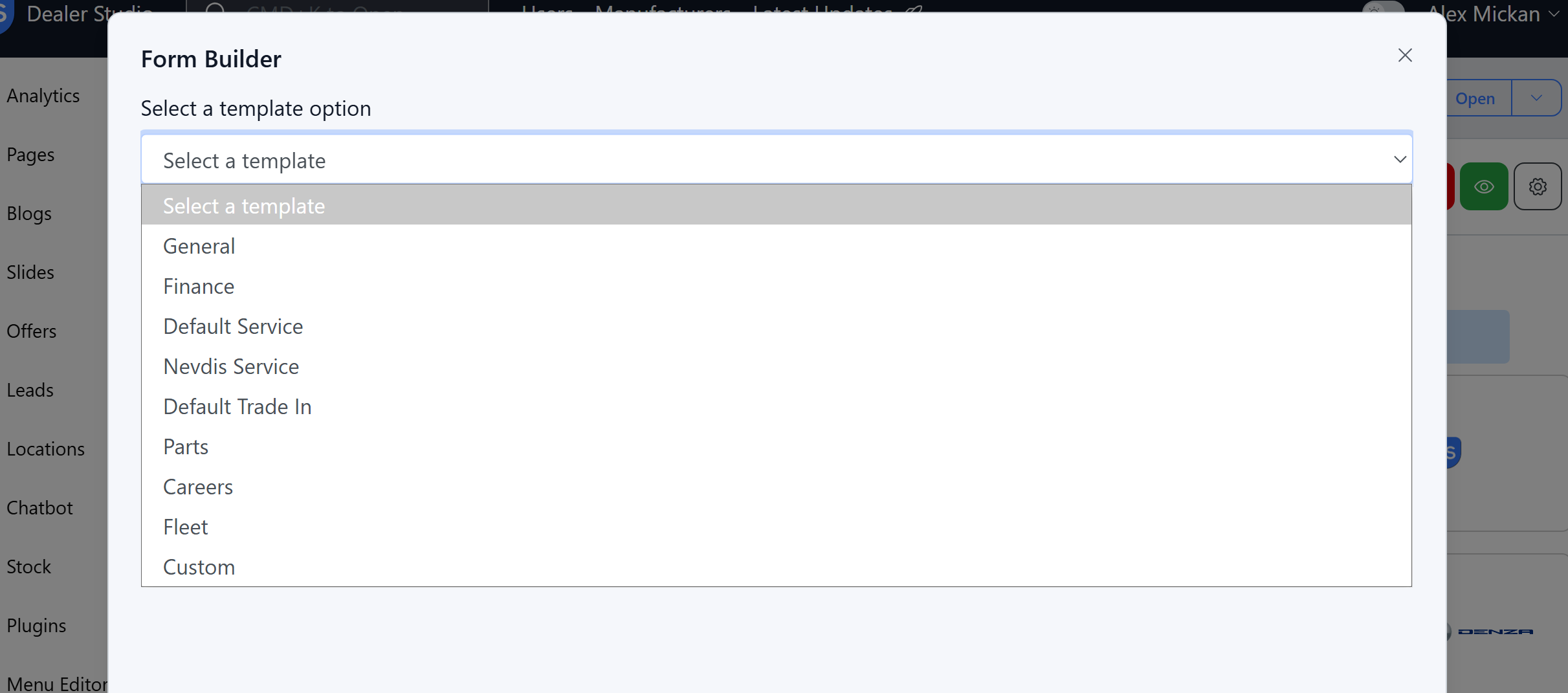
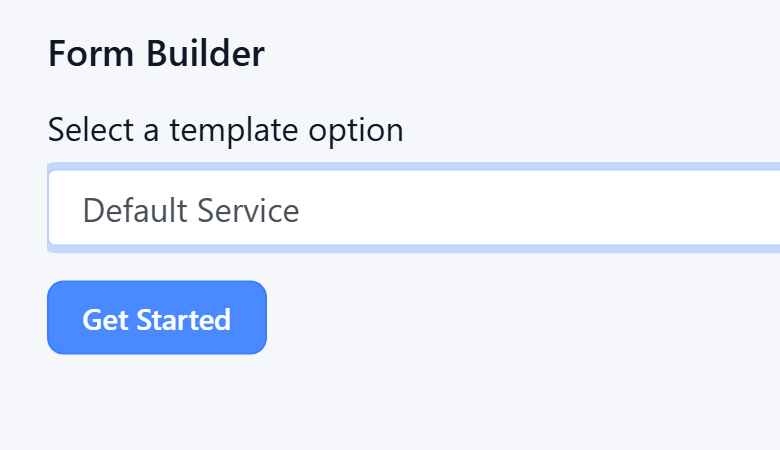
3. You can then select a template if you would like some of the items added on your behlaf. e.g. servicing form adds in the servicing calendar;
4. Then Click 'Get Started':
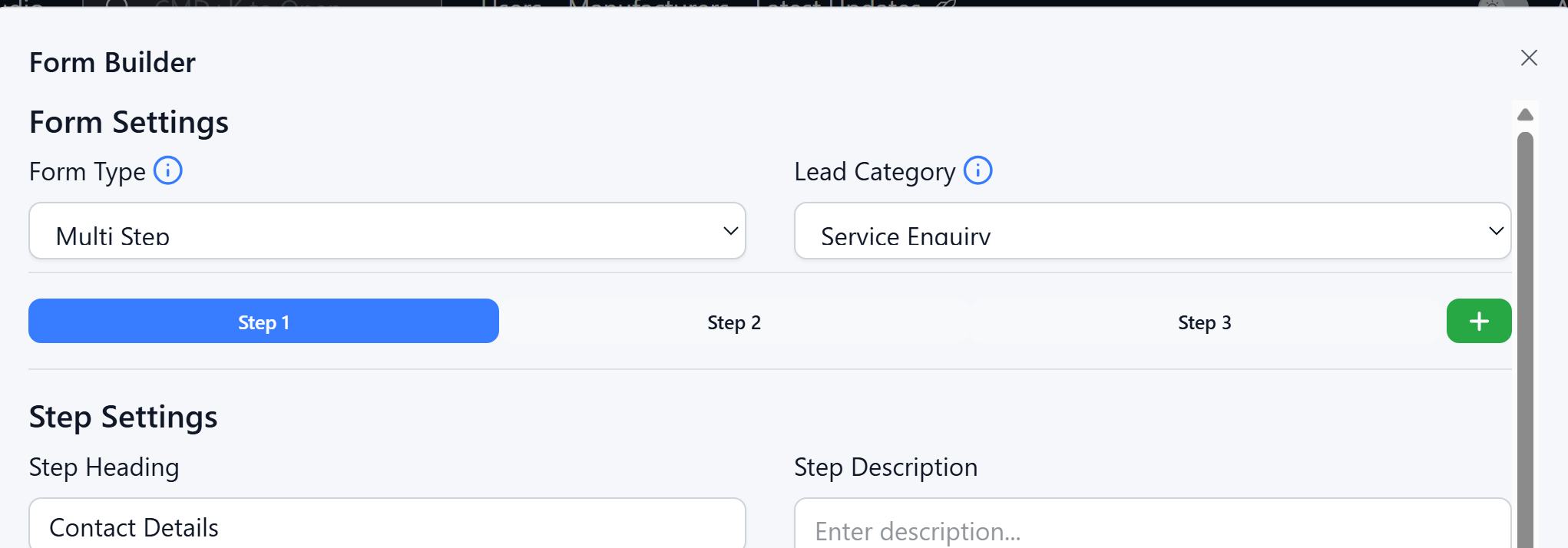
5. You can change if it is multi step (different pages) or if all questions are on one page. In addition, you can also change the enquiry type. E.g. if you wanted the calendar, but you now need this to be an event enquiry- you can then change it.
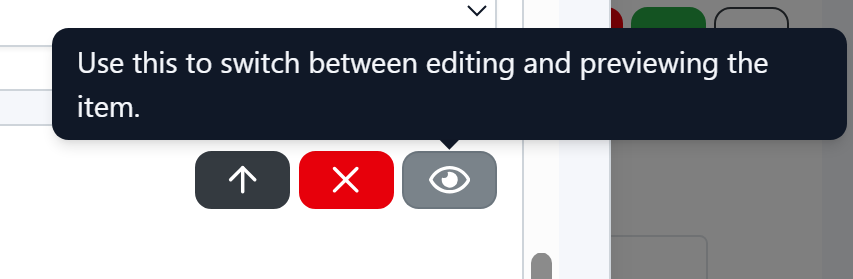
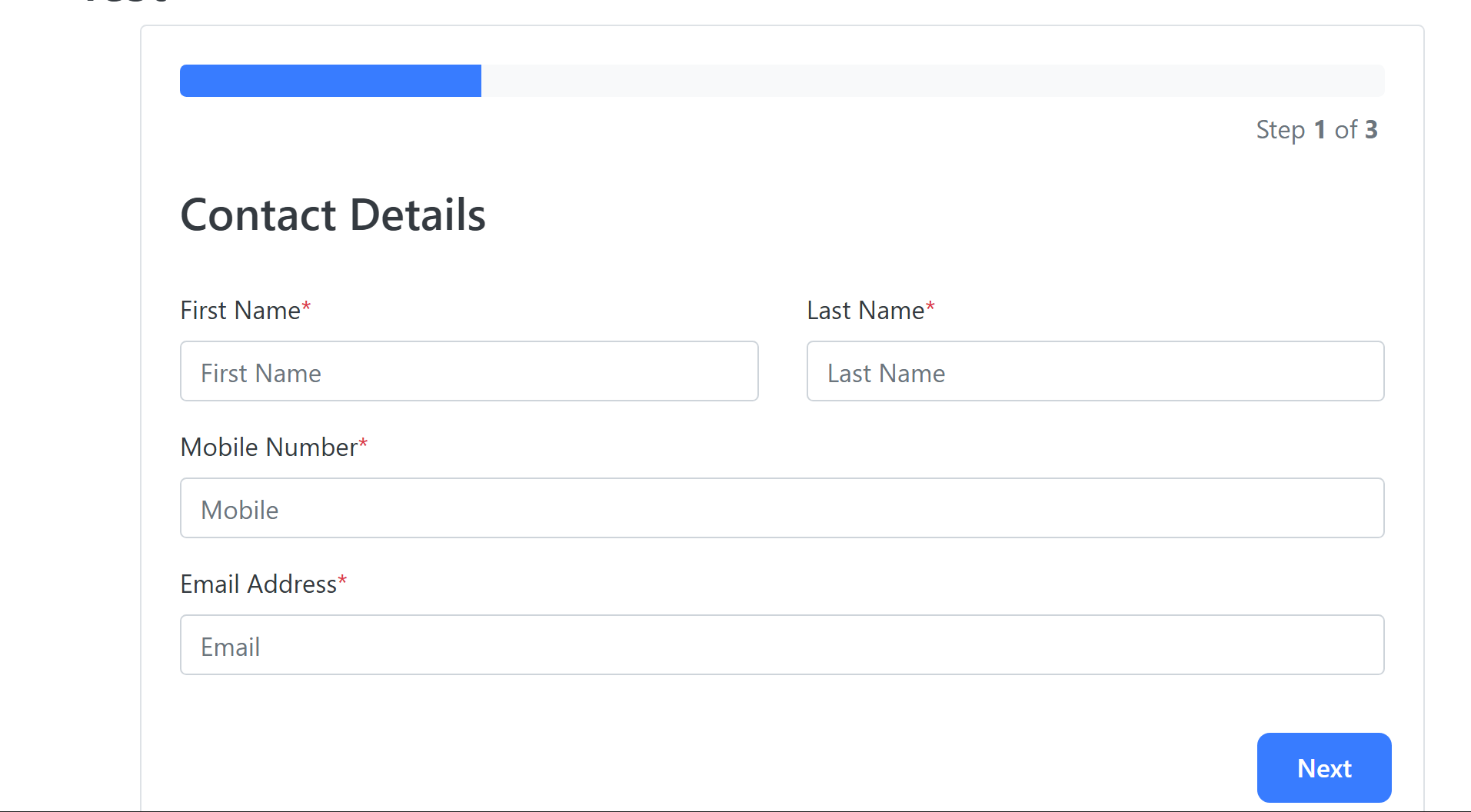
6. You can Delete a field, or move it up (rearrange order) and preview from clients perspective.

7. Once you are happy with your form, you can click Publish
Was this article helpful?
That’s Great!
Thank you for your feedback
Sorry! We couldn't be helpful
Thank you for your feedback
Feedback sent
We appreciate your effort and will try to fix the article