This guide explains how to set up enquiry form email routing so enquiries are sent to the correct recipients based on category, subcategory, website, and location. This allows you to create custom enquiry form recipients and ensure enquiries reach the right team every time.
Step 1: Create a Notification
Login to Dealer Studio and you will be at the Dealership level in the dashboard.
Navigate to Settings → Notifications.
Click Add Notification (top right).
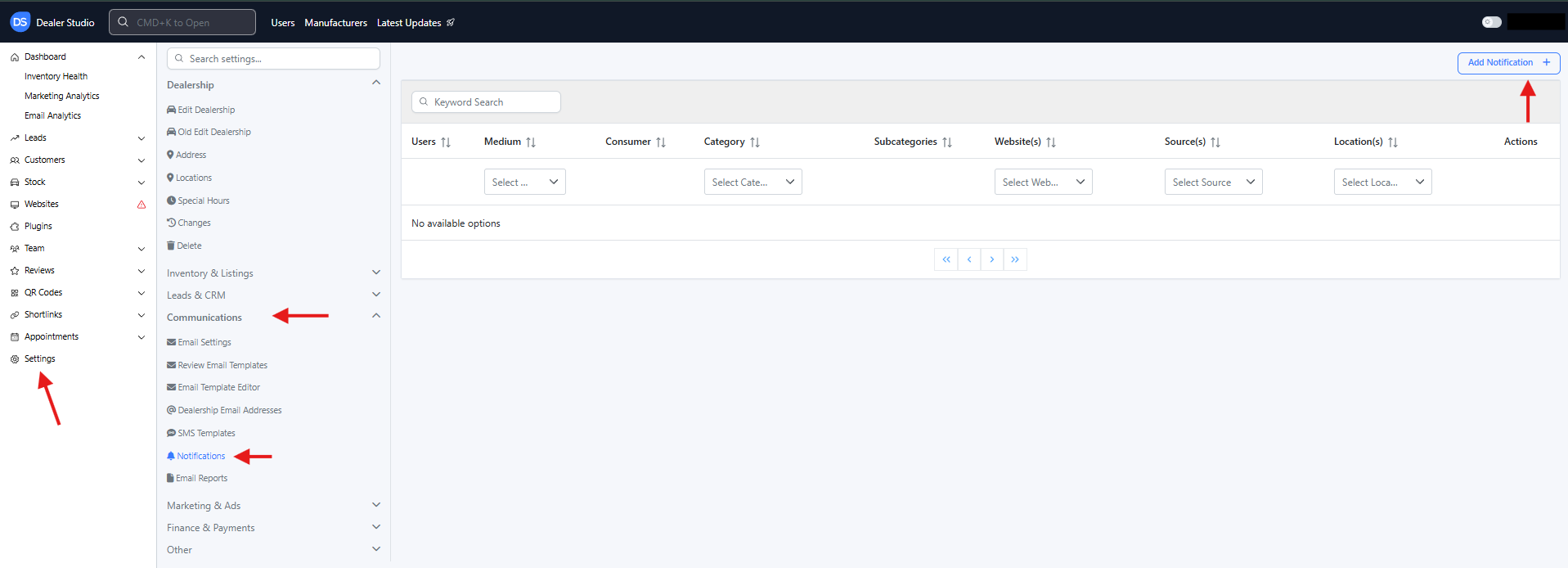
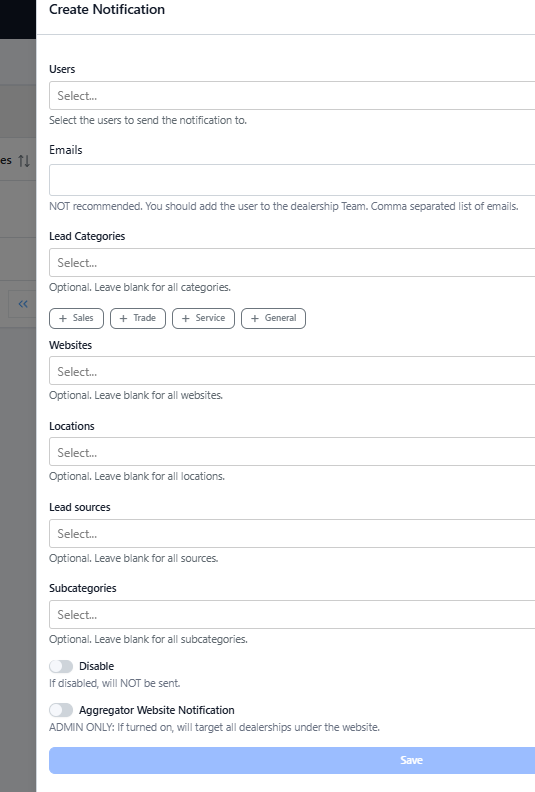
Select the delivery medium (e.g. Email).
Add the users who should receive the notification.
Select the category that best fits the enquiry.
Select the website(s) the notification should apply to.
Select the location(s) the notification should apply to.
(Optional) Add a lead source (commonly Website).
⚠️ Important step: Add the most appropriate subcategory.
- For General Enquiry leads, “Register your interest” is commonly used.
Click 'Save'
⚠️ Important Note - Unique Notification Rules (avoid overlapping)
The combination of Website + Category + Location must be unique.
If this combination already exists, your form will trigger the existing notification instead of the new one.
Before creating a notification, please check:
✅ Double-check the existing notification list.
✅ Ensure the website, category, and location combination is not already in use.
In short, try to be as specific as possible when entering the above fields like Users, Category, Location, Source, Websites
Step 2: Connect the Enquiry Form to the Notification
You can set this up using two different methods: via code or via the Page Editor.
Option A: Building the Form from Code (to action by Dealer Studio team)
1. Use the <EnquiryForm /> Component
Include the following required props:
eventId
The
eventIdmust match the category used in your notification.You can find this in
data/analyticsEvents.tsx.
Example:
Category: Special Offer Enquiry
Corresponding
eventId:{16}
2. Add additionalFields
You must include a div containing two <HiddenInput /> components:
subcategory
Name:
subcategoryValue: Must exactly match the subcategory string
⚠️ Case sensitive (e.g.
Register your interest)
Offer Type
Name:
Offer TypeValue: Any descriptive string to help recipients understand the enquiry
(e.g. Pre-paid Maintenance Plan)
Option B: Building the Form using Page Editor (to action by Dealership)
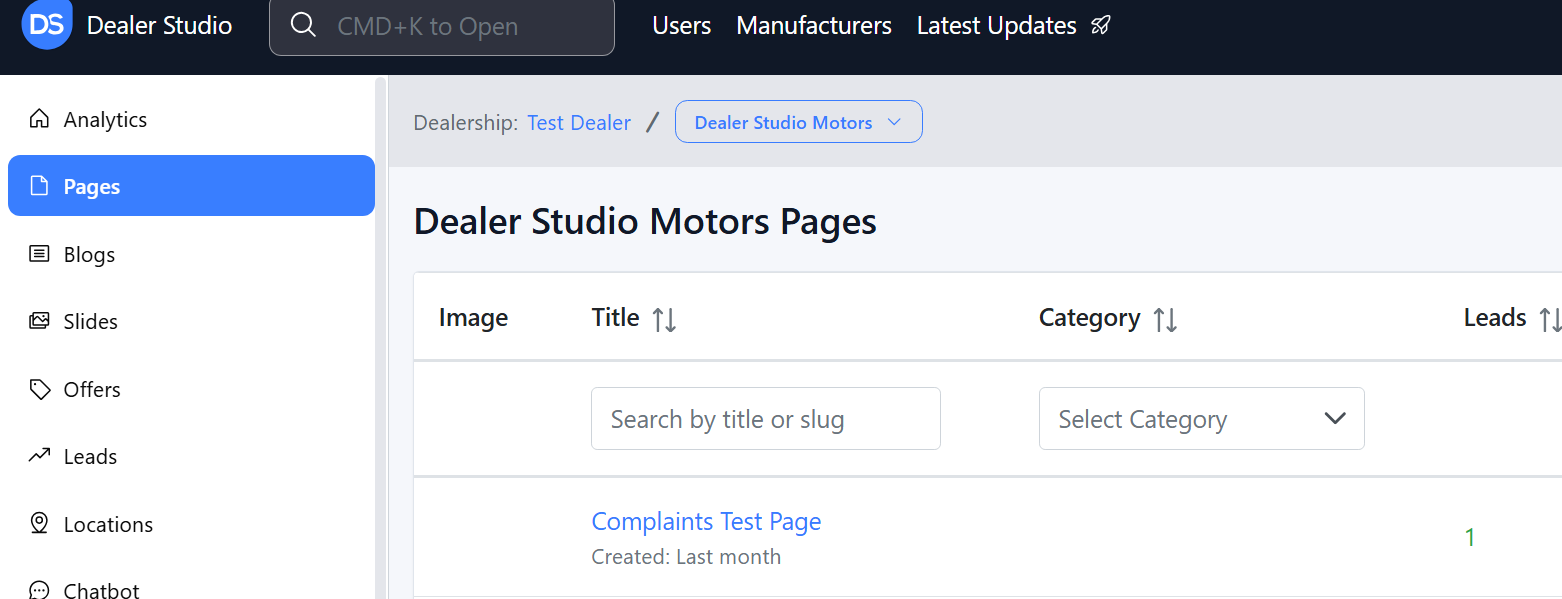
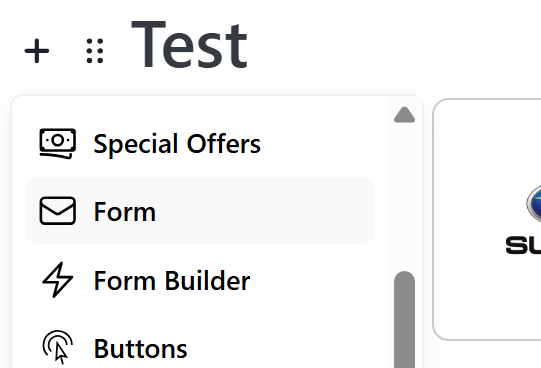
1. Use FormBuilder
Select FormBuilder when creating the form.
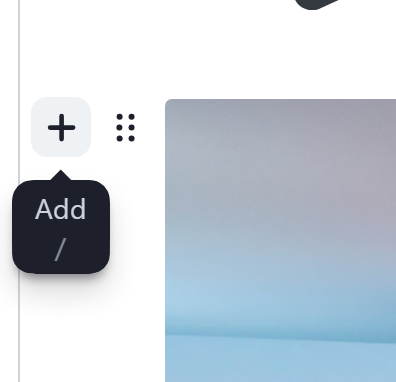
2. Add Visible Fields
Add your standard fields (text, select, etc.) that the user will see.

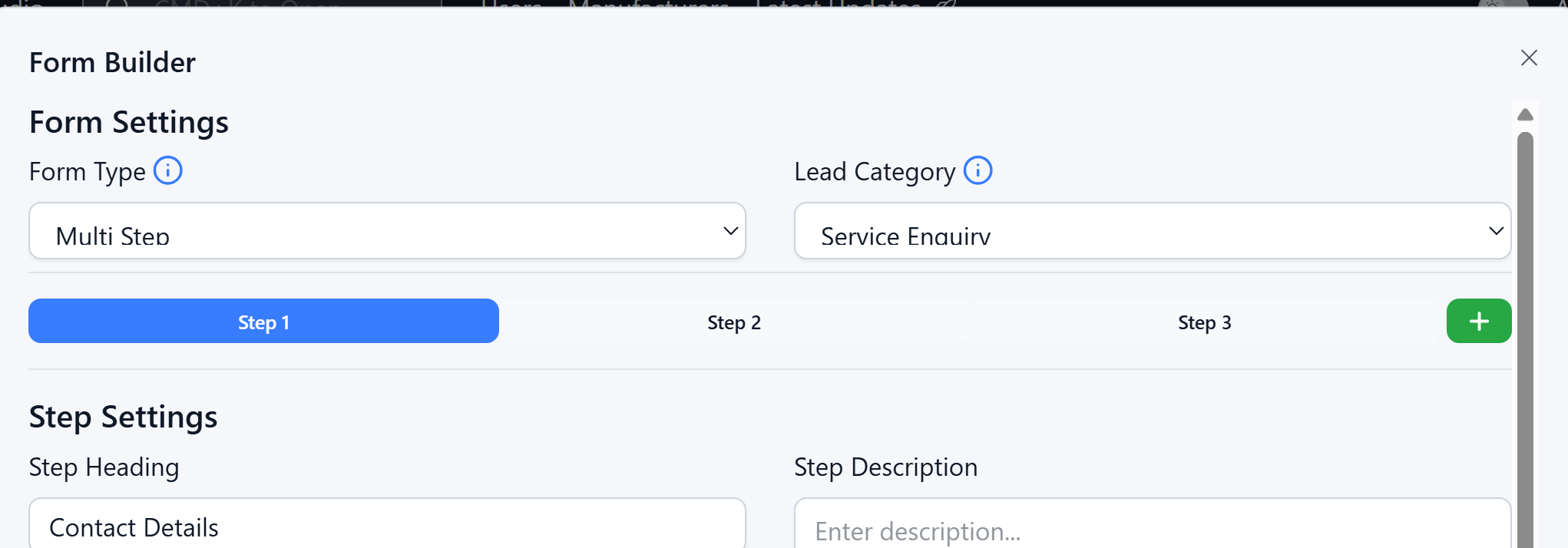
3. Select Lead Category
Choose the appropriate lead category at the top of the editor.
4. ⚠️ Important step: Set the Subcategory (required)
Add a Hidden Field
Set:
Form Data Key:
subcategorySpecial Value:
Register your interest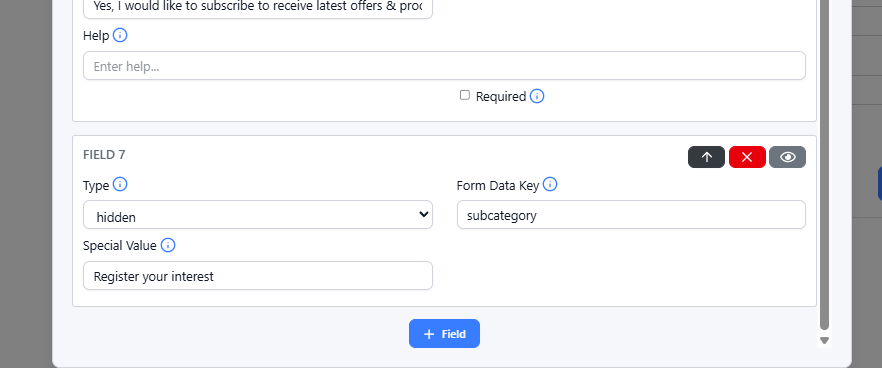
In the backend code, this will map the lead as:
(Extra example) Here's another example of using Subcategory: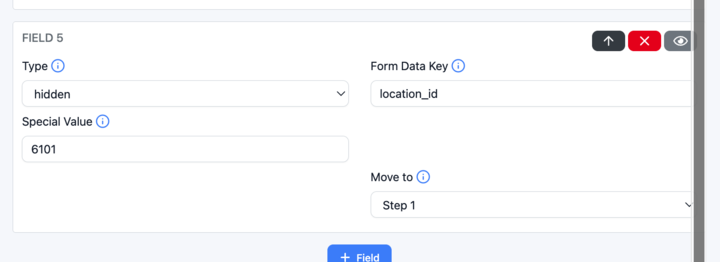
- you can map specific form enquiry leads to specific location using 'location_id'.
For eg: You have a Special Offer form for the Melbourne City Toyota (location).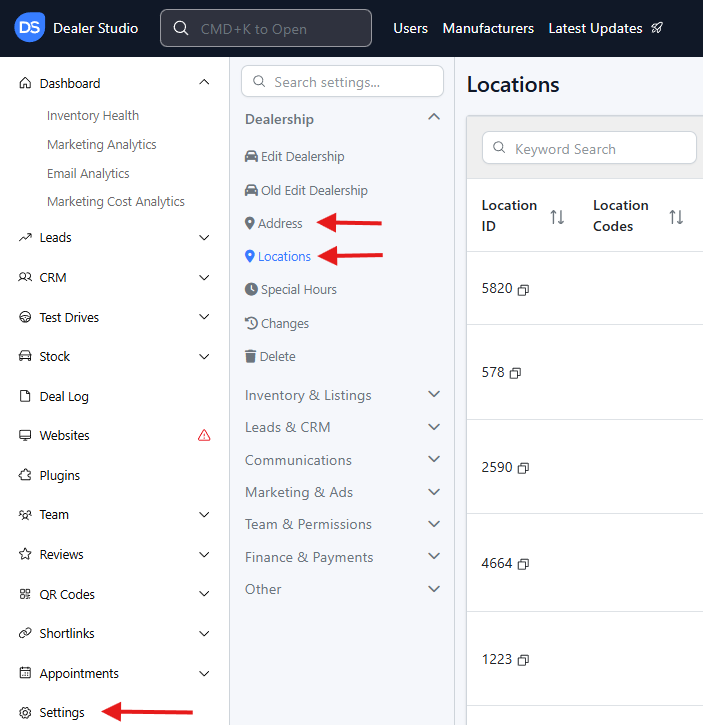
Step 3: Test the Enquiry Form
Submit a test enquiry in the Website (live version):
Use your real email address
Enter “test” in the message field
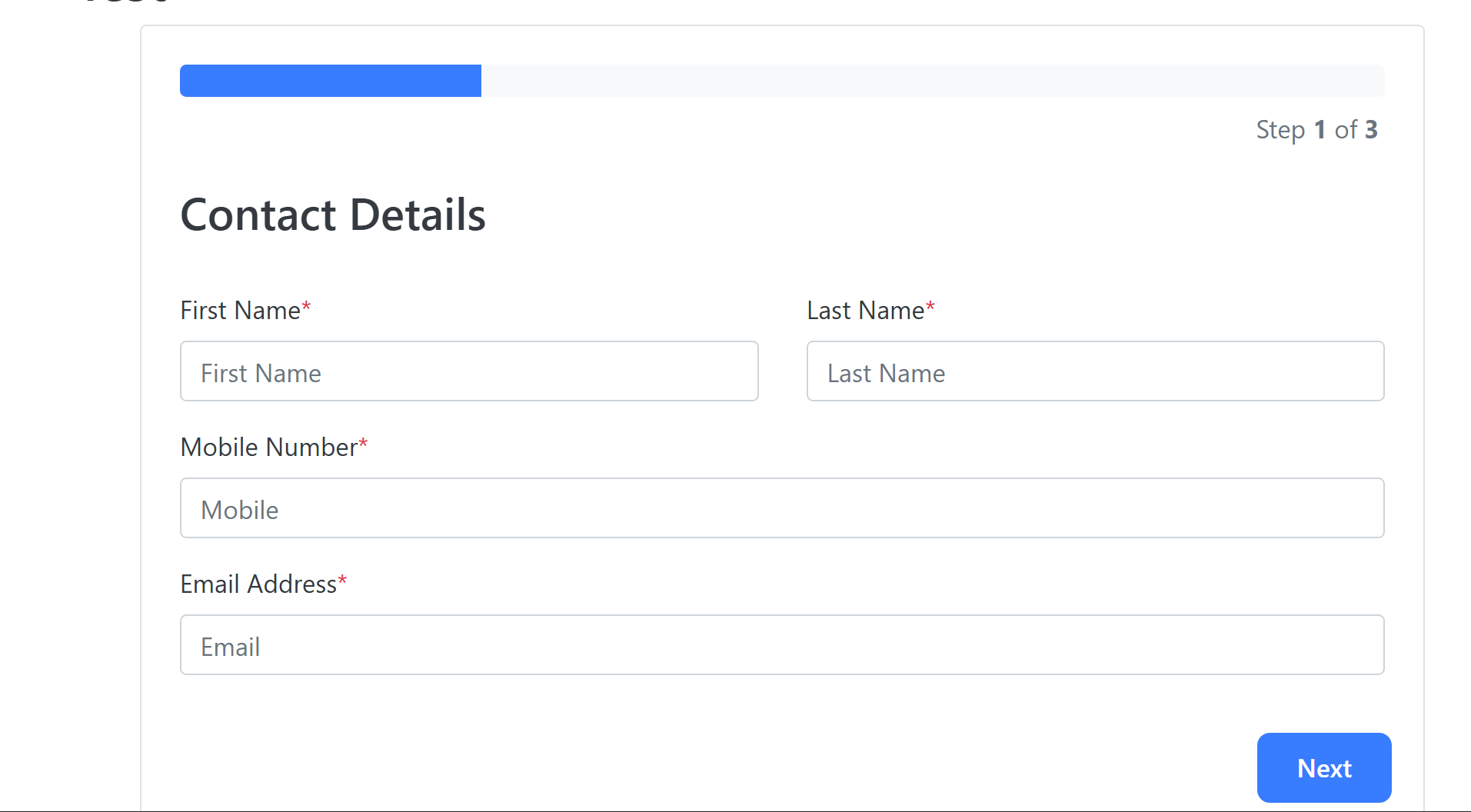
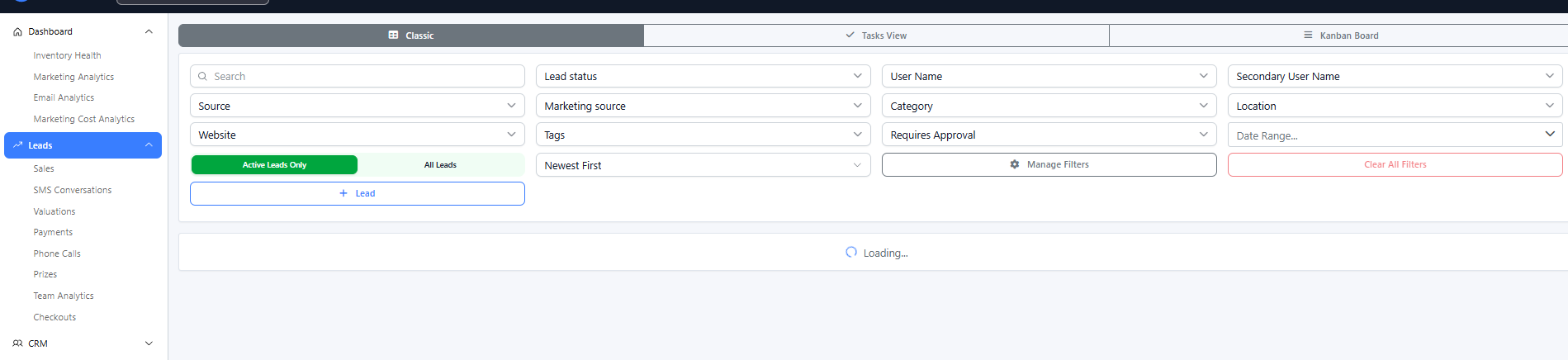
Go to:
Dealership (or Website) → Leads
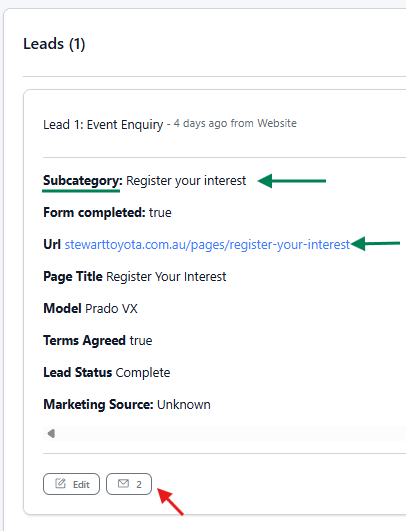
Open the lead:
You should see “Lead sent to third party” if successful
 The below screenshot shows the Email received on your dealership user's end (or a specific user to assigned in the notification settings)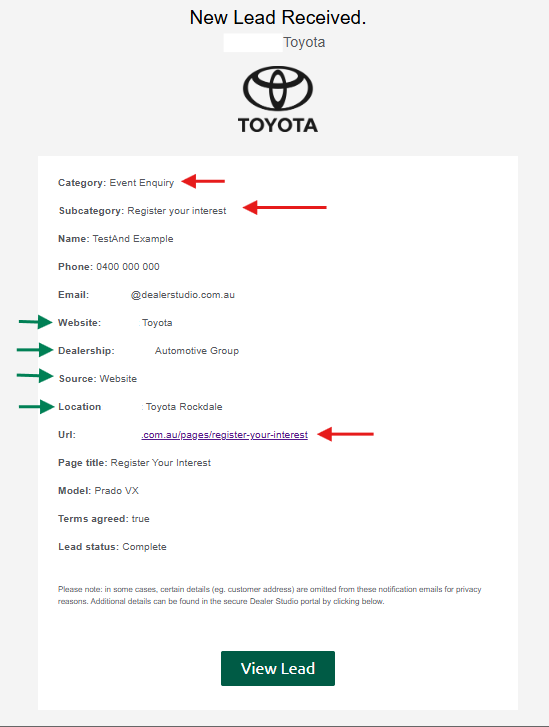
Troubleshooting
If the notification doesn’t fire, check the following:
✅ The category + subcategory combination is unique
✅ The lead location matches the notification location
✅ The subcategory string matches exactly (case sensitive)
❌ Do not use
test@test.com or test@example.comThis email will not trigger notifications
Only use it if you intentionally don’t want the notification to fire
⏱ Notifications can take a few minutes to appear after a lead is generated
Verifying Sent Notifications
You can confirm notifications that were successfully sent by navigating to:
Dealership → Team → Select User → Bottom of Page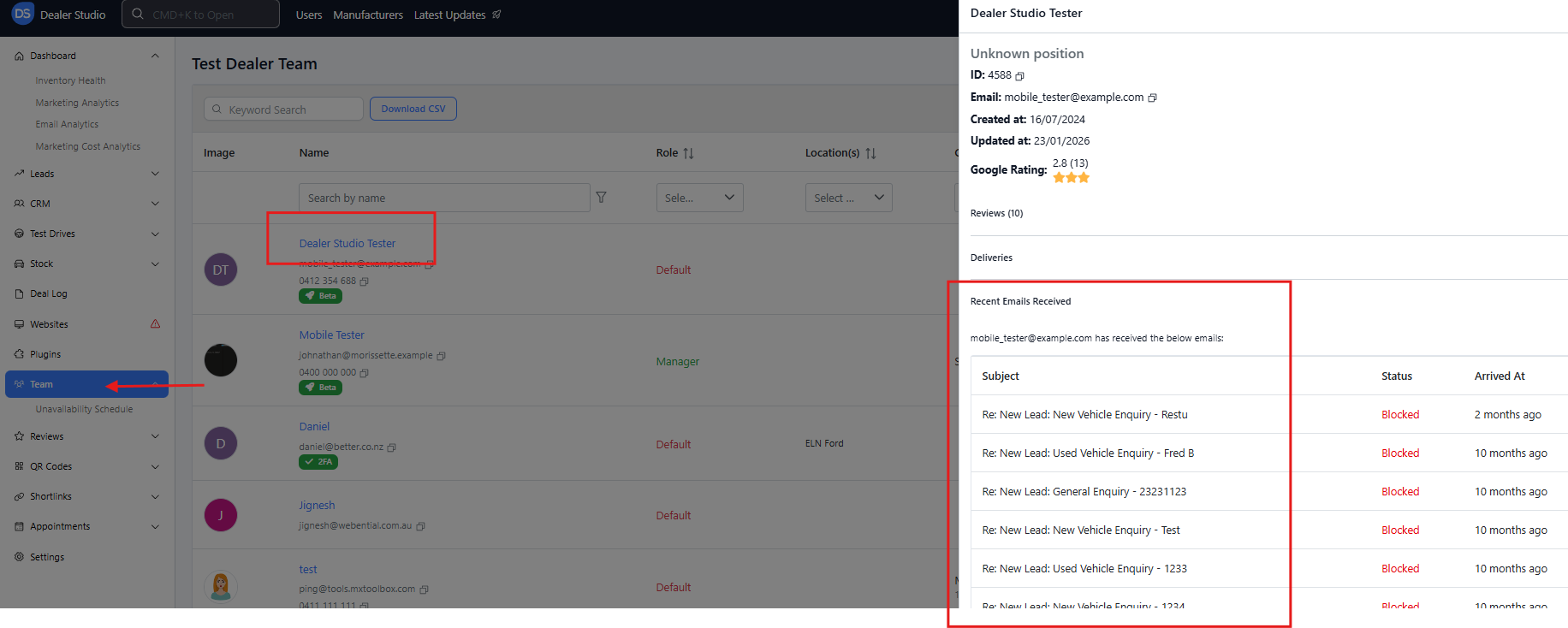
This will show a log of notifications delivered to that user.
Was this article helpful?
That’s Great!
Thank you for your feedback
Sorry! We couldn't be helpful
Thank you for your feedback
Feedback sent
We appreciate your effort and will try to fix the article