This guide walks you through adding/creating a new location in the CMS. Before you begin, it's important to understand that the CMS has two levels of settings:
- Dealer Level (where locations are created and configured)
- Website Level (where locations are assigned to a specific site)
You must complete setup at the Dealer Level first before locations can be added to any website.
Step 1: Go to Dealer-Level Settings
- Navigate to the Dealer Level in your CMS Dashboard.
- On the left-hand sidebar, click Settings.
- In the Settings section, locate the following two options:
- Address
- Locations
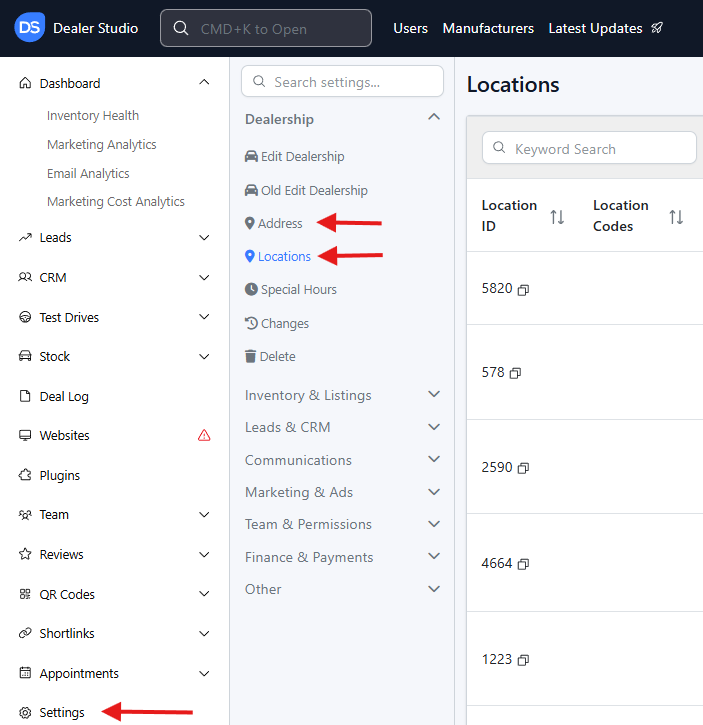
You must set up the Address first before creating a new location.
Step 2: Set Up the Address
The CMS/Dashboard includes Google Maps search integration to ensure accurate address information.
- Go to Settings > Address.
- Start typing the location's address in the search field.
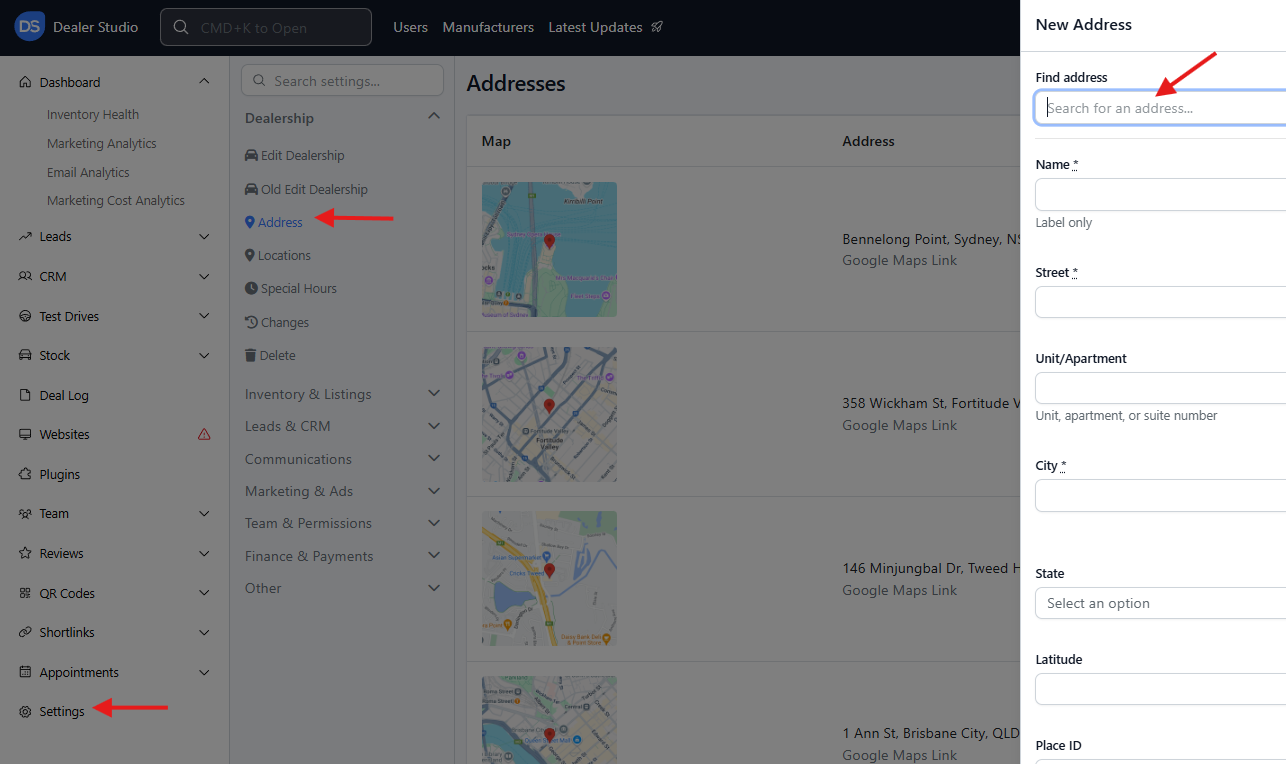
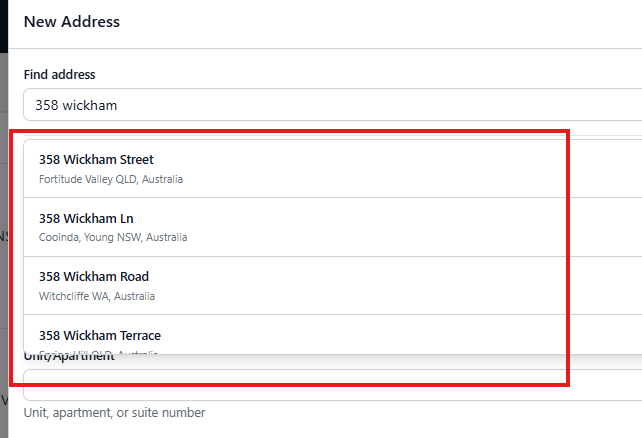
- When Google Maps displays the correct match, select the result instead of typing manually.
- The system will automatically fill all fields in the address form using Google's data.
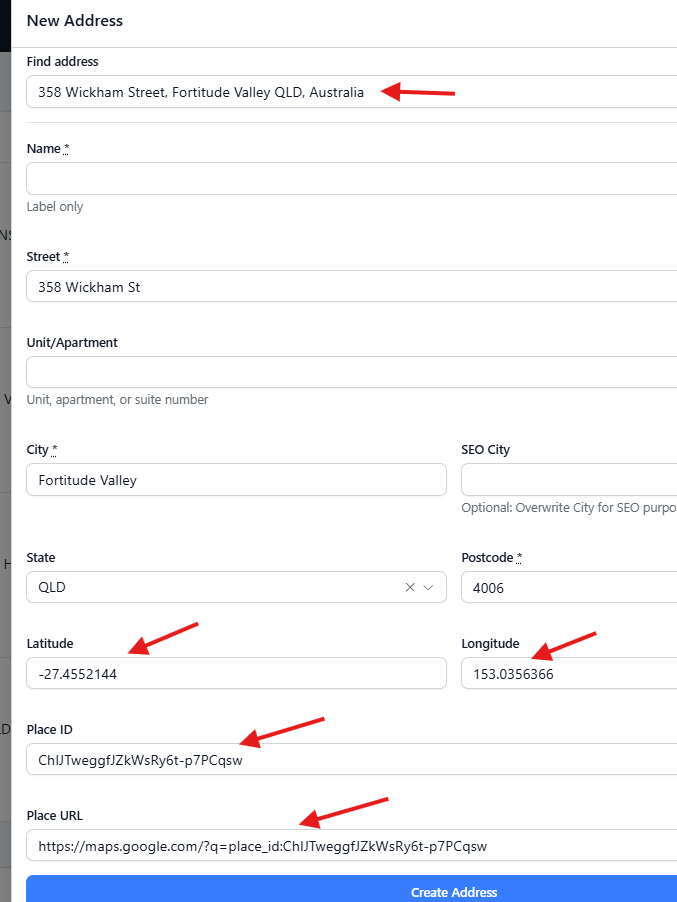
- Review the information and click Save.
⚠️ Important: Always select the Google Maps result to ensure standardized formatting and avoid location-related issues on the website.
Step 3: Create the Location (Dealer Level)
Once the address is saved, you can now create a location.
- Go to Settings > Locations.
- Create a new location and fill in all required fields.
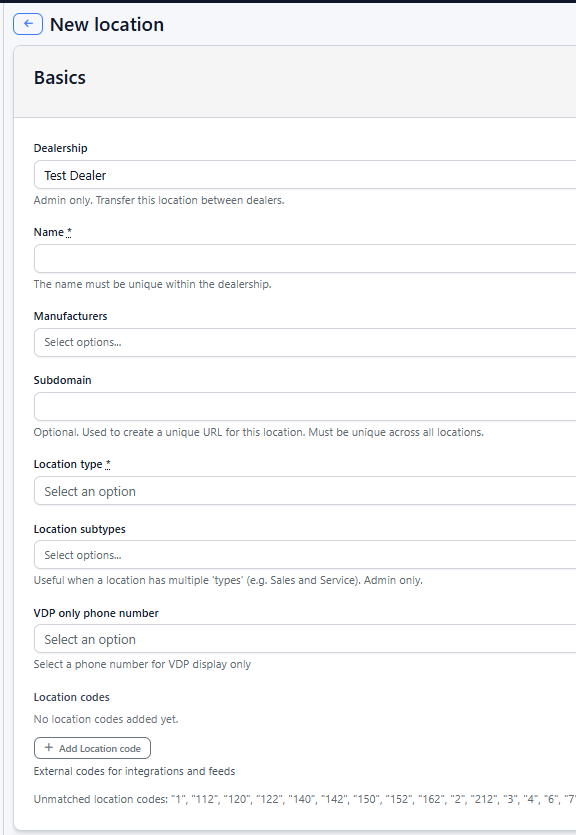
- There are three location types:
- Sales
- Service
- Parts
Required Fields
Make sure you complete the following fields for each location type:
- Name (give a meaningful name, e.g., Bundoora Brand - Sales)
- Manufacturer ID
- Leave blank if you're setting locations for a group site.
- Location Type (Sales, Service, or Parts)
- Dealer License Number
- Motor Vehicle Repairer Number
- Address
- Phone
- Opening Hours
Once completed, click Update Location to save your changes.
Note: If you manage a group with multiple dealerships (e.g., 10 dealerships), you must set up all of their Sales/Service/Parts locations here at the Dealer Level (e.g., total should be 30 locations).
Step 4: Add the Location to a Website
After creating your locations at the Dealer Level, you can assign them to any dealership website or group site.
- Stay at the Dealer Level, then go to Websites.
- Select the website where you want to add the locations.
- You are now on the Website Level (important!!!).
- On the left sidebar, click Locations.
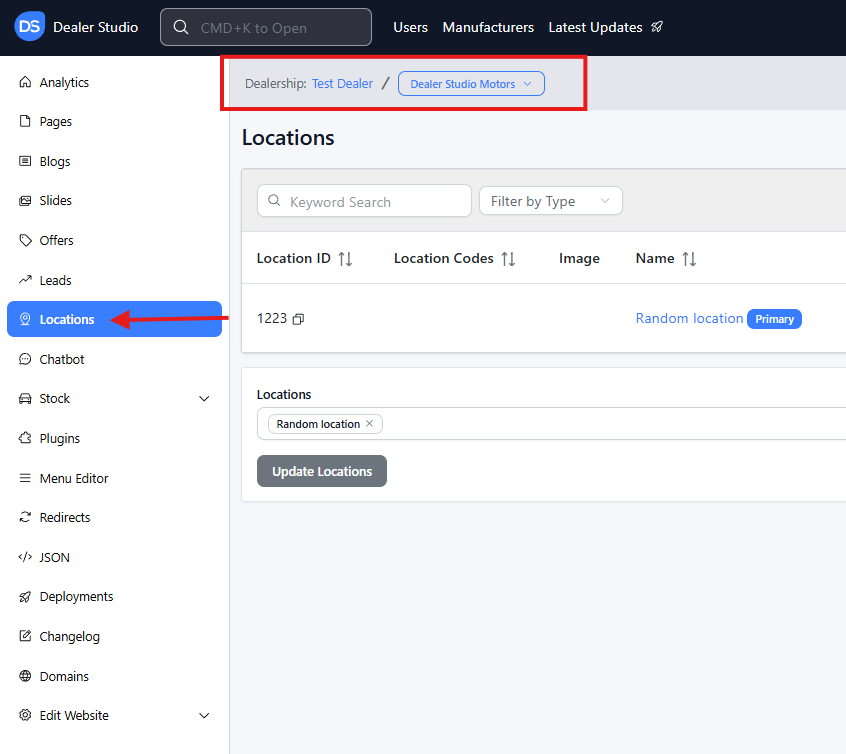
Assign the Pre-Created Locations
Since the location was already created at the Dealer Level, do not recreate it here.
- Find the Locations field at the bottom of the page.
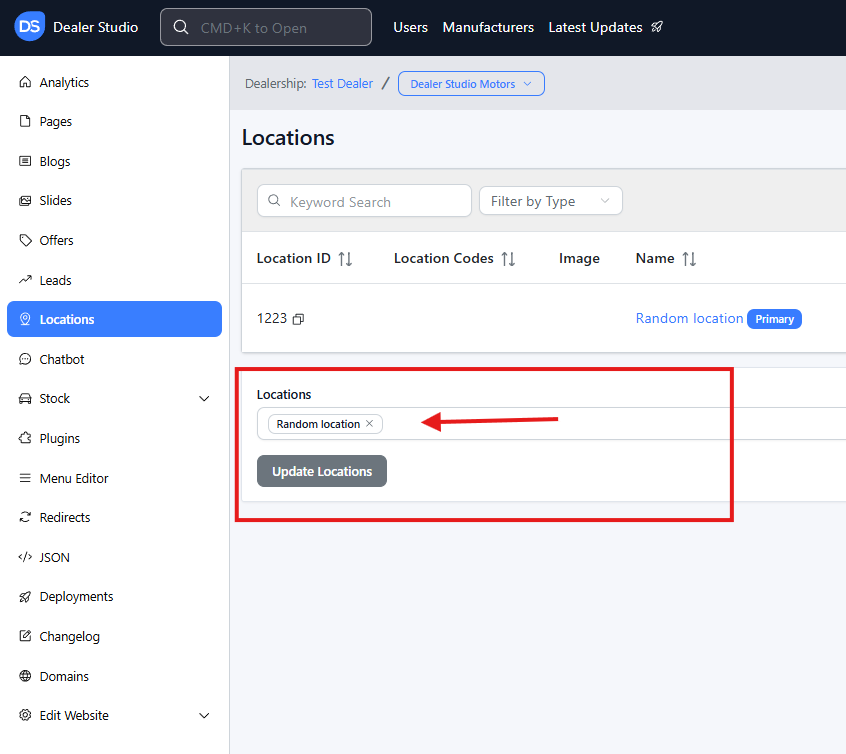
- Click the field to open the dropdown list of available location tags.
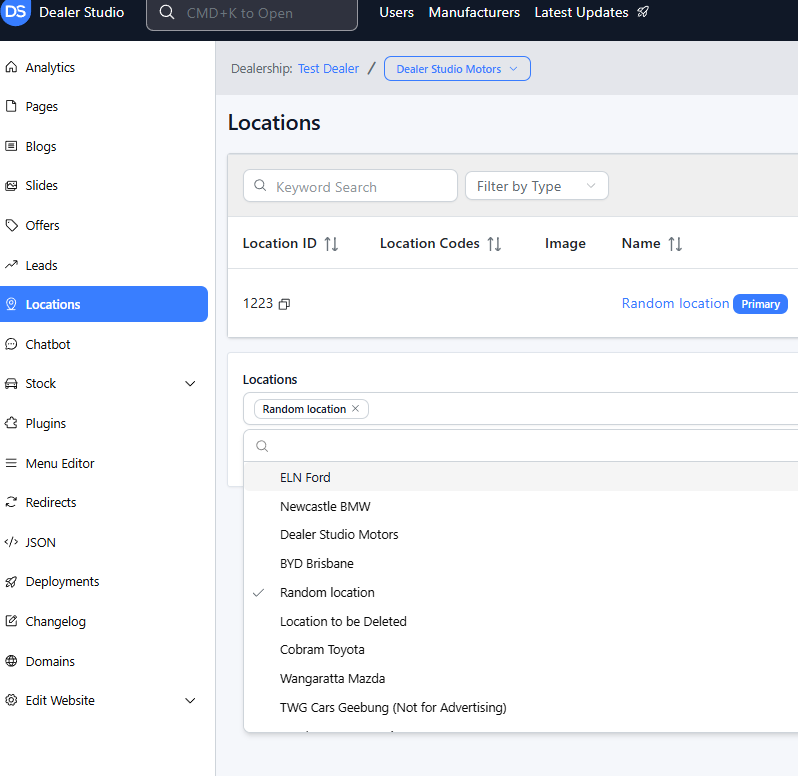
- Select the correct location(s) for this website. Remember:
- All three location types (Sales, Service, Parts) MUST be added if applicable.
- Click Update Locations to save.
- Refresh the page.
- You will now see all added location types in the locations table/list above the field.
And That's It!
Once added, the website will automatically pull the location information you've configured and display it live on the site. Any updates made at the Dealer Level (address, hours, phone, etc.) will flow through to all websites using that location.
Was this article helpful?
That’s Great!
Thank you for your feedback
Sorry! We couldn't be helpful
Thank you for your feedback
Feedback sent
We appreciate your effort and will try to fix the article