Occasionally, your dealership may need to add, update, hide, or remove locations on the dealership website. You may also want to prevent a location from displaying on the website without deleting it entirely. This guide will show you how to add locations to your site, remove them, hide them, and create new ones.
Before You Start
If you are planning to add a location, make sure the location has already been set up correctly at the Dealer Level. If haven't yet, refer to the article: How to Add/Create a Location.
Accessing Website Locations
In the CMS/Dashboard, there are two levels:
Dealer Level – where locations must be created
Website Level – where locations are assigned to sites
Follow these steps:
Make sure you are on the Dealer Level.
In the left-hand sidebar, go to Websites.
Select the website you want to manage.
You are now on the Website Level.
From the left-hand sidebar, click Locations.
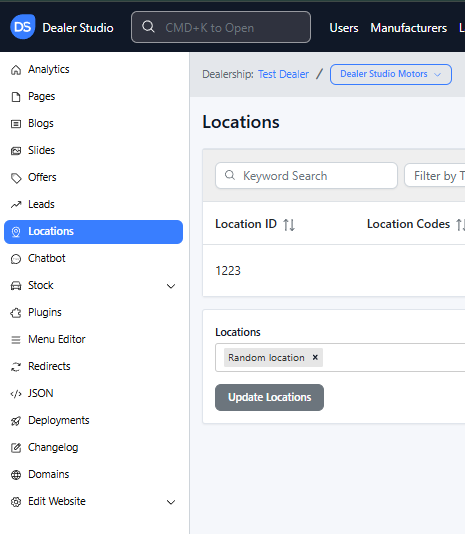
Here, you will see:
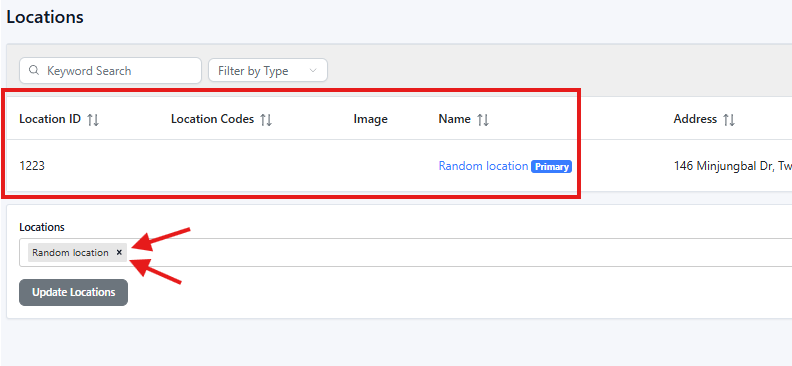
A table listing the locations currently displayed on the website
A Locations field at the bottom containing gray “location tags,” which represent active locations on this site
NOTE: Each location tag corresponds to a location listed in the table.
Removing a Location from the Website
If there is a location that has no relation or do not associate with the website:
Step 1:
Scroll to the bottom of the page to the Locations field. You will see one or more gray location tags.
Step 2:
Hover your mouse over the location tag you wish to remove, then press X on the location tag.
Step 3:
Click Update Locations to save your changes.
The removed location will no longer appear on the website.

Adding a Location to the Website
Step 1:
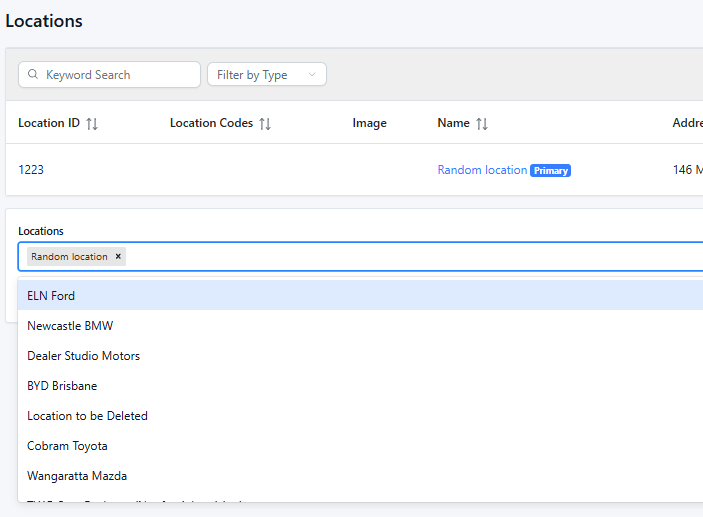
Scroll to the bottom of the page to the Locations field.
Step 2:
Click into the field to open a dropdown list of all locations created at the Dealer Level.
Select the locations you wish to add (one or multiple).
Step 3:
Click Update Locations.
Your newly added locations will now appear in the table above.
Creating a New Location
Recommendation:
Always create new locations at the Dealer Level—it is more complete, accurate, and avoids missing address options.
However, you can create a location from the Website Level if needed.
To create from Website Level:
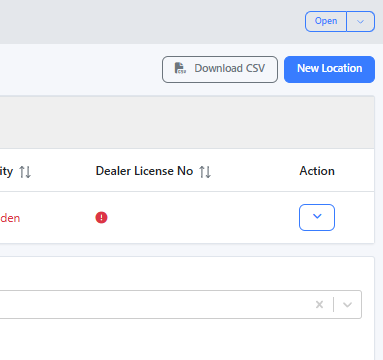
On the top right, click New Location.
Choose one of the following forms:
Option A: Use the BETA Form
A simplified form containing:
Name
Location Type
Address (dropdown—limited to pre-existing addresses)
If the correct address isn’t available, you must create the address at the Dealer Level.
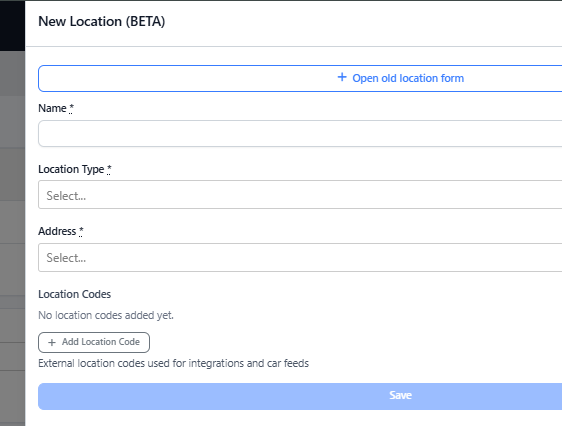
Option B: Open Old Location Form (Recommended for full setup)

A more comprehensive form. Important fields include:
Name
Manufacturer ID
Location Type
Dealer License Number
Motor Vehicle Repairer Code
Address
Phone
Opening Hours
Once completed, click Create Location at the bottom.
Final Step:
After creation, ensure:
The correct location tags are added, and click Update Locations
The location appears in the location table
Hiding a Location (Without Removing or Deleting It)
If you want to temporarily hide a location from the website:
In the location table, go to the Action column (right side).
Click the arrow-down icon.
Select Hide.
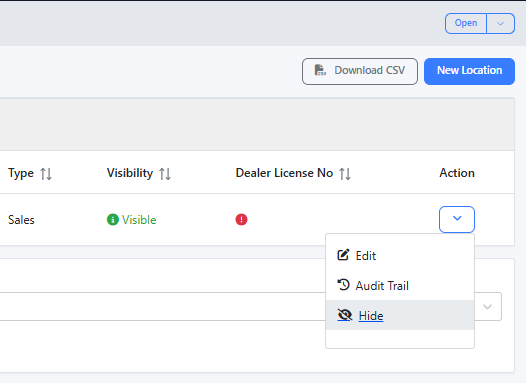
To show it again:
Click Show.
This is useful when:
A department is temporarily closed
The dealership is undergoing renovations
You want the location removed from public view without deleting it
That’s It!
You now know how to:
Add locations
Remove locations
Hide or unhide locations
Create new locations
Your website will automatically update based on the locations you configure at the Website Level.
If you need help troubleshooting or have questions about location setup, feel free to contact support@dealerstudio.com.au
Was this article helpful?
That’s Great!
Thank you for your feedback
Sorry! We couldn't be helpful
Thank you for your feedback
Feedback sent
We appreciate your effort and will try to fix the article