This article explains how to add a new user to your dealership dashboard and manage their permissions effectively.
⚠️ Important: You must have Manager permissions to add or edit users. If you don’t have the required access, please ask a manager on your team to make these changes.
Adding a New User
Follow the steps below to invite a new team member to your dashboard.
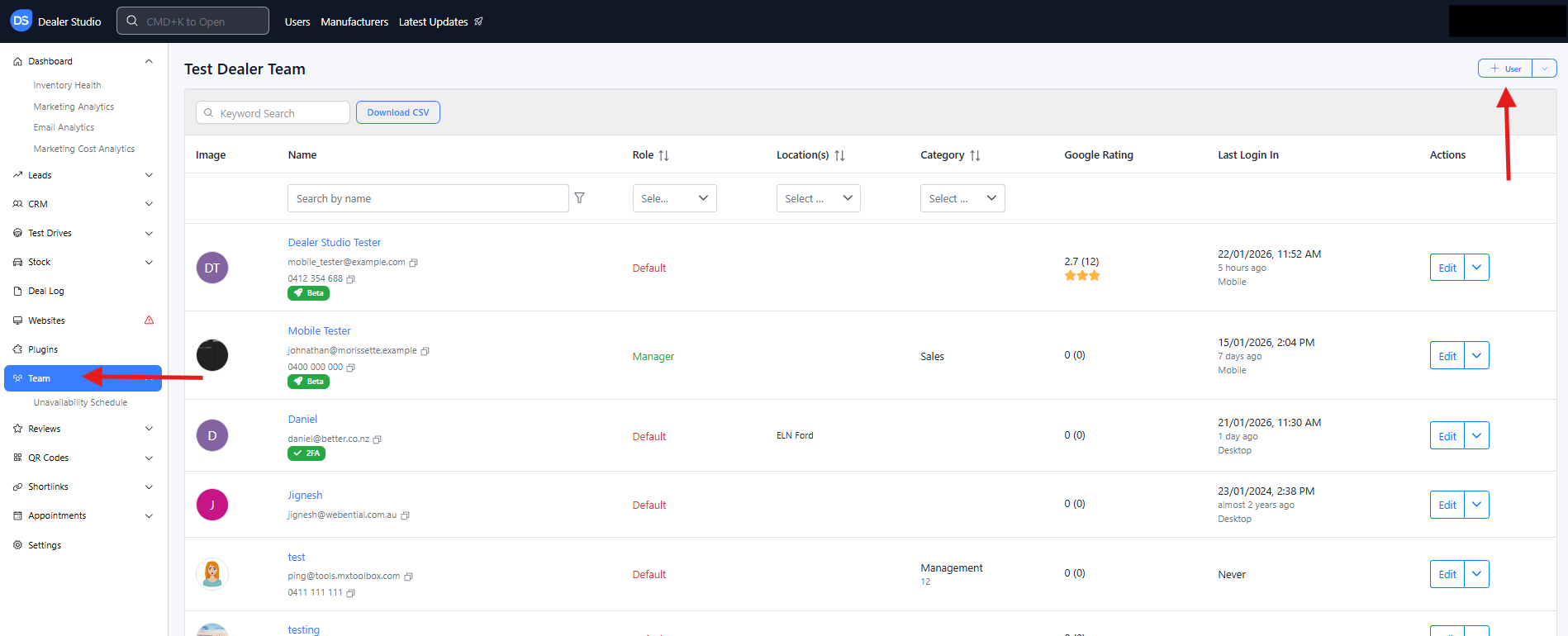
Step 1: Navigate to New User
From your dashboard, go to:
Team > New User
Step 2: Enter User Details
Complete the required fields:
Name
Email
Phone Number
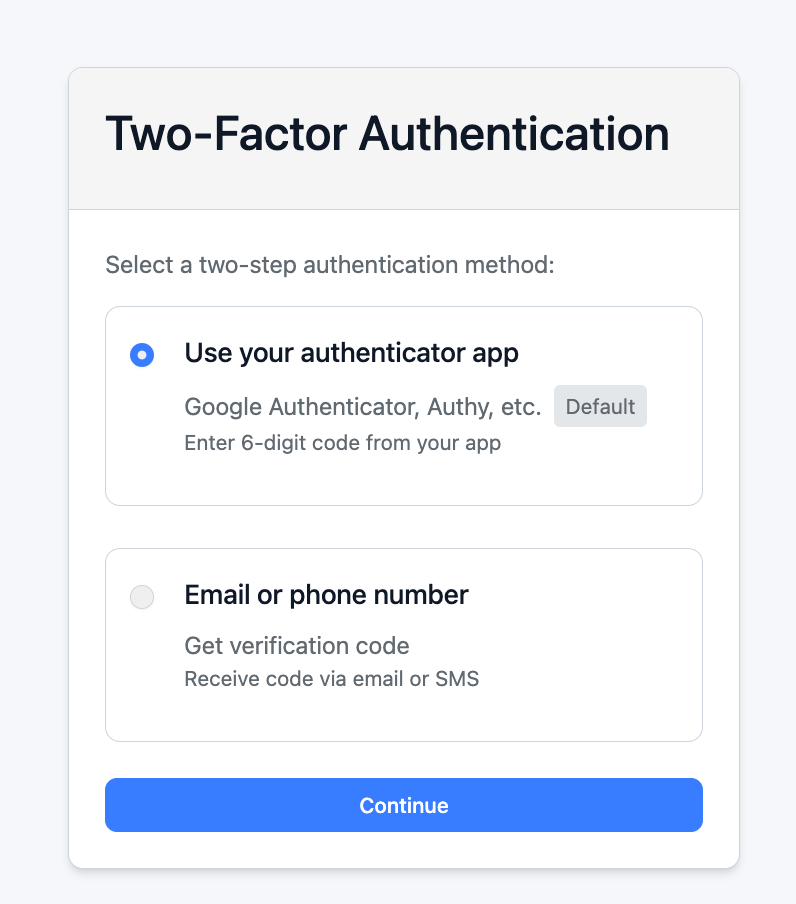
Why is the phone number required?
The phone number is used for two-factor authentication (2FA). If the user chooses email or SMS as their verification method, a one-time security code will be sent to this phone number to help protect their account.
⚠️ Important step: For more guidance, please refer to our article: Set up two-factor authentication (2FA)
Alias (Optional)
Use the Alias field if you have multiple team members with the same name who will receive reviews. This helps our automatic matching system correctly identify each user.
Example:
If you have two users named Matthew, one could use “Matt” and the other “Matthew” as their alias.
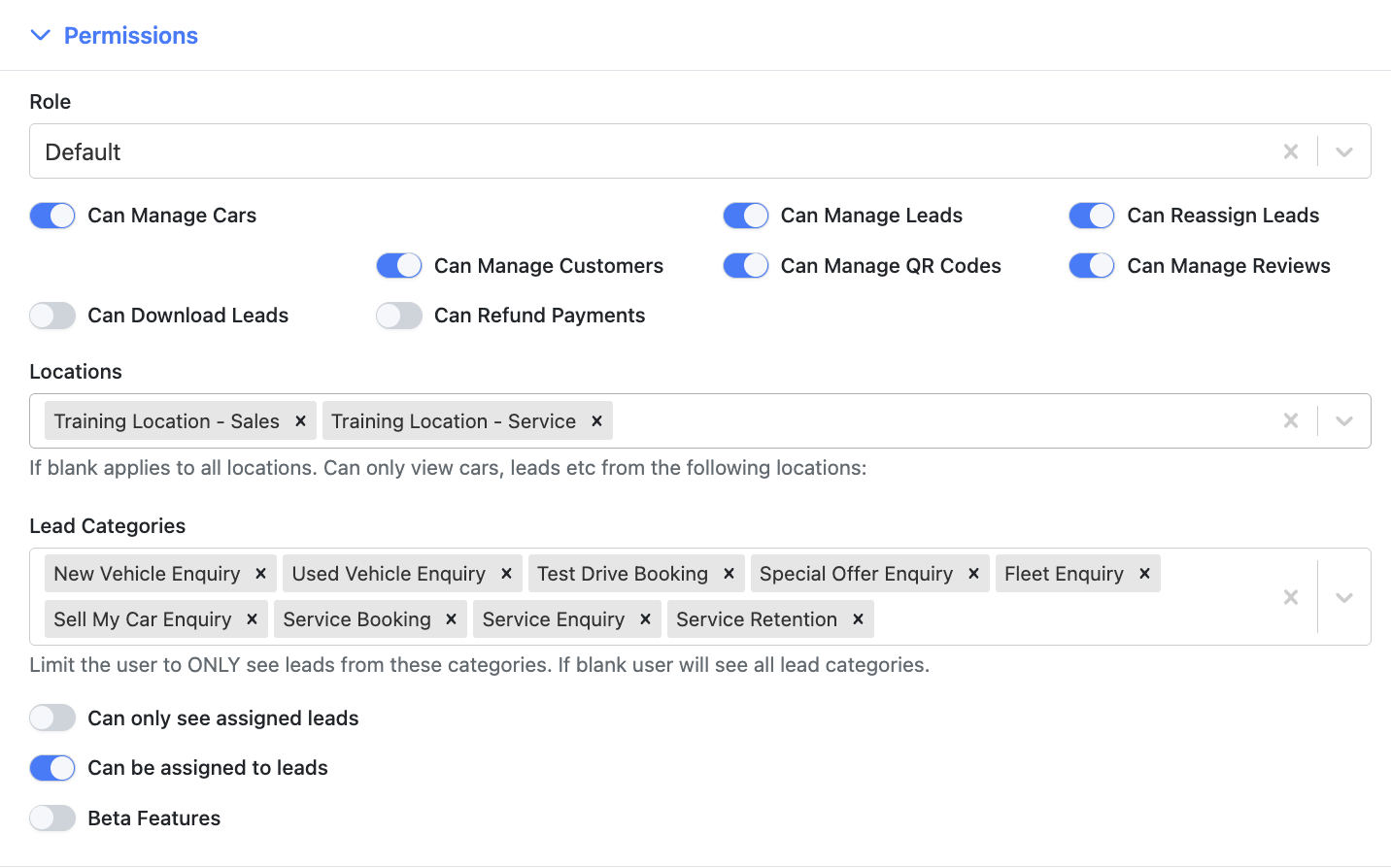
Step 3: Assign Permissions and Locations ?
Select the appropriate permissions and locations for the user.
Permission Types:
Default Permissions
Recommended for staff who manage leads and vehicle stock.Manager Permissions
Best suited for senior staff or marketing managers who need access to website updates, location settings, stock rules, and other advanced features.
You can further customise access by adjusting:
Permission toggles
Assigned locations
Lead categories relevant to the user’s role
Step 4: Configure the Team Profile
The Team Profile section controls what information appears on your website’s team page for this user. Update this section as needed to ensure accurate public-facing details.
Step 5: Save and Send Invitation ?
Click Save to complete the setup.
Once saved, the user will receive an email invitation to set up their profile. After completing the setup, they’ll be able to access the dashboard based on the permissions you assigned.
Was this article helpful?
That’s Great!
Thank you for your feedback
Sorry! We couldn't be helpful
Thank you for your feedback
Feedback sent
We appreciate your effort and will try to fix the article