Lead Notifications let your team receive instant email alerts whenever a new lead is generated in Dealer Studio. Sometimes these notifications are already set up, and you simply need to add more users to the existing setup. Here’s how to do that.
1. Navigate to the Correct Level (Dealer Level)
Your CMS has two levels:
Dealer Level
Website Level
Lead notifications are managed only at Dealer Level.
To begin:
Make sure you're on Dealer Level.
In the left-hand sidebar, go to Settings.
Under the Communications section, select Notifications.
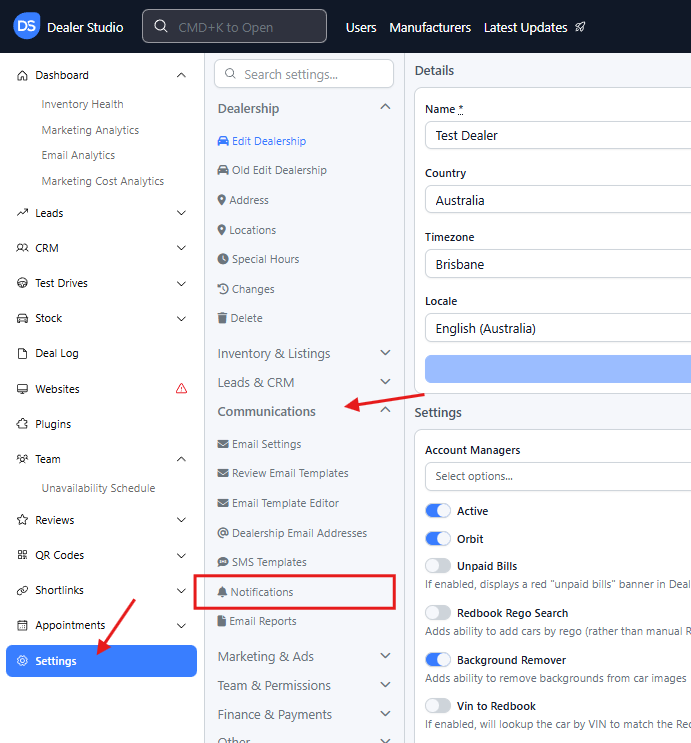
You will now be on the main notifications page.
2. Find the Existing Lead Notification
You can locate the notification you want to update using either method:
Option A: Keyword Search
Type part of the notification name into the search field.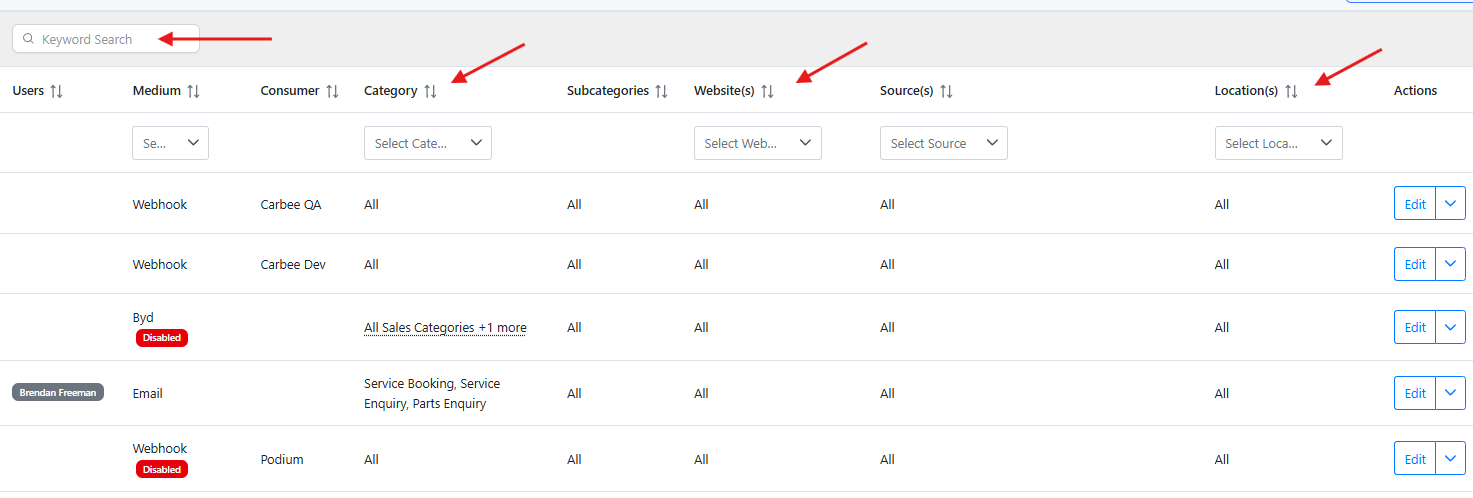
Option B: Filter by Lead Category
Use the dropdown filters (Lead Category, Website, Location, Type) to narrow down the list.
These tools help you quickly find the exact notification you need—even if your dealership has many configured.
3. Edit the Notification and Add Users
Once you locate the notification:
Click Edit.
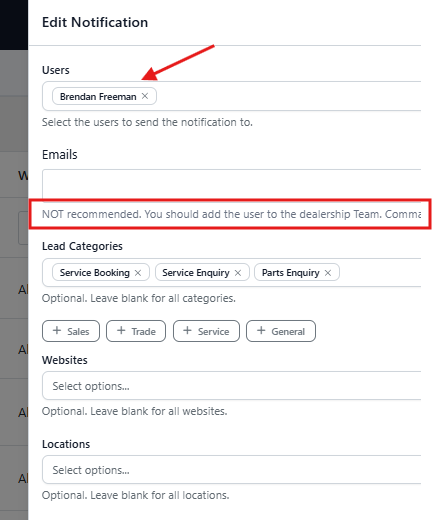
In the Users field, search for and select the users you want to add as recipients.
Suggestions may appear automatically.
You will usually need to type in the user’s name or email.
If the user does not appear, ensure they have been added as a CMS user first.
(See Team Dashboard: A Quick Guide for instructions.)
Alternatively, you may enter an email manually using the Emails field, though this method is not recommended, as it bypasses user management.
Once finished, double-check that all fields look correct. click Update Notification to save your changes.
4. Manage other Notifications
Below the Edit button, you’ll also see:
Duplicate – Create a new notification using this one as a template
Destroy – Permanently delete the notification
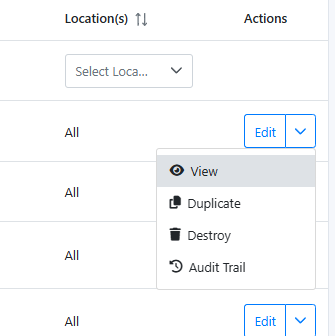
Use these only when needed.
That’s It!
You’ve successfully added users to an existing lead notification.
Your team will now receive alerts as soon as new leads are generated—helping ensure no enquiry is ever missed.
Good luck, and happy streamlining!
Was this article helpful?
That’s Great!
Thank you for your feedback
Sorry! We couldn't be helpful
Thank you for your feedback
Feedback sent
We appreciate your effort and will try to fix the article