This article explains the step-by-step process for managing user emails in notifications. It guides users on how to remove an existing email from the notification list and add a new one, ensuring that notifications are sent to the correct recipients. The procedure includes selecting the user, editing their information, and saving the changes, helping teams maintain accurate and up-to-date communication.
#Before You Begin
The CMS/Dashboard has two levels:
Dealer Level – where Lead Notifications must be created
Website Level – for website-specific content
Make sure you are on the Dealer Level before setting up notifications.
#Step 1: Navigate to Lead Notifications
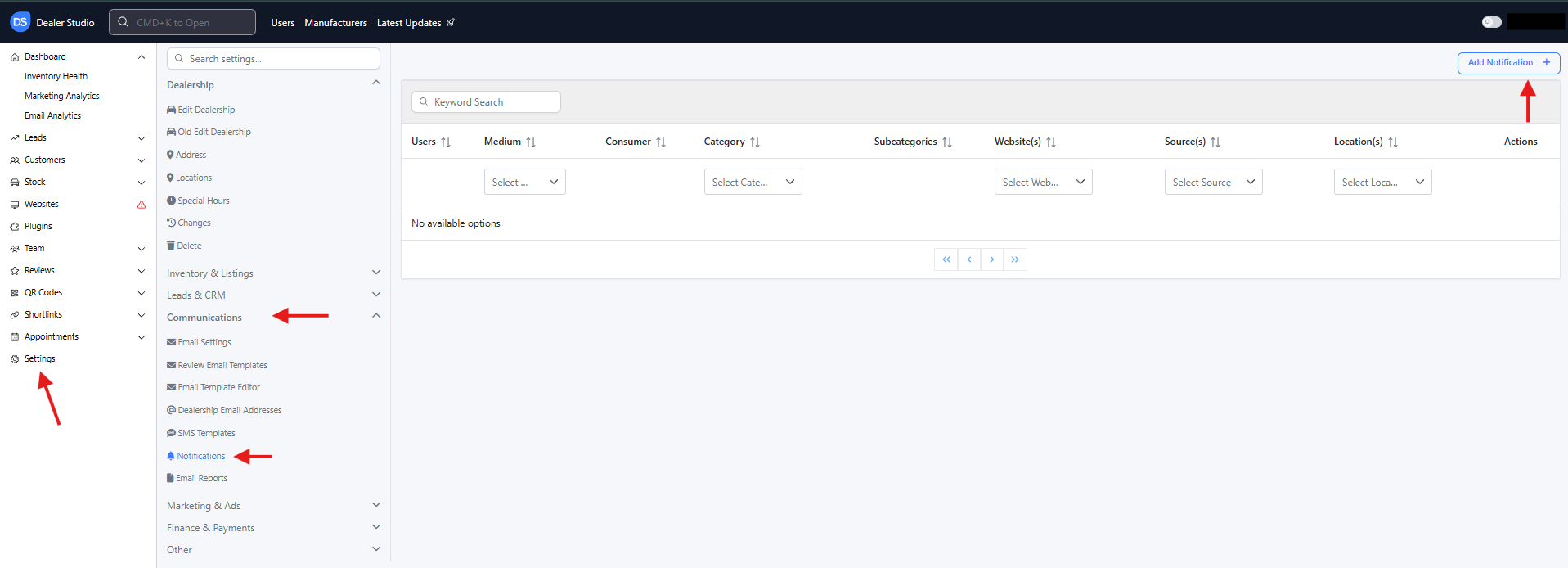
From the Dealer Level, go to the left-hand sidebar.
Select Settings.
Under Communications, click Notifications.
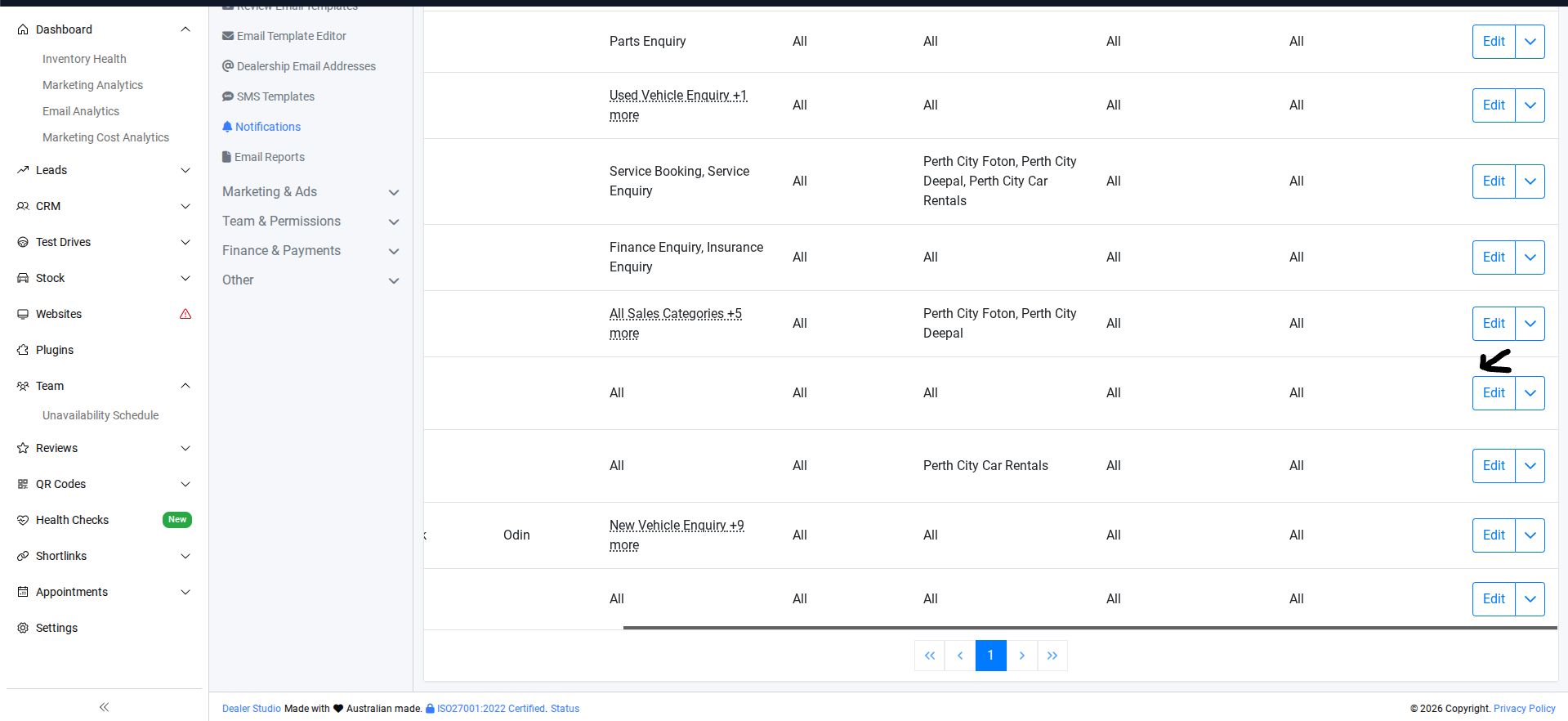
#Step 3: Select the user you want to remove, then click Edit.
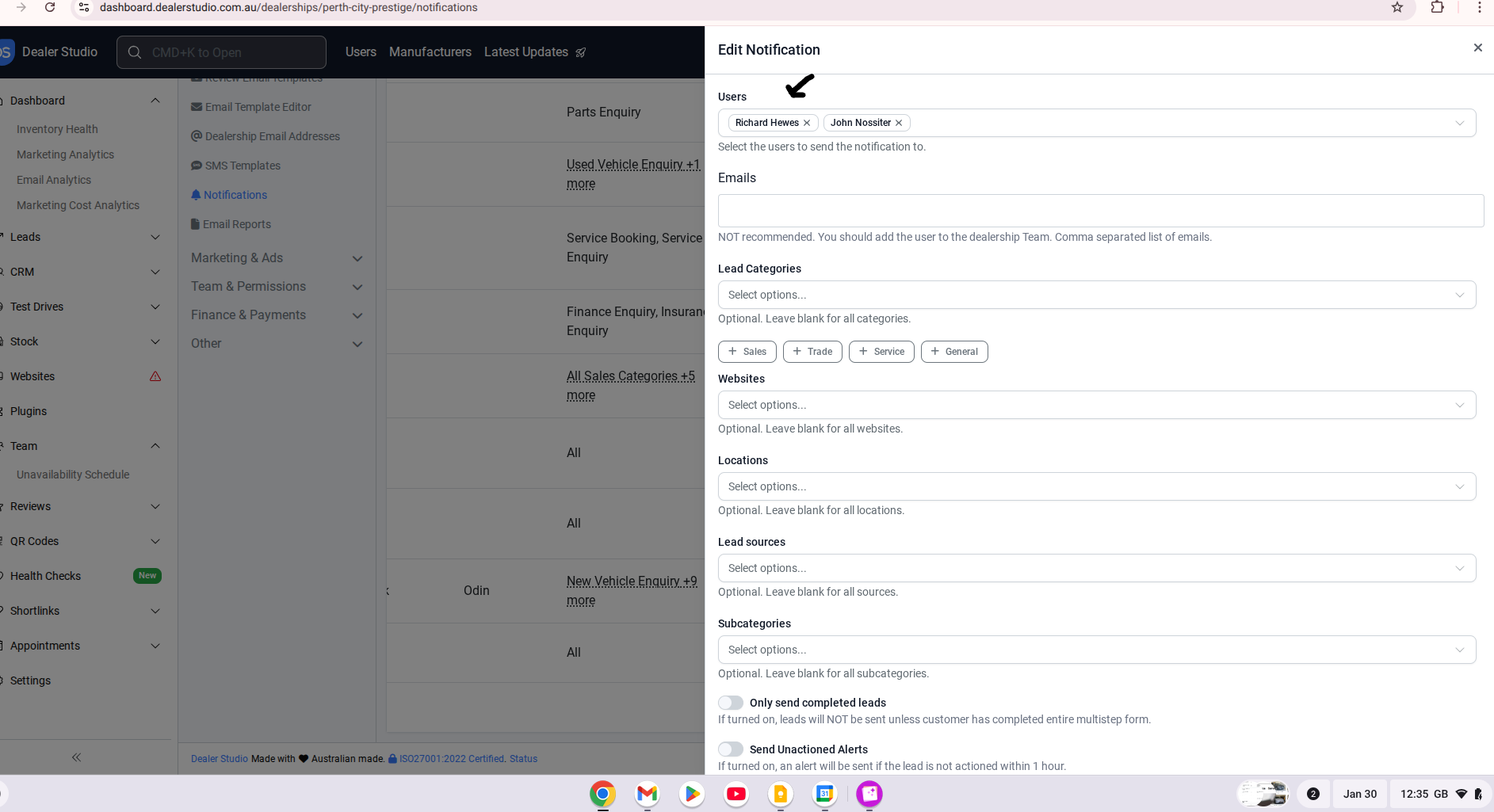
#Step 2: Remove the user, add the new user here, and click Save.
By following the outlined steps to remove and add user emails, teams can ensure that all relevant parties receive timely notifications, minimizing errors and improving overall efficiency.
Was this article helpful?
That’s Great!
Thank you for your feedback
Sorry! We couldn't be helpful
Thank you for your feedback
Feedback sent
We appreciate your effort and will try to fix the article