This process outlines how to integrate the Webchat script into the dashboard, enabling live chat functionality on the website. It covers locating the script, accessing the dashboard settings, and embedding the script correctly to ensure the chat feature works seamlessly for users.
#Step 1. Navigate to the Correct Level (Dealer Level → Website Level)
Your CMS has two levels of settings:
Dealer Level
Website Level
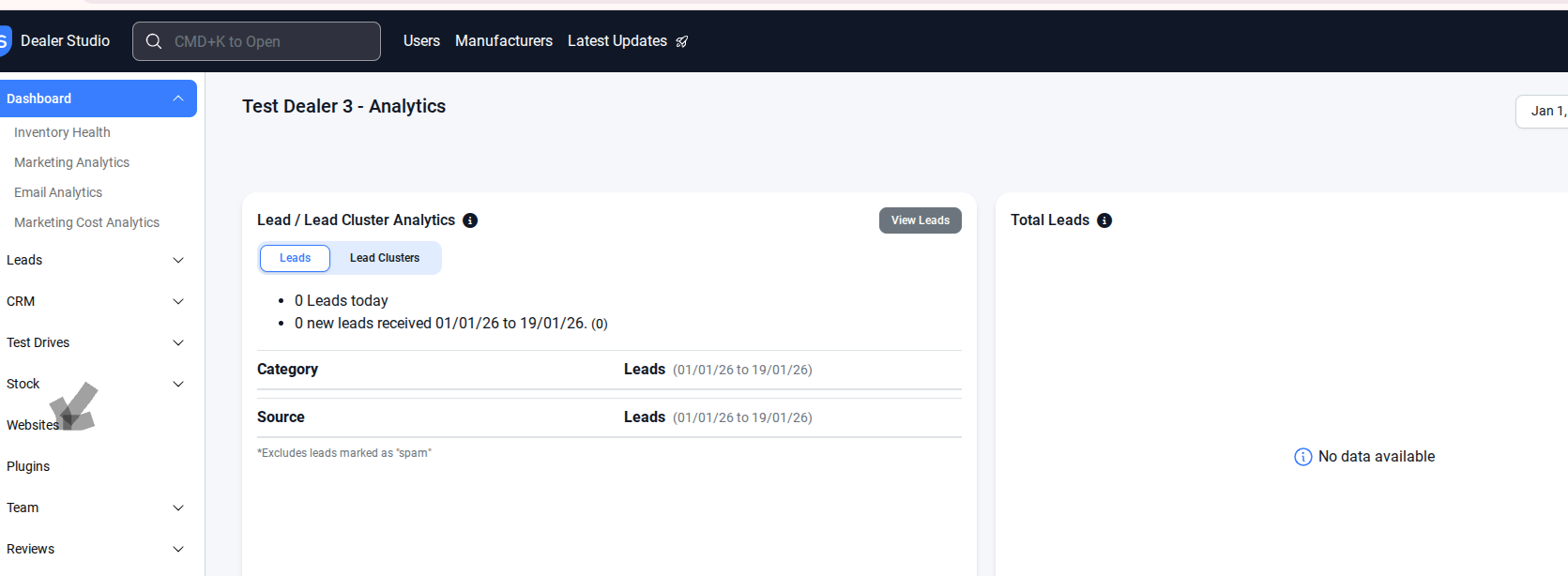
First, ensure you’re on Dealer Level.
In the left-hand sidebar, go to Websites.
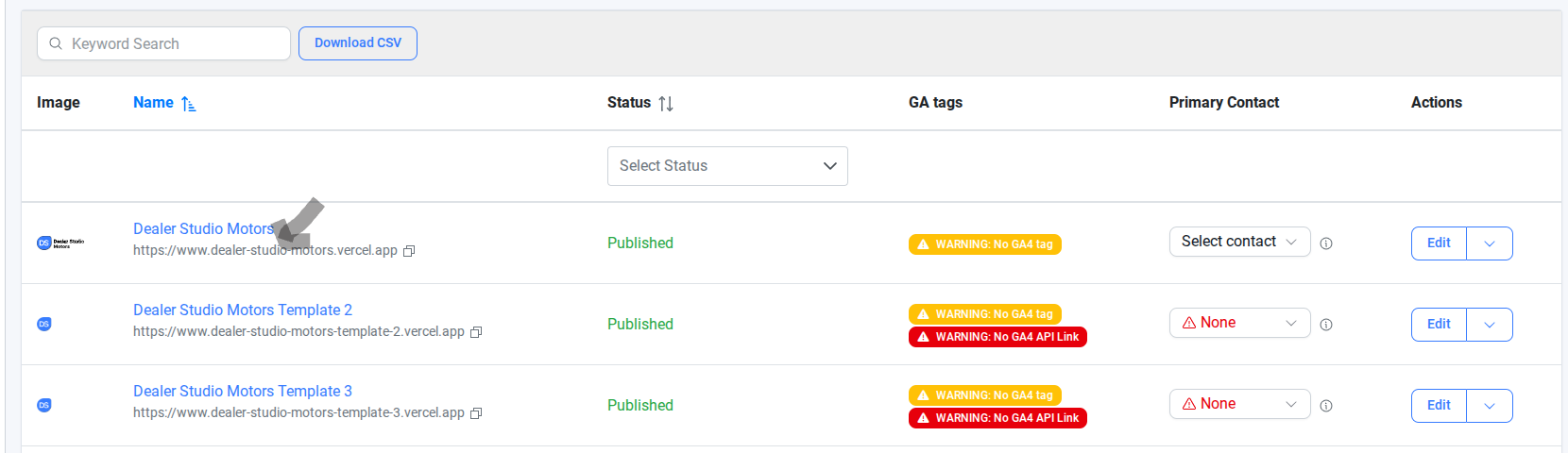
#Step 2. Select the website where you want to add the Webchat script— this switches you into the Website Level.
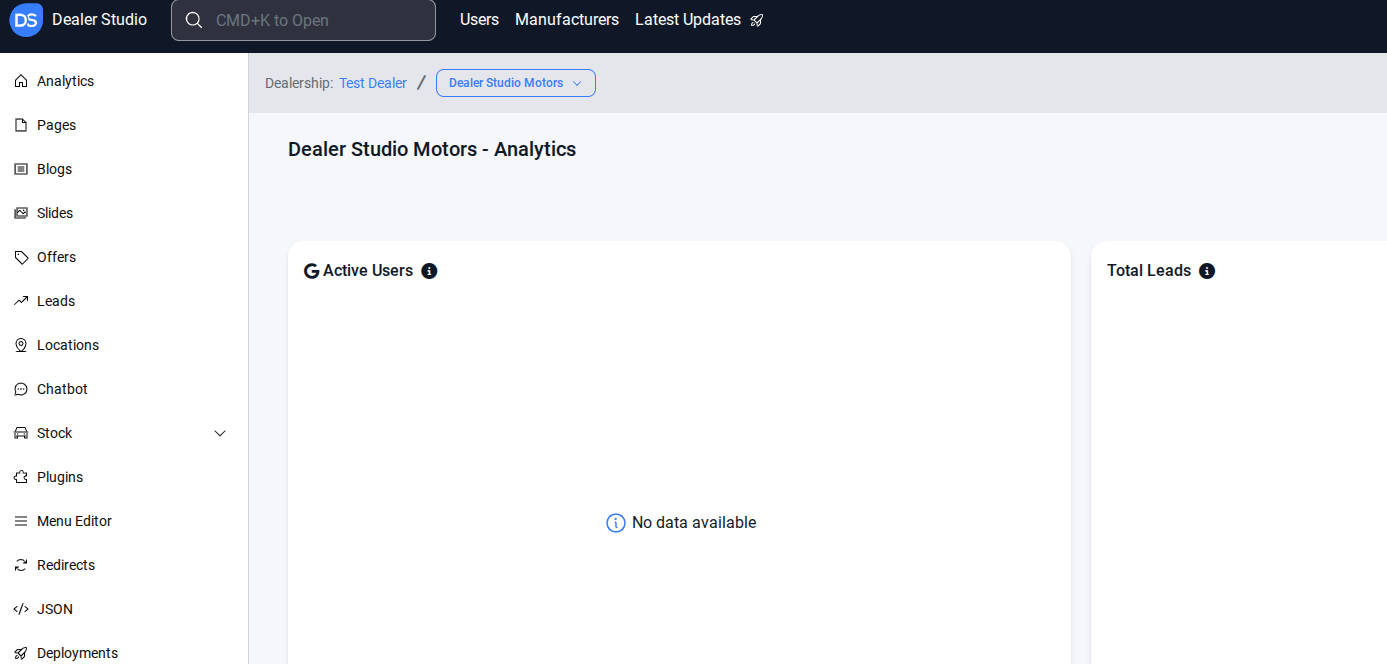
#Step 3. Select Plugins from the left-hand menu at the website level.
#Step 4. In Plugin Settings, paste the script into the Podium API field.
Note: 48523822-a684-4d40-bc7e-9a4f946cf399 (DO NOT include src="https://connect.podium.com/widget.js#ORG_TOKEN=48523822-a684-4d40-bc7e-9a4f946cf399")
Turn on the Podium API Organization

Save the script
Turn off Autobot Chatbot and save.

#Step 5. Select Deployment from the left-hand menu at the website level.
Rebuild the website.
Check the changes on the live site.
Once the Webchat script is added, the website rebuilt, and the live site verified, the Webchat feature should be fully functional. Ensure the client or team tests it to confirm it works as expected.
Was this article helpful?
That’s Great!
Thank you for your feedback
Sorry! We couldn't be helpful
Thank you for your feedback
Feedback sent
We appreciate your effort and will try to fix the article