This guide will walk you through how to add Google Reviews to your website pages using the Page Editor. Displaying reviews is an effective way to build trust with your visitors, showcase customer feedback, and enhance the credibility of your business. Google Reviews can also help highlight positive experiences, improve engagement, and encourage new customers to take action.
Using the Page Editor, you can quickly add your Google Reviews widget, customise its appearance, and adjust placement on your page to match your design. You can control which reviews are displayed, format them to fit your layout, and ensure they look professional across all devices.
Follow the steps below to learn how to add and customise Google Reviews effectively on your pages.
Finding the Page Editor
Step 1: On the Dealership Dashboard, select Websites
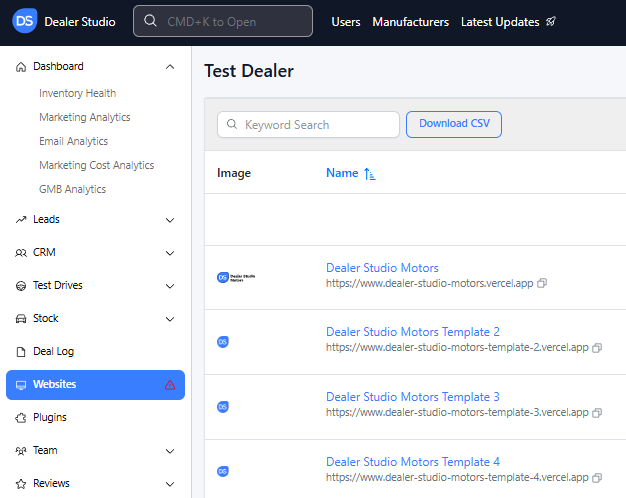
Step 2: Select the desired website to edit
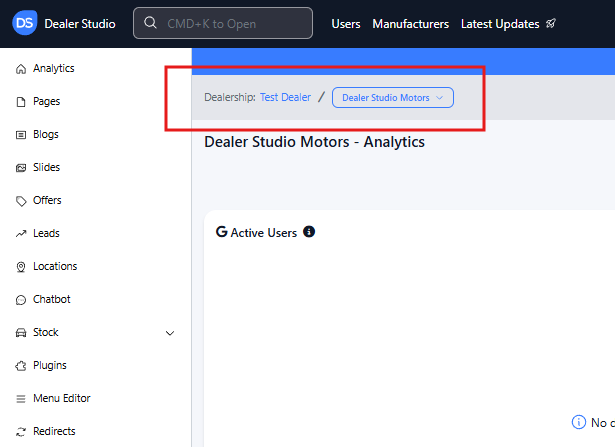
Step 3: Once on the Website Dashboard, select Pages
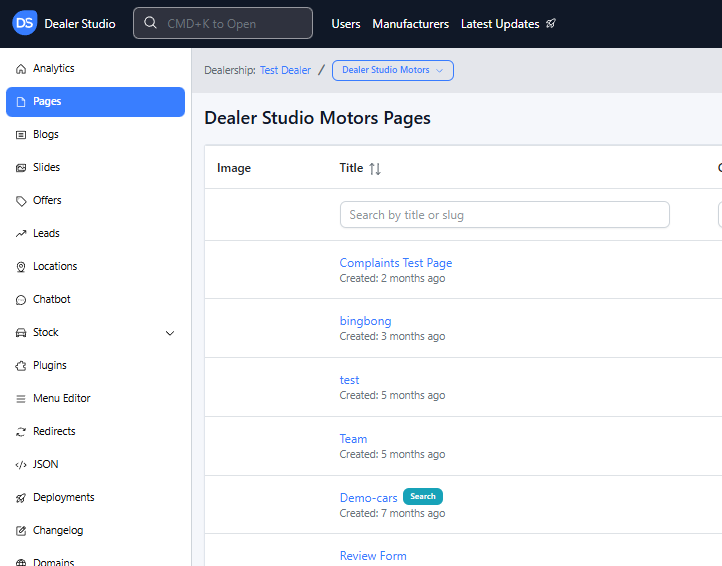
Step 4: Select the page you want to edit
Adding and Editing Existing Google Reviews on Your Pages
Navigate to the desired area of the page. Hover your mouse over the left-hand side until the + icon appears. Click on the icon, then scroll down and select the Google Review button.
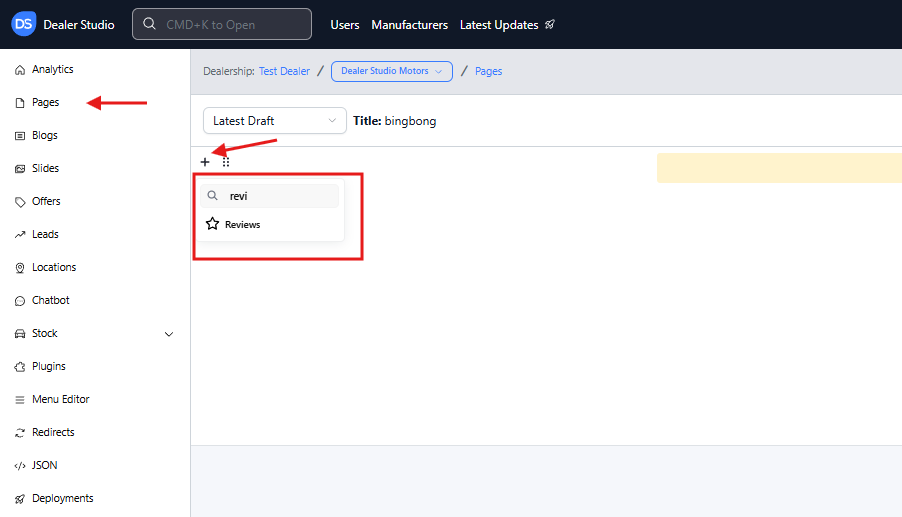
This reviews section will populate;

You have a few options to select from formatted sections;
You can also select which dealership you want reviews showing from
Please see attached video for clarity:
https://res.cloudinary.com/total-dealer/video/upload/v1763346532/Adding_Reviews_lh8fjv.mkv
Was this article helpful?
That’s Great!
Thank you for your feedback
Sorry! We couldn't be helpful
Thank you for your feedback
Feedback sent
We appreciate your effort and will try to fix the article