This guide explains how to create a blog post on your website. We are specifically referring to blogs only—not regular website pages.
Blog pages will always end with " /blog " in the URL
(Eg: https://www.example.com.au/blog).
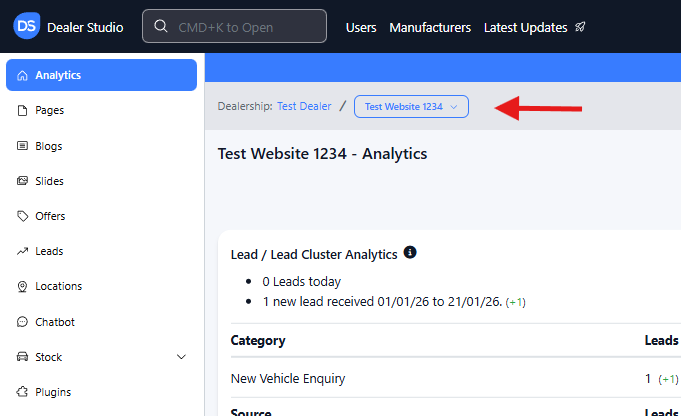
1. Navigate to the Correct Level (Dealer Level → Website Level)
Your CMS contains two setting levels:
Dealer Level
Website Level
To begin:
Make sure you are on Dealer Level.
In the left-hand sidebar, select Websites.
Choose the website where you want to add the blog. This brings you into Website Level.
2. Open the Blog Manager
On the Website Level sidebar, click Blogs.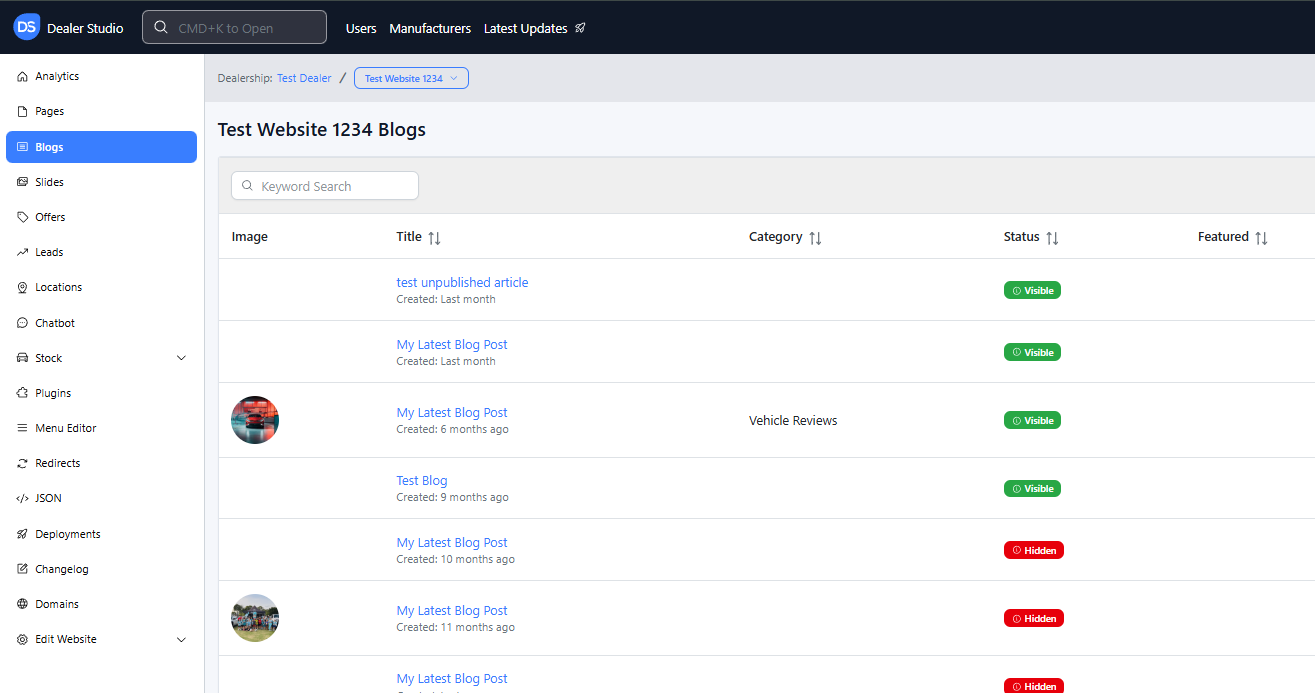
In the top-right corner, you will see four buttons:
Blog Settings – Adjust the blog layout and general appearance
Categories – Organise posts into topics such as News, Vehicle Tips, Reviews, etc. (useful for SEO and better navigation)
Recover Blog – Restore deleted blog posts
+ New Post – Create a new blog post
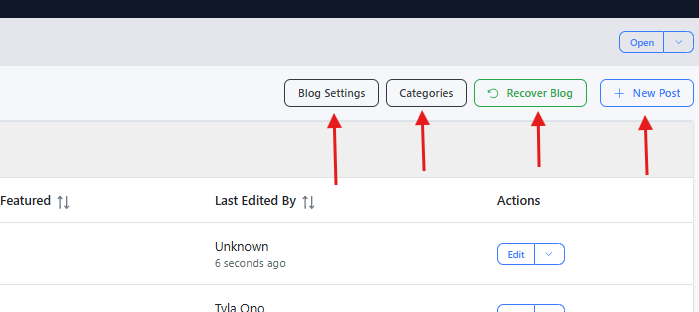
For this guide, we will focus on creating a new post.
3. Create a New Blog Post
Click + New Post.
This opens the Page Editor specifically designed for blog posts.
Note: This Page Editor is for blog content only.
To create normal website pages, go to Pages in the sidebar instead.
Building the blog content
A strong blog page usually begins with a visual header. To get started:
Hover over the blank page and click the “+” button on the left.
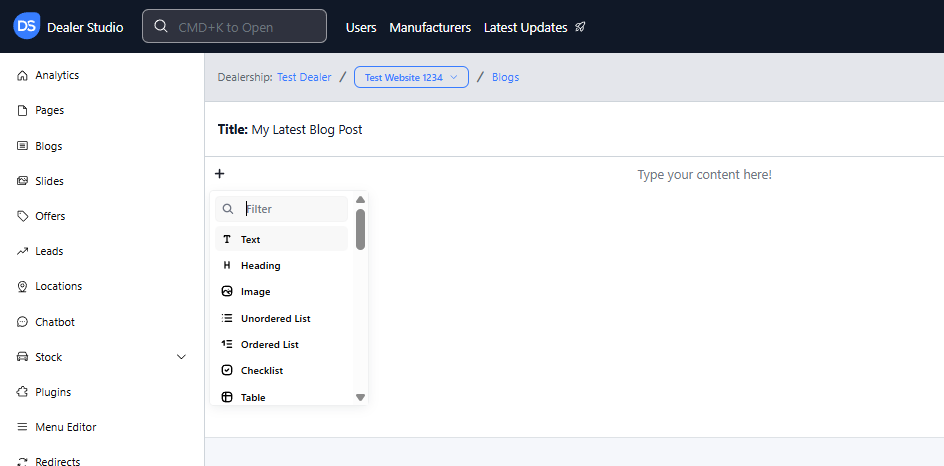
Search for and insert the Image Banner component.
Next, add a Heading component to set your blog title.
Add a Text component for your main content.
These are just the basics—feel free to explore other components to create engaging, dynamic layouts.
4. Configure Blog Settings (Top-Right Gear Icon)
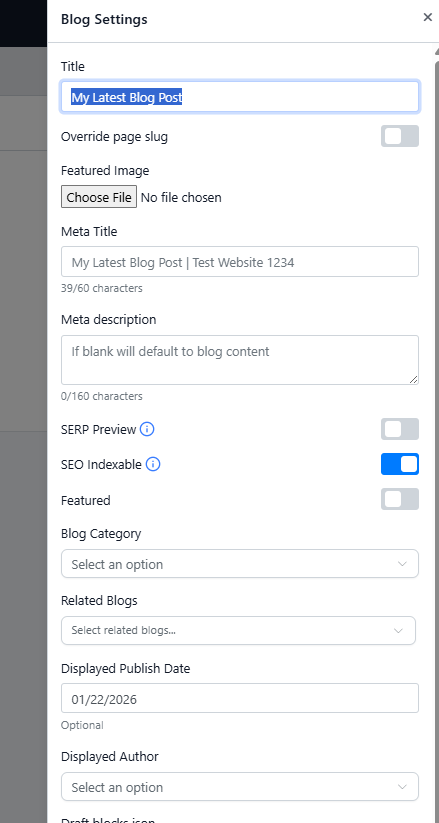
Click the settings button (gear icon) in the top-right corner.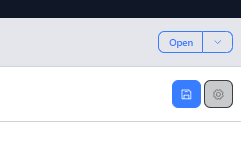 These fields are important:
Title – The title of your blog post (required)
Featured Image – The thumbnail image shown on the blog listing page
Meta Title – Helps with SEO
Meta Description – Helps with SEO and how your blog appears on Google
Related Blogs – Link related posts together
Displayed Author – Display the author’s name publicly
Don’t forget to click 'Save' after updating these settings.
5. Save, Preview, and Publish
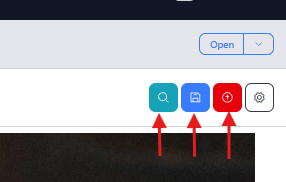
At the top-right of the Page Editor, you will see:
Preview
Save
Publish
Previewing
If you want to preview your blog before publishing, make sure you click Save first.
Unsaved changes will not appear in the preview.
Publishing
Click Publish to make your blog live on the website.
Publishing also triggers an automatic save.
Once published, you’ll see a URL displayed at the top center of the editor. Click it to view the live blog post.
What you see in the Page Editor may differ slightly from the live version until published.
6. That’s It!
You've now created and published a blog post.
Remember: all blog URLs will end with /blog.
Happy editing!
Was this article helpful?
That’s Great!
Thank you for your feedback
Sorry! We couldn't be helpful
Thank you for your feedback
Feedback sent
We appreciate your effort and will try to fix the article