This guide explains how to add and configure promotional cards (stock tiles) within the website settings. It covers navigating to the correct website level, enabling promotional card settings under the search page configuration, and defining how cards are displayed using repeat or static placement options. It also outlines how to create and manage individual promotional cards, including image upload, linking, display rules, and scheduling.
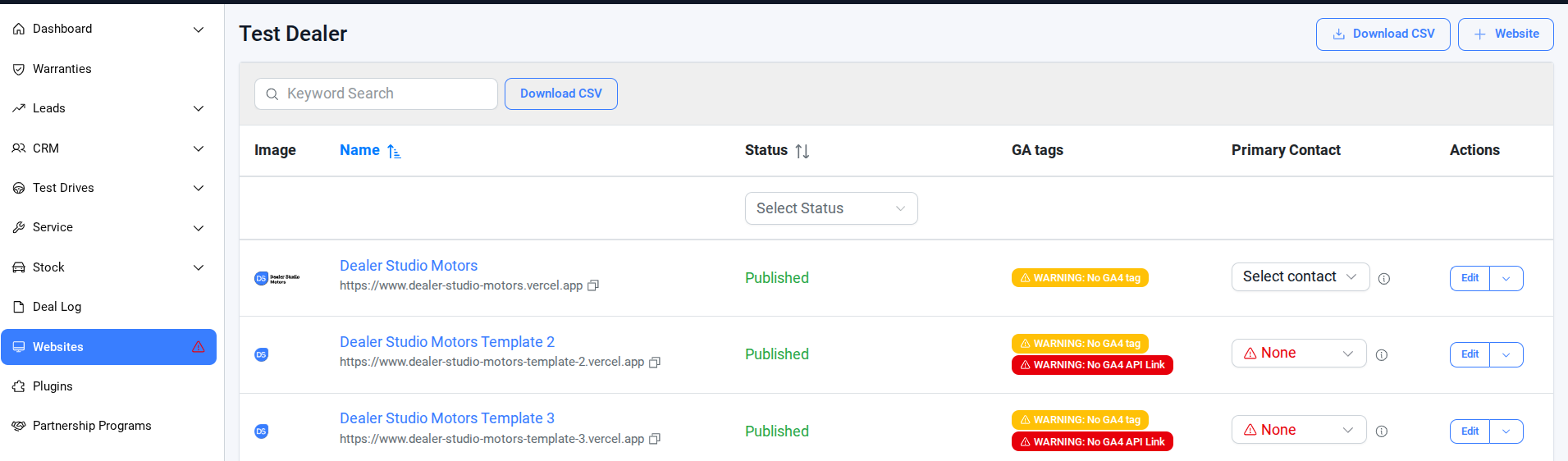
Step 1: Website Level Settings
- Click Websites -> Select the website which you need to add the tiles
Step 2: Add Promotional Cards settings
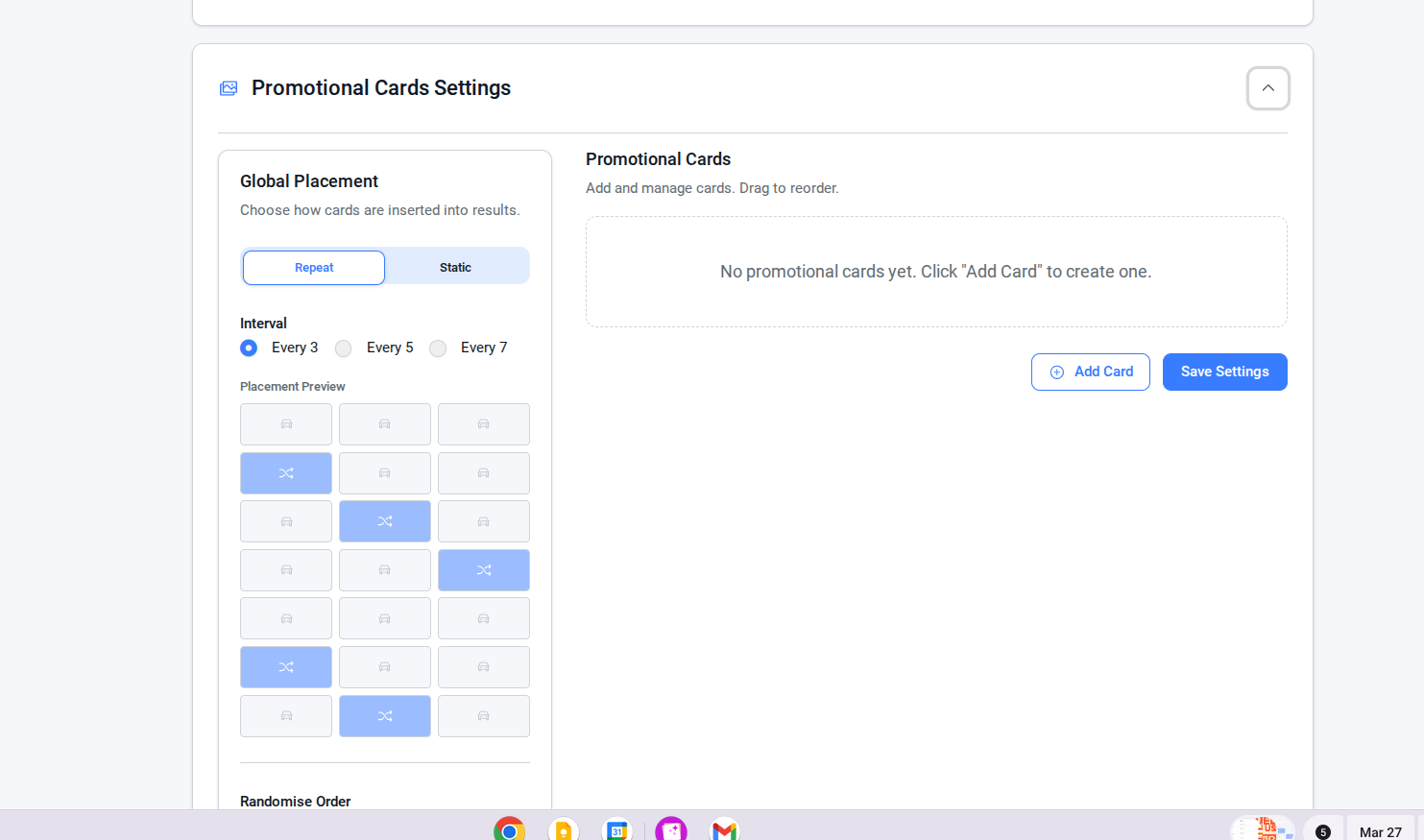
- Click Stock -> Select the Search Page Config -> Promotional Cars Settings
- Global Placement: Choose how cards are inserted into results (Repeat or Static)
- Repeat Interval: Set frequency (e.g. every 3, 5, or 7 listings)
- Static Interval: Select specific positions in the grid
- Randomise Order: Display available cards in a random order
- Click Add Card
Step 3: Add Promotional Cards Details
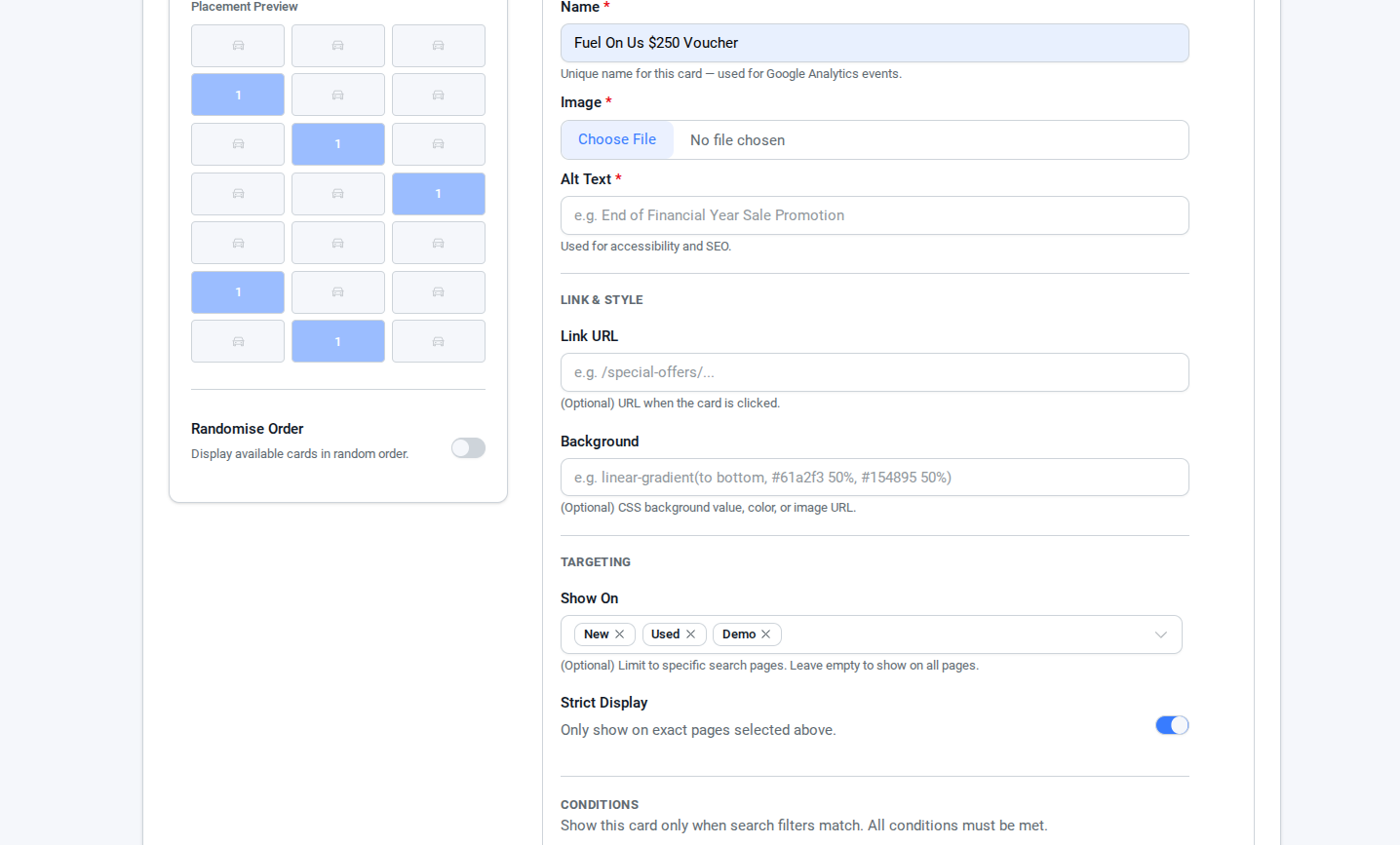
In Add Card, You can add and manage promotional cards.
- Name: Unique name for the card (used for Google Analytics events)
- Image: Upload the stock tile image
- Alt Text: Used for accessibility and SEO
- Link & Style: URL when the card is clicked (optional)
- Background: CSS background value, color, or image URL (optional)
- Show on: Limit to specific search pages (leave empty to show on all pages)
- Strict Display: Only show on exact pages selected above
- Schedule: Define when the card becomes active and when it stops displaying (optional)
- Click Save Settings
By following these steps, promotional cards can be effectively added and controlled across search results pages. Proper configuration of placement, intervals, and display rules ensures consistent visibility and a better user experience. Always verify card settings before saving to ensure they display as intended across the website.
Was this article helpful?
That’s Great!
Thank you for your feedback
Sorry! We couldn't be helpful
Thank you for your feedback
Feedback sent
We appreciate your effort and will try to fix the article