This article explains how to add new vehicle stock using the Dealer Studio mobile app. Adding stock through the mobile app allows you to quickly create listings directly from your phone.
Instructions to Add Stock
Follow the steps below to add stock in the Dealer Studio mobile app:
Step 1: Navigate to Add Stock
Step 2: Search and Select Stock
Step 3: Enter Stock Details and Submit
Step 1: Navigate to Add Stock
Log in to the Dealer Studio mobile app.
From the Dashboard, select your Dealership.
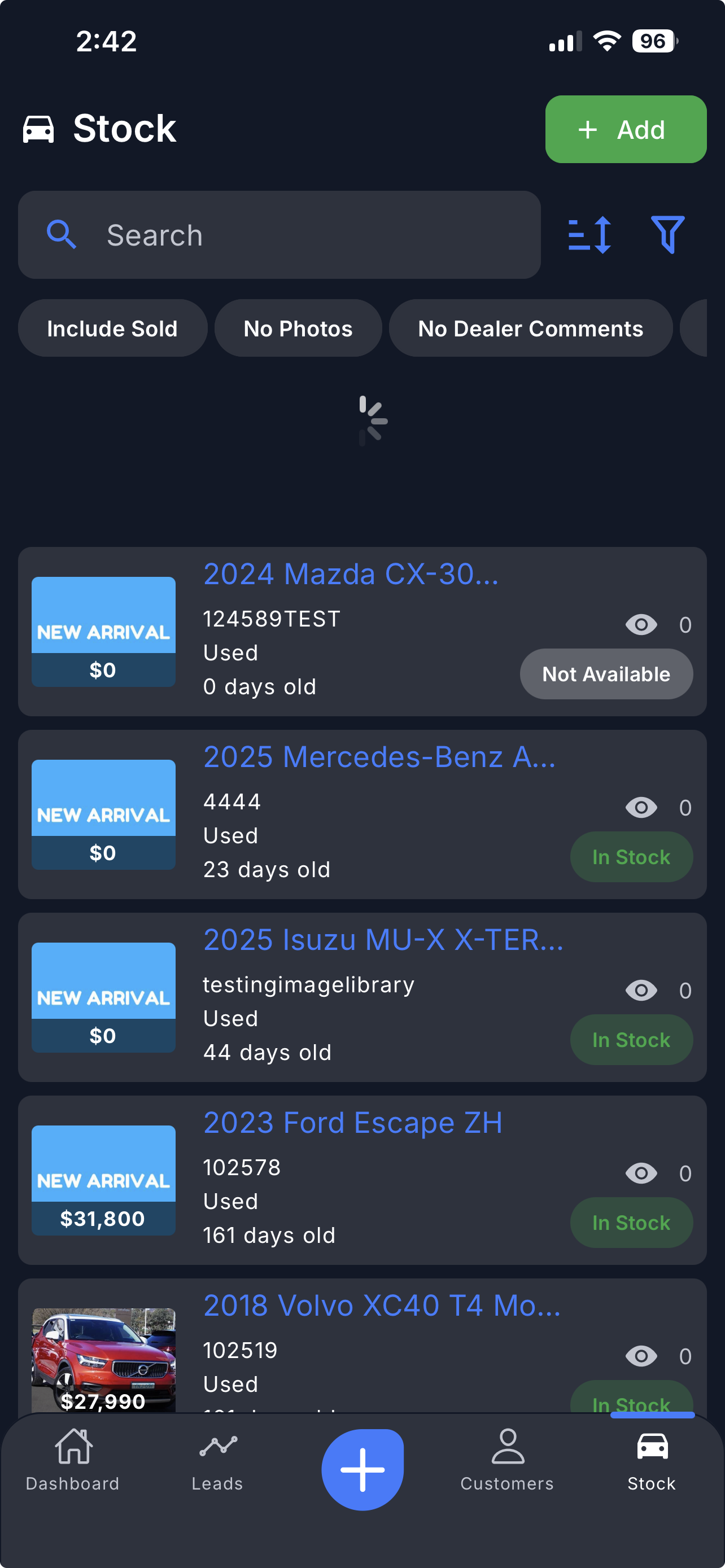
Tap the 'Stock' button at the bottom of the screen.
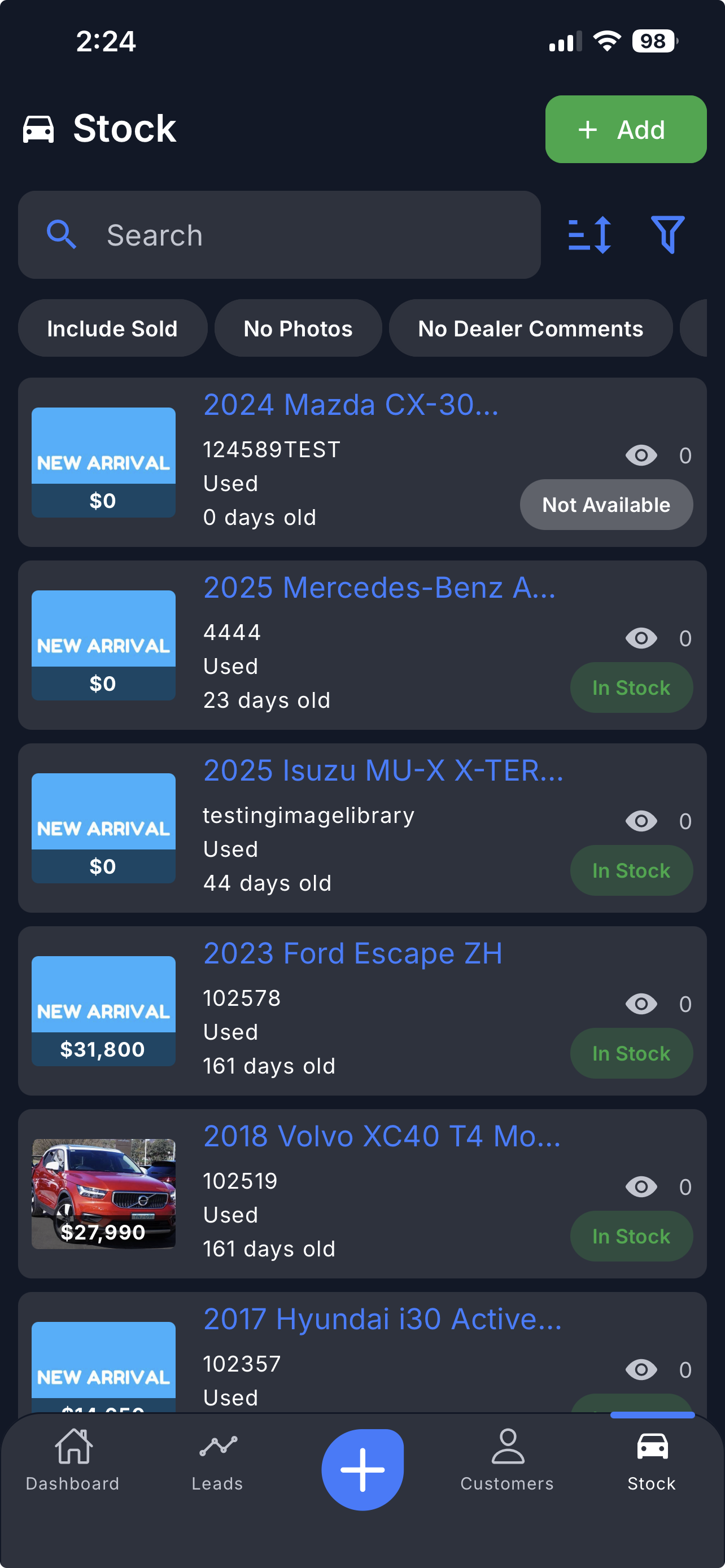
Step 2: Search and Select Stock
Follow the steps shown at the top of the screen.
i. Search
Search for the vehicle you want to add.
You can search using:
Rego Search
Available if your dealership has enabled this paid feature.Please contact support@dealerstudio.com.au for more information.
Redbook Search
Enter the vehicle specifications to search for matching stock.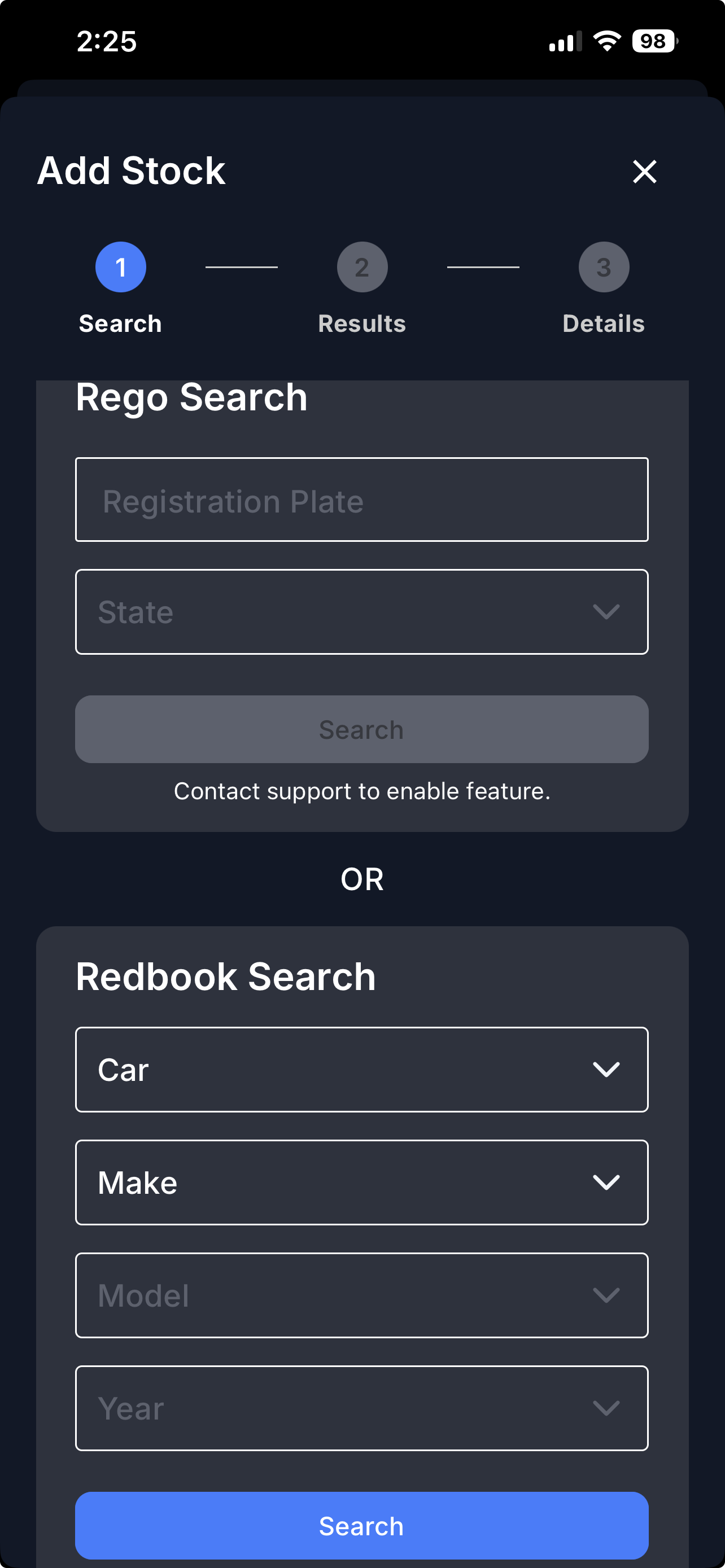
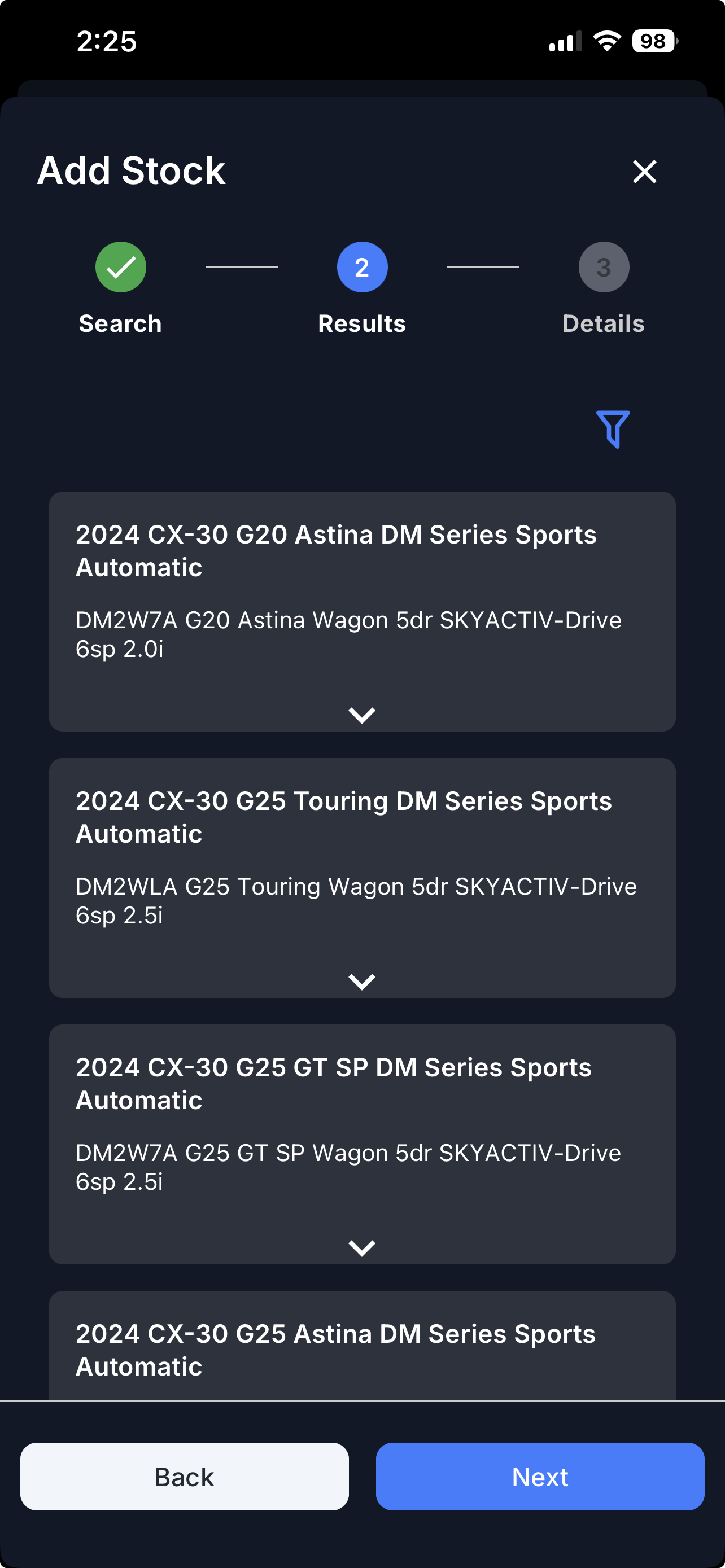
ii. Results
The results page will display a list of vehicles that match your search criteria.
Select the correct vehicle from the list.
Tap Next to continue.
Tip:
Use the Filter button (top right) to narrow down your search results.
Step 3: Enter Stock Details and Submit
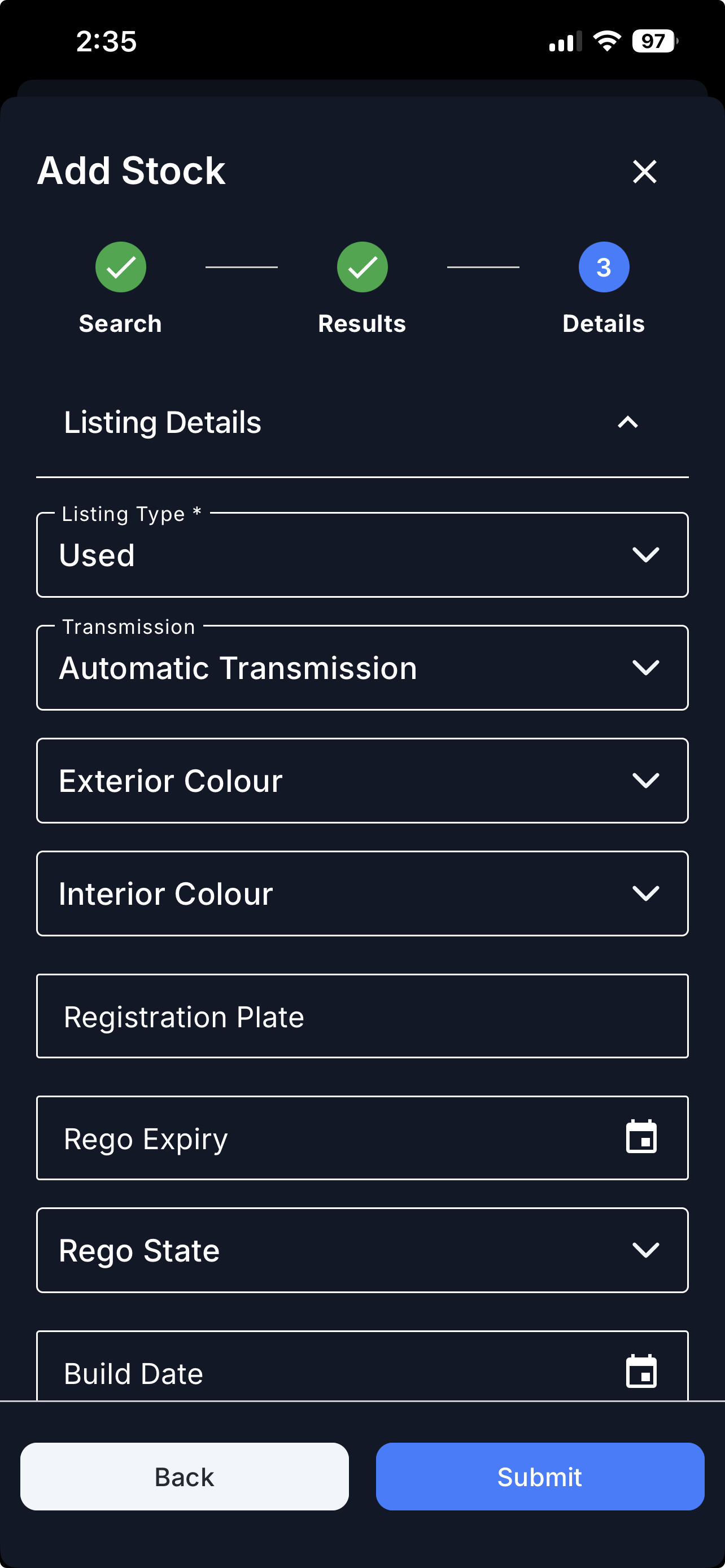
iii. Details
Enter the Stock Listing Details as required in the form.
Tap Submit when finished.
View Your New Stock Listing
Once submitted, your new stock will be added to your stock listing.
To refresh the stock list:
Swipe down on the stock listing page.
Important:
Rego Search is a paid feature and may not be available for all dealerships. Contact support@dealerstudio.com.au if you would like to enable this feature.
Video
Please refer to the attached video below for a visual guide.
Was this article helpful?
That’s Great!
Thank you for your feedback
Sorry! We couldn't be helpful
Thank you for your feedback
Feedback sent
We appreciate your effort and will try to fix the article