This article explains how to add promotional banners to your website to highlight campaigns, offers, or important announcements. It covers where banners can be placed, how to add and customise them (including text, images, and links), and best practices for ensuring they are clear, engaging, and aligned with your branding. The guide is designed to help users effectively draw attention to key promotions without impacting site usability.
Step 1: On the Dealership Dashboard, select Websites
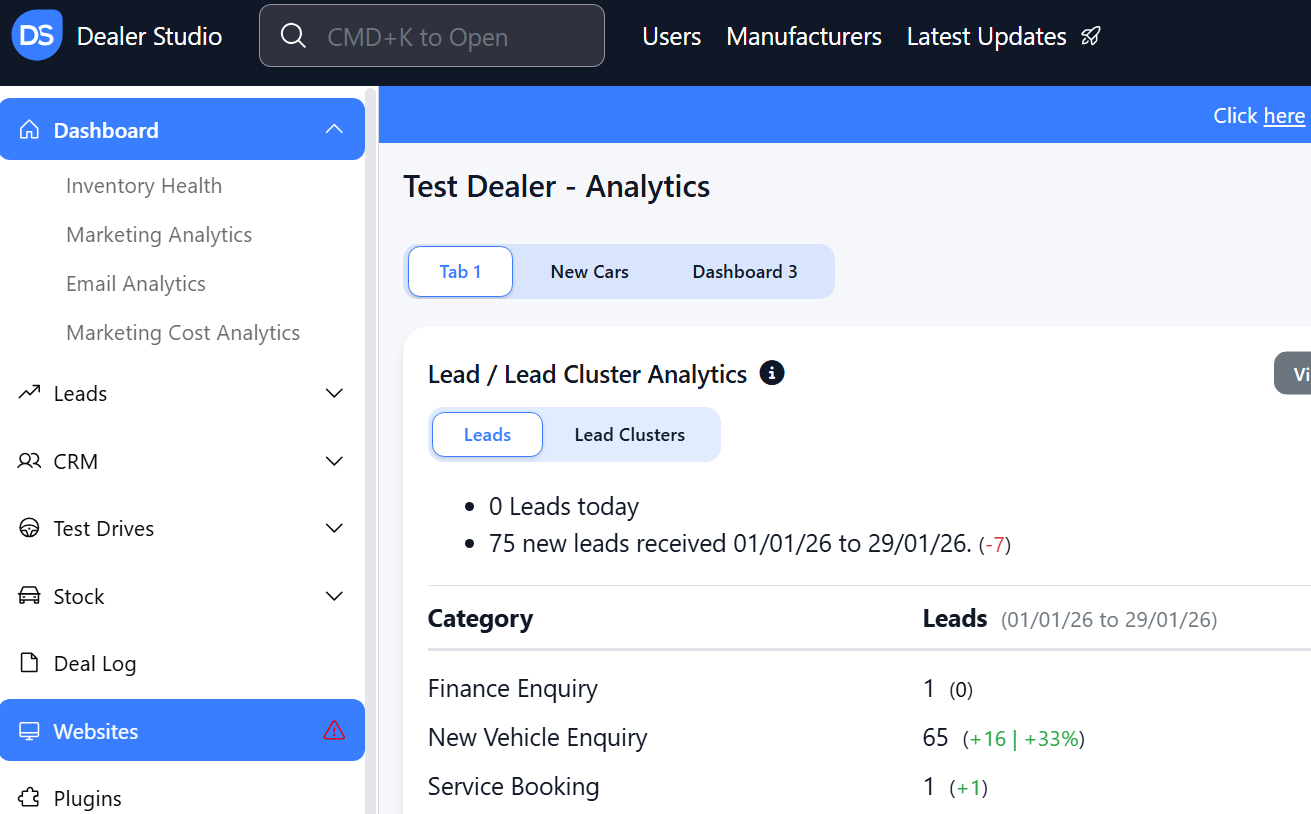
Step 2: Select the Desired Website to edit
Step 3: Once on the Website Dashboard, select 'Slides'
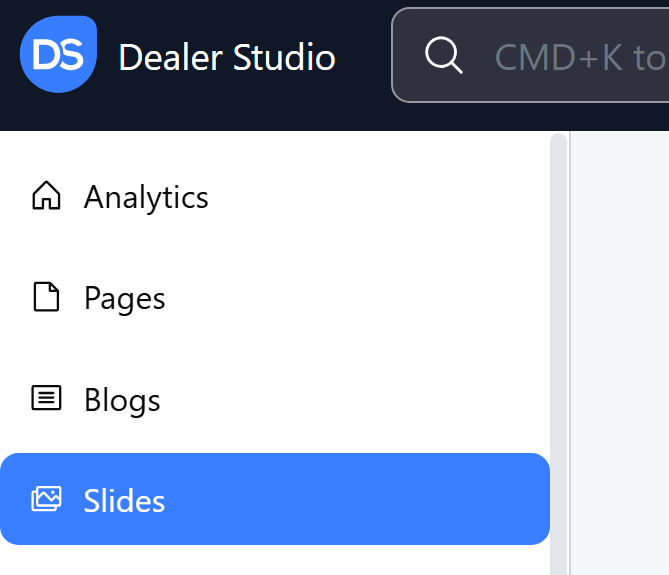
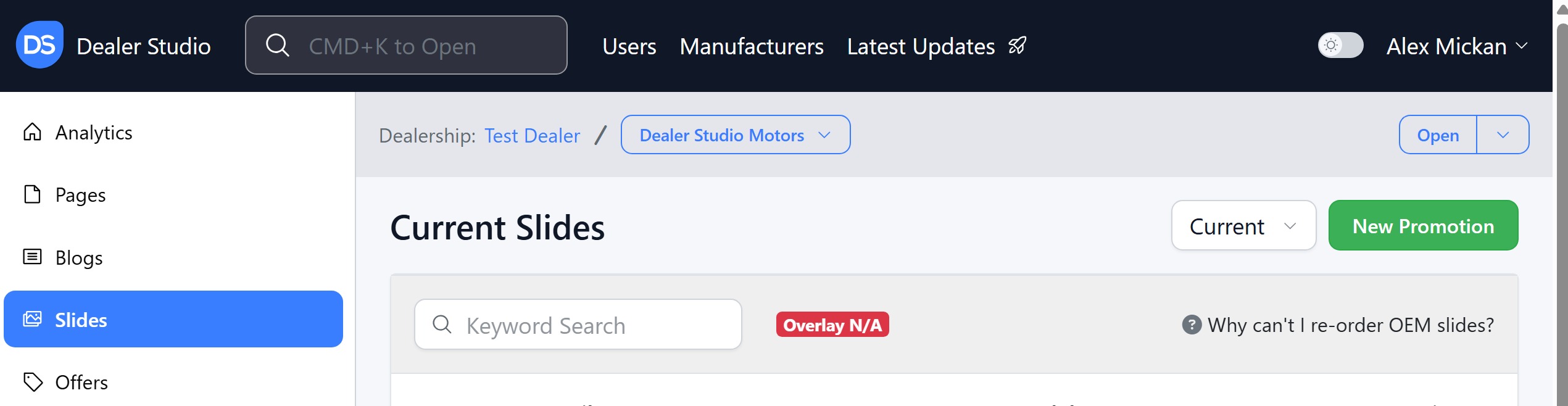
How to Add in the Slide
Step 1: Click 'New Promotions' in the top right
 Step 2: Please upload the Image to 'Banner' or, if it's a video to 'Video'
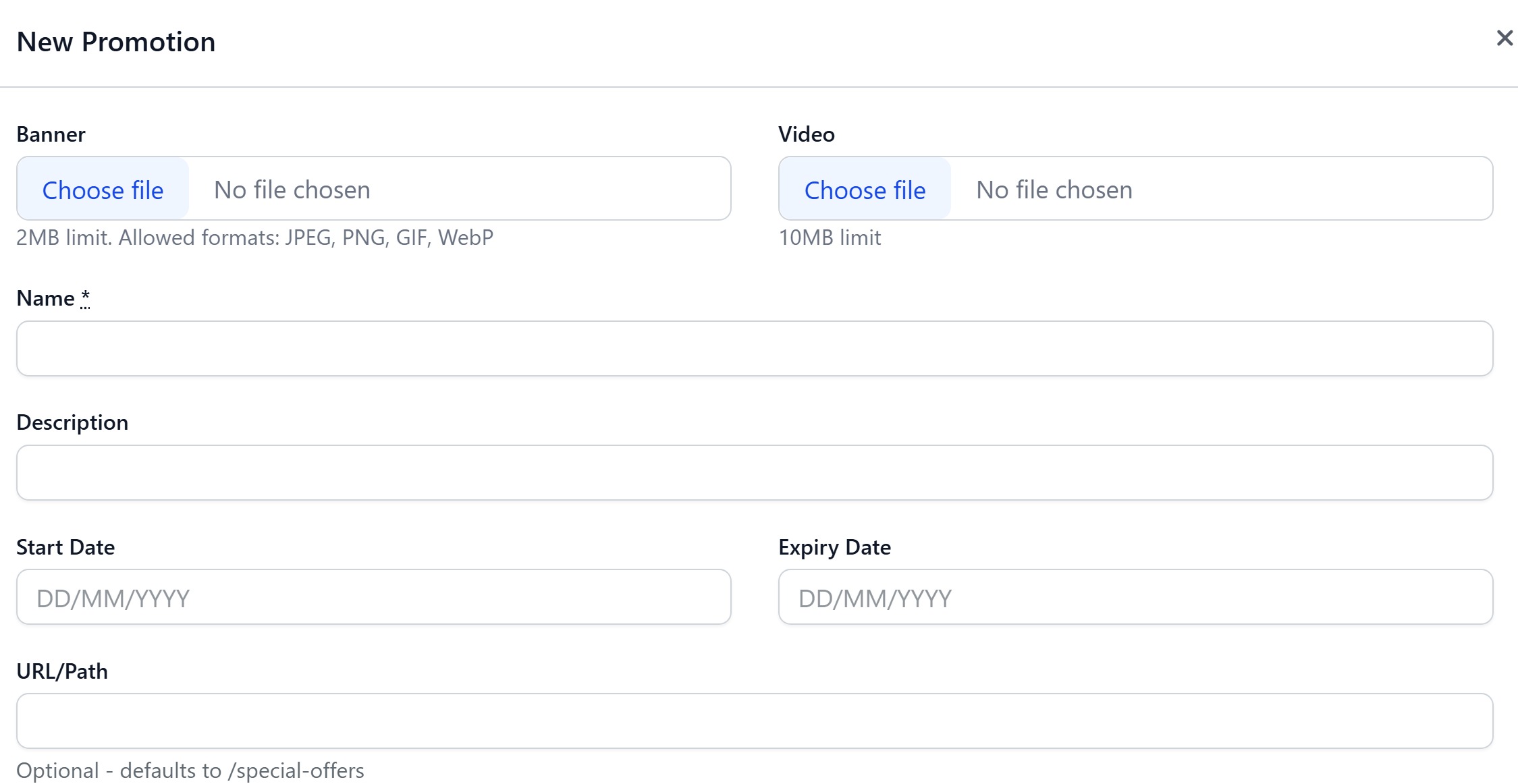
Step 3: You will then need to fill out the Name of the Promotion e.g. LDV Deliver 7
Step 4: Then enter description- this is a subheading under the main title. This is not mandatory
Step 5: If you need to set it to go live next week, you can change live date, and expiry date to when you need it to automatically withdraw from online
Step 6: Then fill out where you want it to link to. Majority of the time the UTM can be ignored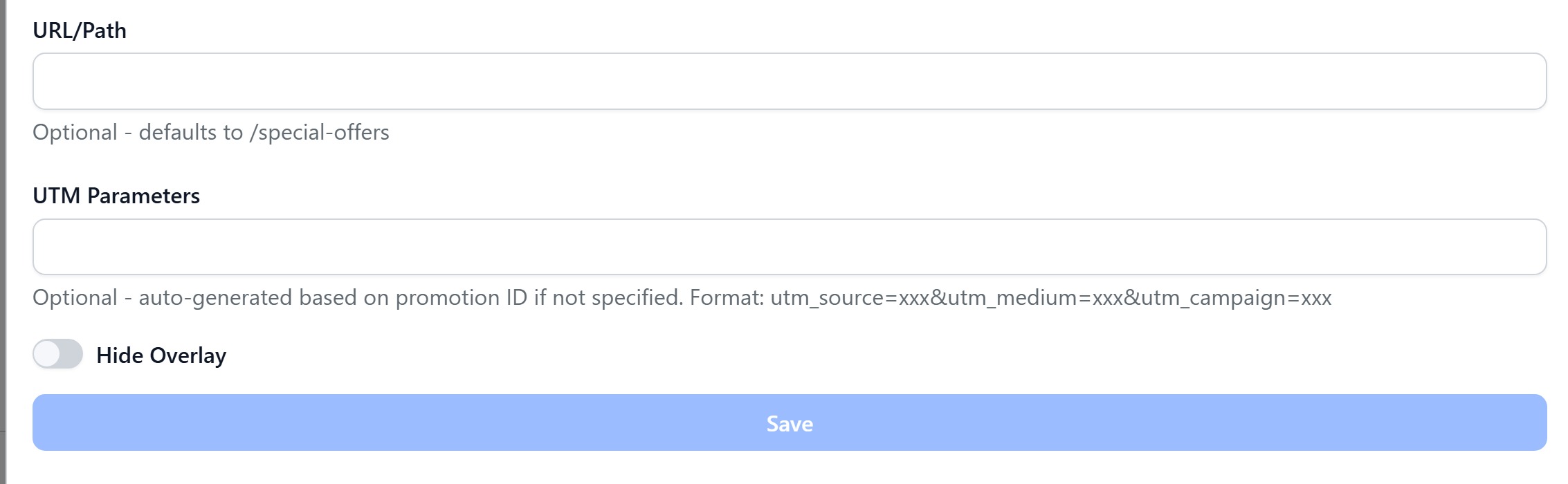 Step 6: If you want the Heading and Description to show on your slide, do NOT toggle on the 'Hide Overlay'
If your banner has text and you don't wish it to be covered, I would recommend hiding the overlay
Step 7: Save
Please see video for further clarity;
https://res.cloudinary.com/total-dealer/video/upload/v1770265443/screen-capture_6_wa8awg.mkv
Was this article helpful?
That’s Great!
Thank you for your feedback
Sorry! We couldn't be helpful
Thank you for your feedback
Feedback sent
We appreciate your effort and will try to fix the article