This guide will walk you through the steps to add new image banners or update existing ones using the Page Editor. Image banners are an effective way to showcase promotions, highlight key messages, and visually engage customers as they browse your website.
Keeping your banners fresh ensures your site stays current, visually appealing, and aligned with your latest campaigns. Follow the instructions below to learn how to manage your banner images quickly and confidently.
Finding the Page Editor
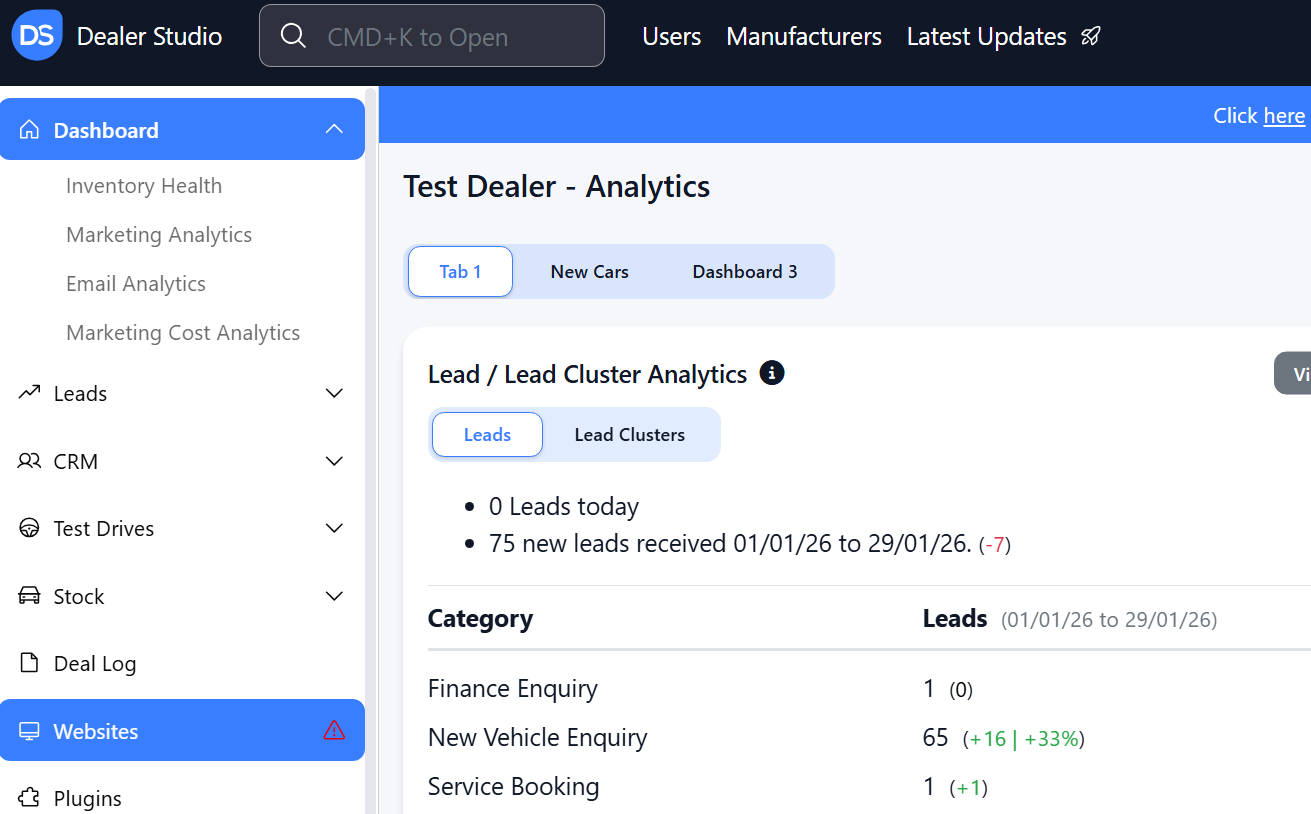
Step 1: On the Dealership Dashboard, select Websites
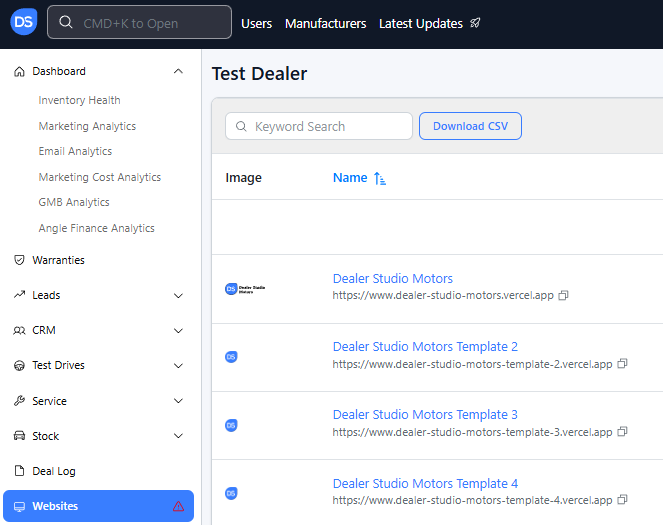
Step 2: Select the desired website to edit
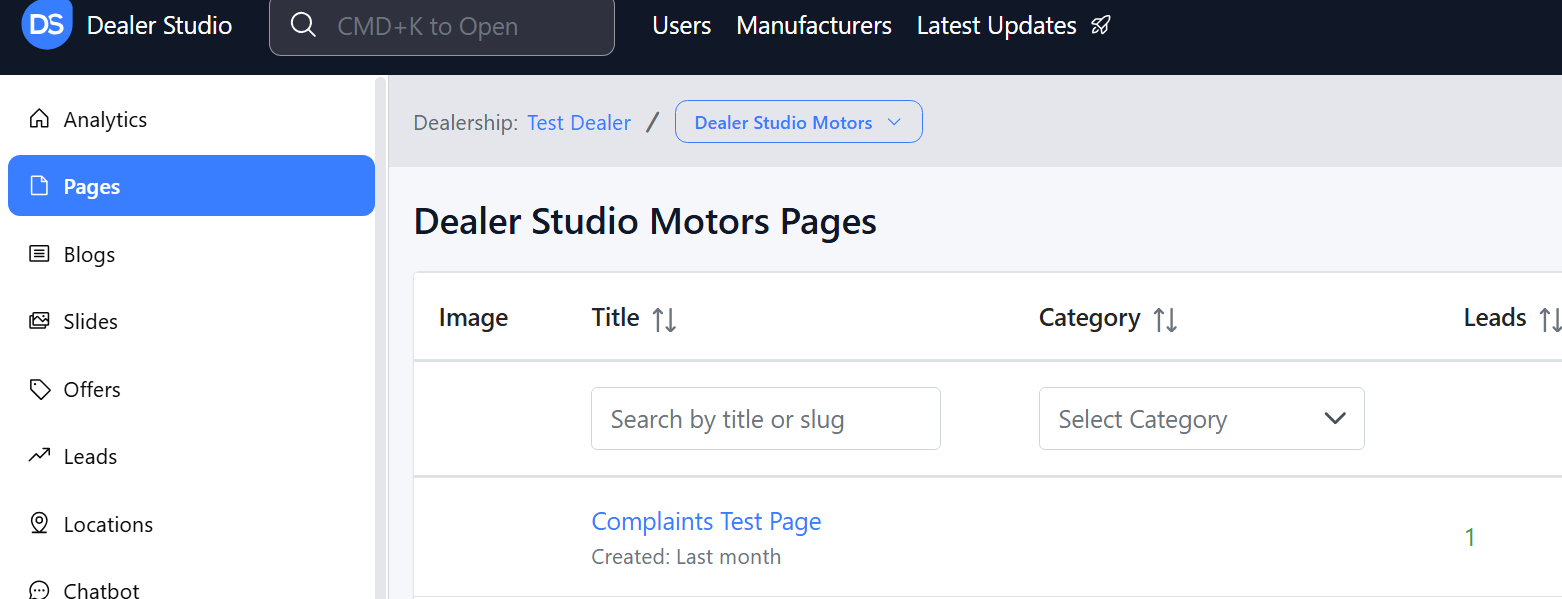
Step 3: Once on the Website Dashboard, select Pages
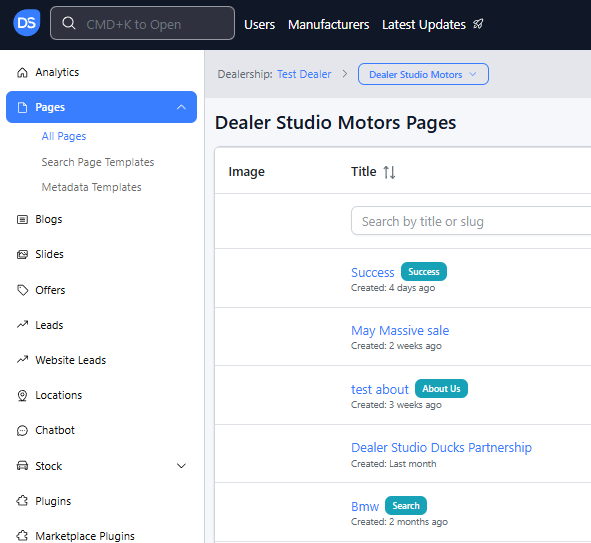
Step 4: Select the page you want to edit
Adding and Editing Existing Image Banners on Your Pages
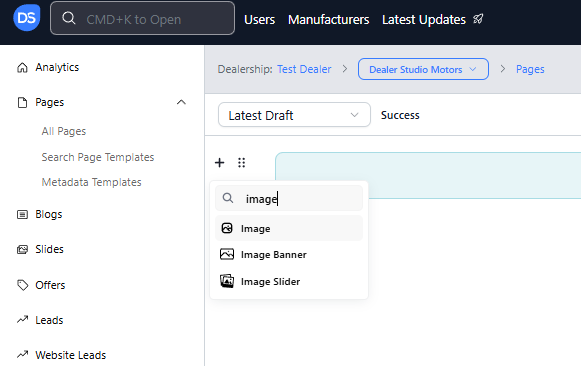
Navigate to the desired area of the page. Hover your mouse over the left-hand side until the '+' icon appears. Click on the icon, then scroll down and select the Image Banner button.
A box will open to customise your banner. You will be directed to select either an existing image or a custom image.
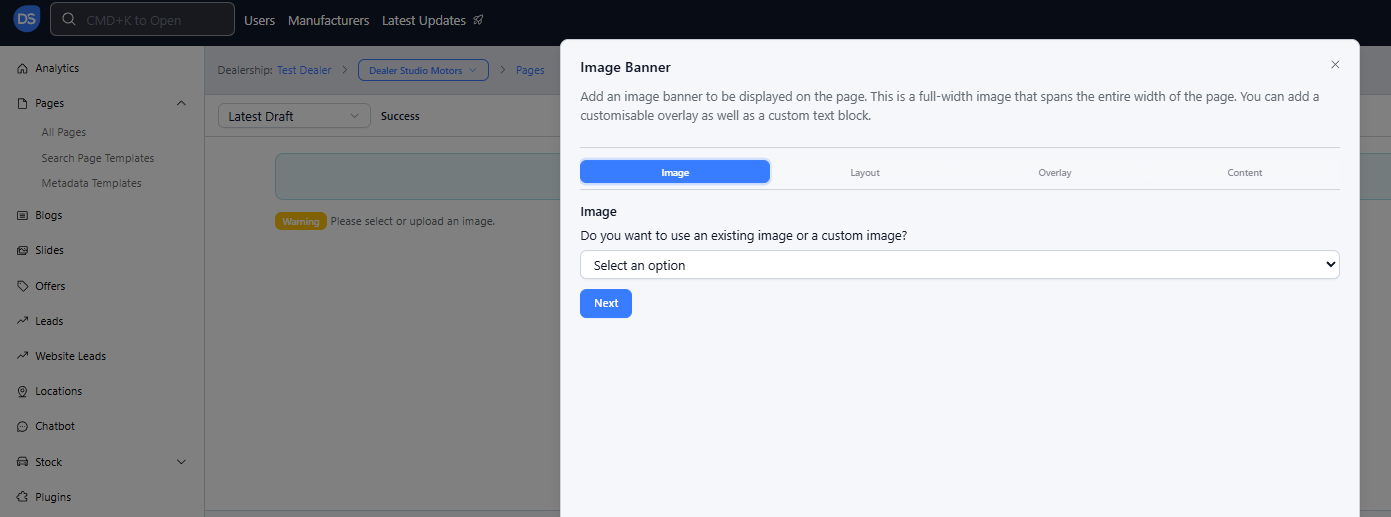
Selecting Existing Image will allow you to choose from 3 categories:
- Dealer Studio Images: These are stock-like images grouped under categories such as Trade-In, Contact Us, Service and Parts, Careers, and more.
- Manufacturer Images: Certain manufacturers provide images that can be used for your website.
- Model Images: Some vehicle models have specific banners or images available for use.
You will be able to preview the banner before continuing.
Custom Image:
Upload the desired image by selecting Choose file.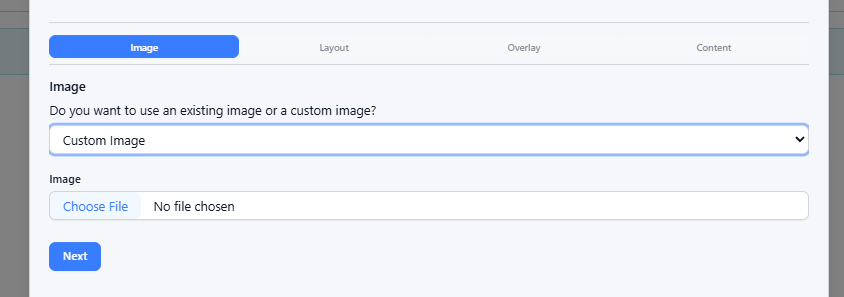
Select Next and select Banner Layout
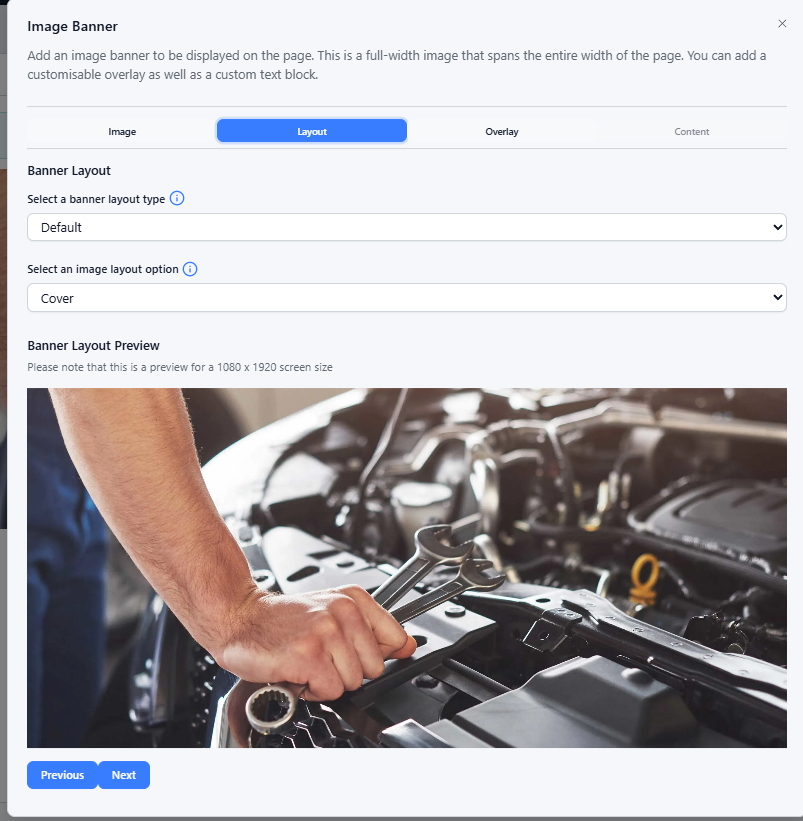
Banner layout type:
- Default: Our default Image Banner layout used on the majority of pages.
- Full-Size: Fit the entire image on the page at all screen sizes.
- Custom Height: Set custom mobile and desktop heights that are adhered to on all screen sizes.
- Custom Aspect Ratio: Choose a custom aspect ratio (width and height) that is maintained at all screen sizes.
Image layout option:
- Cover: Cover the entire banner with the image (may cause clipping of the image).
- Contain: Contain the entire image within the banner (may cause empty spaces to appear).
Review the banner layout preview before selecting Next
Select Overlay
- An overlay is optional and can be used to enhance readability or add emphasis to text by darkening or lightening the background. If using an overlay, you can select the colour and opacity as shown:
- Choosing an overlay is useful if you want to make text or buttons stand out more against a busy or complex image, which can be added in the next step.
Adding Content
- Once the base of the banner is set, you can add content on top. Simply click the + button to the left of the Image Banner text to add text, headings, or buttons over the banner.
- To edit the format of text or headings added to the banner, select the 6 dot icon. Here, you can change the text size, alignment, colour, margins, padding etc.
- You can make further changes by selecting Edit Settings.
- From here you are able to add multiple buttons as well as adjust the text, colour, classname, style and link URL.
- The button colour defaults to blue in our dashboard, but on your website, it will be based on the primary colour of your theme.
That's It!
Once complete, ensure to save your changes by selecting the blue Save button at the top of the page.
Please see attached video for clarity
https://res.cloudinary.com/total-dealer/video/upload/v1763086730/Adding_Image_Banner_emolb2.mkv
Was this article helpful?
That’s Great!
Thank you for your feedback
Sorry! We couldn't be helpful
Thank you for your feedback
Feedback sent
We appreciate your effort and will try to fix the article