This article guides users on how to insert raw HTML into the Pages Editor. It covers adding an HTML block, pasting custom code, and ensuring it displays correctly on the page. Ideal for users who need to embed custom widgets, scripts, or advanced content without altering the site’s core structure.
Step 1: On the Dealership Dashboard, select Websites
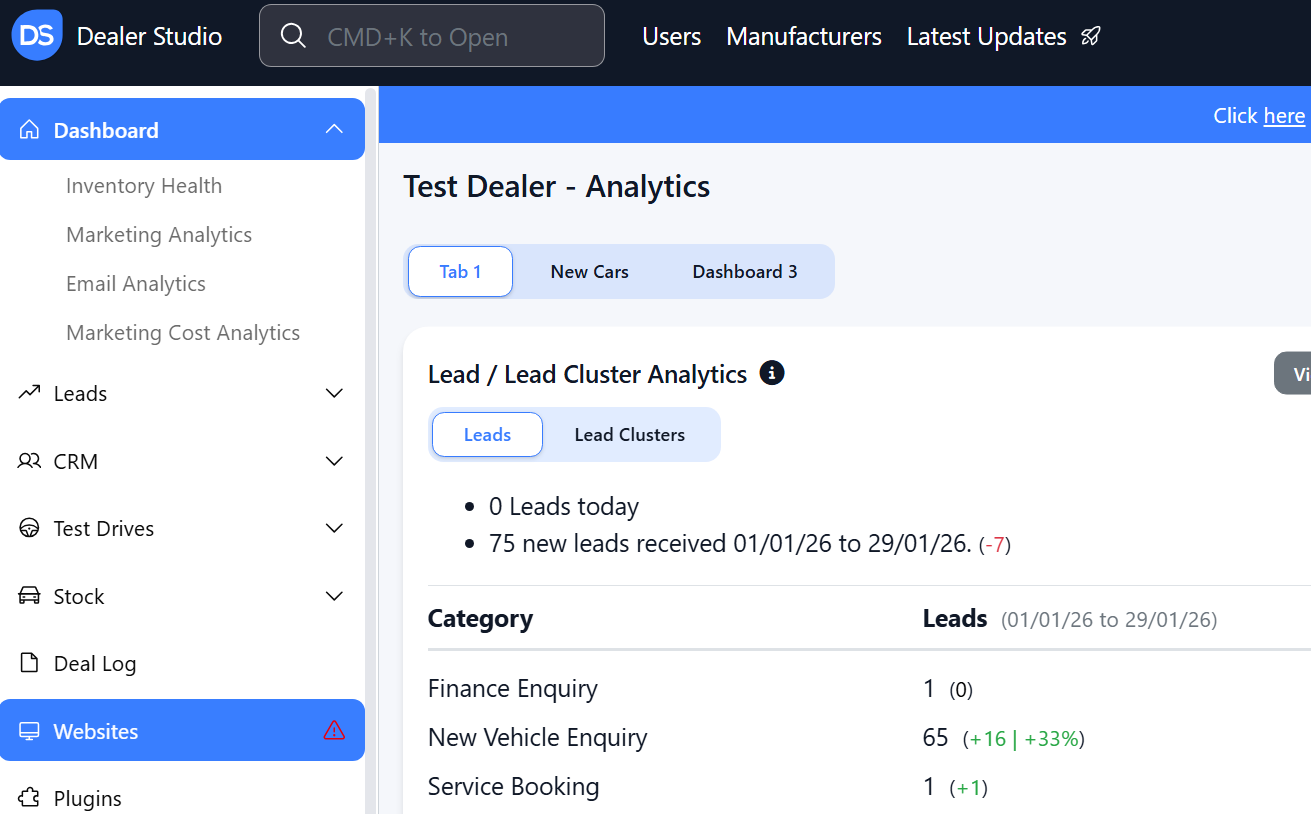
Step 2: Select the Desired Website to edit
Step 3: Once on the Website Dashboard, select Pages
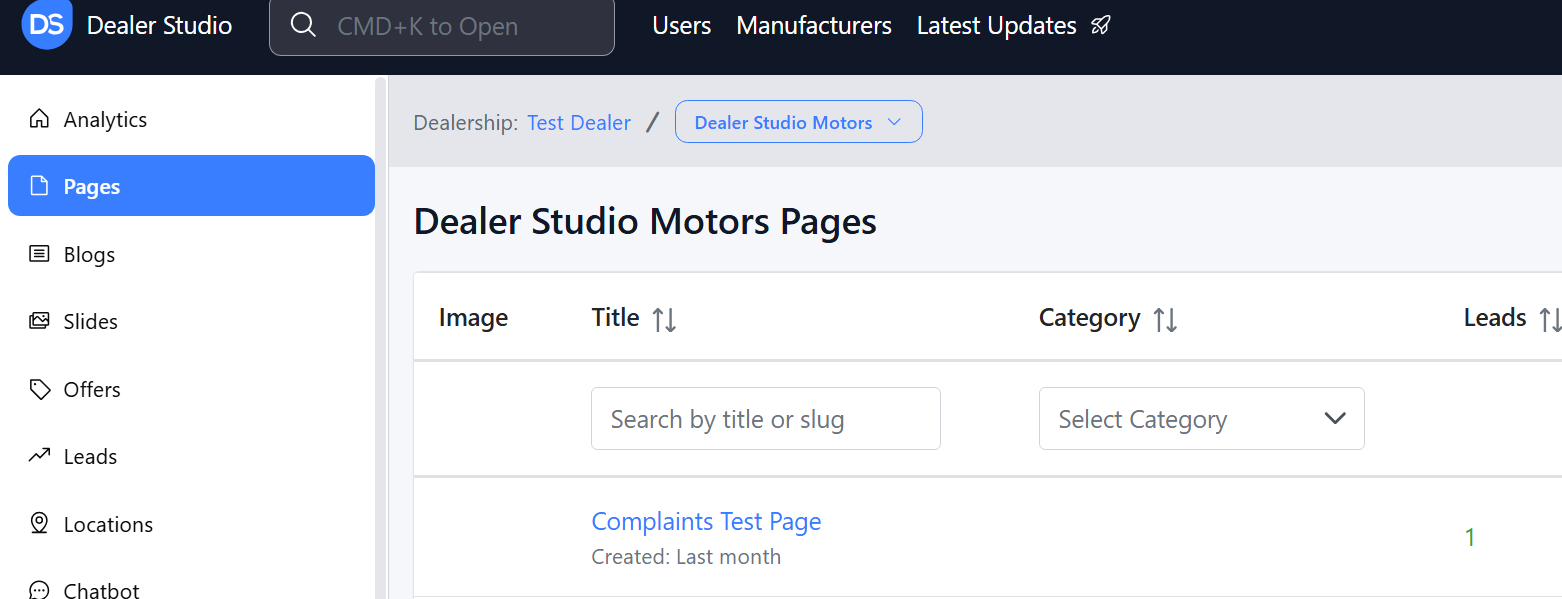
Step 4: Select the page you want to edit
How to add Raw HTML in the Pages Editor
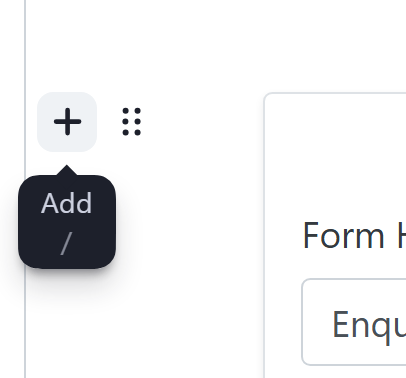
1. Hover where you want the image to be until the '+' appears;
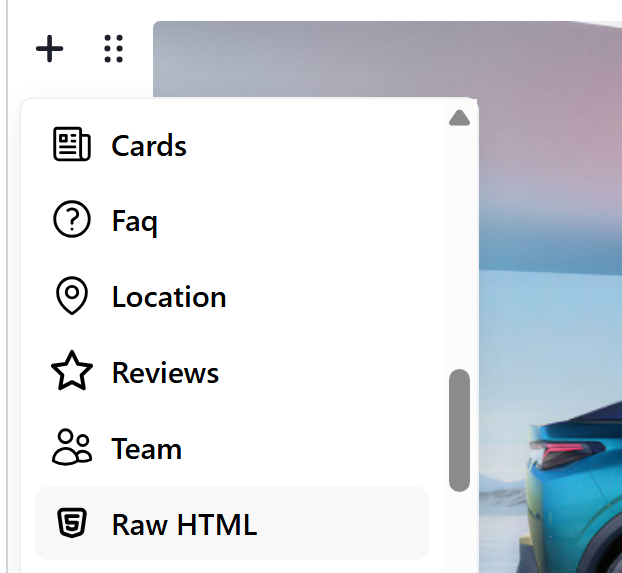
2. Select 'Raw HTML'
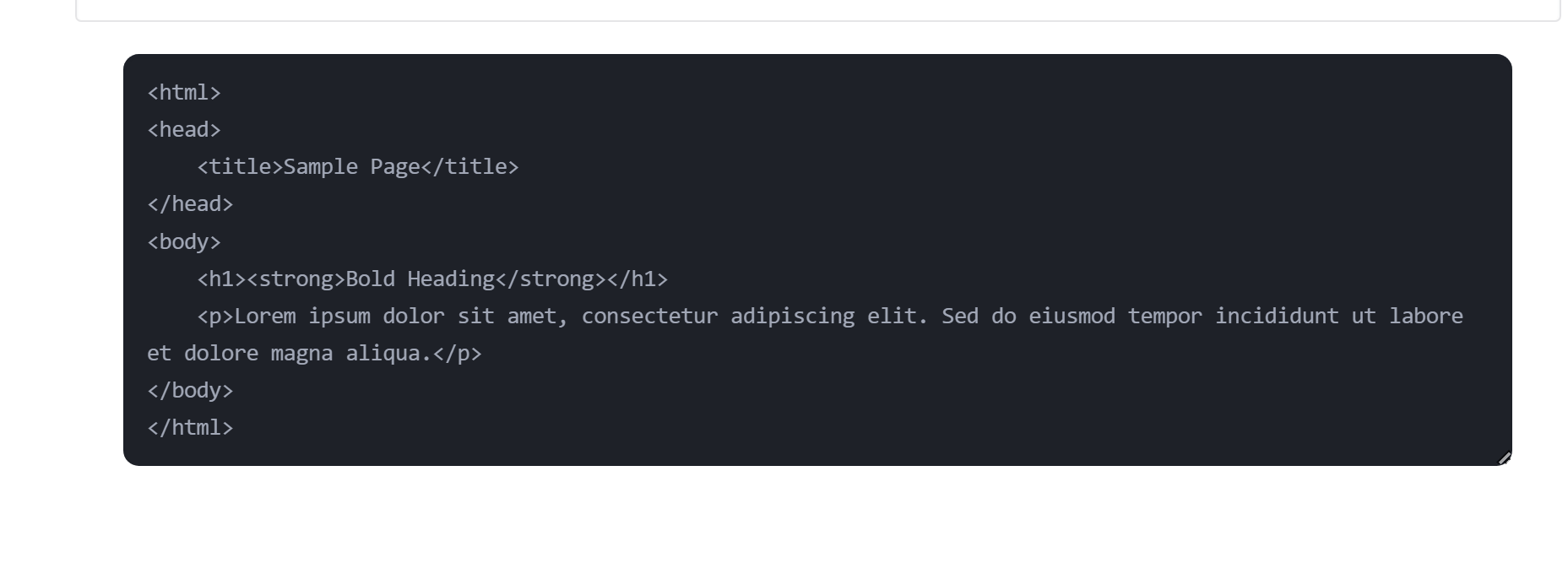
3. Enter your Code
4. Then click Publish
Was this article helpful?
That’s Great!
Thank you for your feedback
Sorry! We couldn't be helpful
Thank you for your feedback
Feedback sent
We appreciate your effort and will try to fix the article