Clearing Browser Cache & Cookies for Dealer Studio Websites
Sometimes your browser stores outdated data for a specific website. This can cause issues such as:
“We’re sorry, but something went wrong” errors
Stock not loading correctly
Images or banners not updating
Pages displaying old content
This guide shows you how to clear cache and cookies only for Dealer Studio or your dealership website, without affecting other websites.
Supported browsers:
Google Chrome
Microsoft Edge
Safari (Mac)
Important: What This Will (and Won’t) Do
✔ Clears data only for:
dealerstudio.com.auYour dealership website domain (e.g.
yourdealership.com.au)
✔ May log you out of Dealer Studio
✖ Will not delete:
Saved passwords for other sites
Browser history
Data from unrelated websites
Try This First (Optional)
Before clearing cookies, try:
Hard refresh:
Windows:
Ctrl + F5Mac:
Cmd + Shift + R
Open the site in an incognito/private window
Try another browser
If the issue persists, continue below.
Google Chrome: Clear Cache & Cookies (Site-Specific)
Step 1: Open Site Data Settings
Open Google Chrome.
Click the three dots (⋮) → Settings.
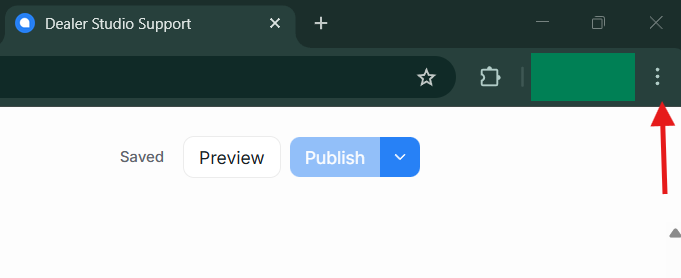
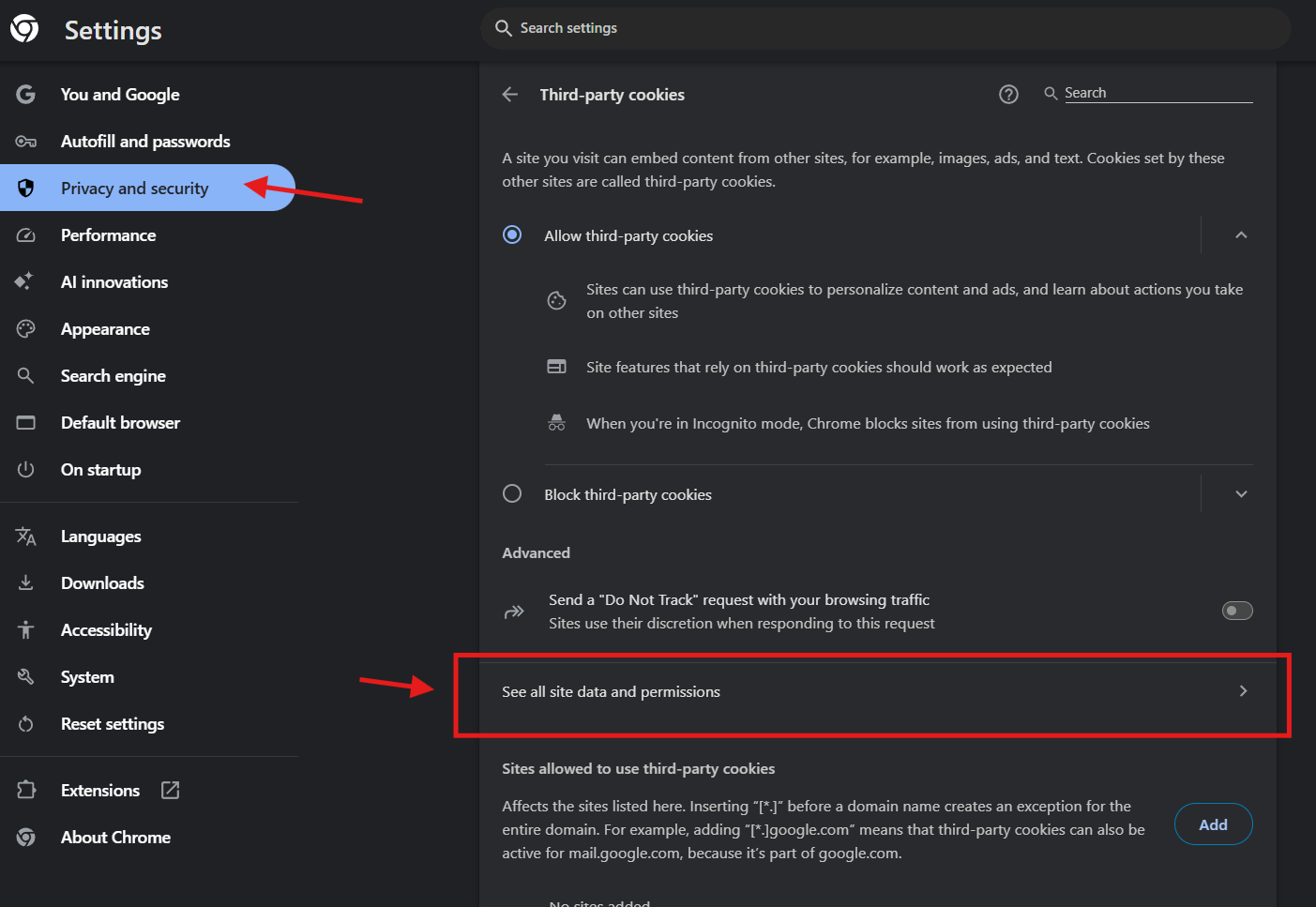
Select Privacy and security.
Click Cookies and other site data.
Select See all cookies and site data.
Step 2: Remove Dealer Studio Data Only
Use the search box to search for:
dealerstudio.com.au
Click the trash can icon to remove it.
Repeat the steps for:
Your dealership website domain (e.g.
yourdealership.com.au)
Step 3: Restart Chrome
Close all Chrome windows, reopen the browser, and reload the website.
Microsoft Edge: Clear Cache & Cookies (Site-Specific)
Step 1: Open Site Data Settings
Open Microsoft Edge.
Click the three dots (⋮) → Settings.
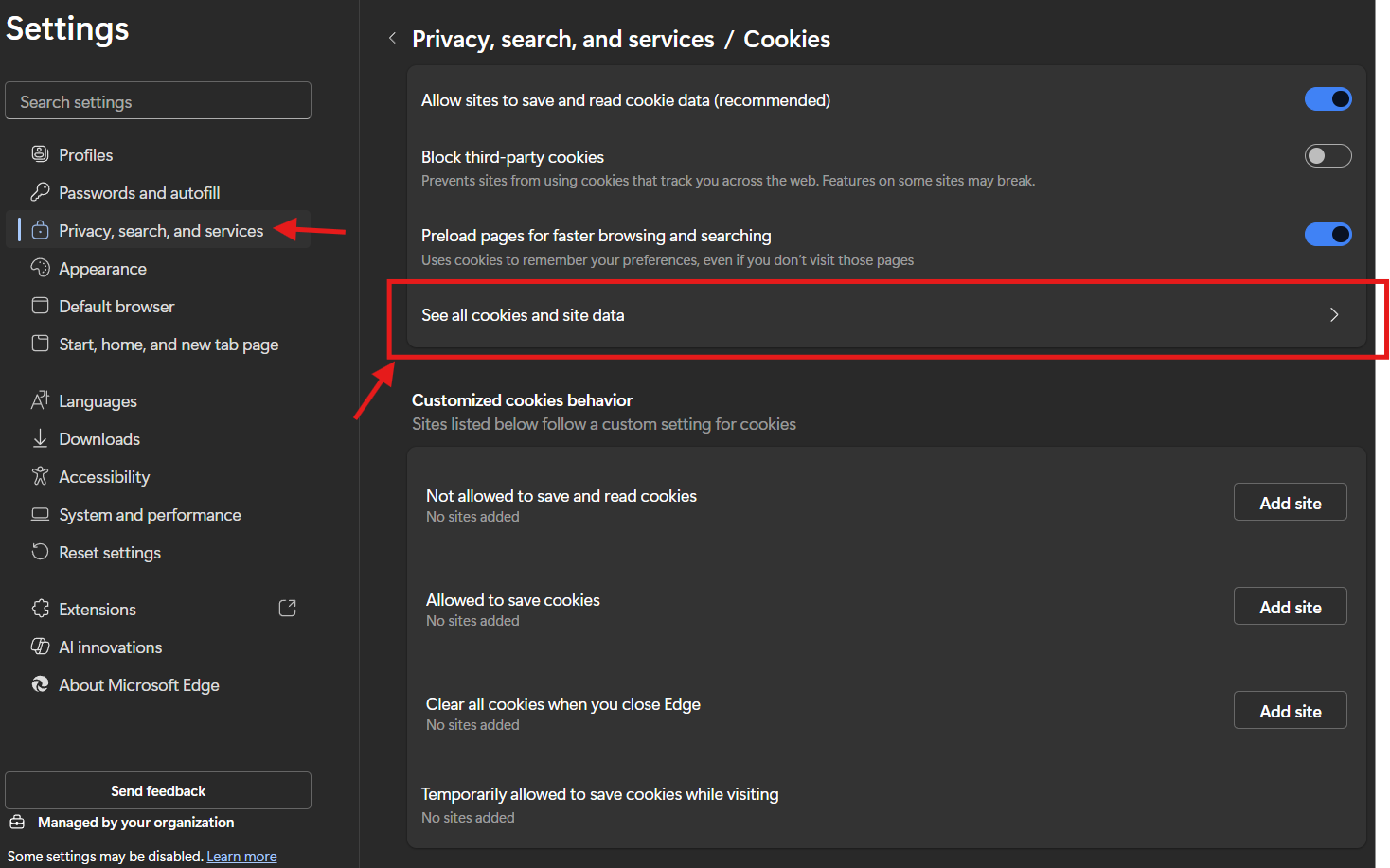
Select Privacy, search, and services.
Click Cookies and site permissions.
Select Manage and delete cookies and site data.
Click See all cookies and site data.
Step 2: Remove Dealer Studio Data Only
Search for:
dealerstudio.com.au
Expand the result and click the trash can icon.
Repeat for:
Your dealership website domain
Step 3: Restart Edge
Close Edge completely, reopen it, and reload the website.
Safari (Mac): Clear Cache & Cookies (Site-Specific)
Step 1: Enable the Develop Menu (One-Time Setup)
Open Safari.
Click Safari → Settings.
Go to Advanced.
Enable Show Develop menu in menu bar.
Step 2: Remove Dealer Studio Cookies Only
Go to Safari → Settings → Privacy.
Click Manage Website Data.
Use the search field to find:
dealerstudio.com.auYour dealership website domain
Select only those entries and click Remove.
Step 3: Clear Cached Files for Those Sites
Click Develop in the top menu.
Select Empty Caches.
This clears cached files but does not remove cookies for other sites.
Step 4: Restart Safari
Close Safari completely, reopen it, and reload the website.
When Should You Do This?
Clear site-specific data if:
A banner or image was updated but still shows the old version
Stock changes are not appearing correctly
You see errors on Dealer Studio but other sites work normally
The website works in a private/incognito window
Still Having Issues?
If the issue continues, please contact Dealer Studio Support with:
Your dealership name and website domain
What you expected to see vs. what you’re seeing
Screenshots (if possible)
Browser and device used
Clearing site-specific cache and cookies is a safe first step and resolves most display and loading issues quickly
Was this article helpful?
That’s Great!
Thank you for your feedback
Sorry! We couldn't be helpful
Thank you for your feedback
Feedback sent
We appreciate your effort and will try to fix the article