How to setup custom search pages

Created by Andrew S, Modified on Tue, 3 Mar at 9:28 AM by Andrew S

Custom search pages let dealers turn a filtered inventory view into a full website page. Instead of only using system-generated URLs (e.g. by make, model, or location), they can create a search page with a custom title, heading, and meta description, and control which filters (refinements) apply. The page is both a normal editable CMS page and a live search results view, so dealers can target specific queries (e.g. “Used 4x4s under $50k”) with tailored SEO and content while still showing real-time inventory.


1. What this page is

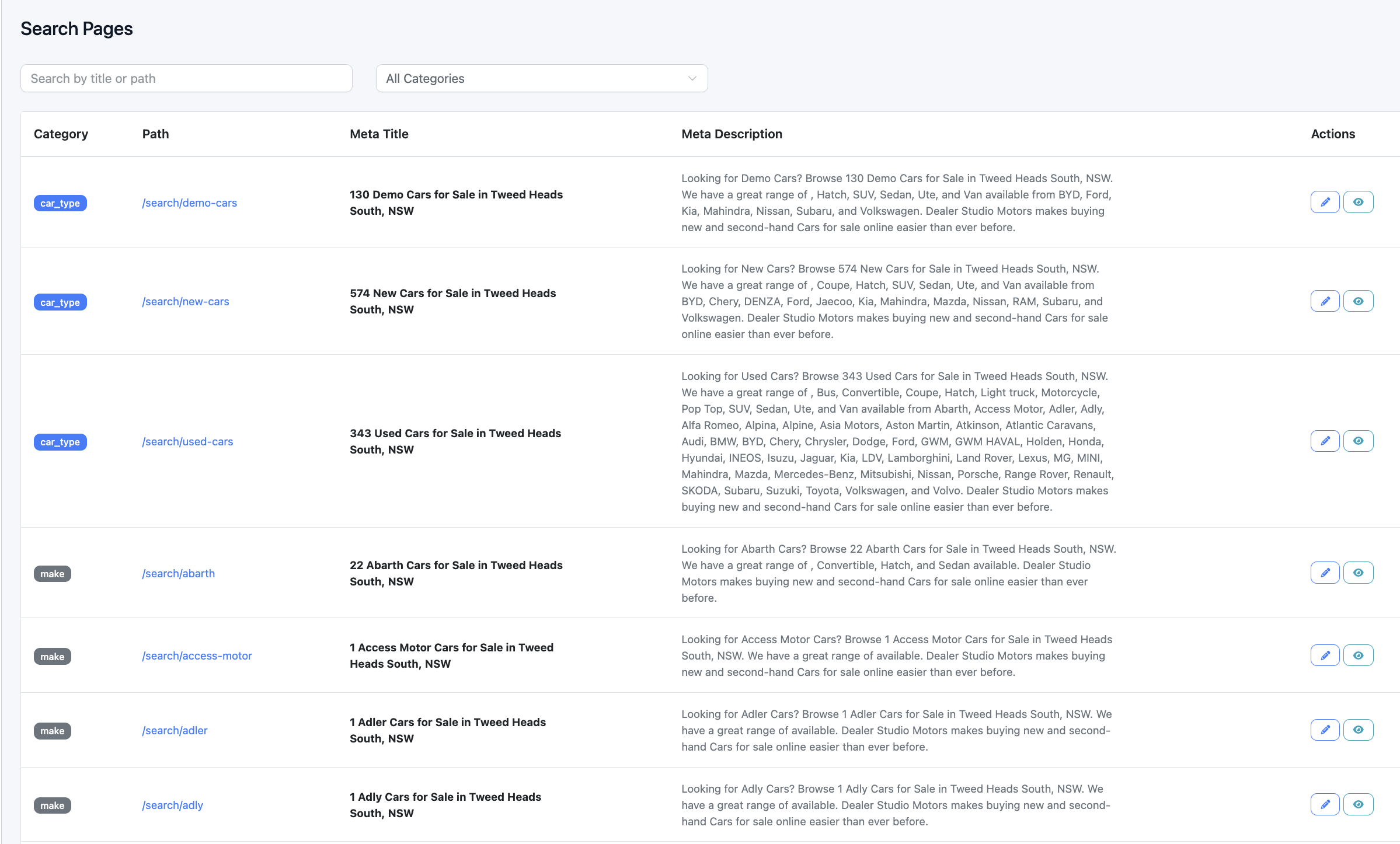
The Search Pages page lists every generated vehicle search result page for your website. These are the live URLs built from your Search Page Templates and your current stock. You can search and filter the list, preview how a page looks in search results, and create a regular page from any search page so you can edit it further.


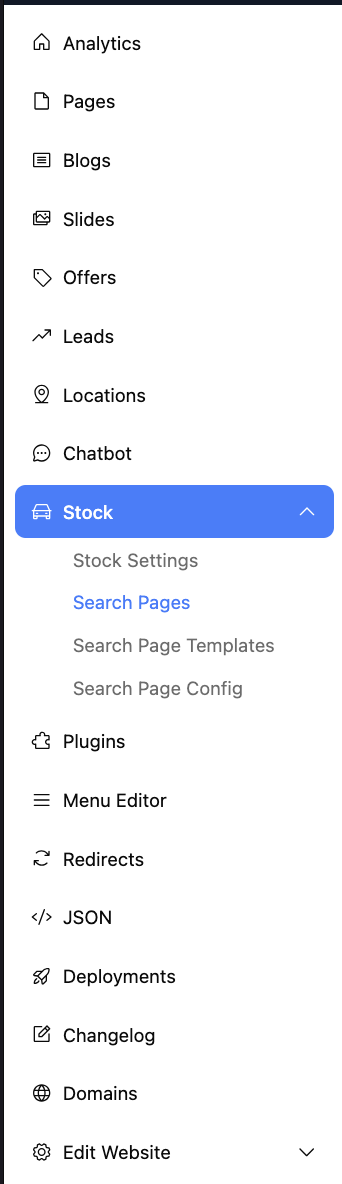
Where to find it: In the dashboard, open your website, then go to Stock → Search Pages.
(Under Stock you’ll also see Search Page Templates)


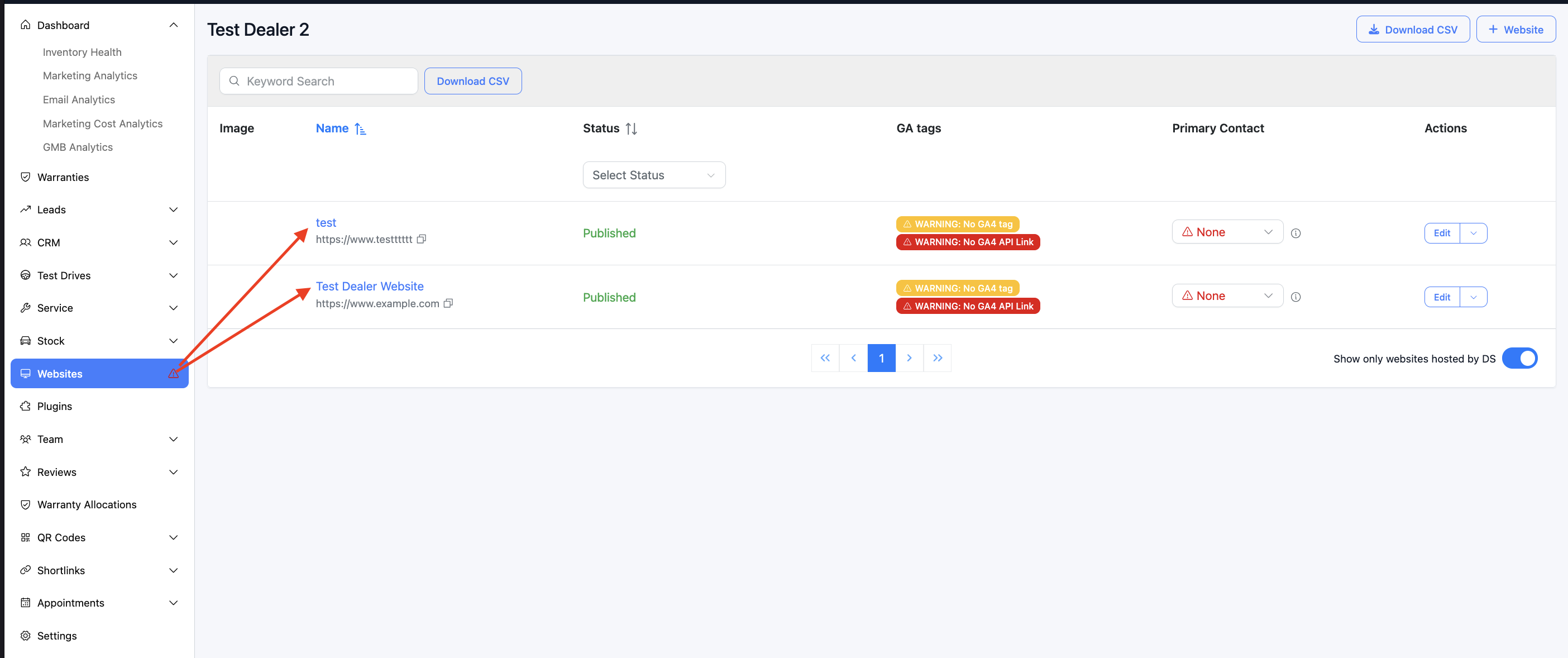
From the dealership level, navigate to the website, select a website


Now you should be on the website level, navigate to stock and select the 'search page templates' from the dropdown


2. How the list is built

The list is generated from:
  • Your Search Page Templates (including which categories are enabled)
  • Your current vehicle stock (from your search index)
So the list updates as you change templates or stock. Each row is one live search URL that exists (or would exist) for your site.


3. What each row shows

Each row is one generated search page. You’ll see:
ColumnWhat it shows
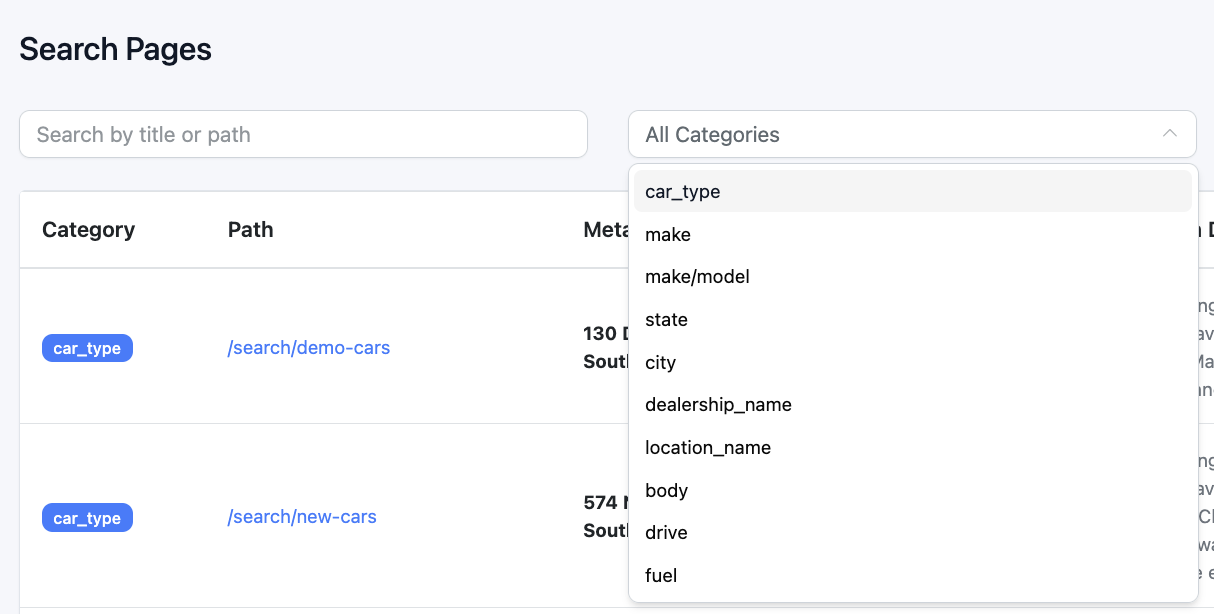
CategoryThe type of search page (e.g. make, city, make/model, state, body, fuel). Shown as a coloured badge.
PathThe URL path on your site (e.g. /search/holden, /search/brisbane). The path is a link so you can open that search page on your live site.
Meta TitleThe page title (with all template variables already filled in).
Meta DescriptionThe meta description (with variables filled in).
ActionsButtons to preview in search results or to create a page from this search page.


Behind the scenes, each page also has a heading, a “stats” line (e.g. “X results in Yms”), and the exact filters applied; those are used when you create a page from the row.

4. Filters and search

Above the table you have:
  • Search by title or path
Type here to show only rows where the titlepath, or category contains your text (case doesn’t matter).
  • Category
Choose All Categories or one specific category (e.g. only “make” or “city”). The dropdown lists the categories that appear in the current list. You can clear the selection to show all again.
Filtering happens instantly on the list you’re viewing. Changing filters doesn’t change your templates or live site.


5. Table behaviour

  • Columns: Category, Path, Meta Title, Meta Description, Actions (in that order).
  • Path: Click the path to open that search page on your website in a new tab.
  • Pagination: You can show 10, 20, or 50 rows per page and move through pages at the bottom of the table.
  • Loading: While data is loading, the table shows a loading state.


 open the live version of the page


 pagination



6. Row actions
Each row has two buttons:
ButtonWhat it does
Edit templates (pencil)Creates a new page in your site’s Pages section that matches this search page (same URL, title, description, heading, and filters), then opens the page editor so you can customise it. The new page starts as not visible until you publish it. Useful when you want to tweak one specific search URL (e.g. “Holden in Brisbane”) without changing the template for all similar pages.
SEO preview (eye)Opens a Google Search Preview dialog: it shows how this page could look in search results (title, description, and URL). Nothing is saved or changed.


The pencil button may be disabled briefly while the new page is being created.


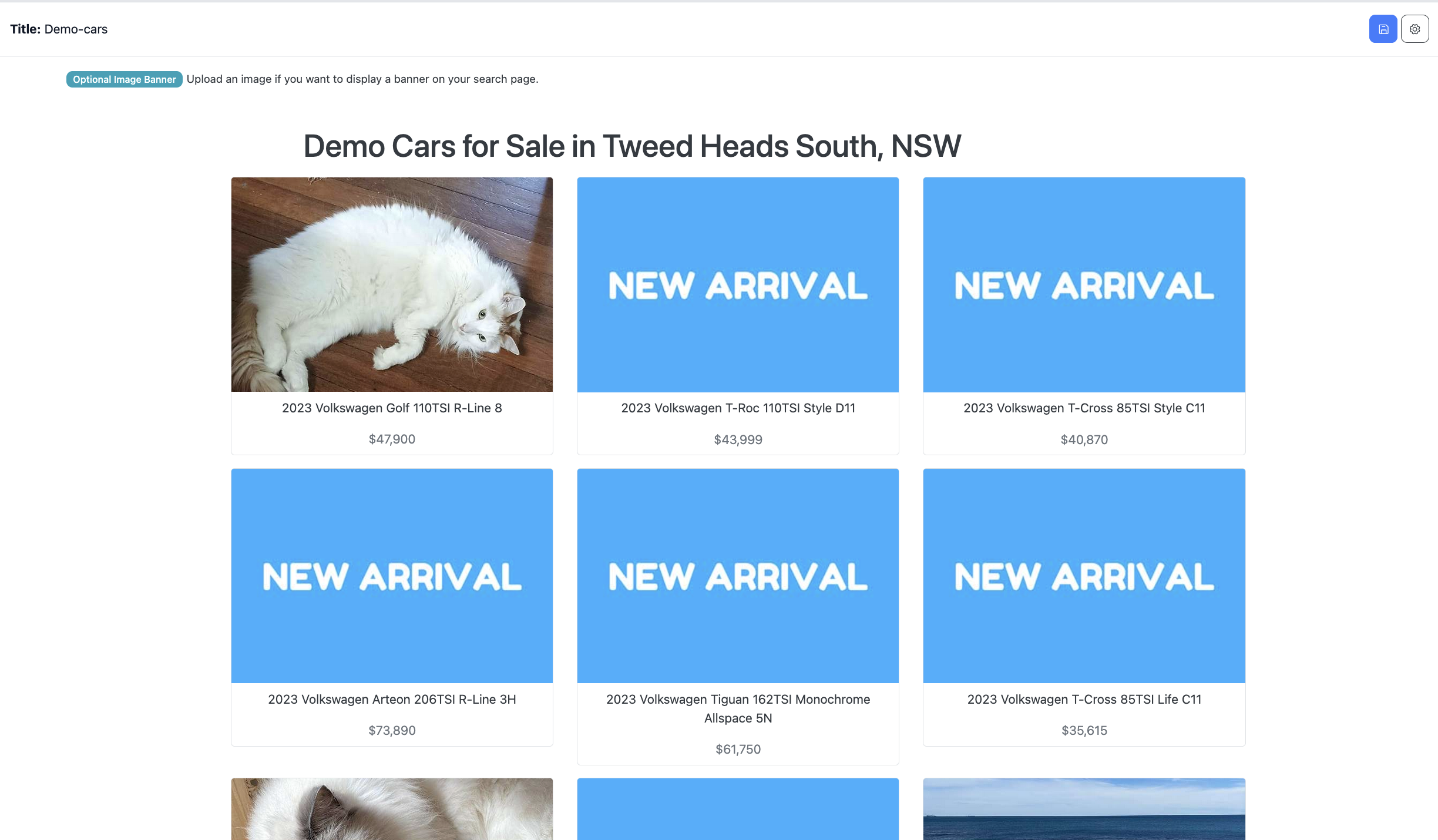
After clicking the pencil to edit the page



This page will open, and editing works like a normal page in our pages editor, so when users visit this route, this is what they will see: your-domain/search/demo-cars


7. Relationship to Search Page Templates

  • Search Page Templates is where you control how each type of search page looks: the wording for title, description, heading, and stats line, which categories are enabled, and which template variables to use.
→ https://dealerstudiocom.freshdesk.com/a/solutions/articles/51000515486
  • Search Pages is the list of actual URLs generated from those templates and your current stock. Use it to see which URLs exist, preview them in search, and turn a specific URL into an editable page when you need a one-off customisation.
So: templates define the rules; Search Pages shows the resulting pages and lets you preview or “promote” one to a full page.

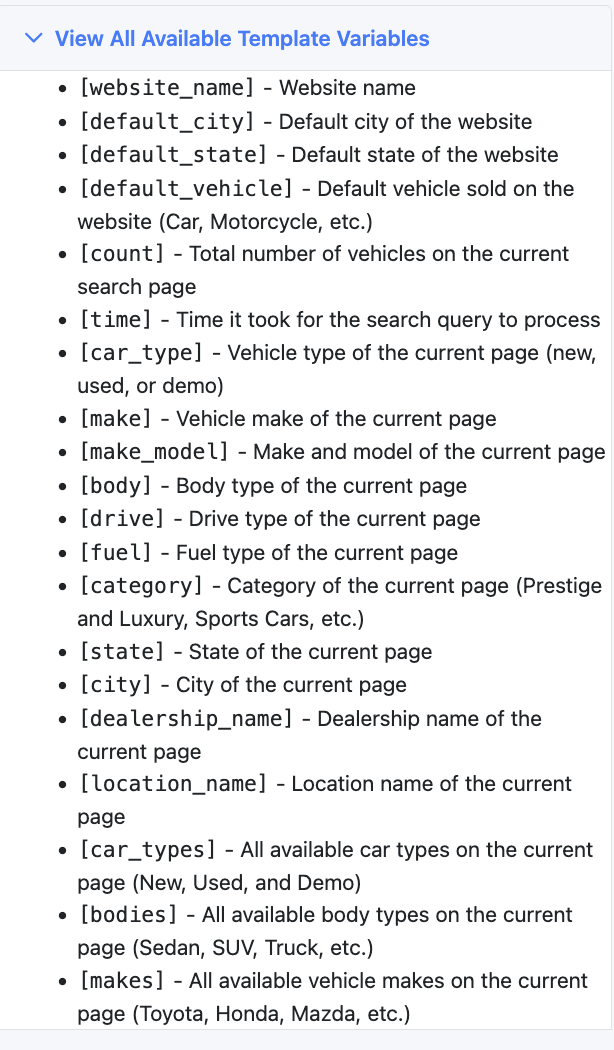
8. Template variables (shortcodes)

The title, meta description, and heading on each row are built using the same template variables as in Search Page Templates. When you create a page from a row, the system uses the already-filled values (and may remove numbers like result counts so the saved page isn’t tied to a specific count). The variables available when building these pages are the same as in Search Page Templates:


ShortcodeDescription
[website_name]Website name
[default_city]Default city of the website
[default_state]Default state of the website
[default_vehicle]Default vehicle (Car, Motorcycle, etc.)
[count]Number of vehicles on that search page
[time]Search query time
[car_type]Vehicle type (new, used, demo)
[make]Vehicle make
[make_model]Make and model
[body]Body type
[drive]Drive type
[fuel]Fuel type
[category]Category (e.g. Prestige and Luxury)
[state]State
[city]City
[dealership_name]Dealership name
[location_name]Location name
[car_types]All car types on the page (e.g. New, Used, and Demo)
[bodies]All body types on the page
[makes]All makes on the page

For full details on how to use these in your wording, see the Search Page Templates guide.

9. If something goes wrong

  • List won’t load: Check your connection and try again. If it keeps failing, contact support.
  • Creating a page fails: A message will explain the problem. Check that you have permission to create pages; if the issue continues, contact support.

Was this article helpful?

That’s Great!

Thank you for your feedback

Sorry! We couldn't be helpful

Thank you for your feedback

Let us know how can we improve this article!

Select at least one of the reasons
CAPTCHA verification is required.

Feedback sent

We appreciate your effort and will try to fix the article