This article provides a clear, step-by-step overview of how to create an accurate and professional stock report. It explains the purpose of stock reports, outlines the key information to include (such as vehicle details, availability, pricing, and status), and highlights best practices for ensuring data accuracy and consistency. The guide is designed to help users efficiently generate stock reports that support inventory management, reporting, and decision-making.
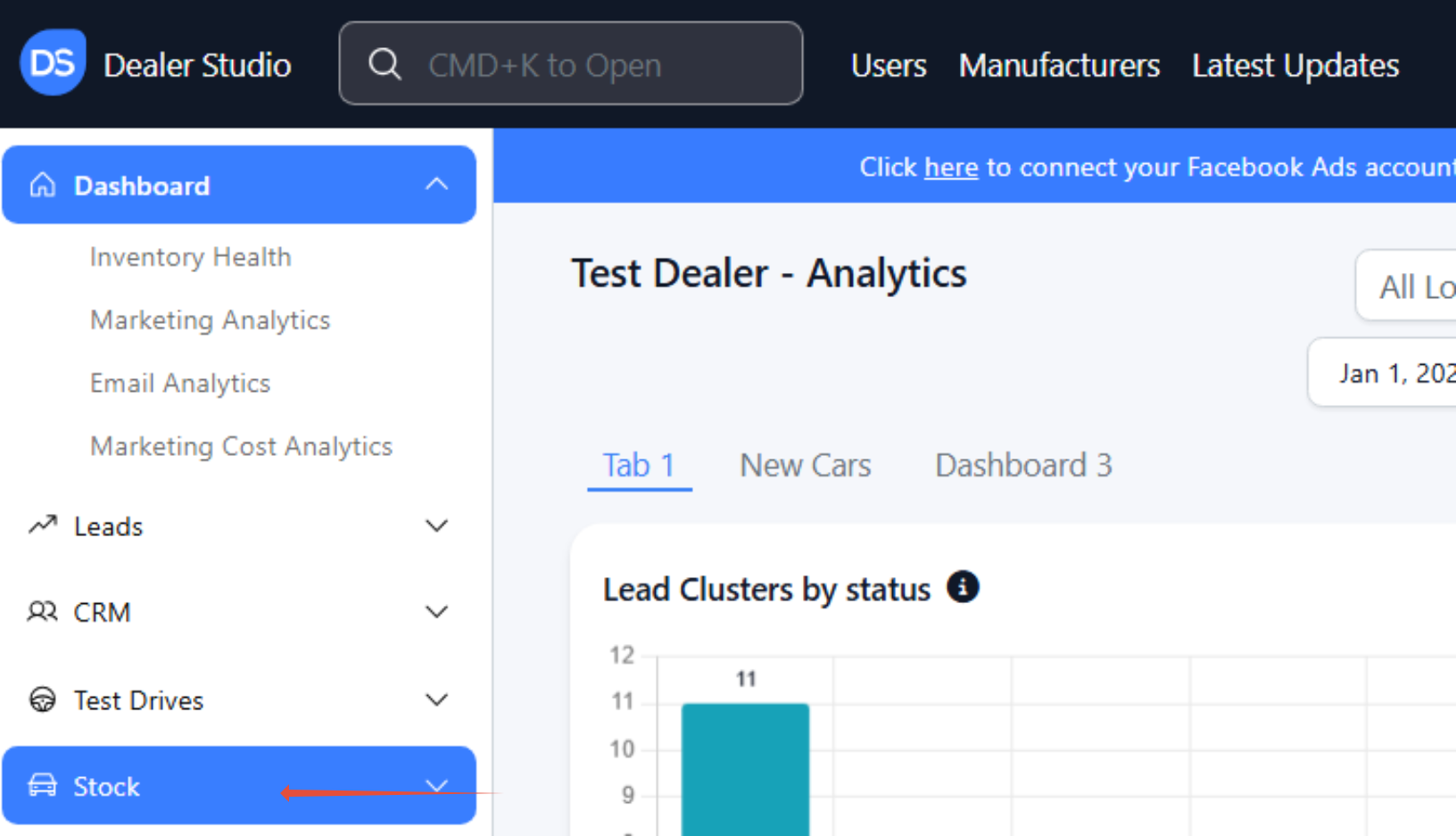
#Step 1: On the Dealership Dashboard, select Stock on the Left-hand menu
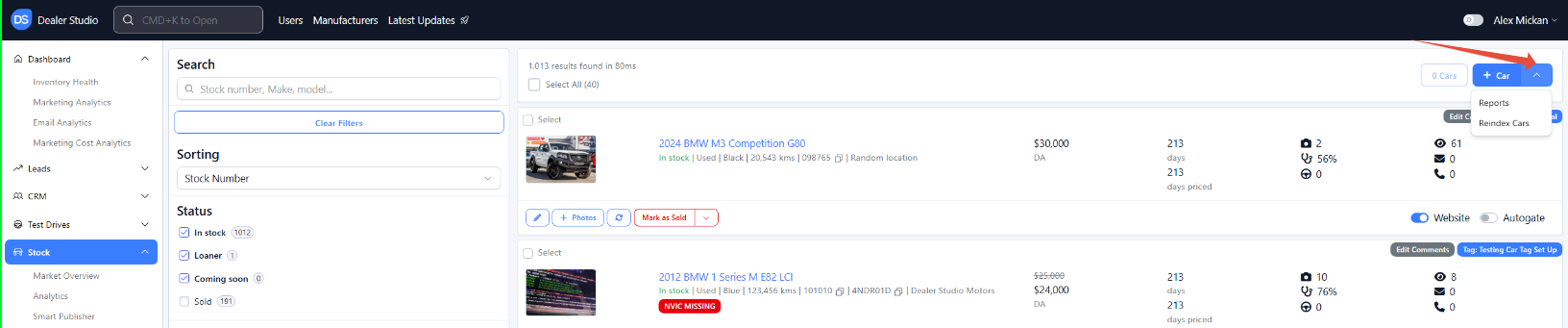
#Step 2. In the top right, use the arrow next to "+Car" to access Reports.
#Step 3: Click ‘Create Custom Report’ and enter in your filters:
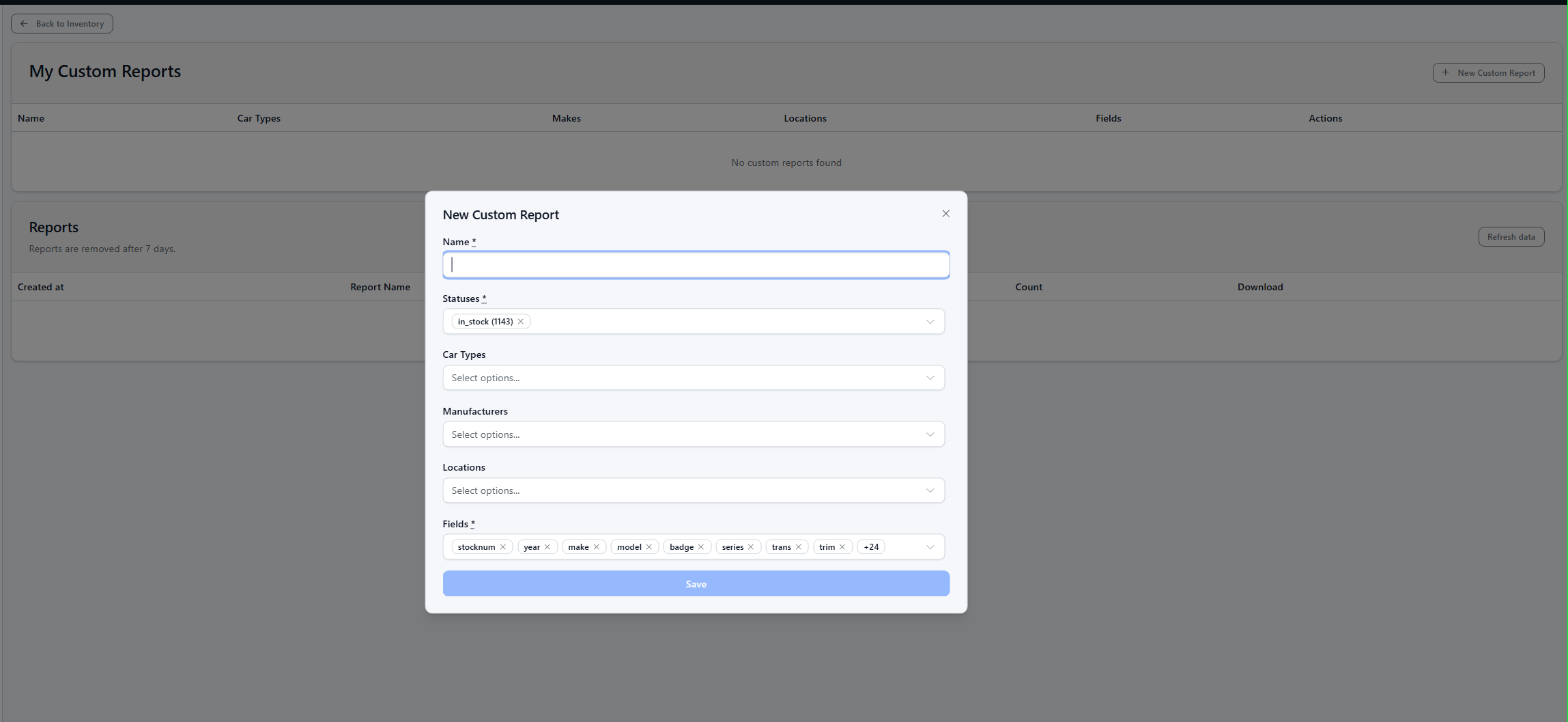
You have many choices for filters on the custom report section, including:
- Name: Enter the name of your report e.g. ‘Used Vehicles [Location name]’.
- Statuses: In Stock/Sold/Loaner/Withdrawn.
- Car Types: New/Used/Demo.
- Manufacturer: Toyota/Ford/Mitsubishi.
- Locations: Locations you want your report to pull vehicles from.
- Fields: What specific criteria you want generated in your custom stock report.
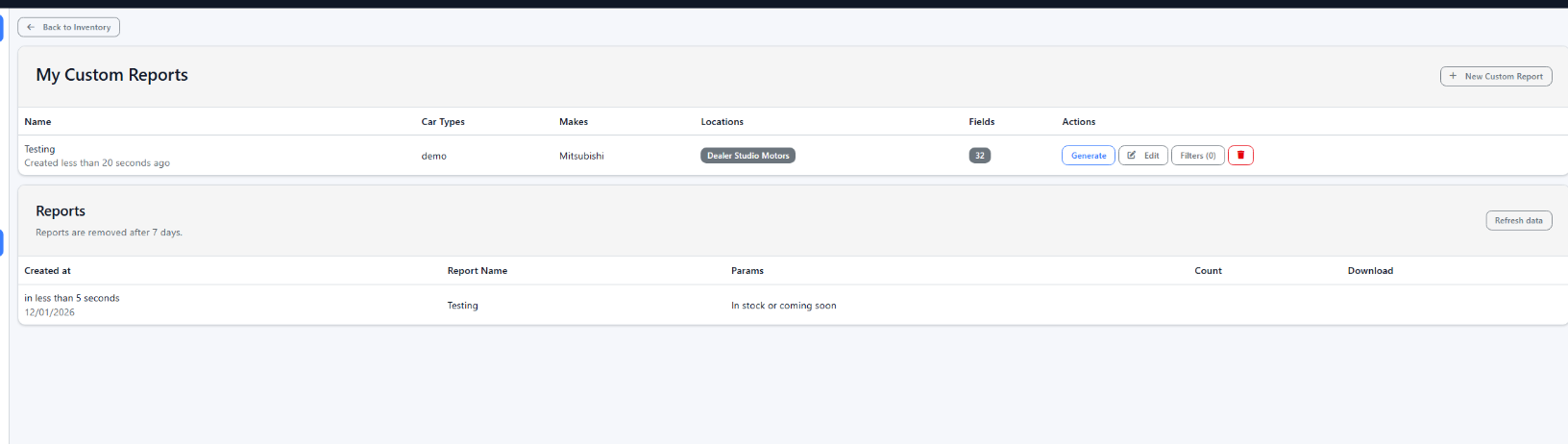
#Step 4. Create your report and hit Generate.

#Step 5: Wait for the report to generate and then download once ready;
Was this article helpful?
That’s Great!
Thank you for your feedback
Sorry! We couldn't be helpful
Thank you for your feedback
Feedback sent
We appreciate your effort and will try to fix the article