Summary
To add stock in Dealer Studio, go to the Stock section, click the + Car button, and choose whether to add the vehicle using Redbook Lookup or by manually entering the details. Mandatory fields must be completed before saving.
1. Log in
Sign in to your Dealer Studio Dashboard.
2. Navigate to Stock
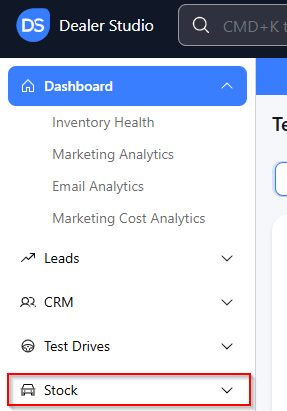
From the left‑hand navigation panel, select Stock.
3. Add a New Vehicle
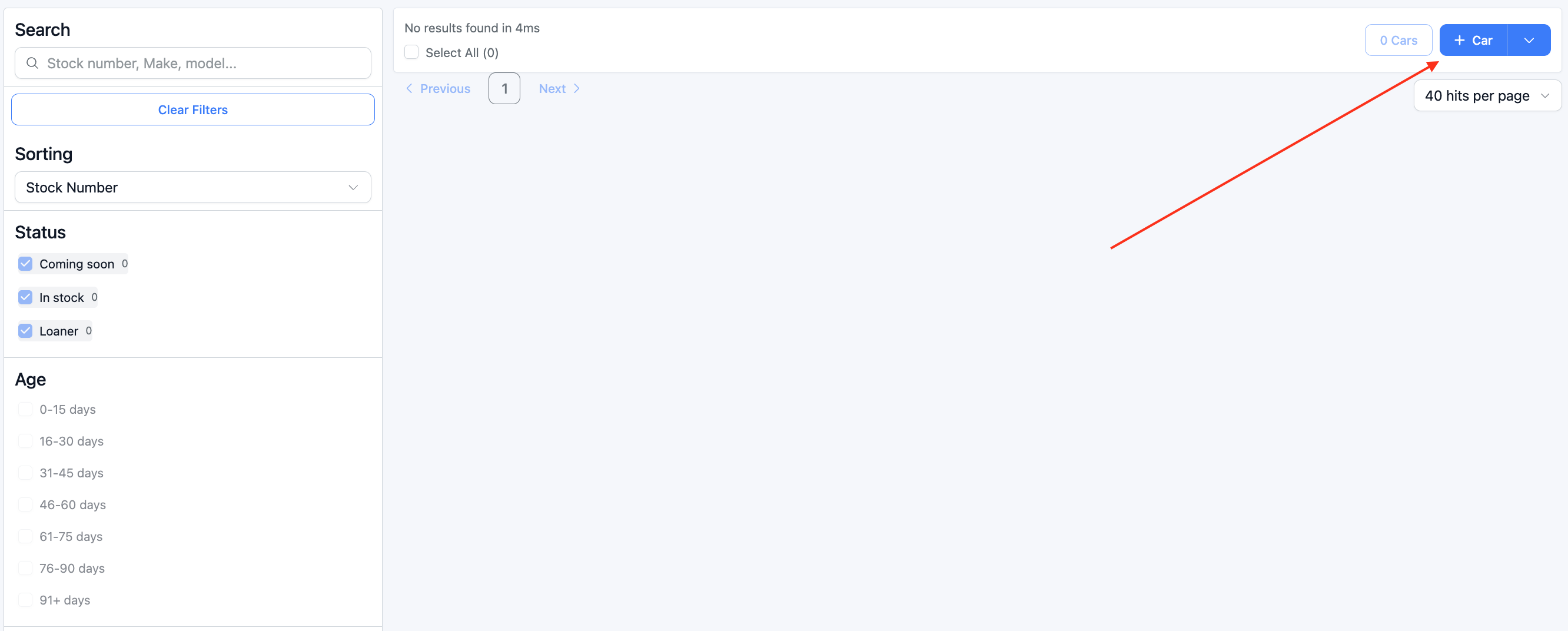
On the right side of the screen, click the blue + Car button.
4. Choose How You Want to Add the Vehicle
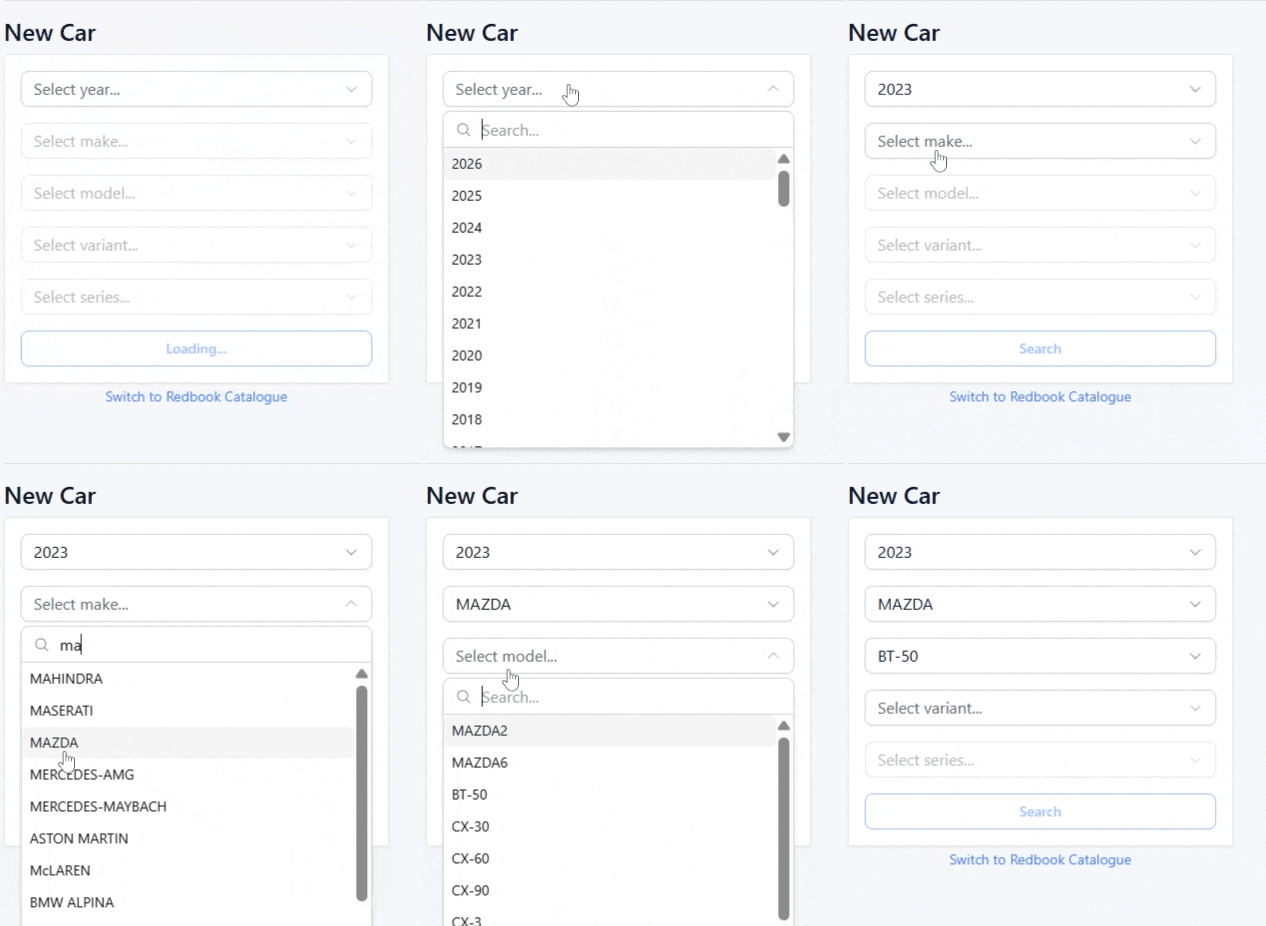
You’ll be taken to a page where you can add the vehicle in one of two ways:
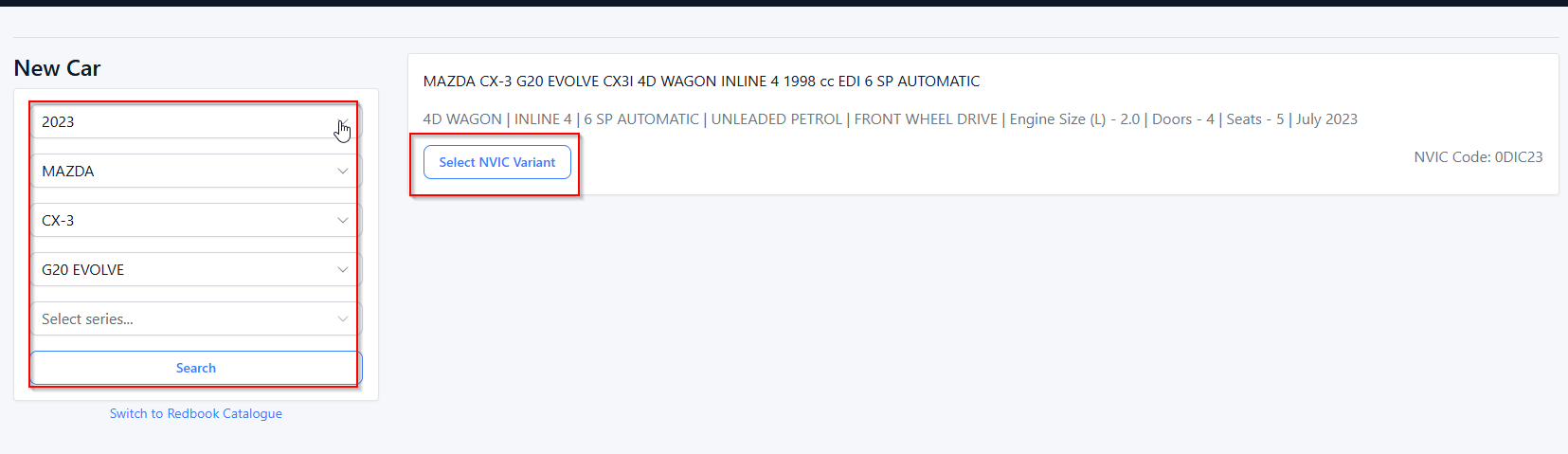
Option A: Add via NVIC Lookup
Use this option to pre‑fill key vehicle details.
Search by Car Type, Make, Model, and Year.
When added through NVIC, many mandatory fields will already be completed.
Review the form and fill in any remaining details you want displayed on the listing.
Option B: Add via Redbook Lookup
Click 'Switch to Redbook Catalogue'.
Search by Car Type, Make, Model, and Year
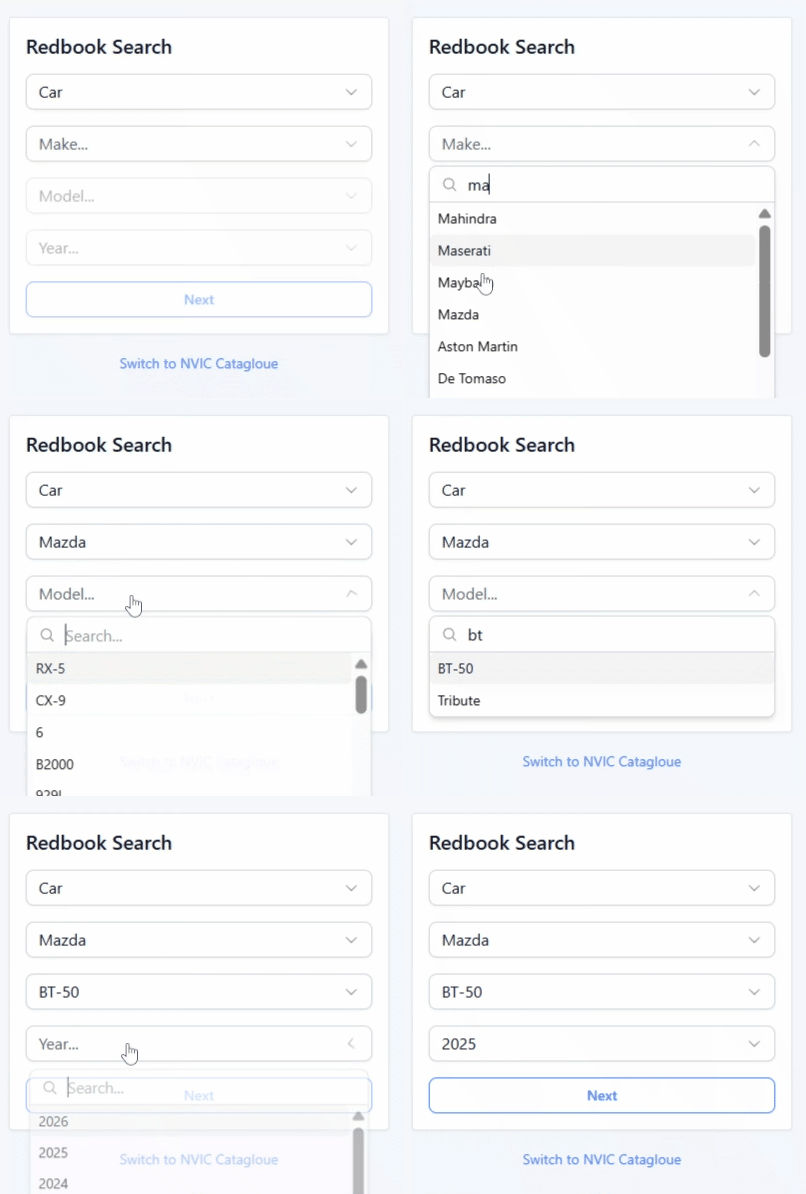
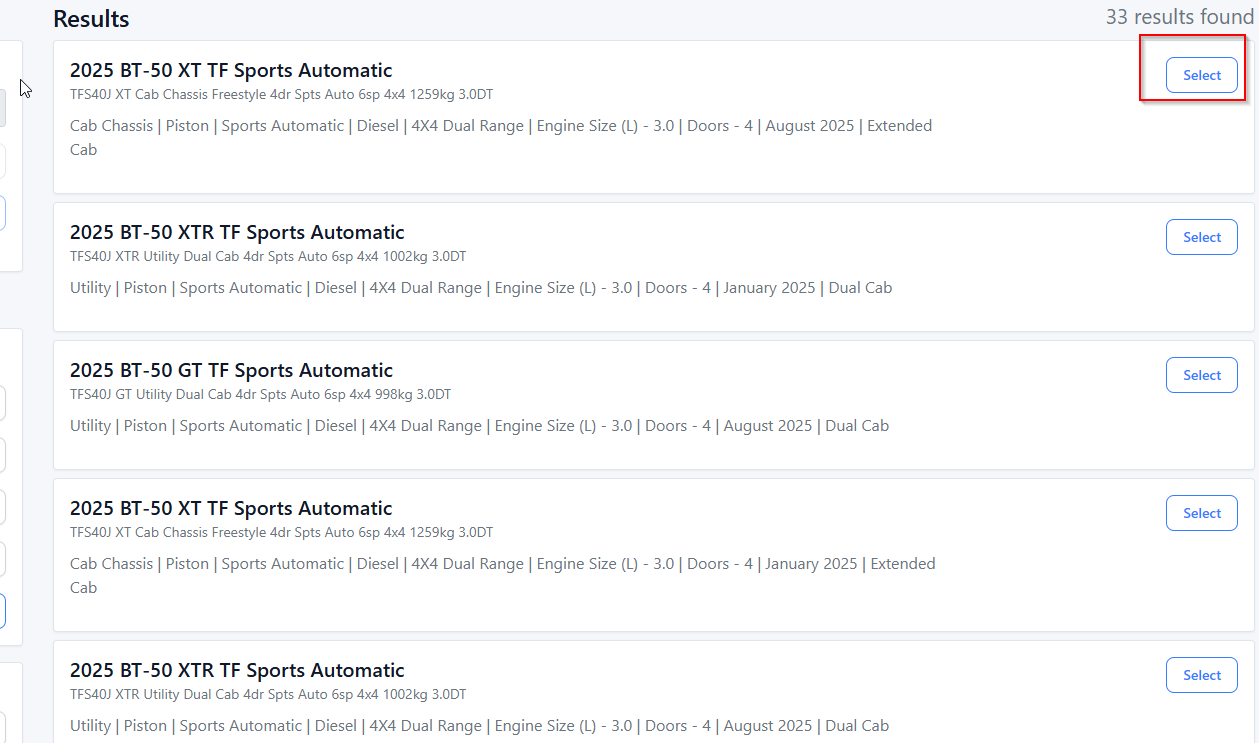
When added through Redbook, many mandatory fields will already be completed.
Review the form and fill in any remaining details you want displayed on the listing.
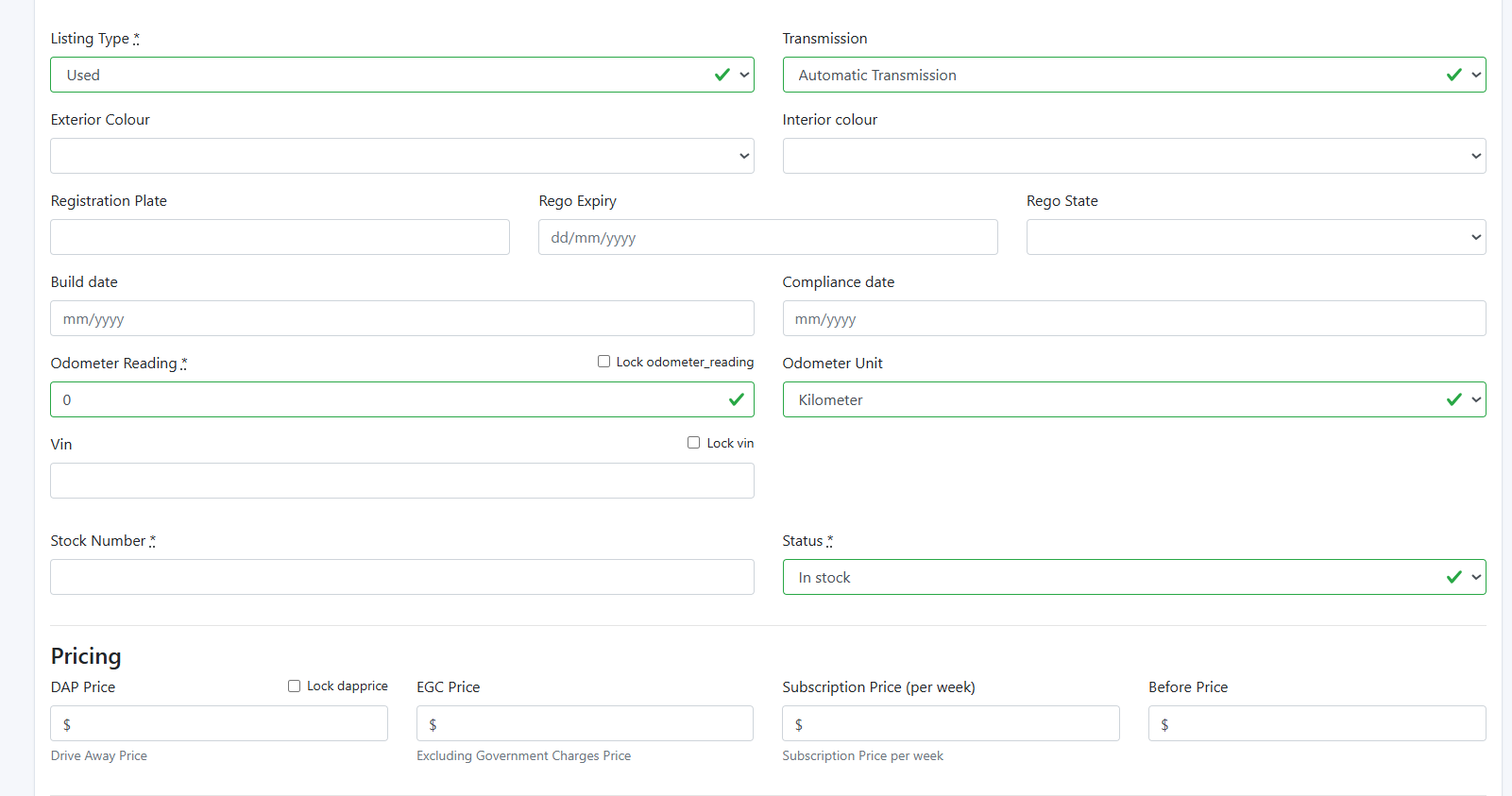
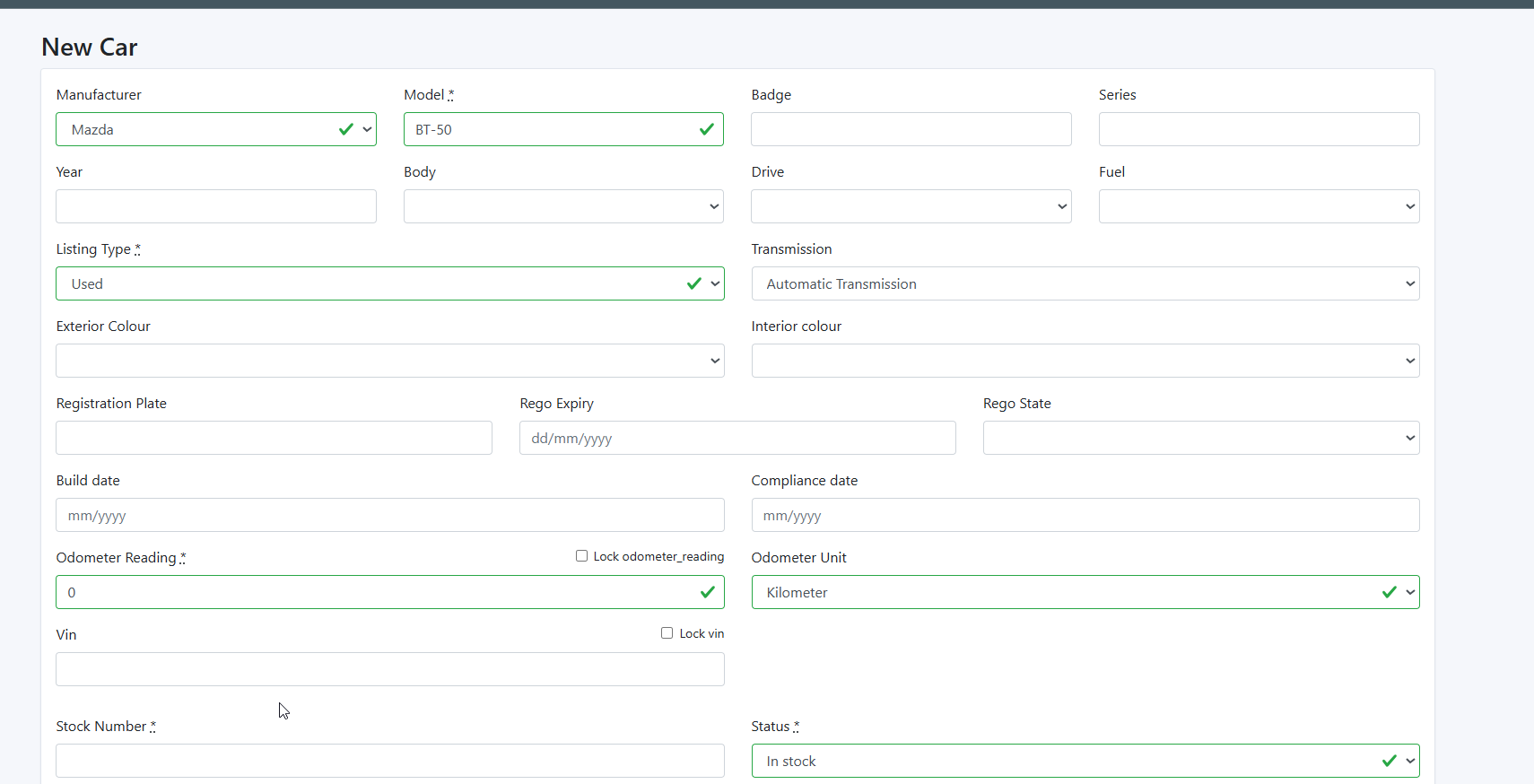
Option C: Manually Add Vehicle Details
If you prefer to enter details yourself:
Click 'Switch to Redbook Catalogue' Then Scroll down to the bottom of the page
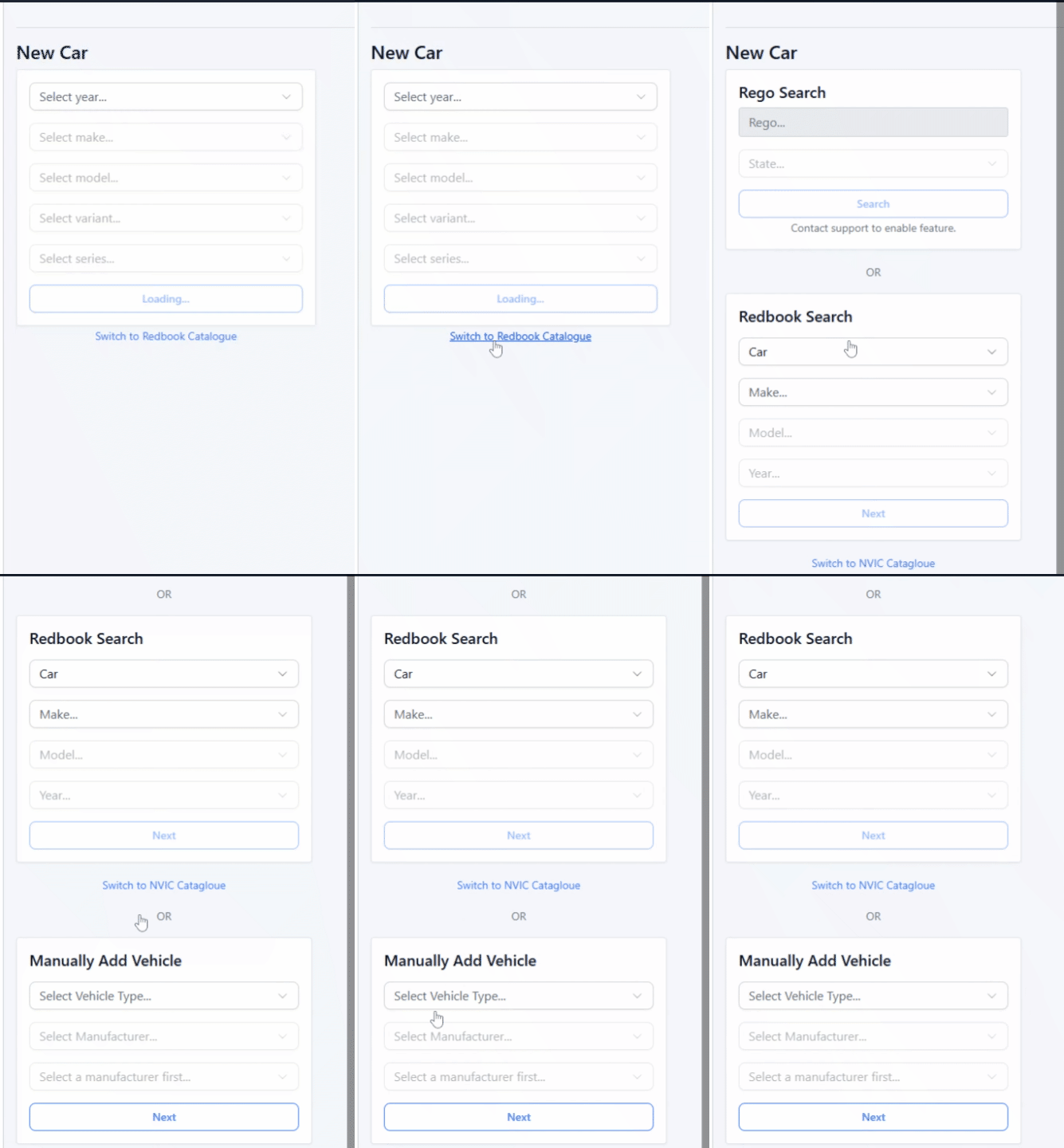
Start by selecting the Car Type and Make..
Ensure all required fields are completed before proceeding. Mandatory fields are marked with an asterisk ()*
Was this article helpful?
That’s Great!
Thank you for your feedback
Sorry! We couldn't be helpful
Thank you for your feedback
Feedback sent
We appreciate your effort and will try to fix the article