Summary
This guide explains how to add videos to vehicle stock items in Dealer Studio using two methods:
Option 1: Uploading a video directly from your PC, and
Option 2: Linking an embedded video URL from a media platform such as YouTube or Facebook
Option 1: Upload a Video from Your PC
Follow these steps to upload a video file directly to a vehicle listing:
Log in to Dealer Studio.
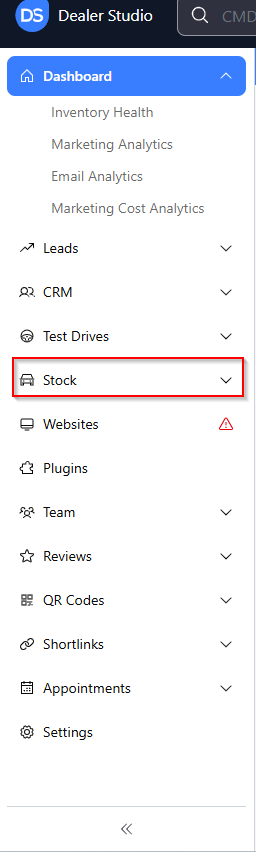
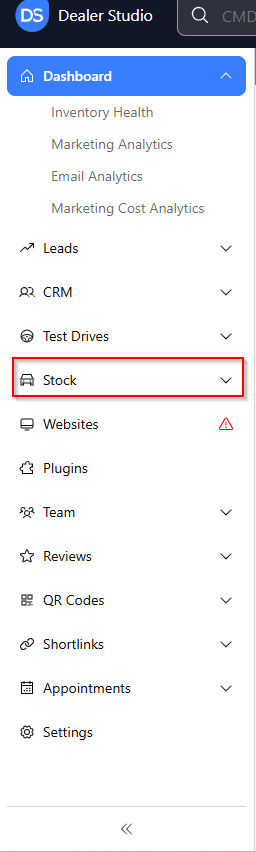
From the dashboard, click Stock.
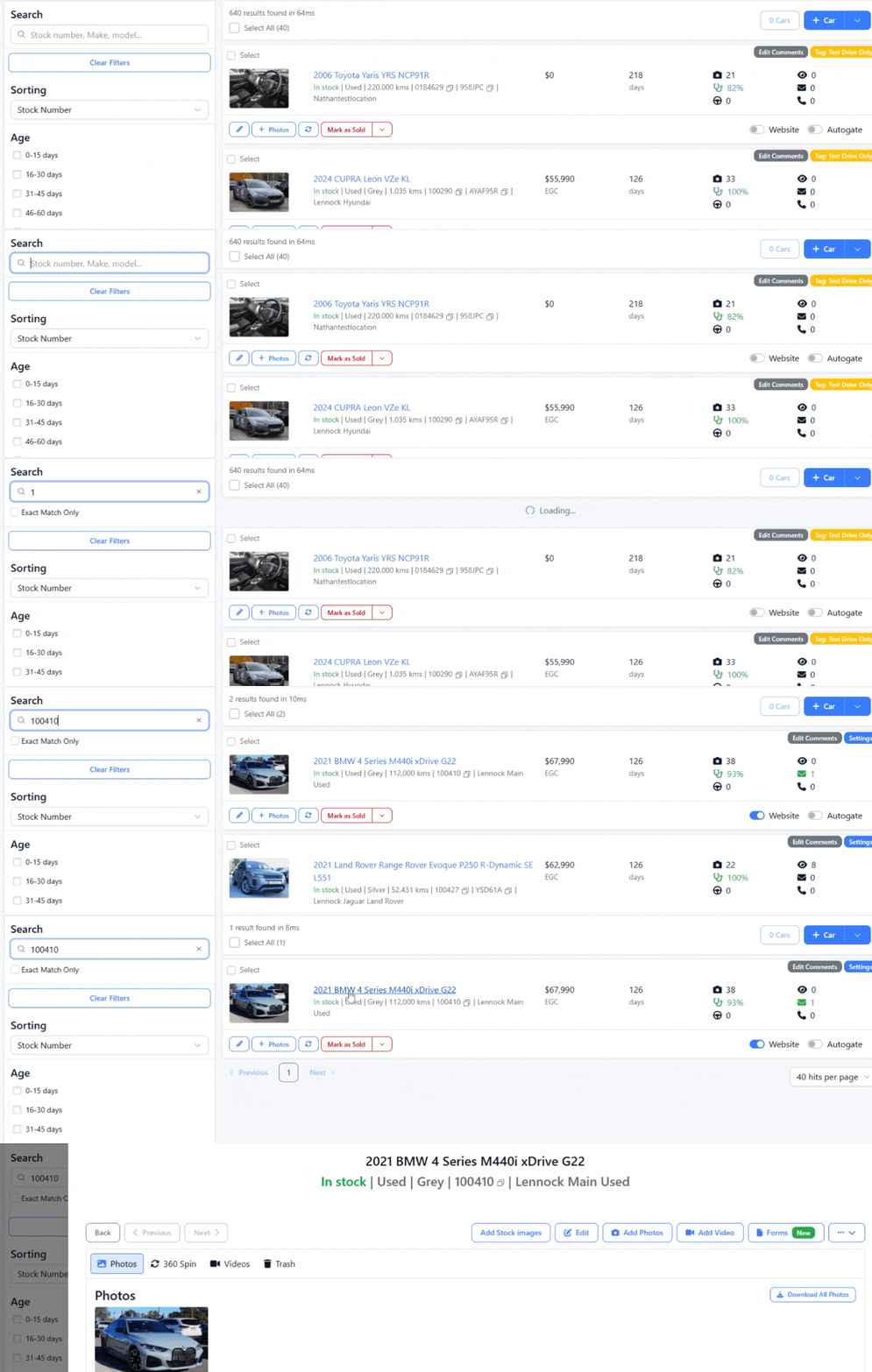
Search for and select the stock number you want to add a video to.
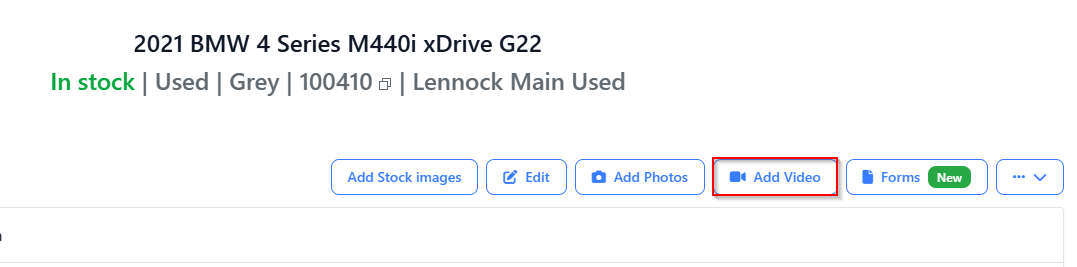
Click Add Video under the vehicle title.
Click Choose Video in the dialog window.
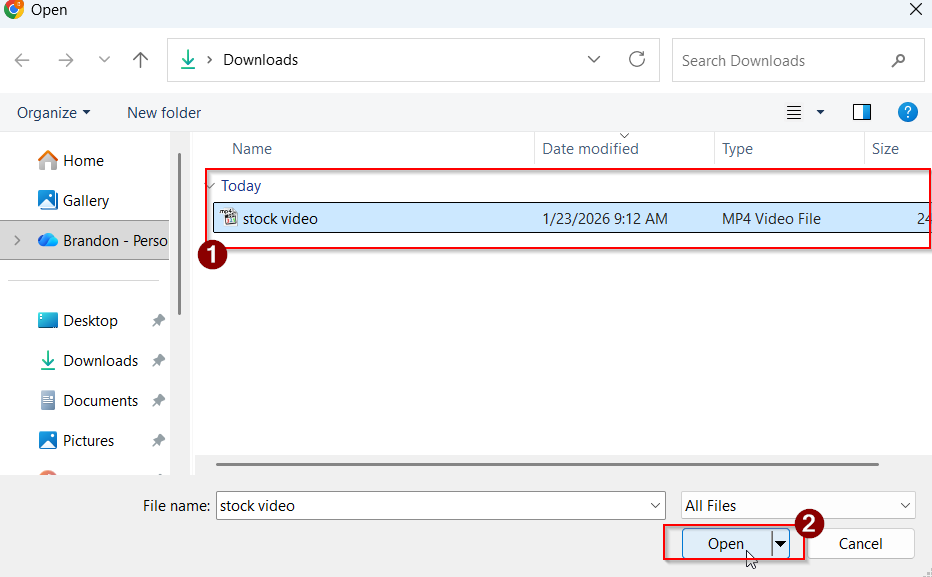
From the dialog window, select the video file from your computer.
Click Update Car to save the changes.
Option 2: Attach an Embedded Video URL
If you have a video hosted on YouTube or another platform, you can link it using an embedded URL.
Log in to Dealer Studio.
From the dashboard, click Stock.
Search for and select the stock number you want to link the video to.
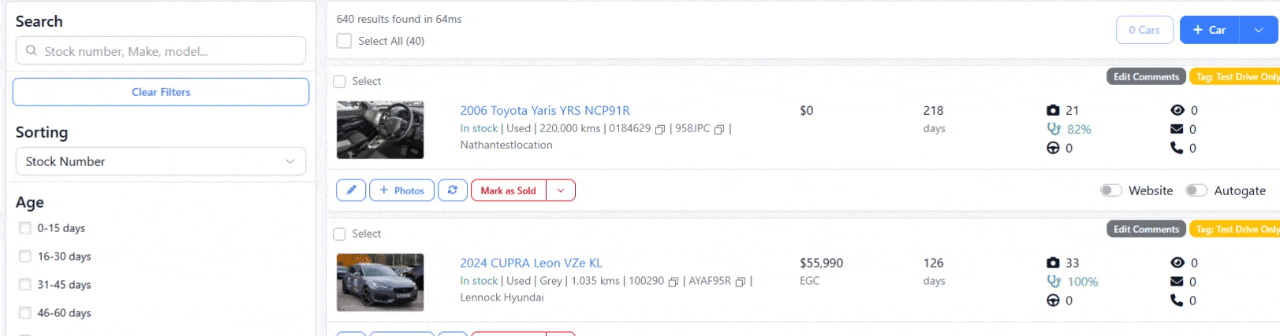
Click Edit under the vehicle title.

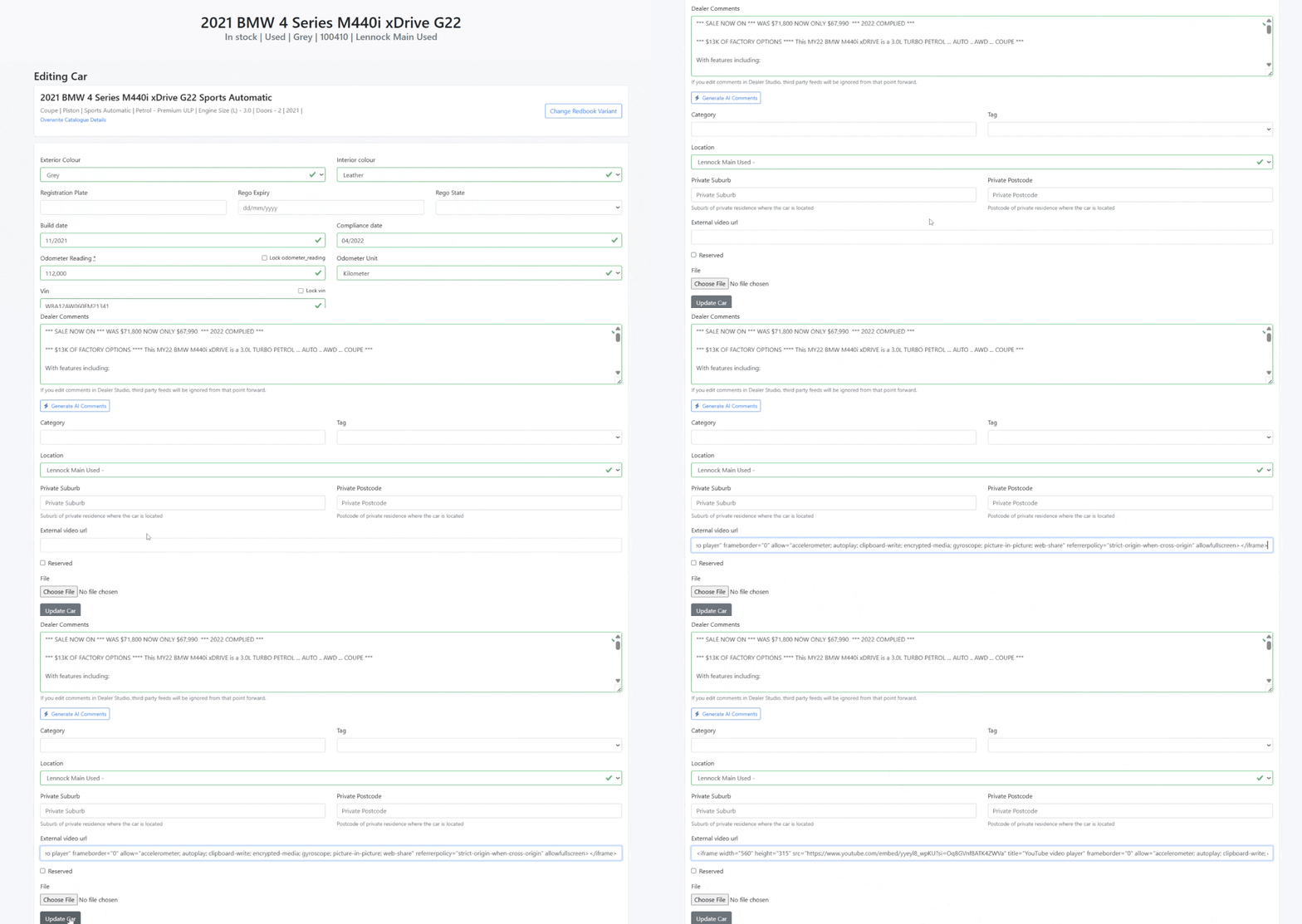
Scroll down to the External Video field.
Paste the embedded video URL.
Click Update Car to save.
Frequently Asked Questions (FAQ)
Why isn’t my video uploading?
For best results, please ensure:
The video file is in MP4 format
The file size is reasonable (large files may fail to upload)
The video is not corrupted or partially downloaded
MP4 is the recommended format for successful uploads in Dealer Studio
How do I obtain an embedded video URL from YouTube or Facebook?
You can generate an embedded URL directly from the video platform:
YouTube
Open the video on YouTube.
Click Share.
Select Embed.
Copy the URL from the embed code.
YouTube Help Guide:
https://support.google.com/youtube/answer/171780
Open the video on Facebook.
Click the three dots (⋯) on the post.
Select Embed.
Copy the embed URL provided.
Facebook Help Guide:
https://www.facebook.com/help/181495968648557
Was this article helpful?
That’s Great!
Thank you for your feedback
Sorry! We couldn't be helpful
Thank you for your feedback
Feedback sent
We appreciate your effort and will try to fix the article