*Please note, Dealer Studio recommends using Stripe for payments. But we also support St George and Westpac.
Setting up the processor
Navigate to the Payment Processor page in the settings menu.
Settings > Finance & Payments > Payment Processor > New Payment Processor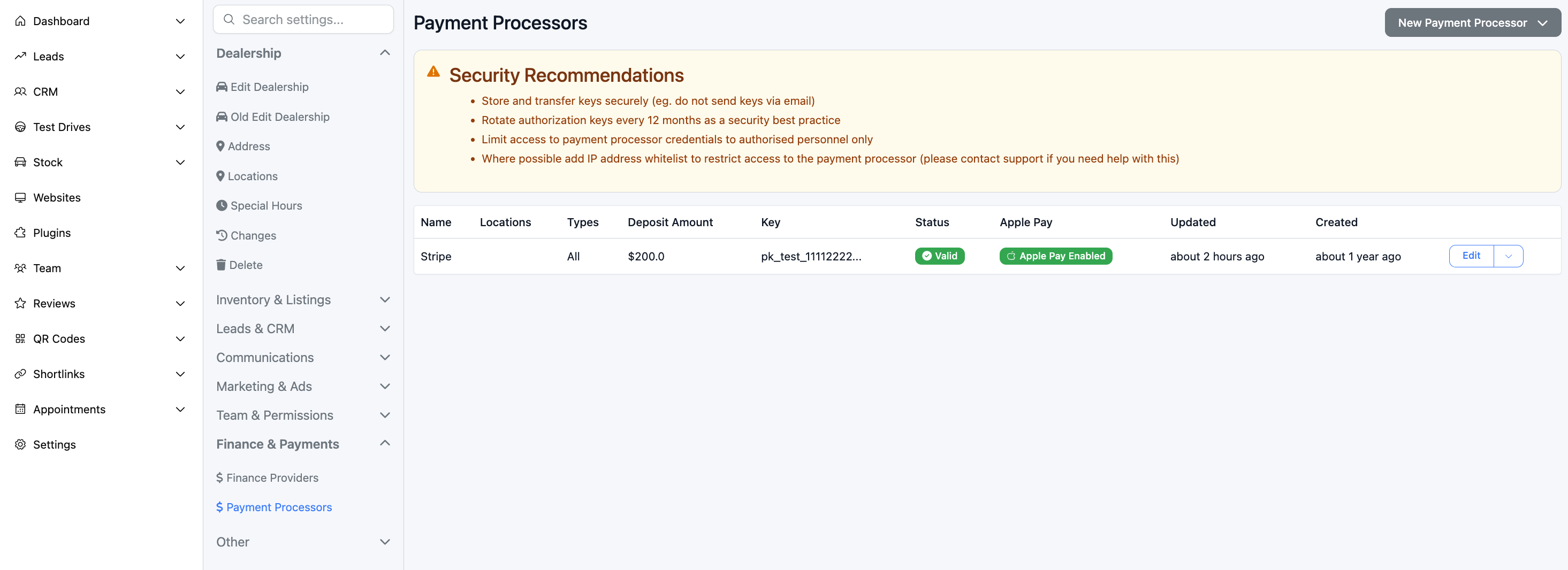
Entering processor details
*Be careful with storing and transferring your payment keys.
- Next, enter your public and secret keys.
- Location IDs allows you to select stock from certain locations for this payment processor to apply to.
- Car Types (New, Used, Demo)
- Deposit amount
- Types refers to whether this processor will be active for taking payment on checkout, invoicing and parts.
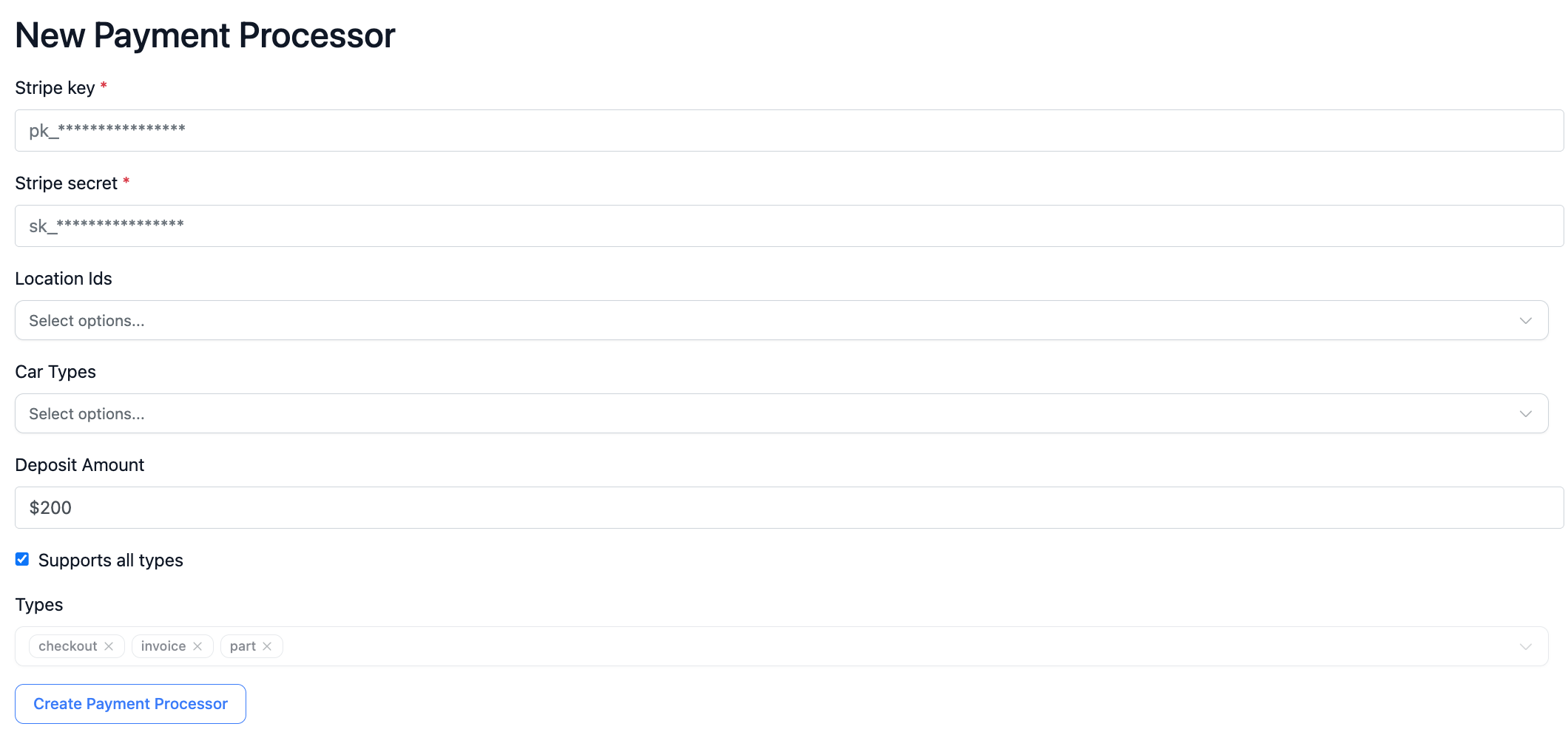
Once those details have been entered, press Create Payment Processor.
Enabling Apple Pay
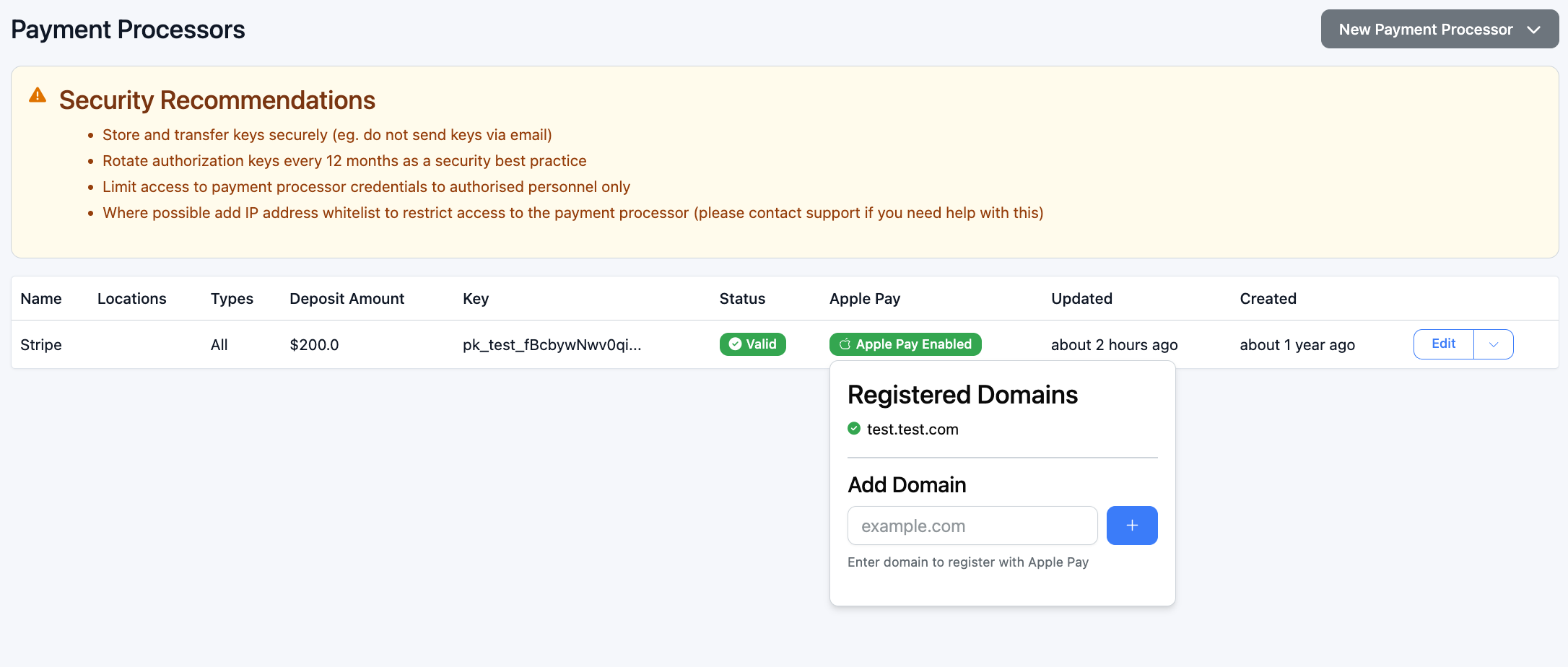
To enable Apple Pay, the relevant website domain has to be enabled. That can be done here:
Final details
The processor will automatically apply to your stock within a few minutes. To configure a CTA on your VDP or Search page, please lodge a ticket with the support team.
Was this article helpful?
That’s Great!
Thank you for your feedback
Sorry! We couldn't be helpful
Thank you for your feedback
Feedback sent
We appreciate your effort and will try to fix the article