If you need to share a large file with the Dealer Studio team and it’s a one-off request, the easiest and fastest method is to use Google Drive. This avoids email attachment size limits and ensures files can be accessed securely.
Follow the steps below to upload your file and share it with Dealer Studio.
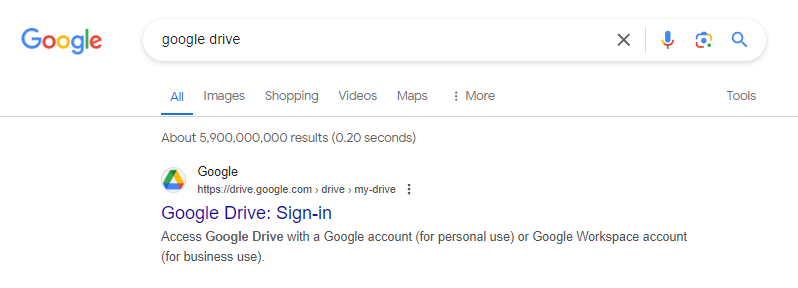
Step 1: Access Google Drive
Go to Google Drive (drive.google.com).
Sign in using your Google account.
Step 2: Upload the File to Google Drive
Click the + New button in the top-left corner.

Select File upload.
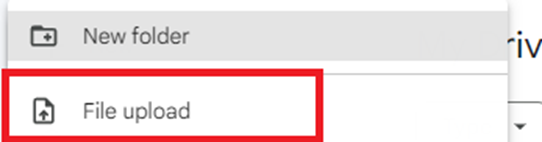
Choose the file you want to upload from your computer.
Wait for the upload to complete.
You’ll see a confirmation once the upload is successful.
? Tip: Large files may take longer to upload depending on your internet speed. Make sure the upload is fully complete before continuing.
Step 3: Share the File
Once the file has been uploaded, you have two options to share access:
Option A: Share via Email Access
Right-click on the uploaded file.
Select Share.

Enter the email address provided by the Dealer Studio team - support@dealerstudio.com.au
Set the permission to Viewer (unless editing access is required).
Click Send.
Option B: Share via Link (Recommended)
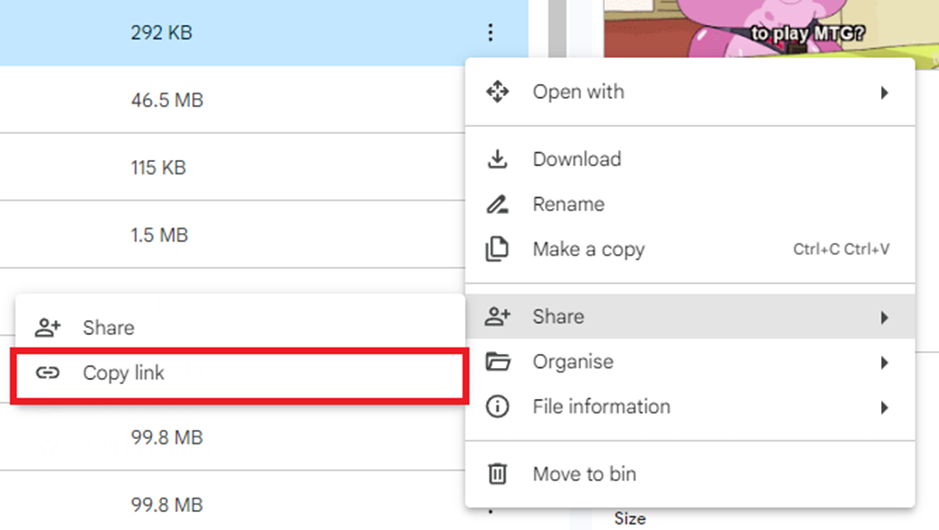
Right-click on the uploaded file.
Select Get link.
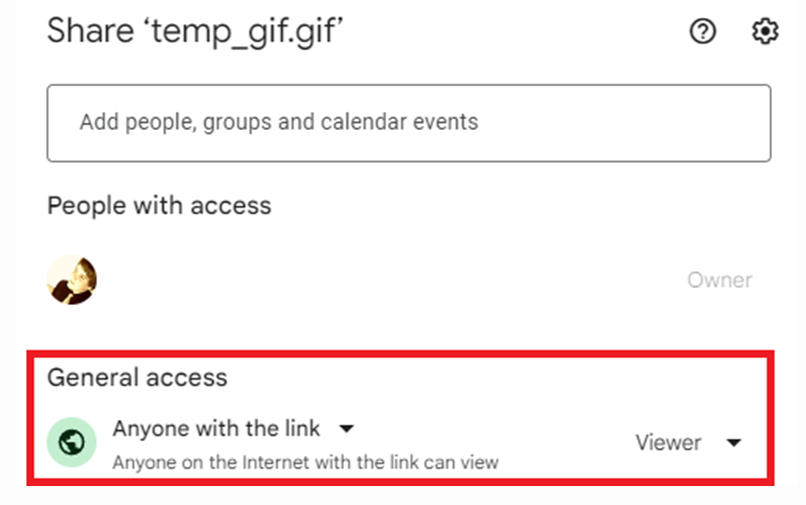
Change the access setting to:
Anyone with the link
Permission: Viewer
Click Copy link.
Step 4: Send the Google Drive Link to Dealer Studio
Paste the copied Google Drive link into your email or support message.
Send the link to the Dealer Studio team - support@dealerstudio.com.au
⚠️ Important: Make sure the link permissions allow access. If access is restricted, the Dealer Studio team will not be able to open the file.
Common Issues to Avoid
❌ File access set to Restricted
❌ Sharing the wrong file or folder
❌ Upload not fully completed before sharing
Double-check permissions before sending the link to avoid delays.
Once the link is received, the Dealer Studio team will be able to securely access and download your file.
Was this article helpful?
That’s Great!
Thank you for your feedback
Sorry! We couldn't be helpful
Thank you for your feedback
Feedback sent
We appreciate your effort and will try to fix the article