The Customers Dashboard provides a detailed overview of all your dealership’s contacts. Information is organized by full name, email, phone number, and source, making it easy to access, manage, and understand your customer data.
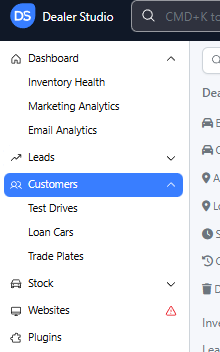
The Customers Dashboard consists of four pages:
Contacts, Test Drives, Car Loans, and Trade Plates.
Before You Begin
The CMS has two levels of settings:
Dealer Level — where customer data, locations, and major configurations are managed
Website Level — where settings apply only to a specific site
You must be on the Dealer Level.
Then, on the left-hand sidebar, click Customers.
Once selected, you will land on the Contacts page.
1. Contacts
The Contacts page is where you can view and manage your customer database.
You can view, or delete contacts (unless the contact is protected—explained below).
Top Section: Importing & Exporting
At the top of the page, you’ll find options to:
Export Contacts to a CSV file for reporting or analysis
Upload a CSV File to import external lists
Add New Contacts manually to keep your database complete and up to date

Search & Filter Tools
The filter panel helps you narrow down customers based on different criteria:
• Date Range
Filter customers by the date they were created (via online enquiry or added manually).
• Portal/Garage Access
Shows which customers have signed up for your website’s My Garage portal (if enabled), allowing them to save favorite vehicles and manage their account.
• Opt-in to Marketing
Shows customers who have subscribed to newsletters, promotions, announcements, or blog updates.
• Filter by Tags
If you use tags on your stock, you can filter customers who interacted with these tagged vehicles.
• All Lead Statuses
Filters customers based on the status of their leads in your LMS (from the Leads module).
• All Locations
View customers associated with a specific dealership location.
• Personal
Shows customers who are individuals.
• Commercial
Shows customers set up as businesses (with Business Name and ABN).
Why Some Contacts Cannot Be Deleted ?
Certain customers cannot be deleted because they have associated:
Lead clusters
Text message history
Deliveries
Reviews
These records must remain linked for system integrity and reporting accuracy.
2. Test Drives
The Test Drives page displays all test drives your dealership has organized.
From here, you can:
View and edit existing test drive bookings
Create a New Test Drive using the customer information already stored in your system
This ensures all test drive activity is tracked and linked to your customer records.
3. Car Loans
The Car Loans page allows you to view and manage car finance applications associated with your customers.
You can:
Edit existing car loan entries
Click + New Car Loan (top right) to create a new entry
Select the customer and their chosen vehicle during setup
This helps your dealership manage finance leads efficiently.
4. Trade Plates
The Trade Plates page stores and manages all trade plates for your dealership.
You can:
View and manage each trade plate assigned
Click + New Trade Plate to set up a new one
Choose the dealership location and assign the trade plate accordingly
All active trade plates will be listed and maintained in this section.
That’s it!
The Customers Dashboard is your central hub for managing customer information, test drives, car loans, and trade plates. Use the filters, tools, and structured pages to keep your dealership’s customer data clean, organized, and actionable.
If you have further questions or require assistance, please don't hesitate to contact us: support@dealerstudio.com.au
Was this article helpful?
That’s Great!
Thank you for your feedback
Sorry! We couldn't be helpful
Thank you for your feedback
Feedback sent
We appreciate your effort and will try to fix the article