The QR Code Dashboard in Dealer Studio allows you to easily generate, manage, and track QR codes for a variety of
purposes. Whether you're promoting social media channels, sharing product or service information, linking to sign-up forms, or collecting customer feedback, QR codes offer a convenient and engaging way to connect with your audience.
This guide will walk you through how to create, edit, and manage QR codes in your dashboard.
Before You Begin
The CMS/Dashboard has two levels:
Dealer Level – Where QR codes are created and managed
Website Level – For website-specific content (not used for QR codes)
You must be on the Dealer Level before accessing the QR Code dashboard.
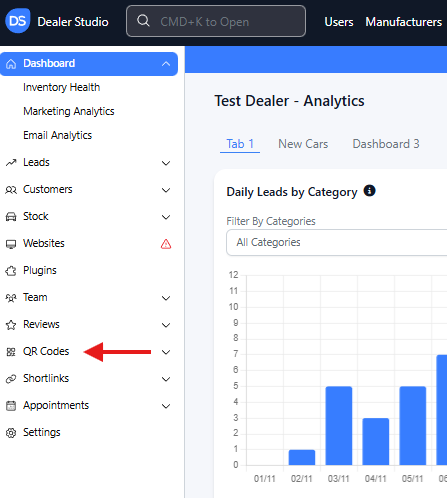
On the left-hand sidebar, click QR Codes. You will now be on the QR Code Dashboard page.
QR Code Dashboard Overview
The dashboard displays all the QR codes created by your dealership, sorted by:
Label (the name of the QR code)
URL (the destination link)
Views (track how many times the QR code has been scanned)
Created (how long the QR was created)
Download (click to download the QR code in .svg format)

This makes it easy to review existing QR codes and monitor their performance across campaigns.
How to Create a QR Code
Creating a QR code is quick and simple.
Step 1: Access QR Codes
From the Dealer Level, use the left-hand sidebar and select QR Codes.
Here, you'll see your full QR code history, including labels, links, and view counts.
Step 2: Click “+ QR Code”
In the top-right corner, click + QR Code.
A pop-up form will appear for you to enter the details of your new QR code.
Step 3: Fill Out the QR Code Form
The form contains three key fields:
Label – A title or description for your QR code (e.g., “Service Booking Promo”).
Location – Select the dealership location where the QR code will be displayed.
URL – Enter the webpage you want the QR code to link to.
Once completed, click Save.
Step 4: Retrieve Your QR Code
After creating the QR code, you will be redirected to a dedicated page where your newly generated code appears.
You can now:
Download the QR code
Copy it for use in marketing materials, posters, digital displays, campaigns, or emails
Well done — your QR code is ready to use!
Managing Existing QR Codes
Once a QR code is created, it will appear in the dashboard list. On the right-hand side, you will see the following actions:
View
Open the QR code page to preview or download the code again.
Edit
Modify the QR code’s:
Label
Location
URL
Useful for updating campaigns or redirecting users to a new destination.
Delete
Remove the QR code permanently if it’s no longer needed.
That's It!
You now know how to create and manage QR codes in Dealer Studio.
Use them across your dealership to improve customer engagement, streamline information access, and elevate your marketing campaigns.
If you need help with anything else, feel free to contact support@dealerstudio.com.au
Was this article helpful?
That’s Great!
Thank you for your feedback
Sorry! We couldn't be helpful
Thank you for your feedback
Feedback sent
We appreciate your effort and will try to fix the article