To log in to the Dealer Studio mobile app or web dashboard, you must sign in using your account work email and password.
Depending on your dealership's security settings, you may also be required to complete two-factor authentication (2FA).
⚠️ Important:
If you're unsure which email address or password to use, please contact your Team Manager, they can add or manage Dealer Studio user account.
⚠️ Important:Your Dealer Studio password is NOT the same as your work email password.
Please do not enter your email account password (for example, Microsoft 365 or Google Workspace).Entering the wrong password multiple times may lock your Dealer Studio account.
Step 1: Sign In to Dealer Studio
To log in: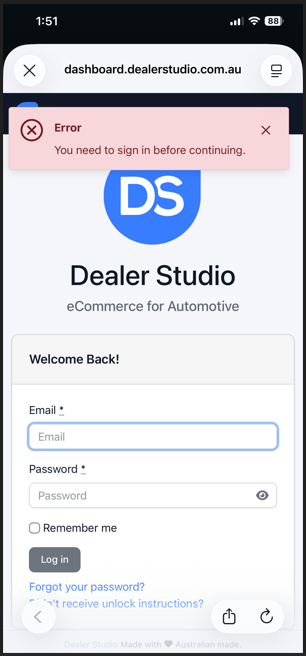
Enter your email address (usually your work email).
Enter your Dealer Studio password. (NOT your work email password)
⚠️ Important:
Your Dealer Studio password is NOT the same as your work email password.
Please do not enter your email account password (for example, Microsoft 365 or Google Workspace).Entering the wrong password multiple times may lock your Dealer Studio account.
Forgot your password?
Select Forgot your password? and check your work email inbox or spam folder for further instructions.Account locked?
If you see an error message that your account is locked, select Didn’t receive unlock instructions? and check your work email inbox or spam folder.
Step 2: Two-Step Authentication Methods
Dealer Studio supports two two-step authentication methods: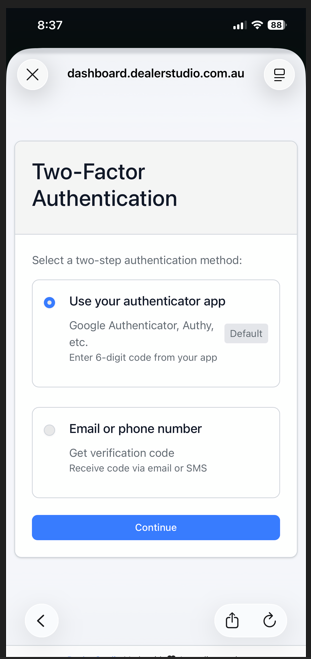
a. Use an Authenticator App
Examples include Google Authenticator, Microsoft Authenticator, Authy, and others.
You will need to enter a 6-digit code generated by the app.
⚠️ Note: Authenticator apps are third-party applications that must be downloaded to your phone. They are not managed by Dealer Studio.
b. Use Email or Phone Number
A verification code will be sent to you via email or SMS.
This option is simpler to use, however less secure.
Step 3: Enter Authenticator Code (Authenticator App by Microsoft)
For this specific guide, we will walk through the steps after you have downloaded the Authenticator App by Microsoft.
a. When prompted to enter an authenticator code, exit the Dealer Studio app.
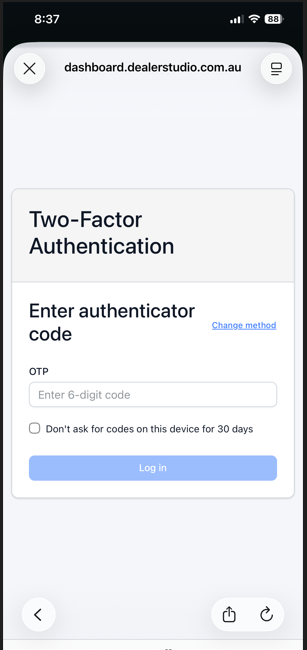
b. Find and open the authenticator app you downloaded on your phone.
If you are a new user, you may be prompted to sign up for an account in the app.
⚠️ Note: This guide uses Microsoft Authenticator as an example. Navigation may vary depending on the app you use, but the concept is the same.
c. If you are an existing user, tap the ➕ (plus) button in the top-right corner.
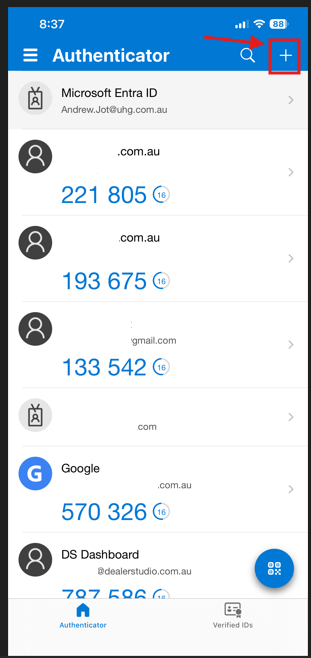
d. Select the type of account you are adding:
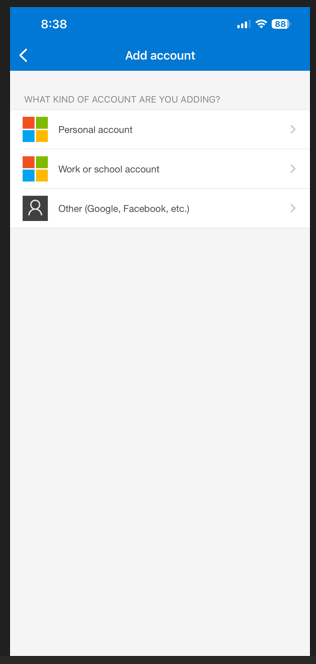
Select Work or school account
if you are using a work email and your email domain is managed by Microsoft.Select Personal account
if you are a sole user and your email domain is managed by Microsoft.Otherwise, select Google or Facebook
(these options support QR code scanning only).
e. Add the account by scanning the QR code or signing in manually, depending on your authenticator app.
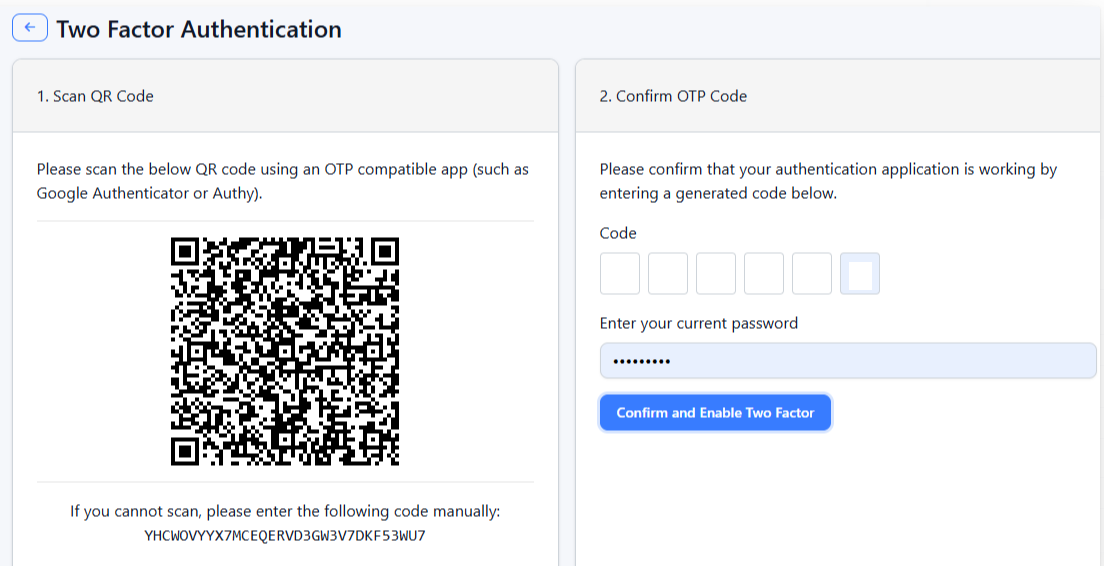
⚠️ Note: You may scan the above QR code to set up Dealer Studio account.
Step 4: Get Your 6-Digit Code
Once the account has been added:
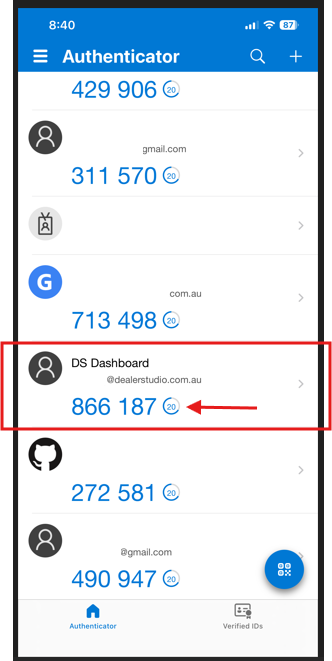
On the authenticator app’s main page, you will see a 6-digit code with a countdown timer.
Look for the Dealer Studio entry and copy the code.
Step 5: Complete Login ✅
Return to the Dealer Studio app or browser.
Paste the 6-digit code.
Select Log In.
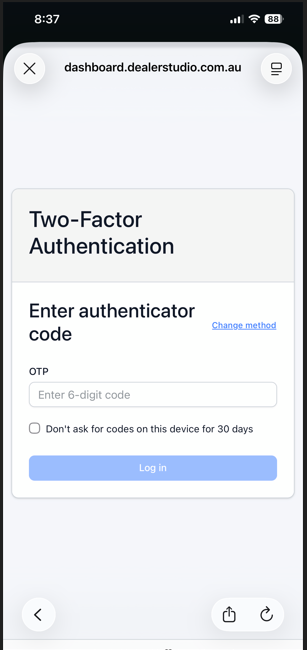
That’s it — you’re now signed in using two-factor authentication.
Was this article helpful?
That’s Great!
Thank you for your feedback
Sorry! We couldn't be helpful
Thank you for your feedback
Feedback sent
We appreciate your effort and will try to fix the article