(2-Way Email Integration)
This guide explains how to set up two-way email conversations using your dealership’s own email addresses within Dealer Studio LMS.
Once configured, your team can send and receive emails directly from Dealer Studio, using your dealership’s domain (for example, sales@yourdealershipdomain.com.au).
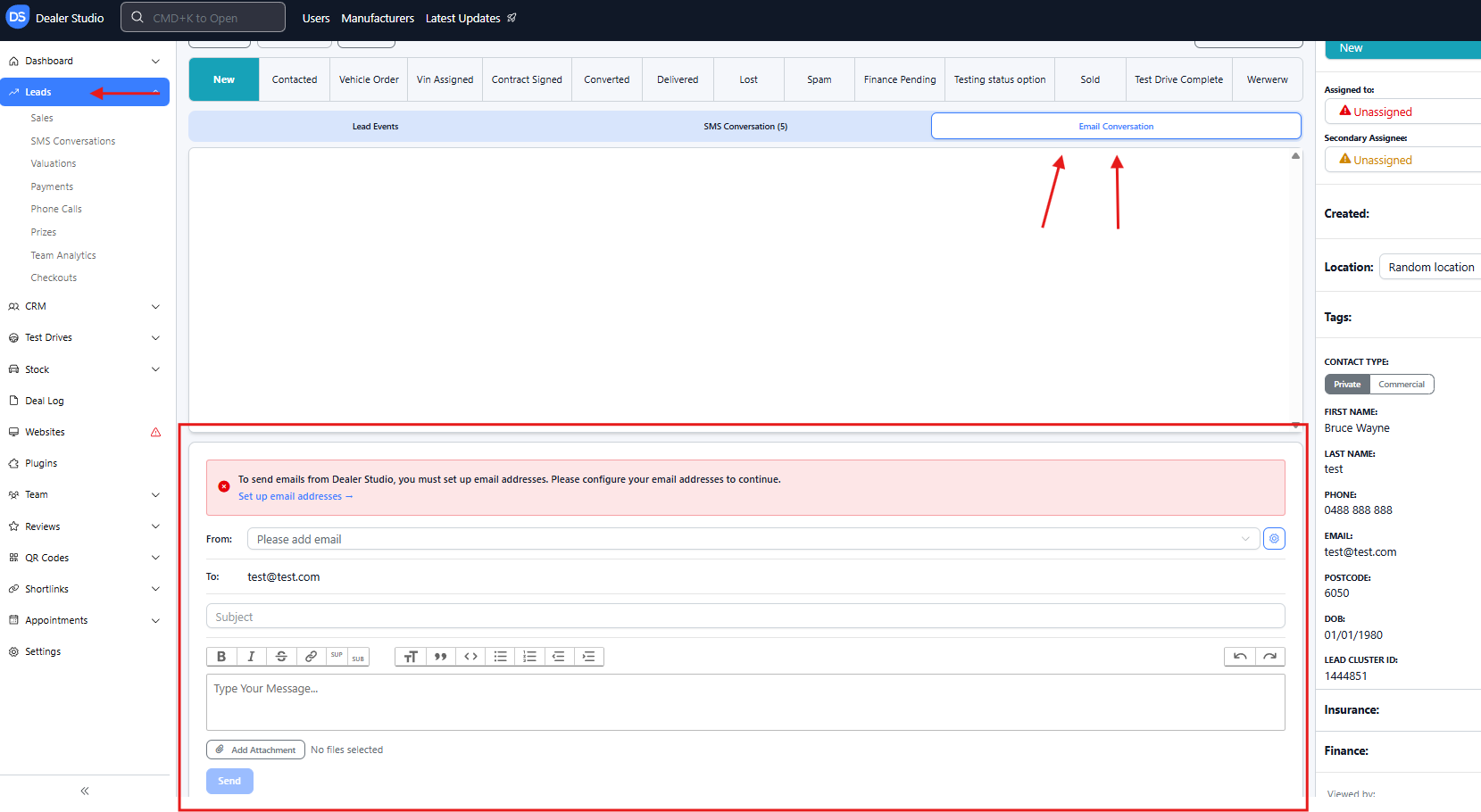
Overview
✅ Send emails from your dealership email address via Dealer Studio
✅ Optionally receive and reply to incoming emails
✅ Use email templates when contacting leads
⚠️ DNS configuration is required to enable sending
Sending Emails from Your Dealership Domain
Step 1: Configure DNS Records (this step is for Dealer Studio Team)
- To enable email sending, DNS records must be configured in Mailjet.
- PLEASE CONTACT Dealer Studio support team at support@dealerstudio.com.au and provide your domain name and dealership name. Our team will then configure the required email authentication records (TXT, SPF, and DKIM) for your Mailjet account.
⚠️ This step is handled by the Backend Team in Dealer Studio.
Step 2: Retrieve DNS Details (actioned by the Dealership)
Once Mailjet is ready, Dealer Studio support team will provide the dealership (you) with the DNS records you need to add to your dealership's domain.
Example instructions sent to a dealership: (EXAMPLE ONLY - DO NOT COPY VALUES)
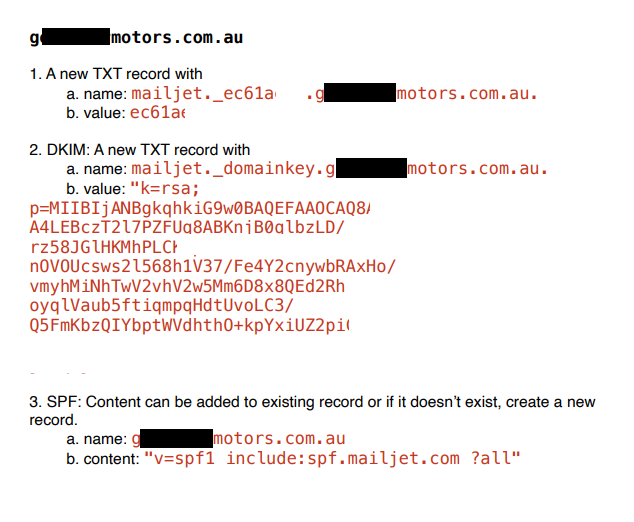
⚠️ Please inform Dealer Studio Support Team once these steps are completed.
Step 3: Verify the Domain (actioned by Dealer Studio Team)
After the dealership has updated their DNS records, DS team will complete the verification step in the company’s Mailjet account.
Step 4: Create a Dealership Email Address (actioned by the Dealership)
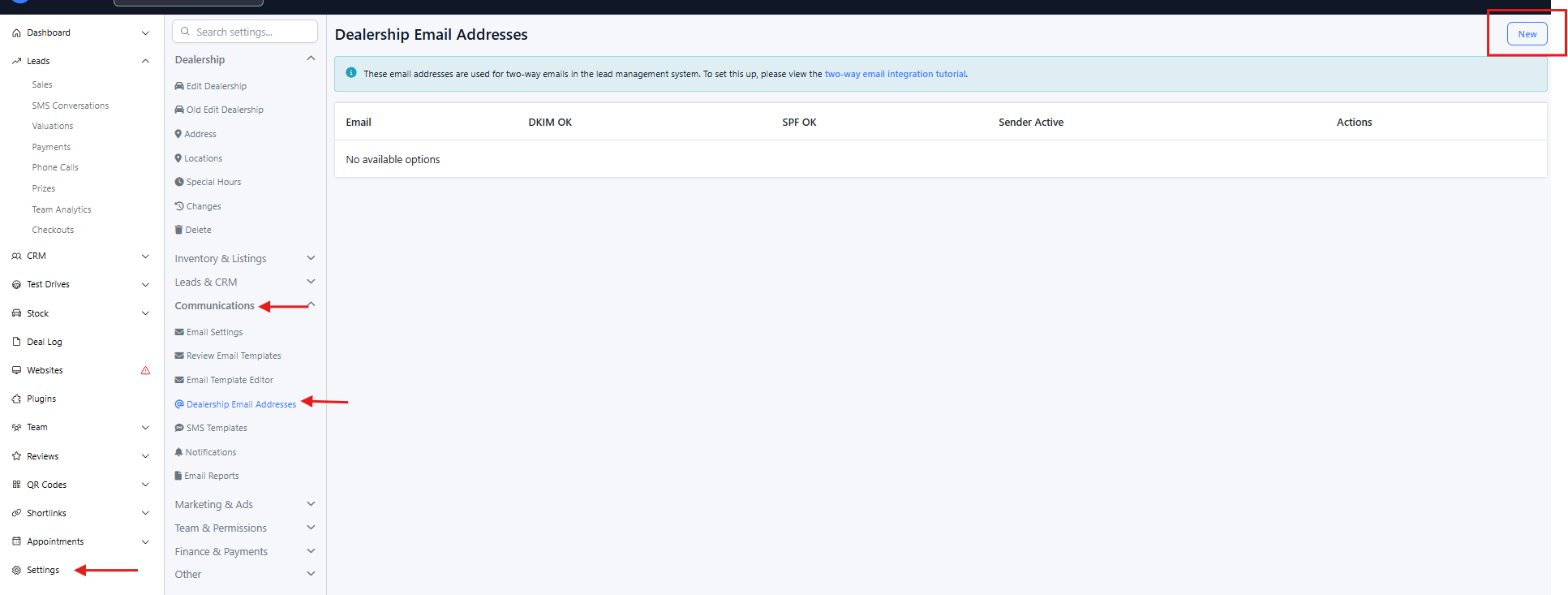
Any user with Manager permissions is required to:
Login to Dealer Studio Dashboard
Navigate to Dealership Email Addresses
Click New
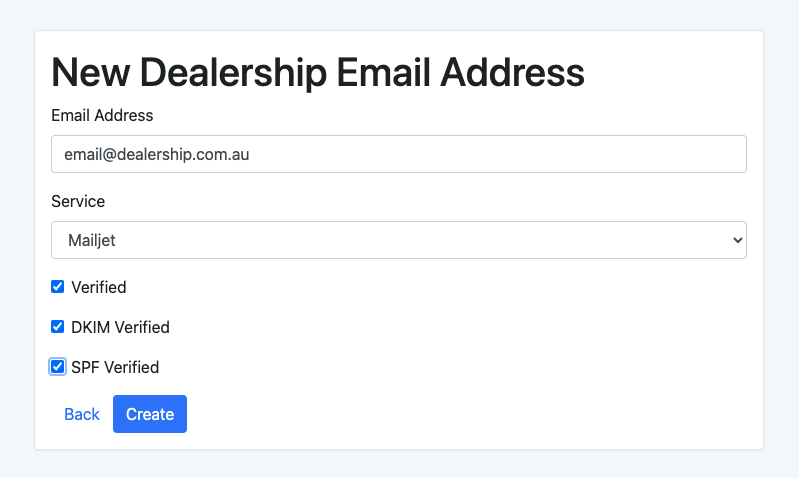
Enter the dealership email address (e.g.
sales@yourdealership.com.au)Set Mailjet as the service
Select all three checkboxes
Click Create
Step 5: Send a Test Email (actioned by the Dealership)
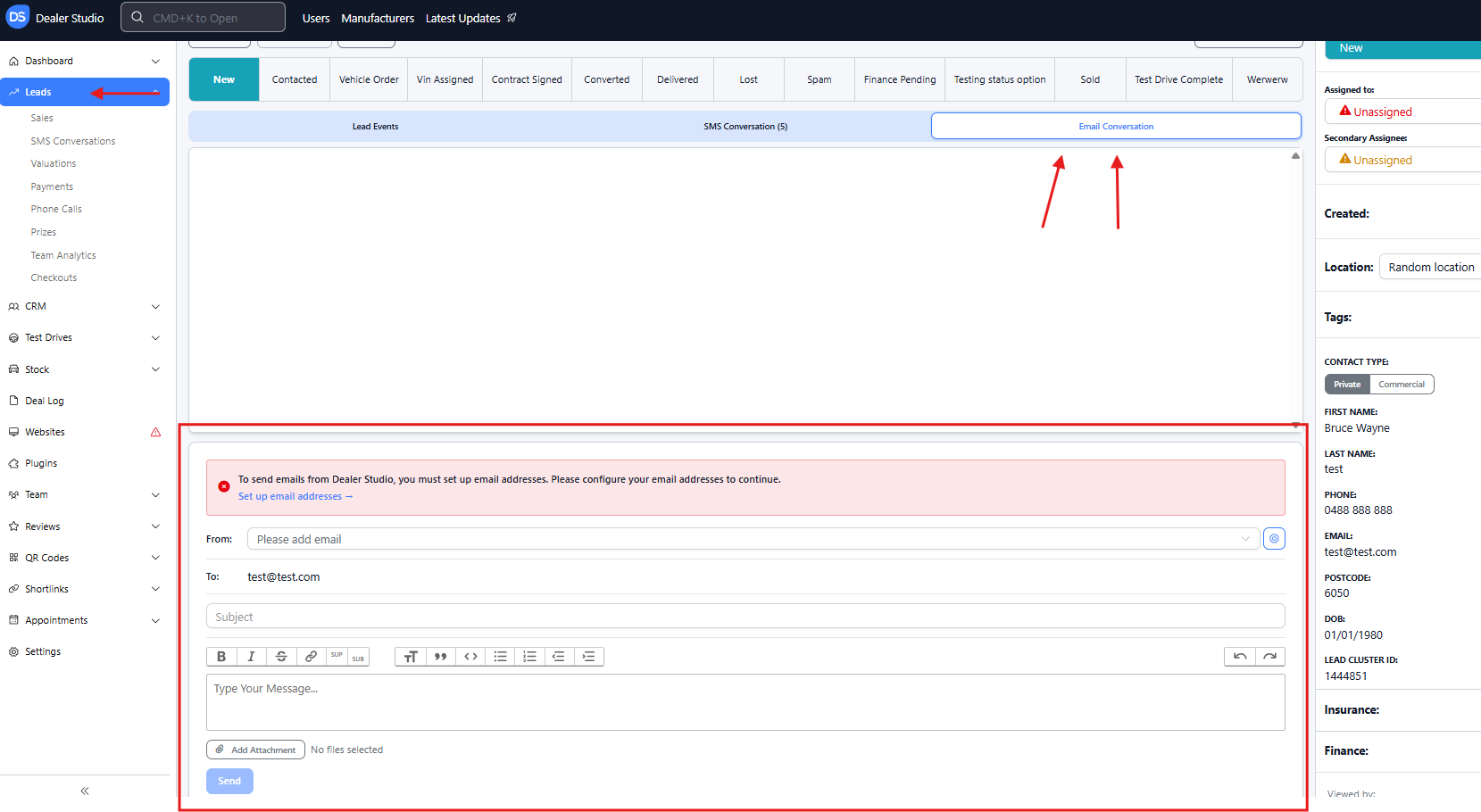
To test the setup:
Navigate to Lead Clusters
Open a lead cluster (e.g. New Vehicle)
Select the Email Conversation tab
Choose the dealership email address from the dropdown
Enter a subject and message, then send
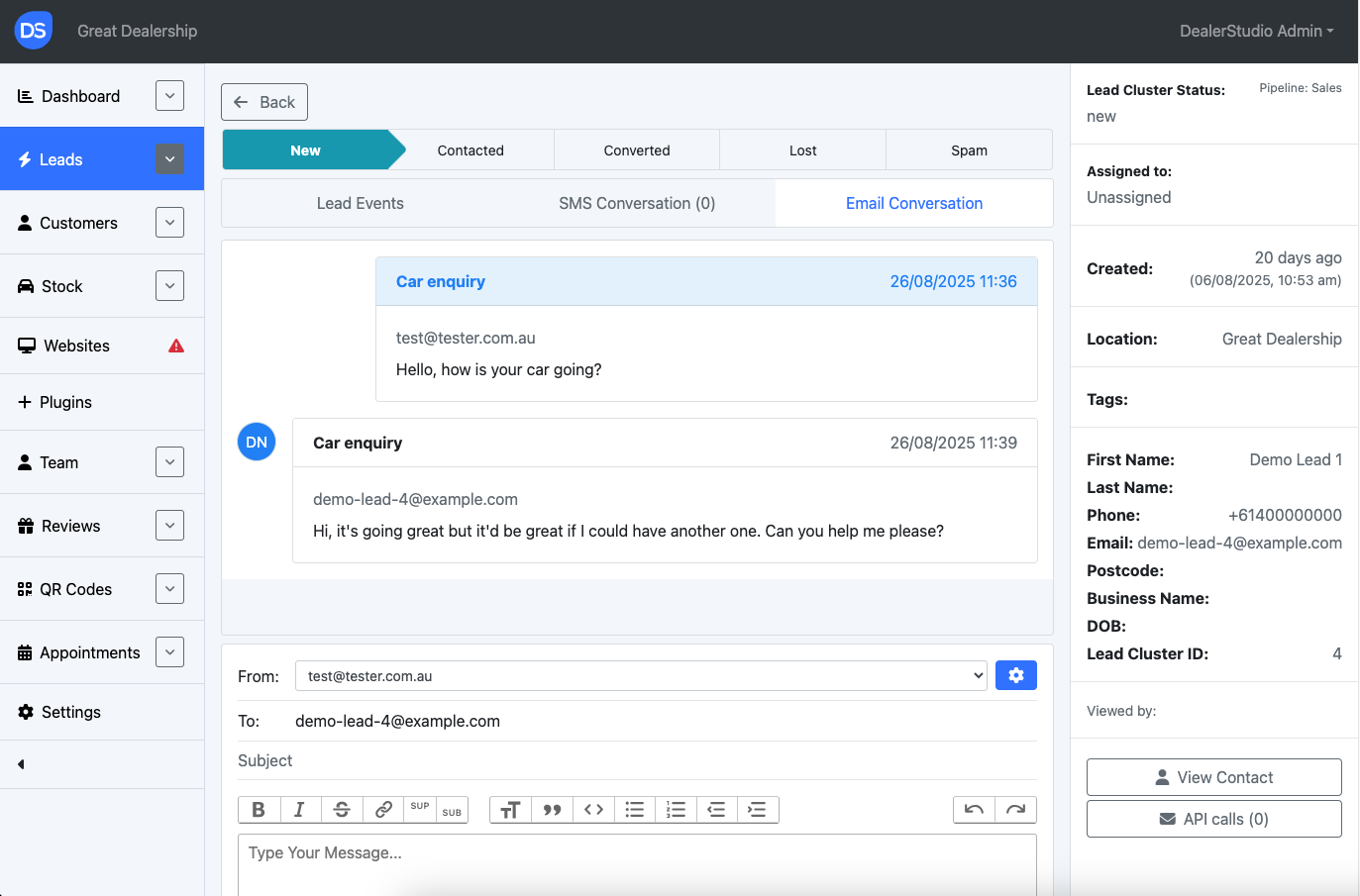
Additional options:
Click the gear icon to add CC/BCC email addresses
Click Email Templates to use a saved template
That's it! You have successfully set up a 2-Way Email Integration with Dealer Studio. The steps below are optional.
Receiving Emails (OPTIONAL)
Incoming emails can also appear in Dealer Studio if forwarding is configured.
Step 1: Set Up Email Forwarding
To forward emails from dealership inbox to DS:
Example:motorama@emails.dealerstudio.com.au
How Incoming Emails Are Handled
Only emails configured on the Dealership Email Addresses page will be processed
If the sender does not exist as a contact, a new contact is created
If the contact is not part of a lead cluster, a new lead cluster is created automatically
Step 2: Forwarding Setup by Email Provider
Forwarding instructions depend on the dealership’s email host. Common providers include:
Crazy Domains
DNSimple
Cloudflare
GoDaddy Professional Email
Each provider has slightly different steps for setting up forwarding.
Need Help?
If you need assistance with:
DNS configuration
Mailjet verification
Email forwarding setup
Please contact the Dealer Studio support team: support@dealerstudio.com.au
Was this article helpful?
That’s Great!
Thank you for your feedback
Sorry! We couldn't be helpful
Thank you for your feedback
Feedback sent
We appreciate your effort and will try to fix the article