If a team member’s profile isn’t appearing on your dealership website, it usually means some required information is missing or incomplete. This guide will help you confirm everything is correctly set up so the profile can display as expected.
Before You Start — Quick Checklist
Make sure the following steps are completed first:
1. Check CMS Level
Your CMS has two setting levels:
Dealer Level
Website Level
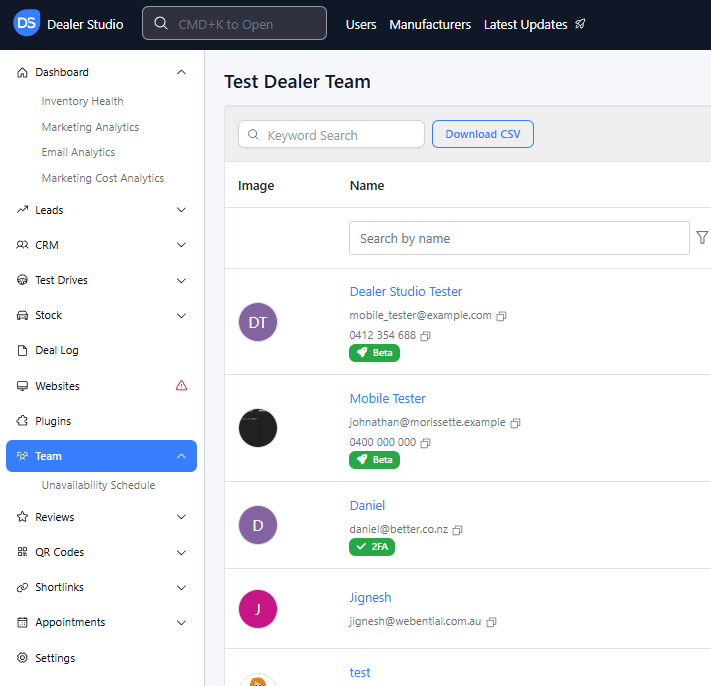
Go to Dealer Level, then in the left-hand sidebar select Team.
2. Ensure the Team Member Is Set Up Correctly
If you're unsure whether the team member is configured properly, refer to:
Team Dashboard: A Quick Guide
3. Ensure a Team Page Exists on the Website
If you haven’t created a Team page yet, follow:
How to Create a Team Page
If all three steps above are completed and the profile still does not appear on the website, continue below.
Troubleshooting: Required Fields for Profiles to Display
Go to the Team management page (Dealer Level) and find the user.
Click Edit.
Make sure the following details are completed:
✔ Avatar (Profile Picture)
Upload a profile photo. Profiles without an avatar will not display.
✔ Name
Ensure the user's name field is filled in.
✔ Position
Enter a job title/position for this user.
Required user login, email will not be displayed on the website.
✔ Phone Number (for MFA)
Must be provided for account security. This will not be displayed on the website.
✔ "Show Profile on Website" Toggle
This must be switched ON for the profile to appear publicly.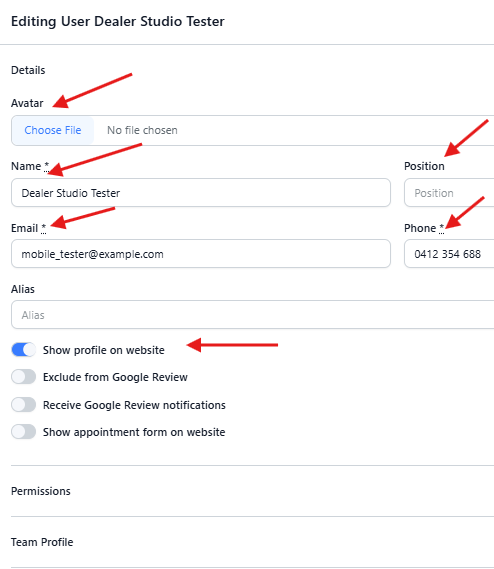
Team Profile Section
Under Team Profile, check:
✔ Category
Assign the user to at least one Category (e.g., Sales, Management, Service).
Categories determine which team tile or section the user appears in on the website.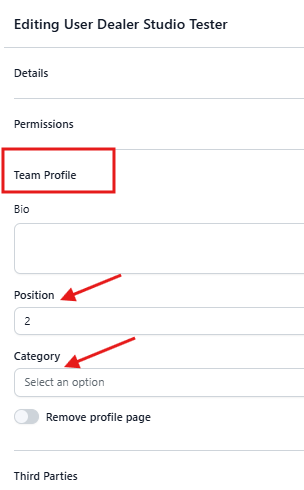
Permissions Section
Check that the team member is assigned to the correct:
✔ Location (Dealership)
If the incorrect location is selected — the profile will not display on the site.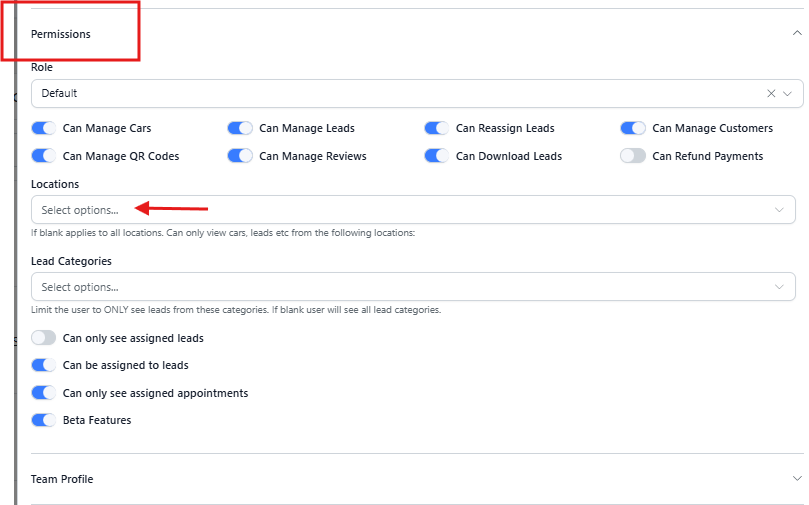
Save Your Changes
After reviewing everything, click Save.
That’s it!
Your profile should now display correctly on the website. Feel free to explore other settings while editing a user to further customise their profile.
Was this article helpful?
That’s Great!
Thank you for your feedback
Sorry! We couldn't be helpful
Thank you for your feedback
Feedback sent
We appreciate your effort and will try to fix the article