This guide explains how to update a user’s profile image in the Dealership Dashboard. It covers navigating to the Team section, selecting the relevant user profile, uploading an avatar image, and saving the changes to complete the update.
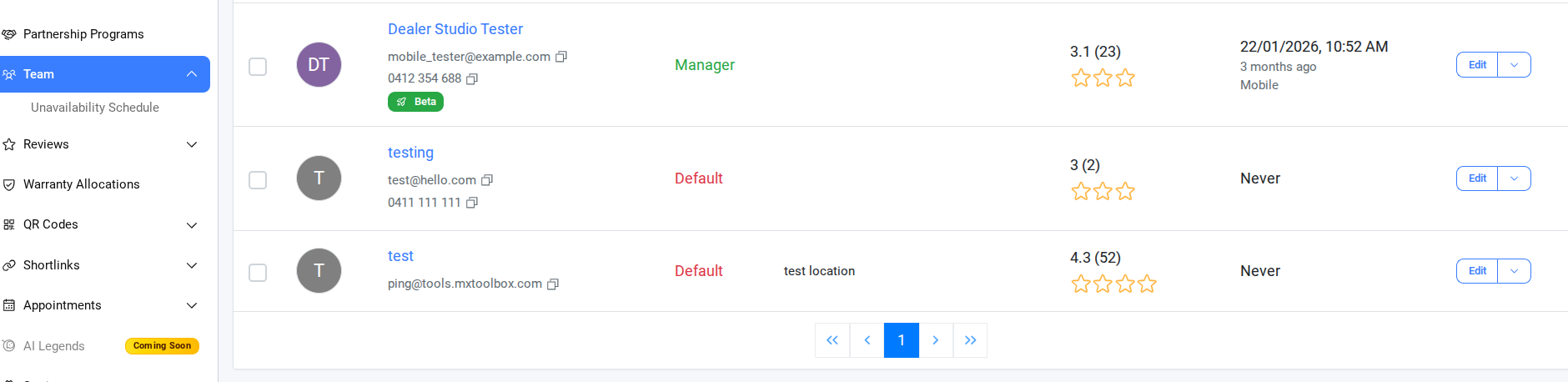
Step 1: On the Dealership Dashboard, select Team
- Click -> Edit the user profile where you need to upload it.
Step 2: In Editing User
Click -> Choose File to upload a picture for the Avatar.
Save the user account
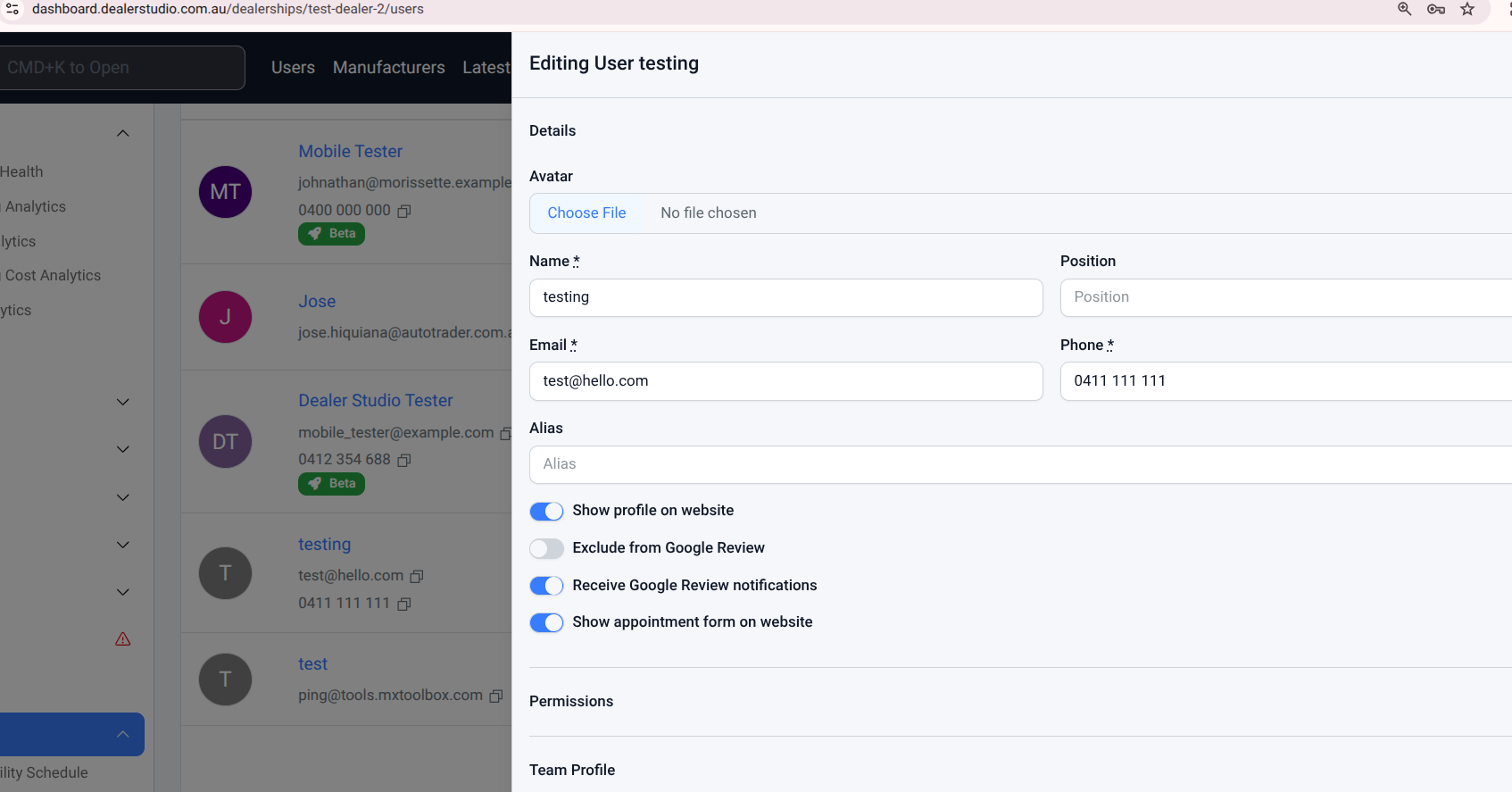
Note: Always enable “Show profile on website” if you want that user to be visible on the website.By following these steps, you can successfully update and display a user’s profile image on the website. Ensure the correct profile is selected and changes are saved to reflect the update properly.
Was this article helpful?
That’s Great!
Thank you for your feedback
Sorry! We couldn't be helpful
Thank you for your feedback
Feedback sent
We appreciate your effort and will try to fix the article