This guide will walk you through the steps to add or update social media links for a dealership location on your website.
- Once added, social Icon will appear on the header of your website
Through the Settings dashboard, you can quickly add or update social media URLs for each dealership location. Once saved, these links will appear on relevant sections of your website where location details are displayed.
Instructions to Add Social Links
Follow the steps below to add social media links to a dealership location:
- Step 1: Access Location Settings
- Step 2: View All Dealership Locations
- Step 3: Edit a Specific Location
- Step 4: Add Social Media URLs
- Step 5: Save Your Changes
Step 1: Access Location Settings
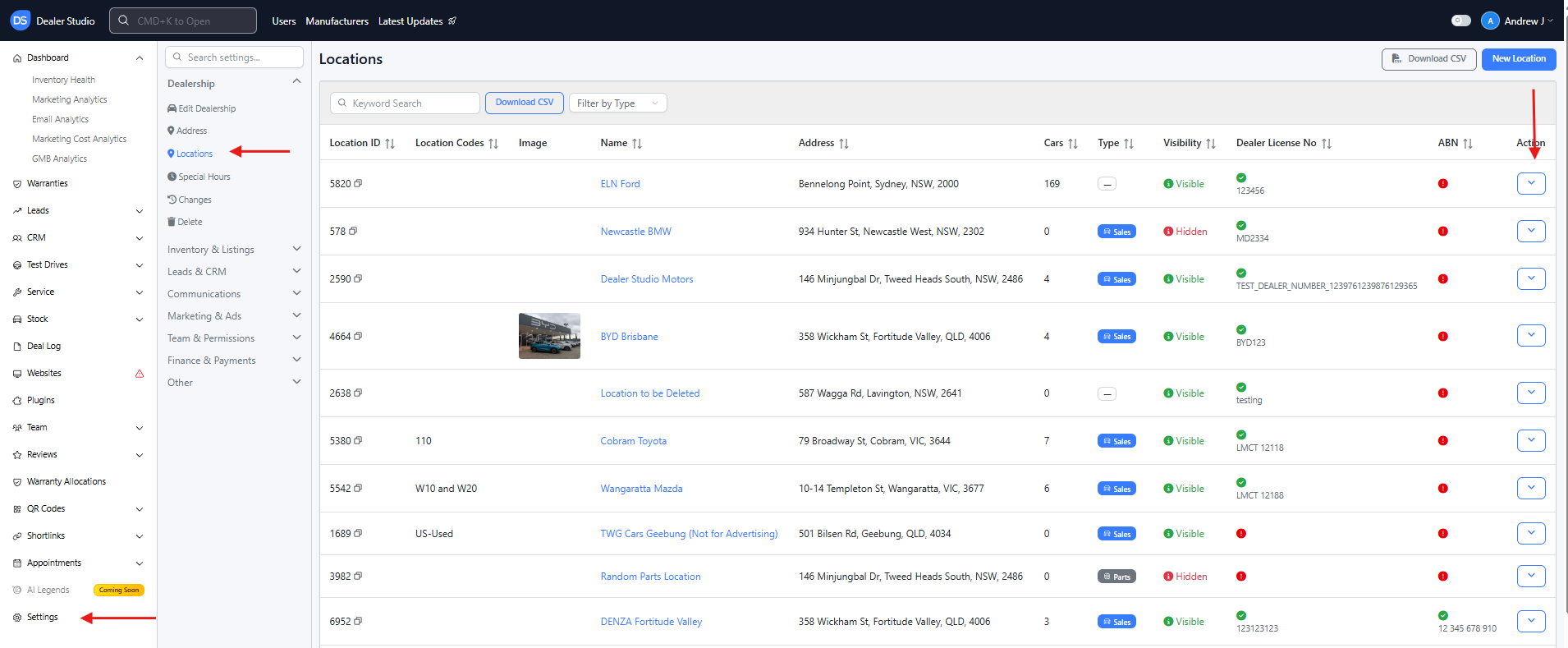
- From the Dealership Dashboard, click Settings from the bottom-left menu.
Step 2: View All Dealership Locations
- Inside Settings, select Locations.
- This page will display all locations associated with your dealership.
Step 3: Edit a Specific Location
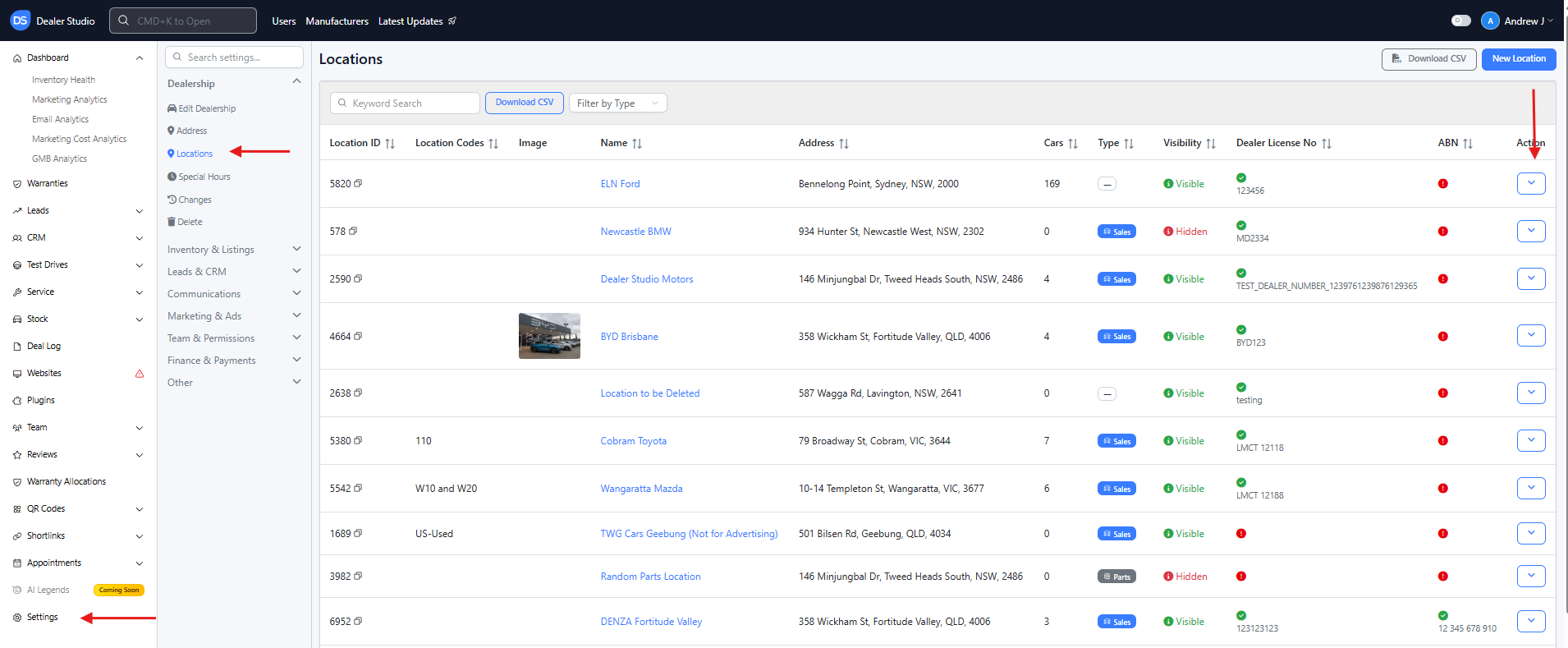
- Find the location you want to update.
- Click the arrow icon on the right side of the location.
- Select Edit to open the location settings.
Step 4: Add Social Media URLs
Scroll down to the Social Links section and enter the URLs for the platforms you want to display on your website.
Available fields may include:
- Facebook URL
- Instagram URL
- LinkedIn URL
- YouTube URL
- TikTok URL
Enter the full URL for each platform (for example: https://www.facebook.com/yourdealership).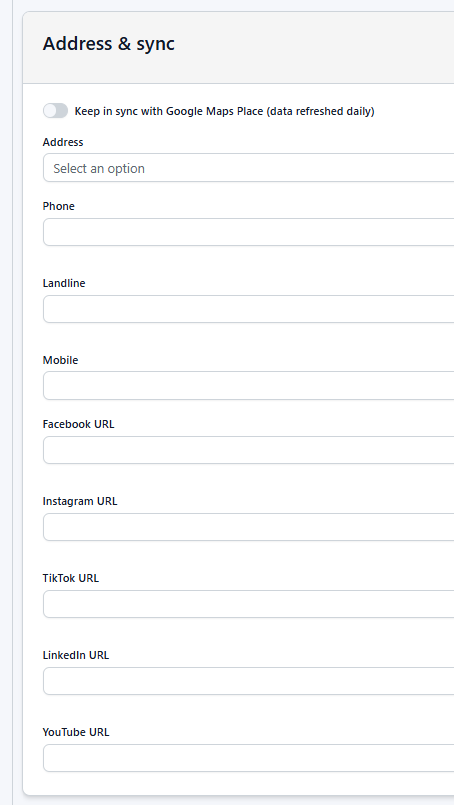
Step 5: Save Your Changes
After adding or updating the social links:
- Scroll to the bottom of the page.
- Click Update Location.
Your changes will be saved and the social media links will be updated on your website.
Important
- If your social link to doesn't appear on the header of your website, please contact support@dealerstudio.com.au for assistance.
- Make sure you enter the full and correct URL for each social media profile to ensure the links direct customers to the correct page. If a field is left blank, that social media platform will not appear for that location on the website.
Was this article helpful?
That’s Great!
Thank you for your feedback
Sorry! We couldn't be helpful
Thank you for your feedback
Feedback sent
We appreciate your effort and will try to fix the article