This guide explains how to manage lead pipelines in the Dealership Dashboard. It covers how to edit an existing pipeline by updating its name or lead categories, as well as how to create a new pipeline with the required details. All changes are made through the Lead Settings section under Settings.
Edit Pipeline
Step 1: On the Dealership Dashboard, select settings.
- Click -> Lead settings
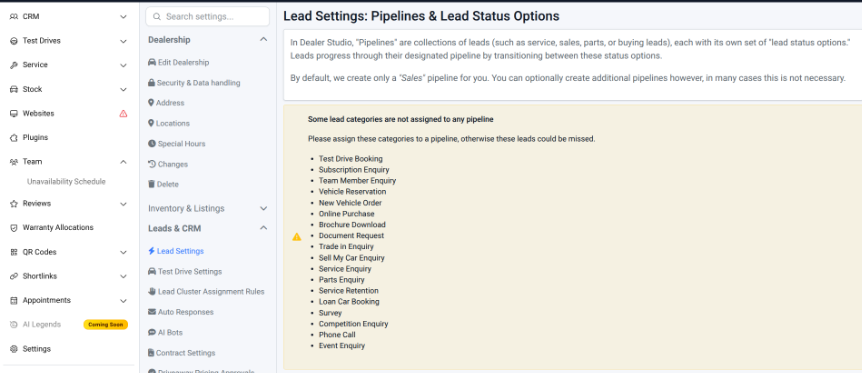
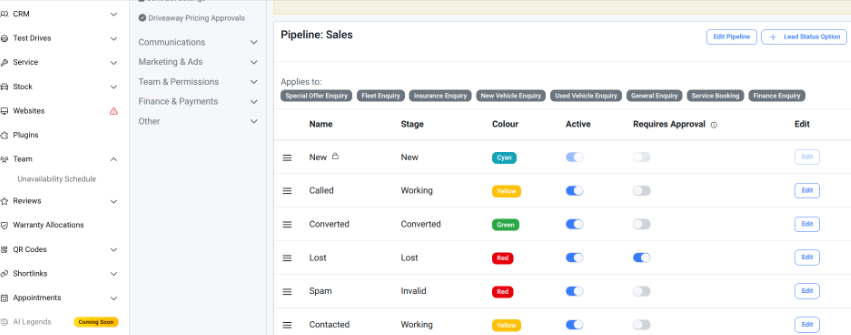
Step 2: In Lead settings, scroll down to Pipeline sales
- Click -> Edit Pipeline
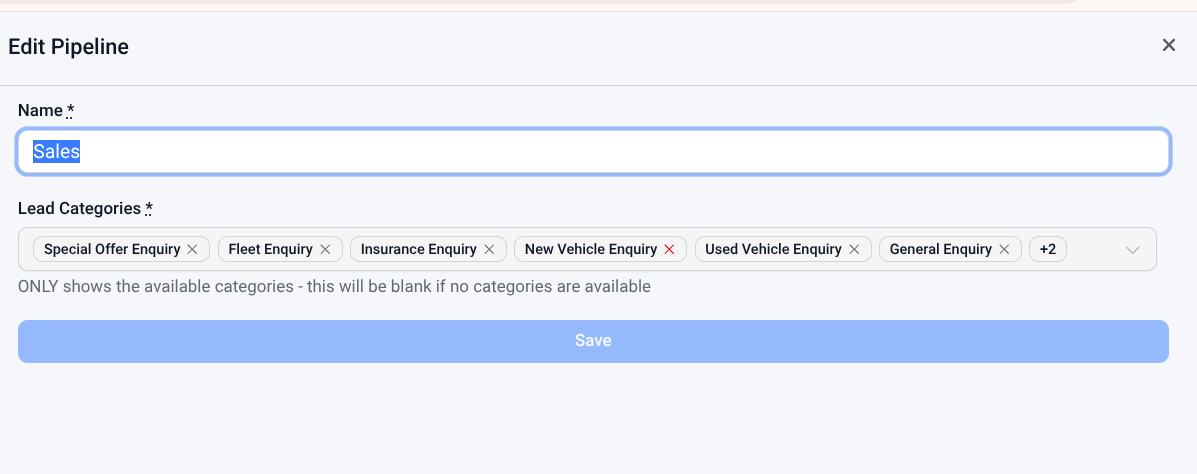
- In Edit Pipeline, update "Name" or "Lead Categories" and Save
Add New Pipeline:
Step 1: On the Dealership Dashboard, select settings.
- Click -> Lead settings
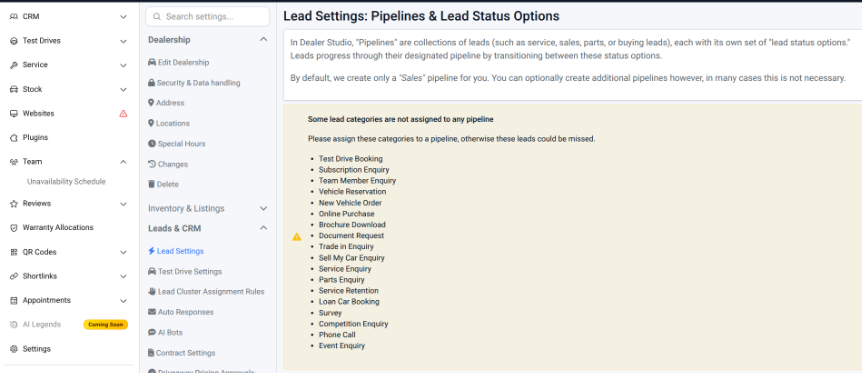
Step 2: In Lead settings, scroll down to Pipeline sales
- Click -> New Pipeline
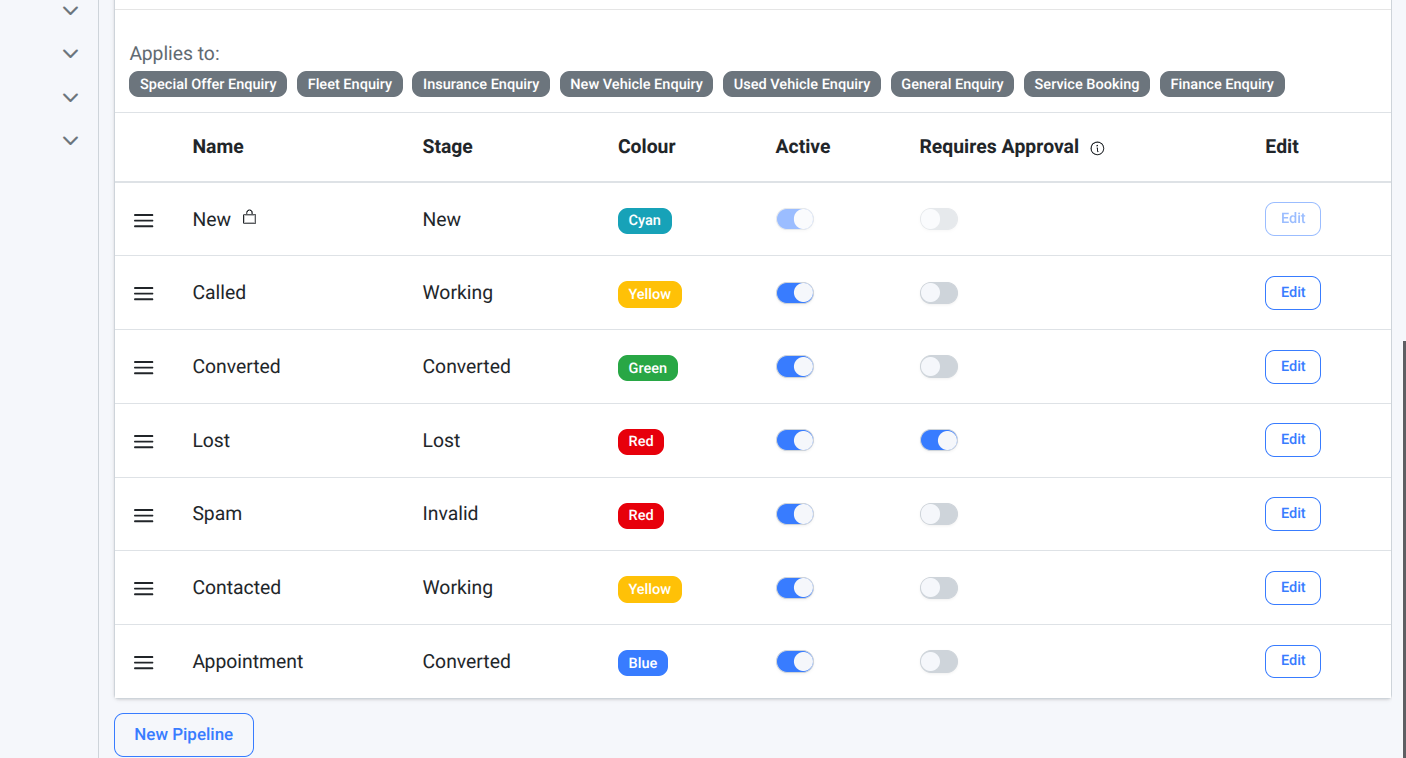
- In New Pipeline, Enter pipeline "Name" or "Lead Categories" and Save
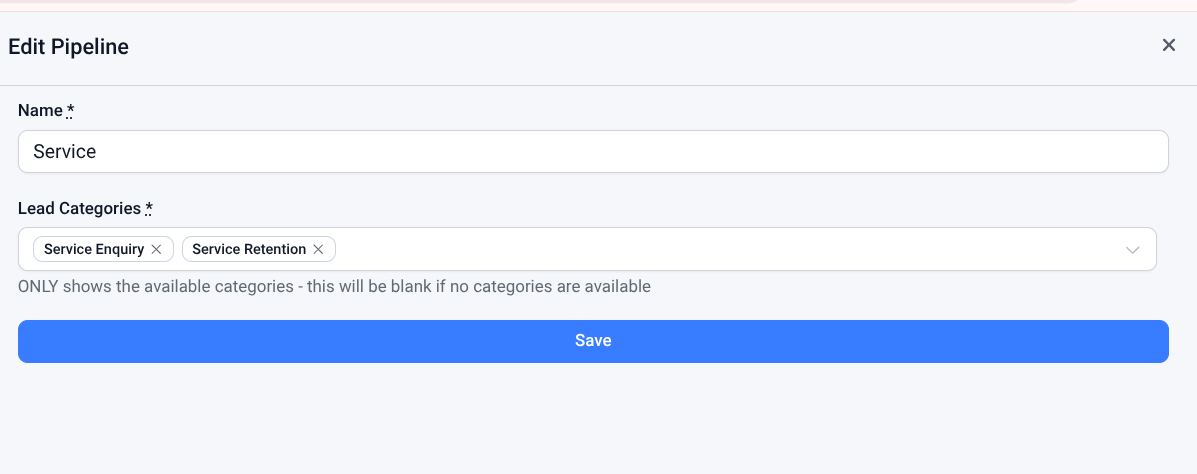
Using these steps, users can easily update or create pipelines to better organise and manage leads within the system. Always ensure the correct pipeline name and lead categories are entered before saving to maintain consistency and accuracy in lead tracking.
Was this article helpful?
That’s Great!
Thank you for your feedback
Sorry! We couldn't be helpful
Thank you for your feedback
Feedback sent
We appreciate your effort and will try to fix the article