Learn how to update an existing model at the OEM level. This covers how to edit pre-existing Features, Colours and Vehicle Specifications, and how to add in new ones, so the changes flow through to the relevant dealership websites.
We will use the Mitsubishi NZ – Mitsubishi ASX as the example throughout this guide.
1. Contents
Model Features
1. How to Navigate to Model Features
2. How to Edit Pre-existing Features
3. How to Add in New Features
Model Colours
4. How to Navigate to Model Colours
5. How to Edit Pre-existing Colours
6. How to Add in New Colours
Vehicle Specifications
7. How to Navigate to Vehicle Specifications
8. How to Edit Pre-existing Specifications
9. How to Add in New Specifications
IMPORTANT CONSIDERATIONS
Before you start:
•  Anything you save here updates the model on every Mitsubishi NZ dealer website that uses it.
•  Please do not click Destroy on a model card, or Delete / the red bin on a feature or colour, unless you want it removed from all sites.
•  Each Save/Update button stays greyed out until you change something. Closing a panel with the X without saving discards your changes.
Model Features
1. How to Navigate to Model Features
Step 1: Please Login to Dealer Studio.
https://dashboard.dealerstudio.com.au/
You will be prompted for your Username and Password
You will be prompted for your 2-Factor Authentication Method, or SSO verification
Step 2: Once Signed in Please Select the Applicable OEM
- Once you have selected the OEM (e.g. Mitsubishi NZ), you will see the OEM Dashboard with 'Models' on the left:
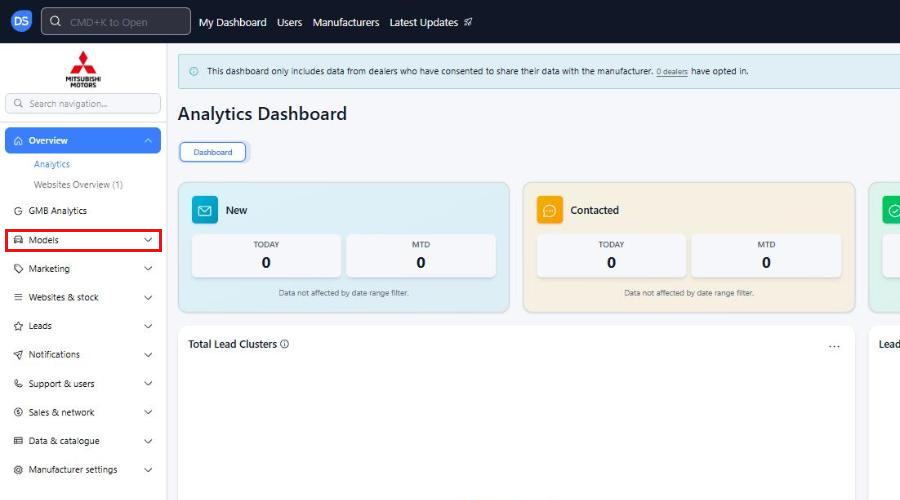
Step 3: Click 'Models' and Select the Model you want to Edit
- You will see all currently entered models. Click on the Model name (e.g. Mitsubishi ASX):
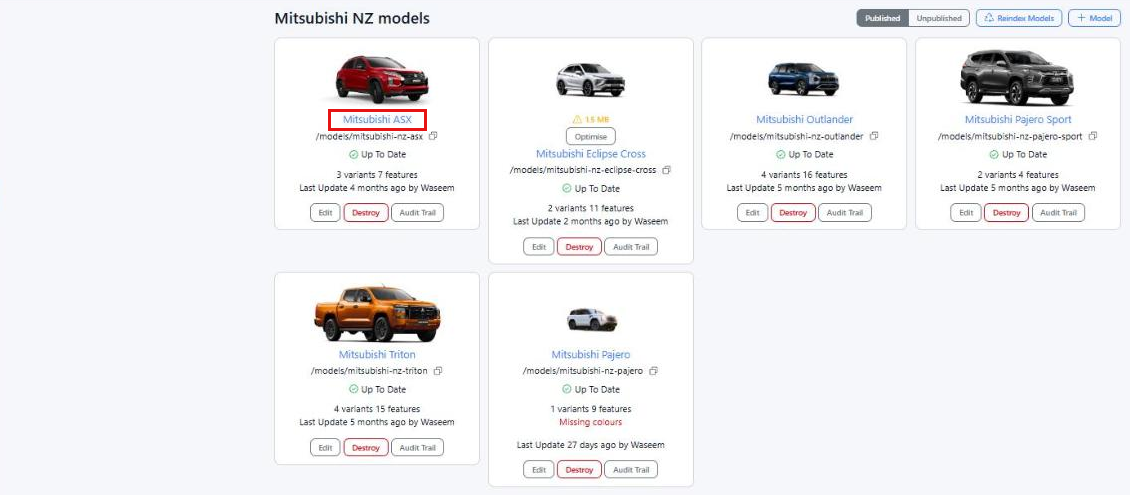
Note: Please use the model name link to open the model. Do not click Destroy on the model card.
Step 4: Click the 'Features' Tab
- Once the model has opened, you will see the tab bar under the banner image. Click Features. The number in brackets is how many features are currently on the model.

2. How to Edit in Pre-Existing Features
Step 1: Find the Feature you want to Edit
- Each feature shows its image, Title, Description and a red badge showing which Template it uses (e.g. 100% Container Width). Features display on the website in the order shown here, top to bottom.
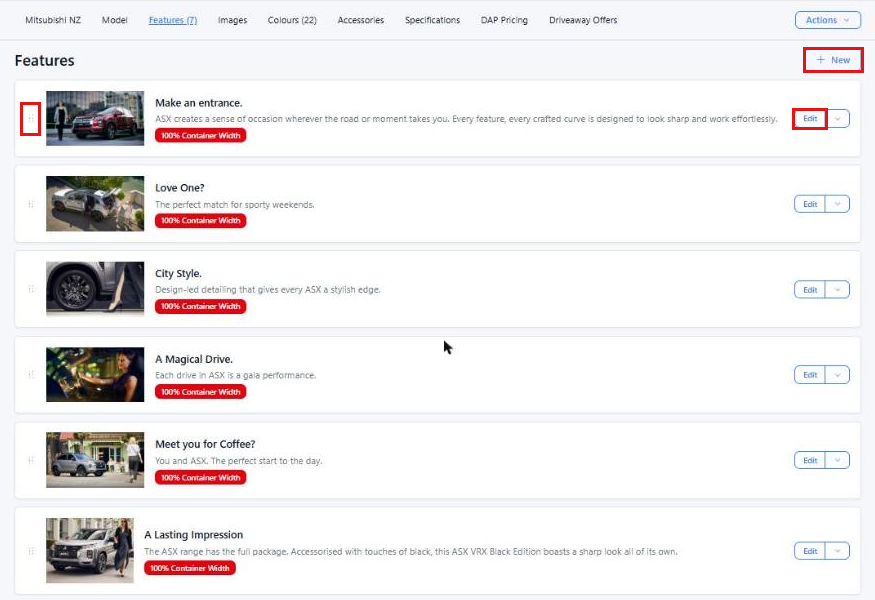
Edit: opens the feature so you can change it
Drop-down arrow (next to Edit): ordering, Audit Trail and Delete options (see Step 2)
Drag handle (the dots on the left of each feature): click and drag to reorder features
+ New: adds a new feature (see Section 3)
Step 2: Re-ordering or Checking History (Optional)
- Click the drop-down arrow next to Edit to see the below options:
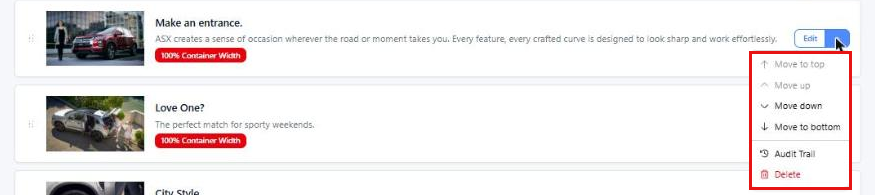
Move to top / Move up / Move down / Move to bottom – changes where the feature sits on the model page
Audit Trail – shows who changed the feature and when
Delete – removes the feature from the model on all dealer sites. Only use this if you are sure.
Step 3: Click 'Edit' and Update the Fields
- The 'Edit Feature' panel will slide in from the right with the current details filled in. Update the fields you need – each field is explained in Section 3, Step 2.
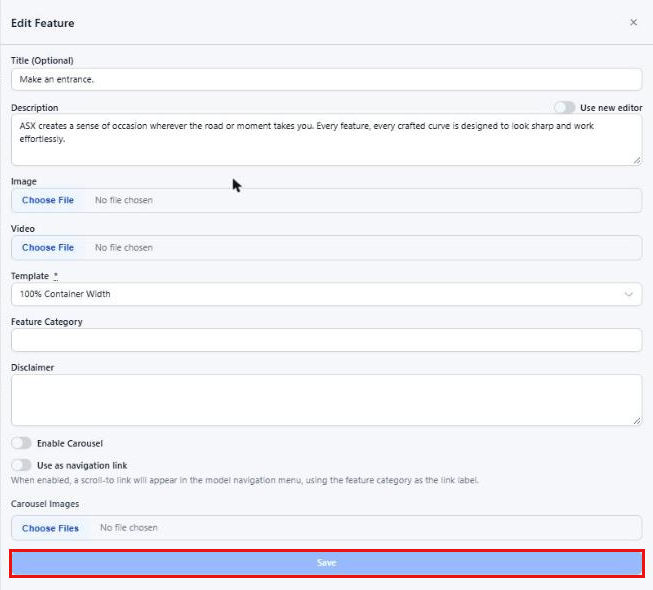
Note: The Image and Video fields show "No file chosen" even when the feature already has an image. This is normal- only choose a file if you want to replace the current one.
Step 4: Click 'Save'
Once you have made your changes, click Save at the bottom of the panel.
3. How to Add in New Features
Step 1: Click '+ New'
- Once you have navigated to the Features tab (Section 1), click + New at the top right of the Features list. The 'New Feature' panel will open:
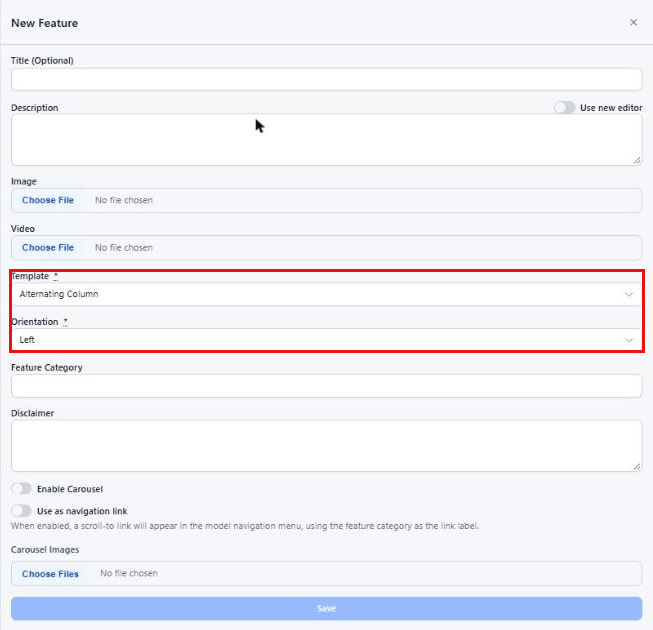
Step 2: Fill in the Feature Details
- You will see the below options:
Title (Optional) – The heading of the feature, e.g. "Make an entrance."
Description – The paragraph that sits with the feature. Turning on Use new editor gives you a text editor where you can highlight text for options such as bold and links:
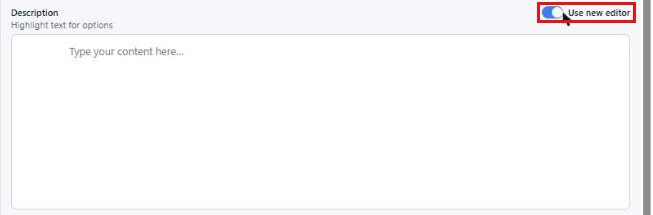
Image – The image shown with the feature. Use a landscape, high-quality image.
Video – Upload a video to play in place of the image. Use either an Image or a Video, not both.
Template (Required) – Controls how the feature is laid out on the model page. The options are:
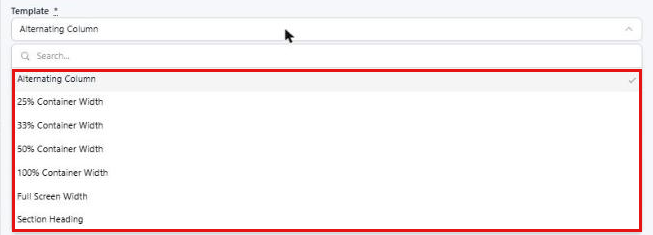
Alternating Column – Image on one side, with the Title and Description beside it. Choosing this shows the extra Orientation field (see below).
25% Container Width – A card a quarter of the page width, so four sit side by side.
33% Container Width – A card a third of the page width, so three sit side by side.
50% Container Width – A card half the page width, so two sit side by side.
100% Container Width – One card across the full width of the page content. All current ASX features use this.
Full Screen Width – Image runs edge-to-edge across the whole screen, with the Title and Description over it.
Section Heading – A heading (and optional description) that starts a new section of features. No image needed.
Orientation (Required – Alternating Column only) – Choose Left or Right for which side the image sits on:

Feature Category – Groups features together into a section, and is used as the link label if "Use as navigation link" is on. Please type it exactly the same on every feature in the group (e.g. "Performance").
Disclaimer – Any fine print for this feature.
Enable Carousel – Turns a group of features into a swipe carousel. Turn it on for every feature in the group (same Feature Category and same Template, next to each other in the list).
Use as navigation link – Adds a scroll-to link in the model page navigation menu, using the Feature Category as the link label. Make sure a Feature Category is filled in.
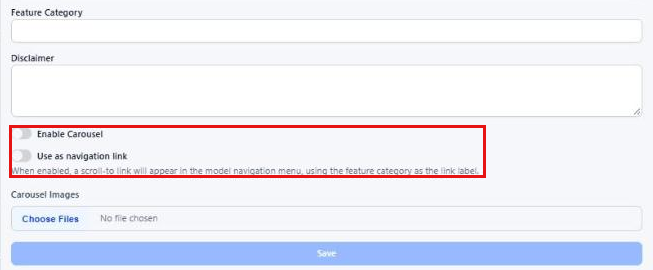
Carousel Images – Upload multiple images for this feature to show as a carousel.
Step 3: Click 'Save'
- Once you have entered all required information, click Save. The new feature is added to the Features list. Use the drop-down arrow or drag handle to move it into the right position.
Model Features
1. How to Navigate to Model Colours
Step 1: Open the Model
- Follow Steps 1–3 of Section 1 (Login > Select OEM > Models > click the Model name).
Step 2: Click the 'Colours' Tab
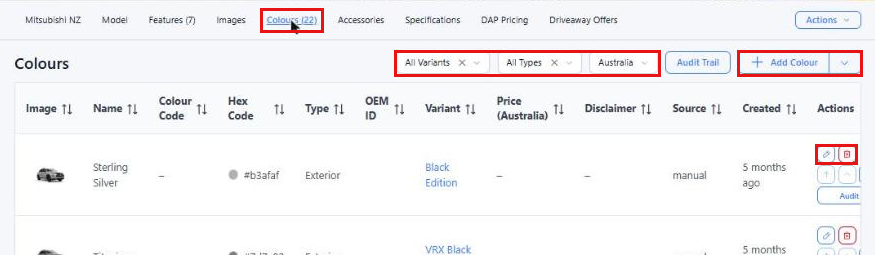
- Click Colours in the tab bar. The number in brackets is how many colours are on the model (e.g. Colours (22)).
2. How to Edit Pre-Existing Model Colours
Step 1: Find the Colour you want to Edit
- The Colours list shows the Image, Name, Hex Code, Type, Variant, Price and Disclaimer for every colour.
Use the All Variants and All Types filters at the top to narrow the list, e.g. to only show the LS colours.
Audit Trail shows who changed colours and when.
The drop-down arrow next to Add Colour gives you Download CSV to export the list.
The same colour appears once for each variant it is available on (e.g. Sterling Silver is listed for LS, Black Edition and VRX Black Edition). Please make sure you edit the row for the correct variant.
Step 2: Click the Pencil Icon
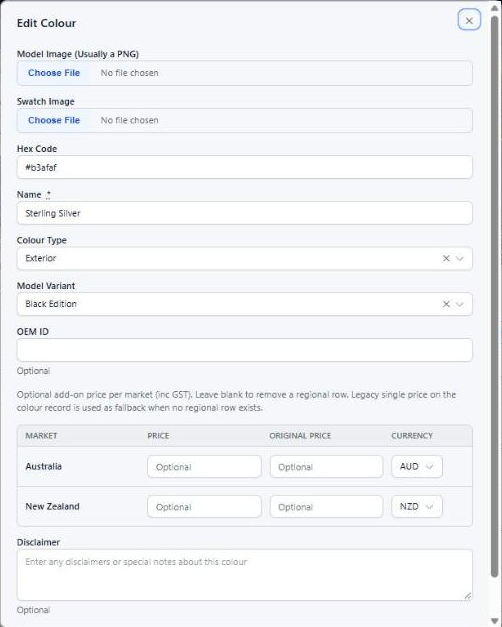
- In the Actions column, click the blue pencil icon on the colour's row. (The red bin deletes the colour – please don't click this unless you want it removed.) The 'Edit Colour' window will open:
Step 3: Update the Fields
- Change the fields you need – each field is explained in Section 6, Step 2. As with features, "No file chosen" is normal; only choose a file if you want to replace the current image.
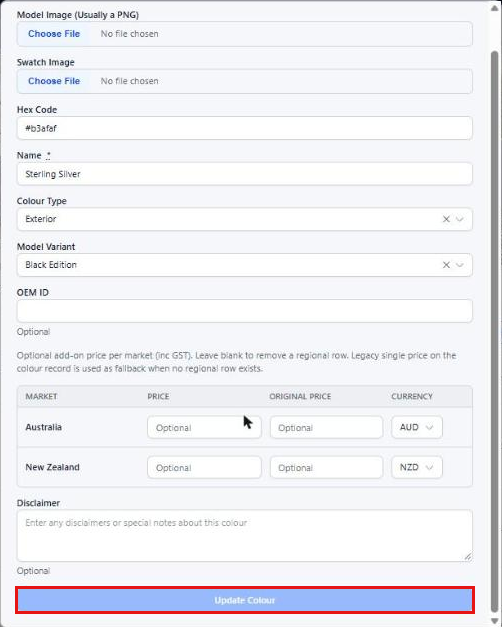
Step 4: Click 'Update Colour'
- Scroll to the bottom of the window and click Update Colour.
3. How to Add a New Model Colour
Step 1: Click '+ Add Colour'
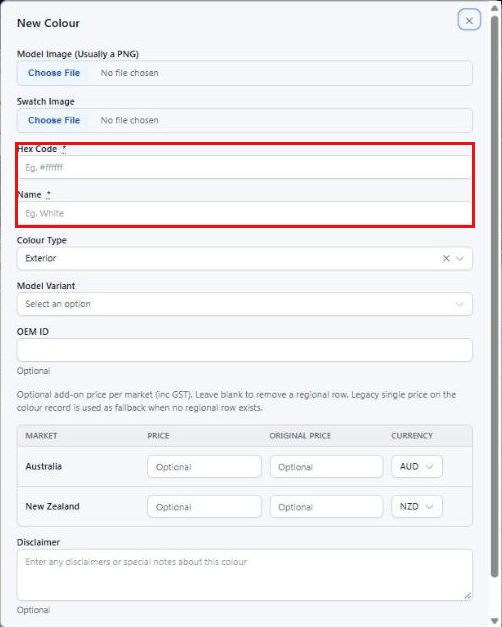
- Once you have navigated to the Colours tab (Section 4), click + Add Colour. The 'New Colour' window will open:
Step 2: Fill in the Colour Details
- You will see the below options:
Model Image (Usually a PNG) – The picture of the car in this colour, shown when a customer selects the colour on the website. Use a PNG with a transparent background, the same angle as the other colours.
Swatch Image – The small round colour button customers click. Optional if you use a Hex Code.
Hex Code (Required) – The colour code used for the swatch, e.g. #b3afaf.
Name (Required) – The colour name shown on the website, e.g. Sterling Silver.
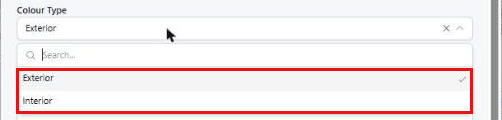
Colour Type – Exterior (paint colour) or Interior (trim colour):
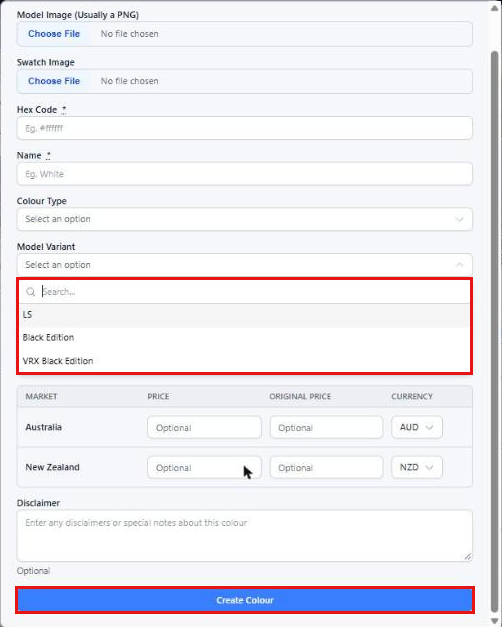
Model Variant – The variant this colour belongs to. For the ASX the options are LS, Black Edition and VRX Black Edition. If a colour is available on more than one variant, please add it once for each variant.
OEM ID (Optional) – The manufacturer's own code for the colour, if you have one.
Market Price table (Optional) – An add-on price for this colour (inc GST), e.g. for premium paint. Fill in the New Zealand row with the Price, and Original Price if you want to show a was/now price. Leave blank if there is no extra cost.
Disclaimer (Optional) – Any notes about this colour, e.g. "Premium paint, additional cost applies".
Step 3: Click 'Create Colour'
- Once you have entered all required information, click Create Colour at the bottom of the window.
Vehicle Specifications
1. How to Navigate to Vehicle Specifications
Step 1: Open the Model
- Follow Steps 1–3 of Section 1 (Login > Select OEM > Models > click the Model name).
Step 2: Click the 'Specifications' Tab
- Click Specifications in the tab bar. You will see the 'Model Specifications' table with the Category, Value and Actions columns:
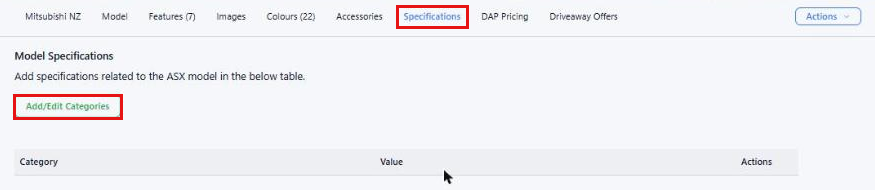
- In the example above, the ASX table is empty because no Specification Categories have been set up for Mitsubishi NZ yet. Once categories have been added (Section 9), each one shows as a row here.
2. How to Edit Pre-Existing Specifications
Step 1: Find the Specification Row
- Each row in the table is a Specification Category (e.g. Engine, Warranty) with its Value for this model.
Step 2: Click 'Edit'
- Click Edit at the right-hand end of the row. A text box opens in the Value column, and the Edit button changes to Save.
Step 3: Type the Value and Click 'Save'
- Type or update the value for this model, e.g. "5 Year / 100,000km", then click Save. Keep values short and clear, as they are shown as quick facts about the model.
- To clear a specification for this model, remove the text and click Save.
2. How to Add in New Specifications
Step 1: Click 'Add/Edit Categories'
- On the model's Specifications tab, click Add/Edit Categories. This takes you to the Model Builder Catalog (also found under Models > Model Builder Catalog in the left menu):

Step 2: Click 'New Category'
- Click New Category at the top right. The 'New Category' window will open:
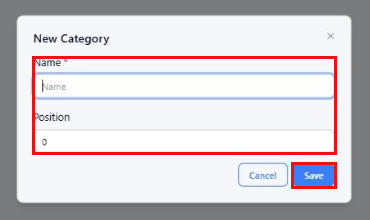
Name (Required) – The specification label, e.g. Engine, Towing Capacity, Fuel Economy, Warranty.
Position – The order the category shows in. 0 shows first, then 1, 2 and so on.
Step 3: Click 'Save'
- Click Save. The category is added to the Model Builder Catalog for Mitsubishi NZ.
Step 4: Add the Value on Each Model
- Go back to the model's Specifications tab (Section 7). The new category now shows as a row. Click Edit, type the value for that model and click Save (Section 8). Repeat for each model.
IMPORTANT CONSIDERATIONS
Please keep the following in mind:
•  Changes go to every dealer site. Models, features, colours and specifications are entered once at the OEM level and update every Mitsubishi NZ dealer website using that model.
•  Deleting can't be undone. Avoid Destroy (model card), Delete (feature drop-down) and the red bin (colours) unless you want the item removed from all sites. If you are unsure, contact Dealer Studio support first.
•  Specification Categories are brand-wide. A category created in the Model Builder Catalog appears as a row on every Mitsubishi NZ model. Use general names (e.g. "Engine", not "ASX Engine"), and fill in the value on each model.
•  Colours are added per variant. If a colour is available on LS, Black Edition and VRX Black Edition, it needs to be added three times, once for each Model Variant.
•  Keep Feature Categories consistent. Features only group into the same section (and carousel) if the Feature Category is spelt exactly the same and the features sit next to each other in the list.
•  Orientation only appears with Alternating Column. If you change the Template, check the fields again before saving.
•  Images and video. Use either an Image or a Video on a feature, not both. Use a transparent PNG for colour Model Images so the car sits cleanly on the page.
•  "No file chosen" is normal when editing. Leave the file fields alone unless you want to replace the existing image.
•  Allow time for changes to show. Changes can take a little while to appear on the live sites. If something still hasn't updated by the next day, please contact Dealer Studio support.
Reminder: This guide covers editing and adding Features, Colours and Vehicle Specifications on an existing model.
For adding a brand new model, please see the "How To Add in a Model" article.
Was this article helpful?
That’s Great!
Thank you for your feedback
Sorry! We couldn't be helpful
Thank you for your feedback
Feedback sent
We appreciate your effort and will try to fix the article