Learn how to add and manage Manufacturer Colour Options at the OEM level. Colours received from third parties are often not in a standard format (e.g. 'Ice White'). Colour Options match these manufacturer colour names to a generic colour (e.g. 'White'), so vehicles can be filtered by colour consistently. They also act as a central catalogue of the manufacturer's available colours.
1. How to Navigate to The Colour Options Menu
Step 1: Please Login to Dealer Studio.
You will be prompted for your Username and Password
You will be prompted for your 2-Factor Authentication Method, or SSO verification
Step 2: Once Signed in Please Select the Applicable OEM
e.g. Mitsubishi NZ
Step 3: Click 'Manufacturer settings' on the left, then 'Colour Options'
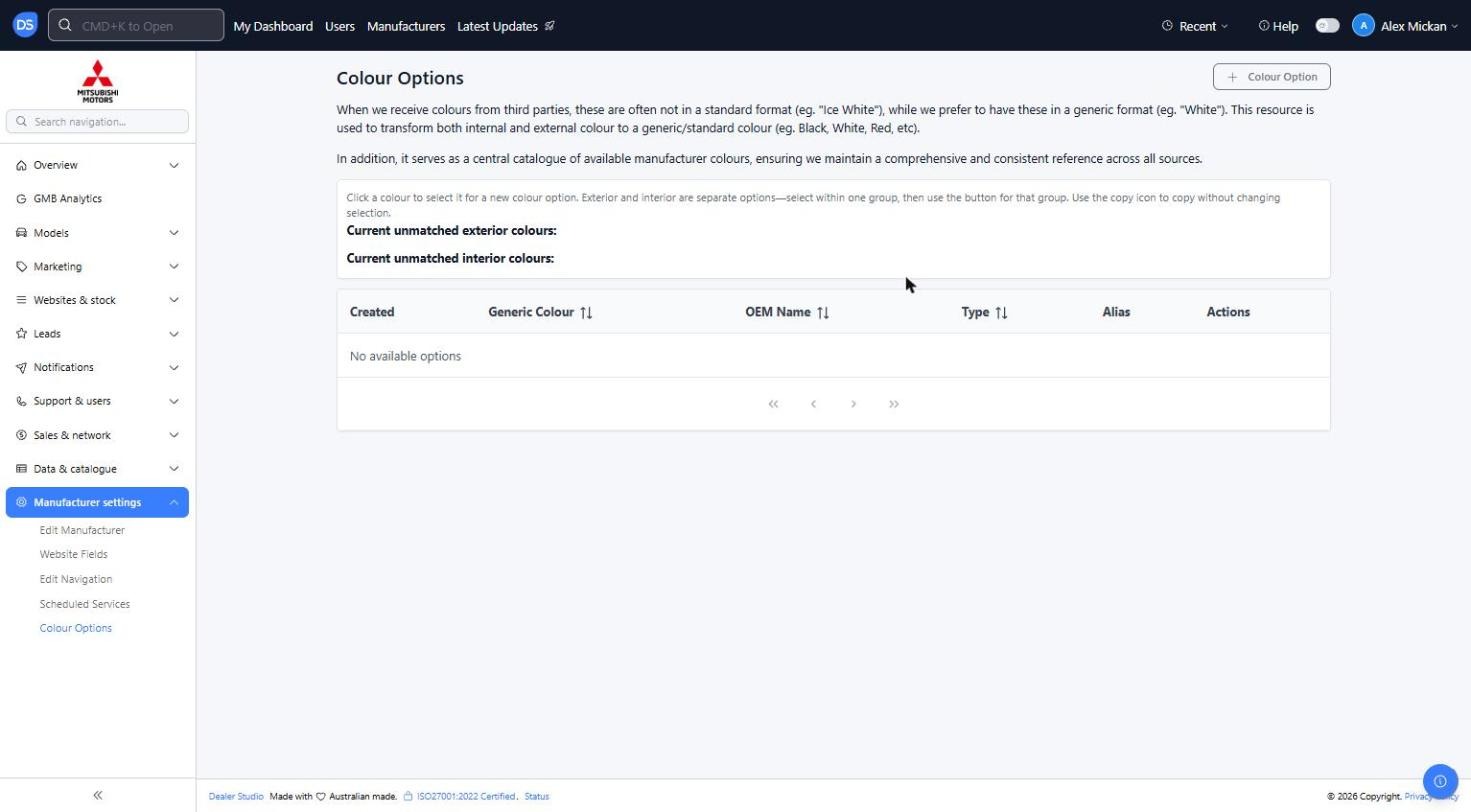
You will see the list of current Colour Options, showing the Generic Colour, OEM Name, Type (Exterior or Interior) and Alias
Under 'Current unmatched exterior colours' and 'Current unmatched interior colours' you will see any colours coming through that haven't been matched yet
2. How to Add in A New Colour Option
Step 1: Once you have Navigated to the Colour Options tab, as above
Please click '+ Colour Option'
Or click an unmatched colour to select it, then use the button for that group (exterior or interior). Use the copy icon to copy a colour name without changing your selection
Step 2: Fill in the Add Colour form
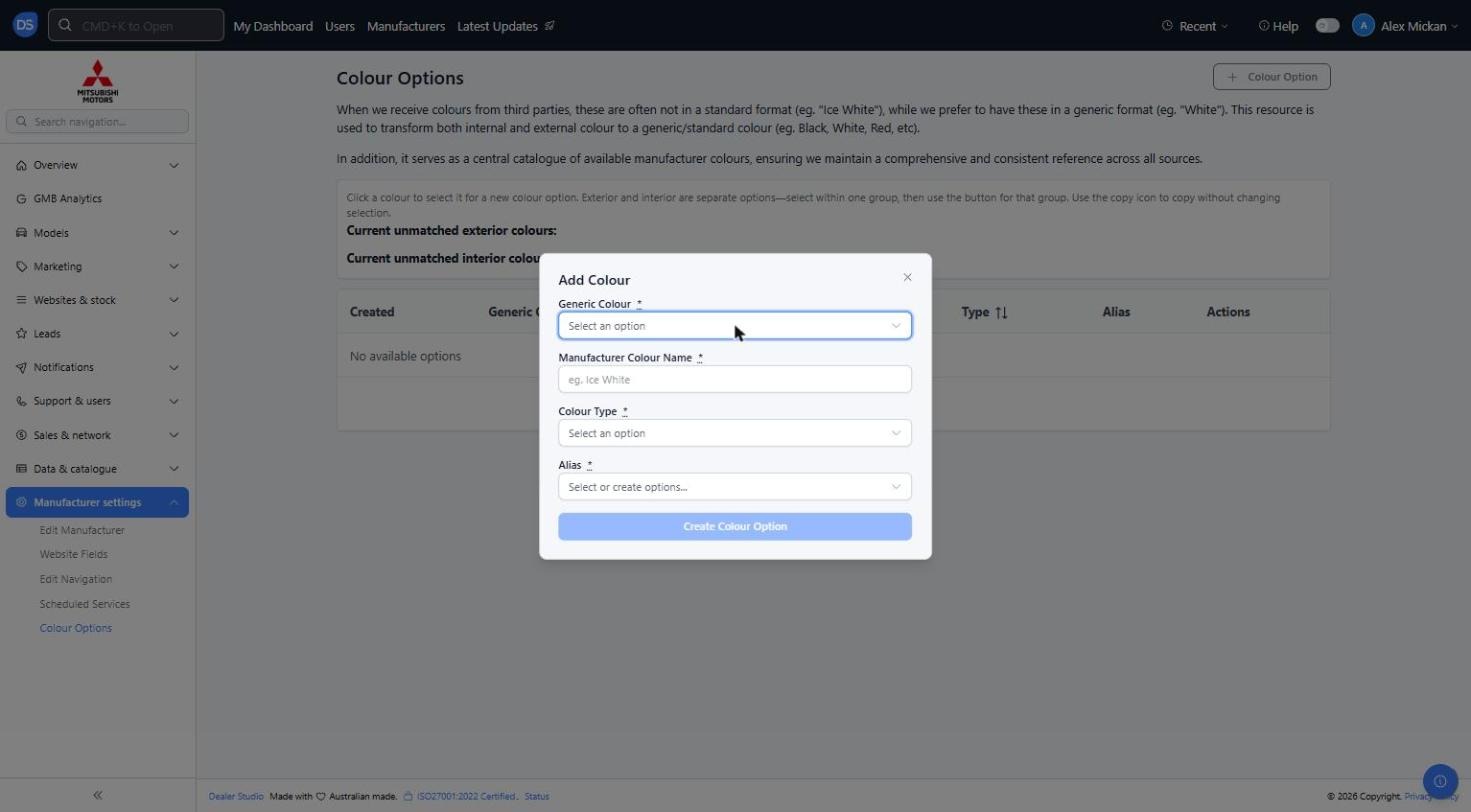
You will see the below options;
Generic Colour (Required): The standard colour this maps to, e.g. Beige, Blue, Black, Bronze, Brown, Burgundy, Grey, Green
Manufacturer Colour Name (Required): The OEM's name for the colour, e.g. 'Ice White'
Colour Type (Required): Exterior or Interior
Alias (Required): Select an existing alias or type to create a new one. Use this for other spellings or names of the same colour that come through from feeds
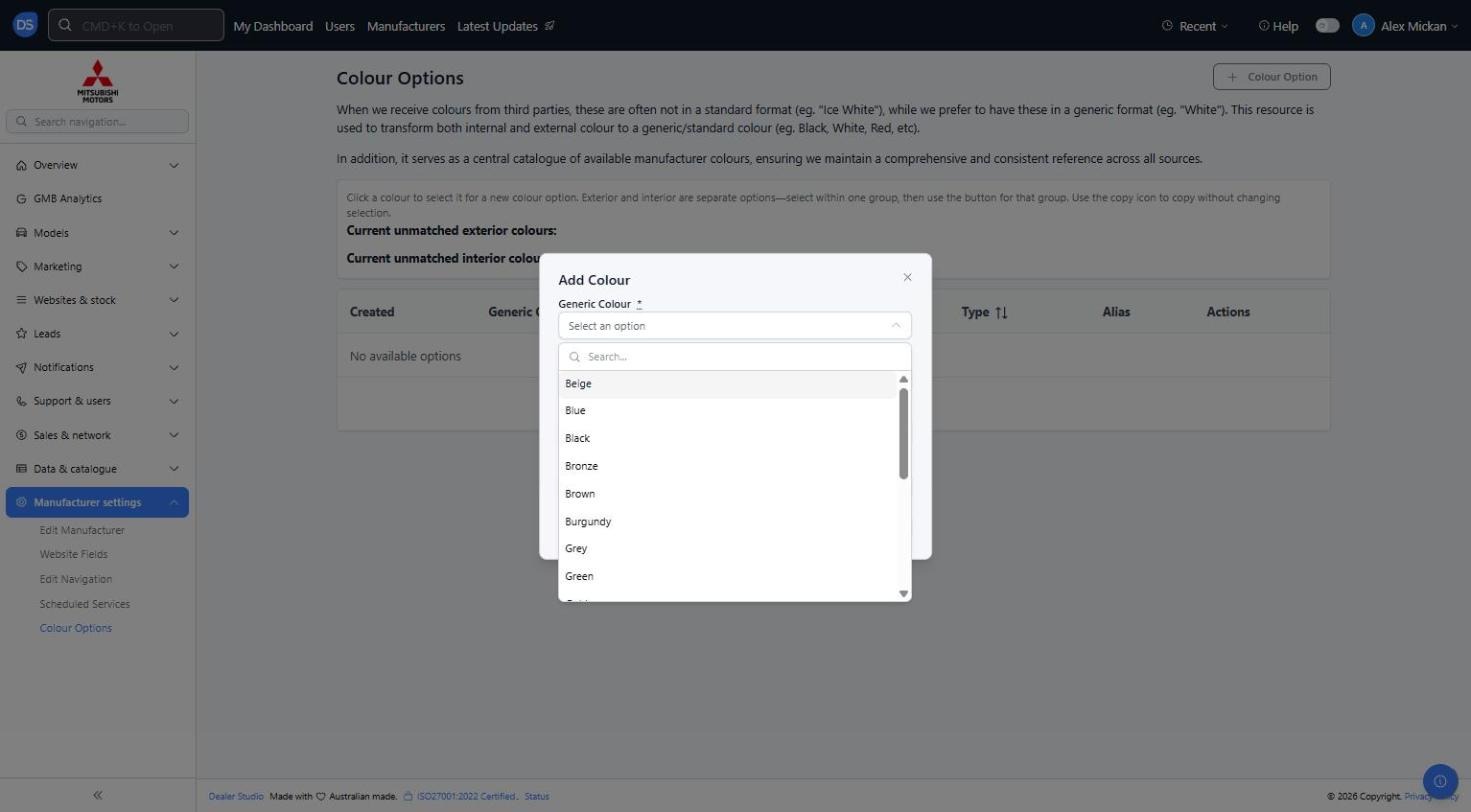
Step 3: Once you have entered all required information, Please click 'Create Colour Option'
The colour will now show in the Colour Options list
3. How to Edit An Existing Colour Option
Step 1: Find the colour on the Colour Options list
Use the options in the 'Actions' column to edit or remove the colour
Reminder: Exterior and interior colours are separate options. If the same colour name is used for both, you will need to add it once as Exterior and once as Interior.
Was this article helpful?
That’s Great!
Thank you for your feedback
Sorry! We couldn't be helpful
Thank you for your feedback
Feedback sent
We appreciate your effort and will try to fix the article