Learn how to add a new vehicle model at the OEM level, including the steps required to configure the model and make it available across the relevant dealership websites.
1. How to Navigate to The Model Menu
Step 1: Please Login to Dealer Studio.
- https://dashboard.dealerstudio.com.au/
- You will be prompted for your Username and Password
- You will be prompted for your 2-Factor Authentication Method, or SSO verification
Step 2: Once Signed in Please Select the Applicable Dealership/OEM
- Please see example of how this should be displaying
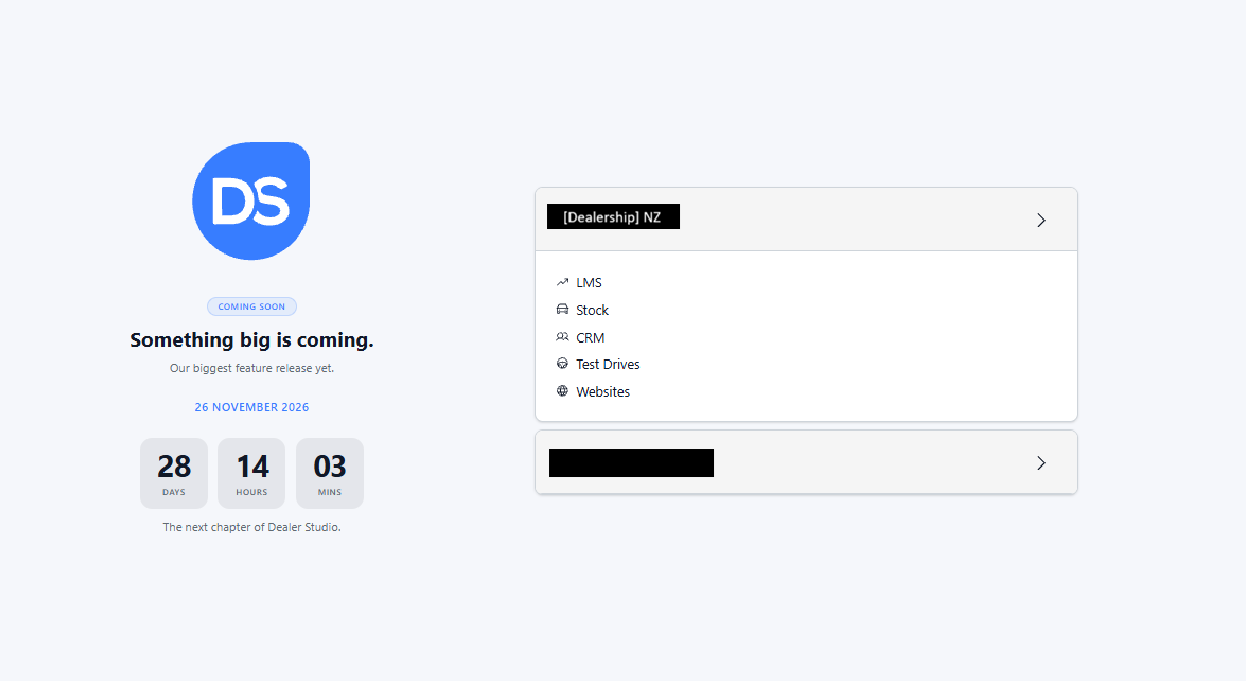
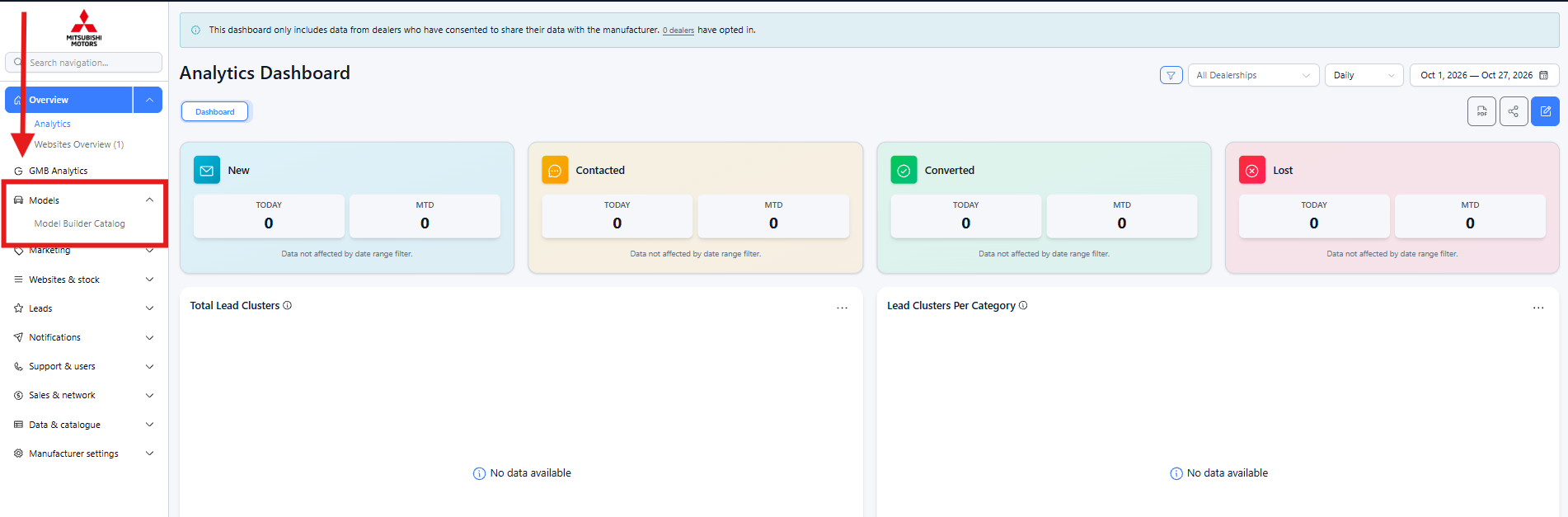
Step 3: This is the correct Dashboard visibility if you have selected an OEM
- You can see 'Models' on the left:
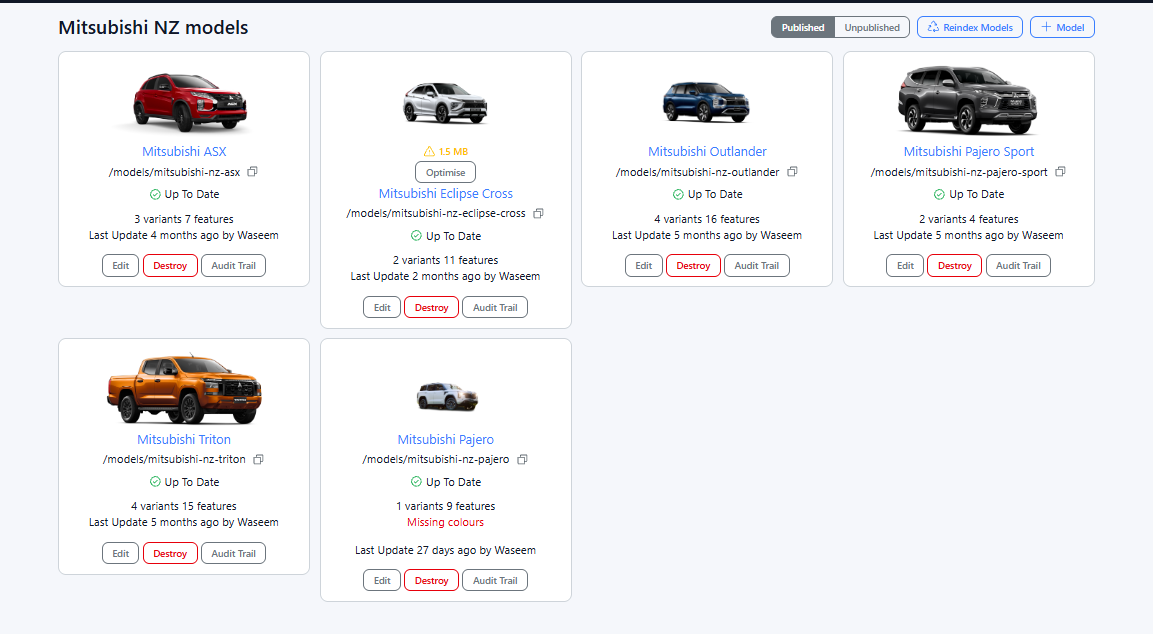
Step 4: Once you Click 'Models' You Should See the Below
- Using Mitsubishi NZ as an example, you can see currently entered Models
2. How to Add in A New Model
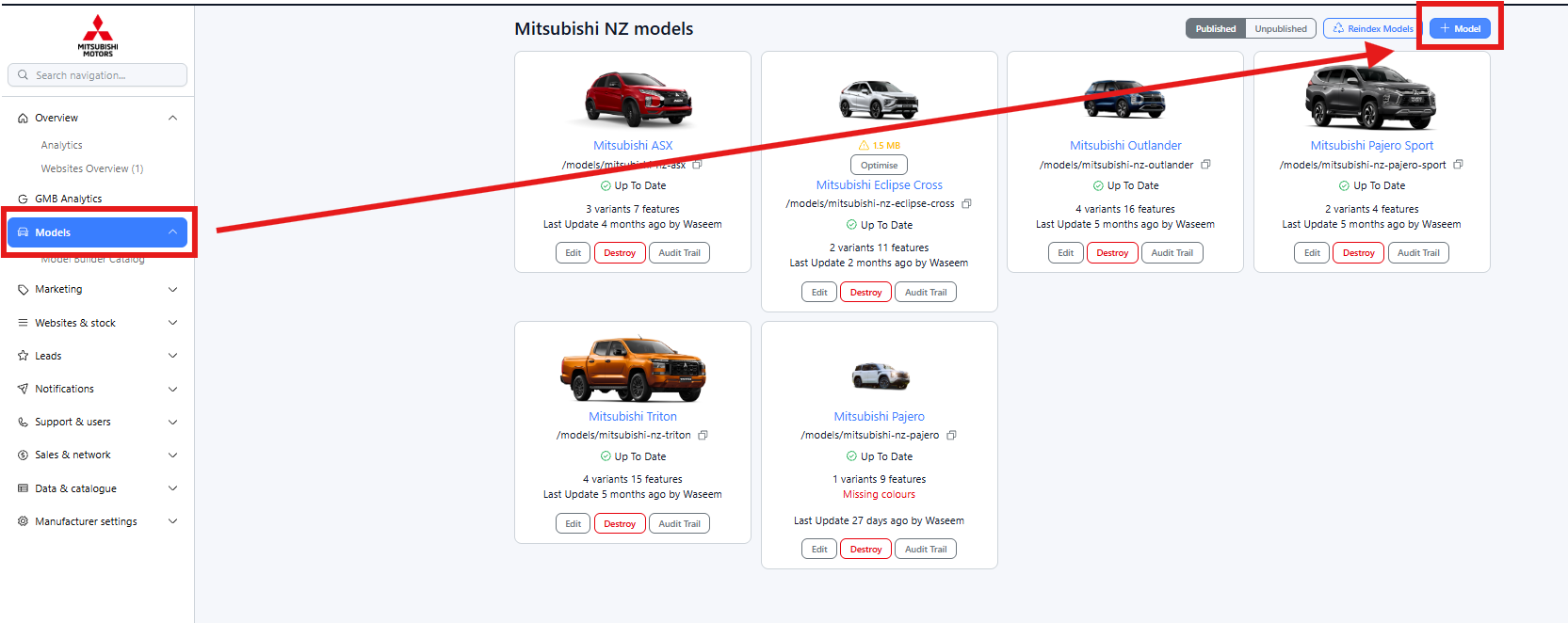
Step 1: Once you have Navigated to the Models tab, as above
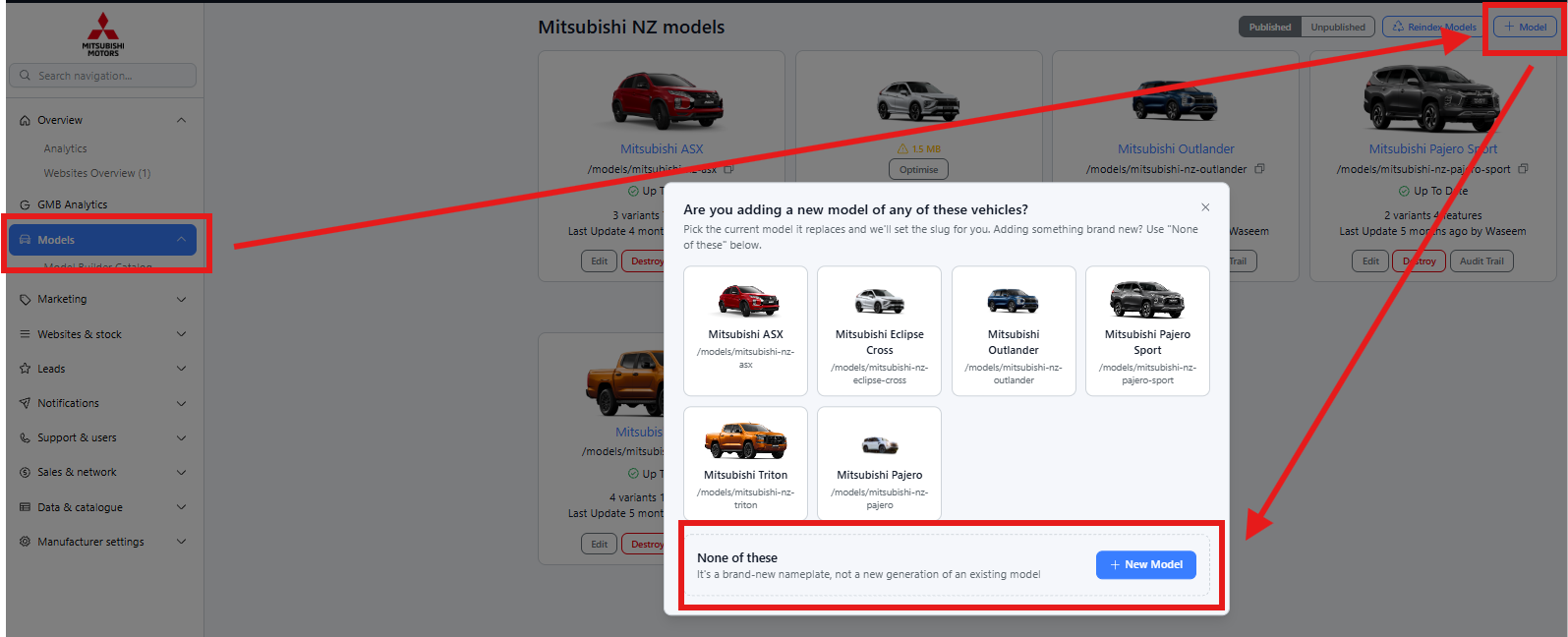
- Please click '+ Model'
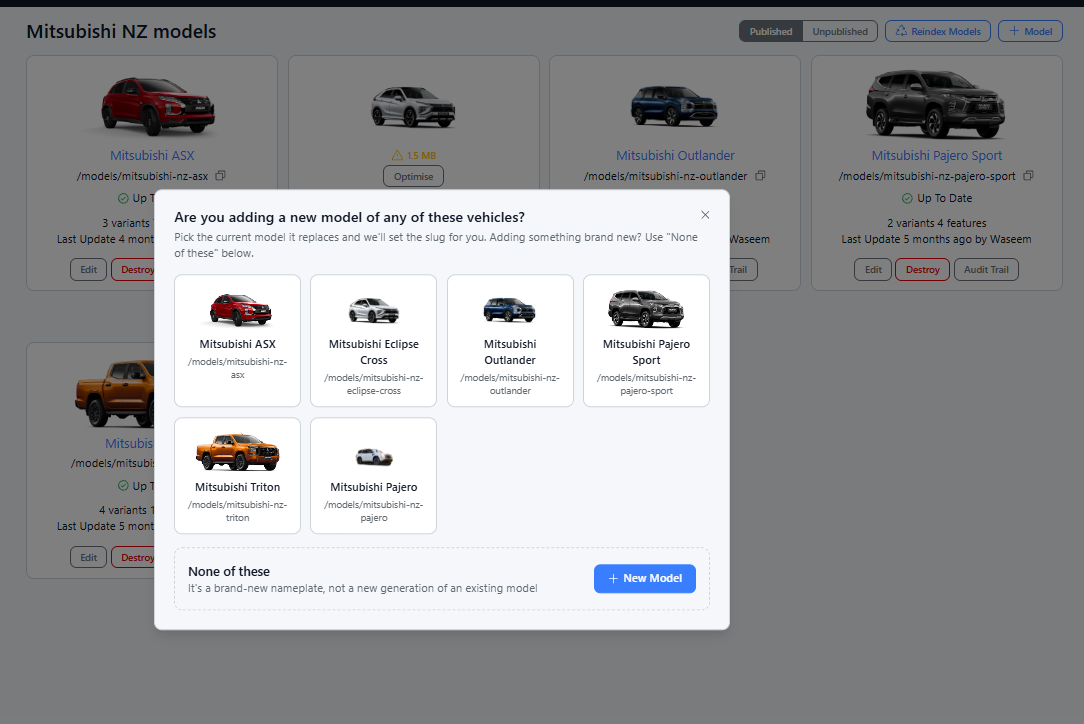
Step 2: Once Clicked '+ Model' You will be prompted to advise if this model is a NEWER version of any Pre-existing Models.
- You would select this, in the example of a New ASX model being released, but they are continuing to want to advertise the Older Model for Stock/Advertising or Historical Purposes
3. How to Add in A New Model - 'ALL-NEW Version of Pre-existing Model'
Step 1: If a New Version of a Pre-Existing Model has been released, please select the Model you are creating a New-Generation Model for:
- For Example, we will add in a New Generation ASX for demonstration purposes
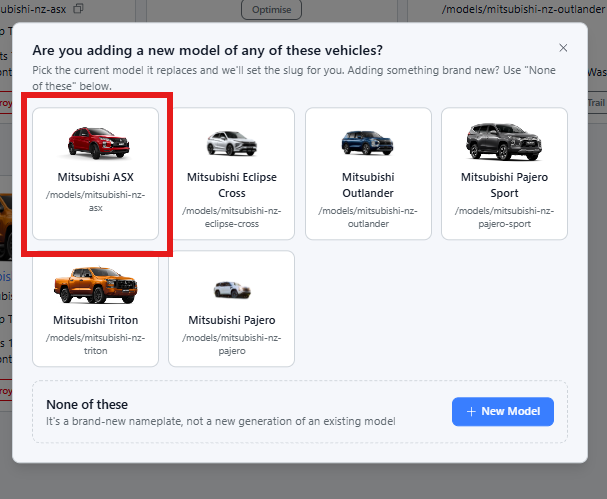
Step 2: Once you have selected the model you will see the below
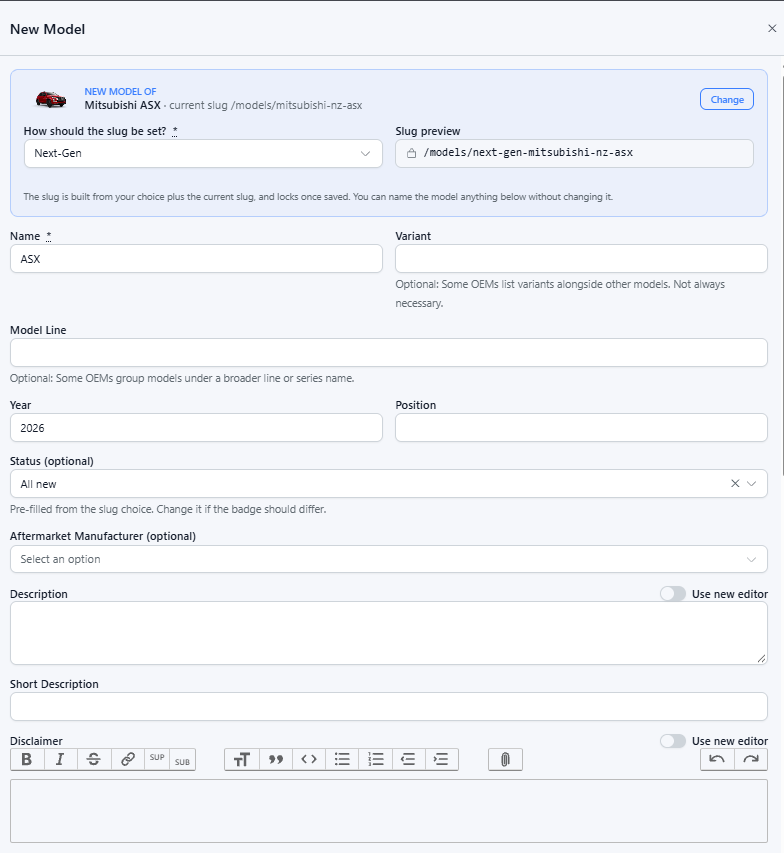
- Fields that you will need to Edit/Action
- Firstly, Select the Status of the New Generation Model, you have the choices of "All-New", "New" and "Next-Gen"
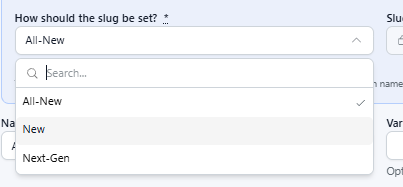
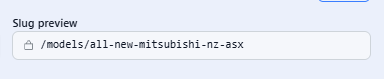
- This will change how the slug of the Newer Generation appears. e.g.
- All-New
- New
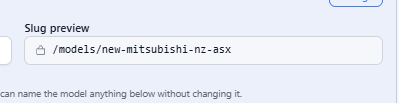
- Next-Gen
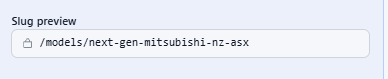
- Once you have the desired status you can move on to the next field.

- You will see the below options;
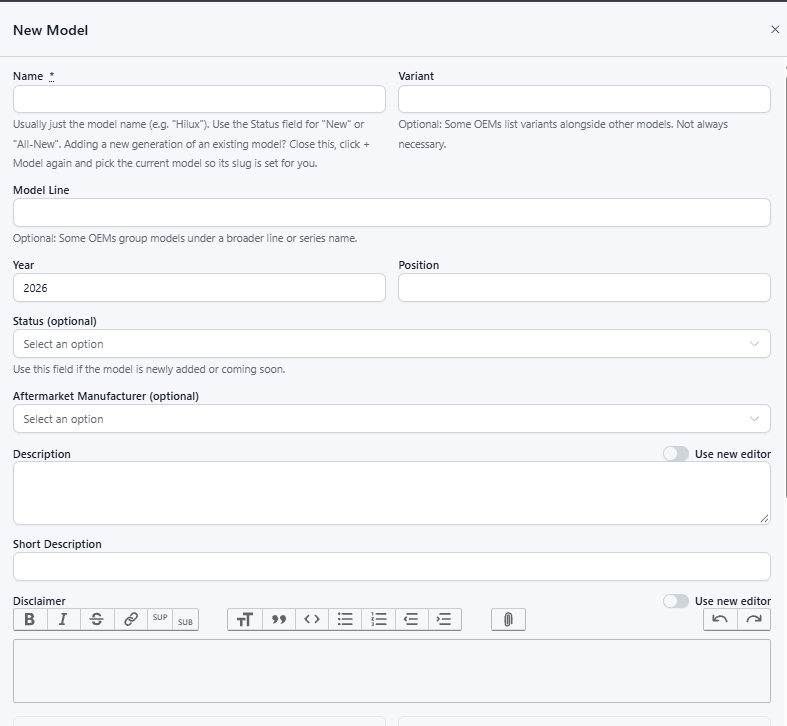
- Name - ASX as it is the Newer Version of that Model
- Variant - If it is an ASX PHEV for example
- Model Line - If they go by Series Names, e.g. similar to BMW advising 'M Series'. This is where you would enter these details
- Year - Release Date
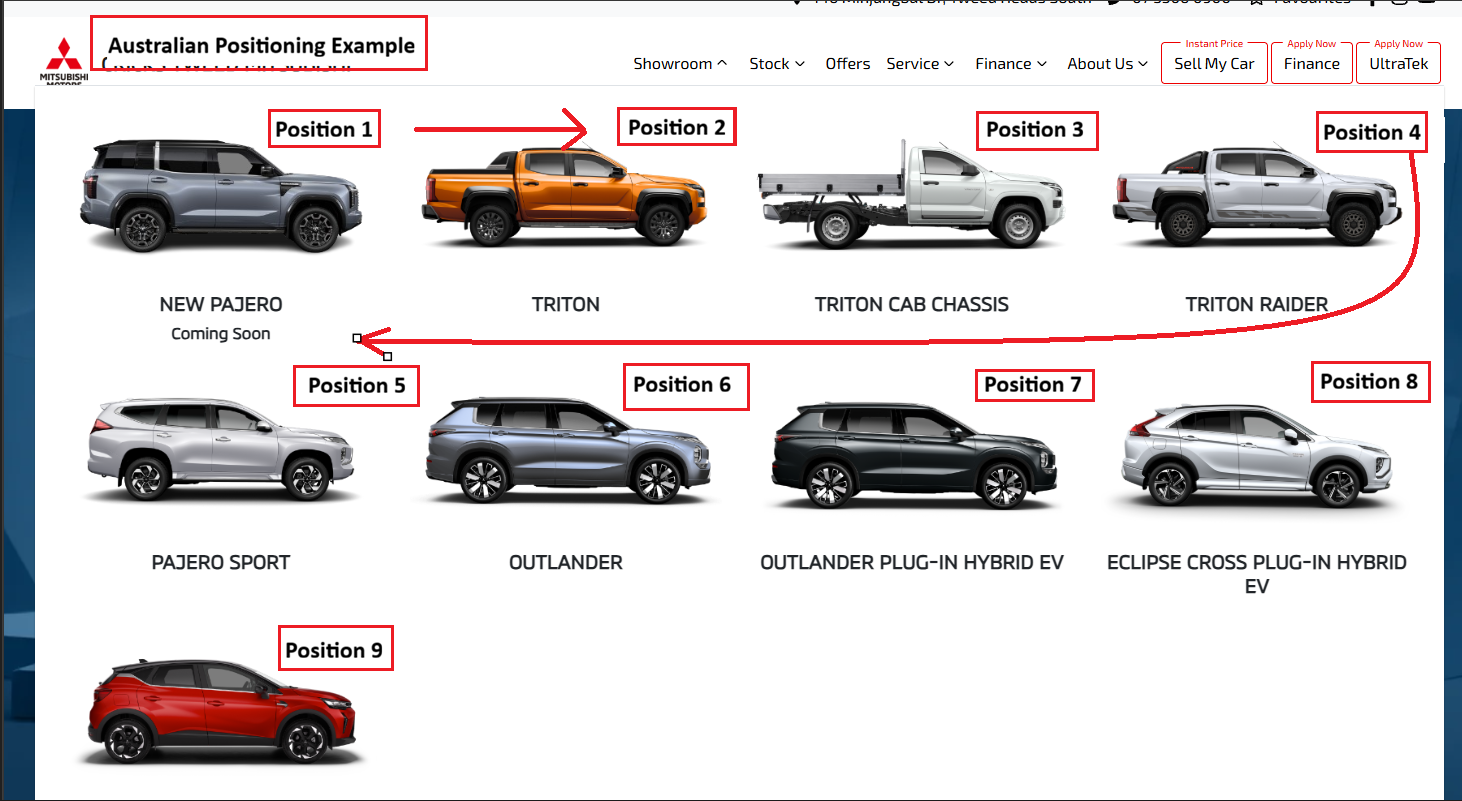
- Position - How you want it ordered on the Test Drive Booking page and in Models Drop down on your Site
- Status - Shouldn't need any change as you set it at the top
- Description - Paragraph you want to describe the Model, Typically sits at the top of the Model page:
- Short Description- The Title above the Description Paragraph
- Disclaimer - Model Disclaimer
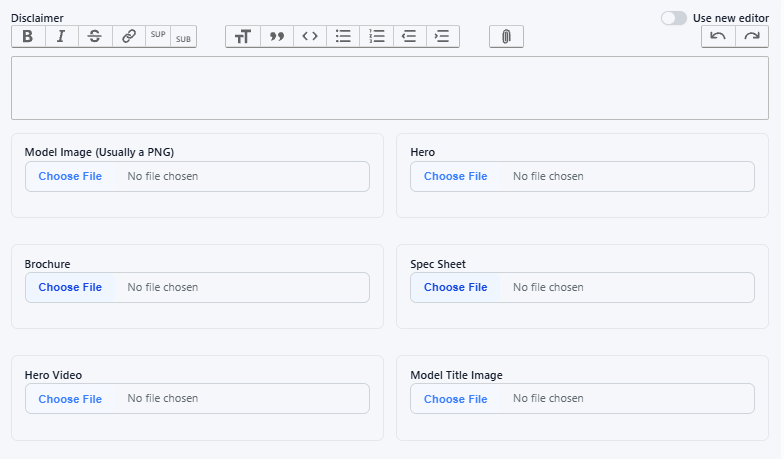
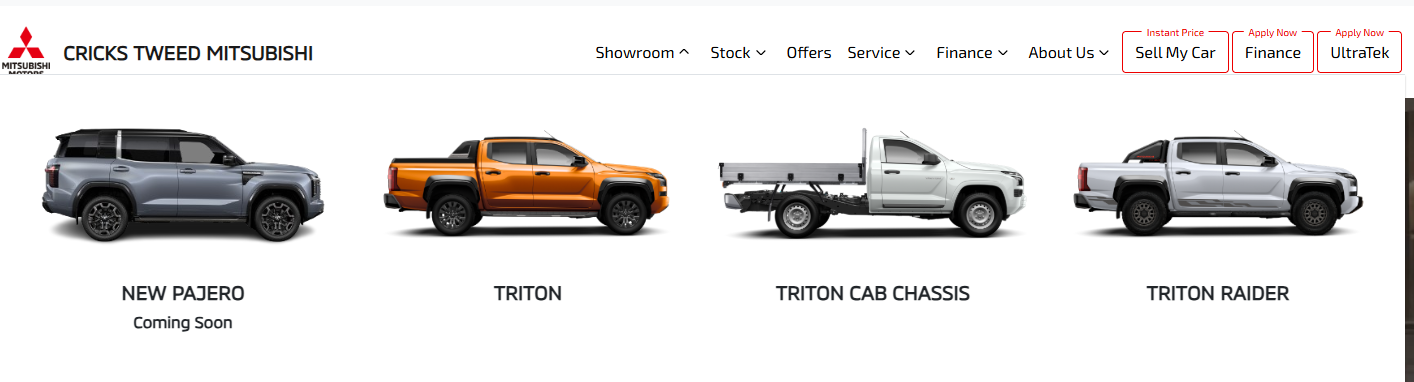
- Model Image: Images used in OEM dashboard, and Model Drop-Down on Site (E.g. Below)
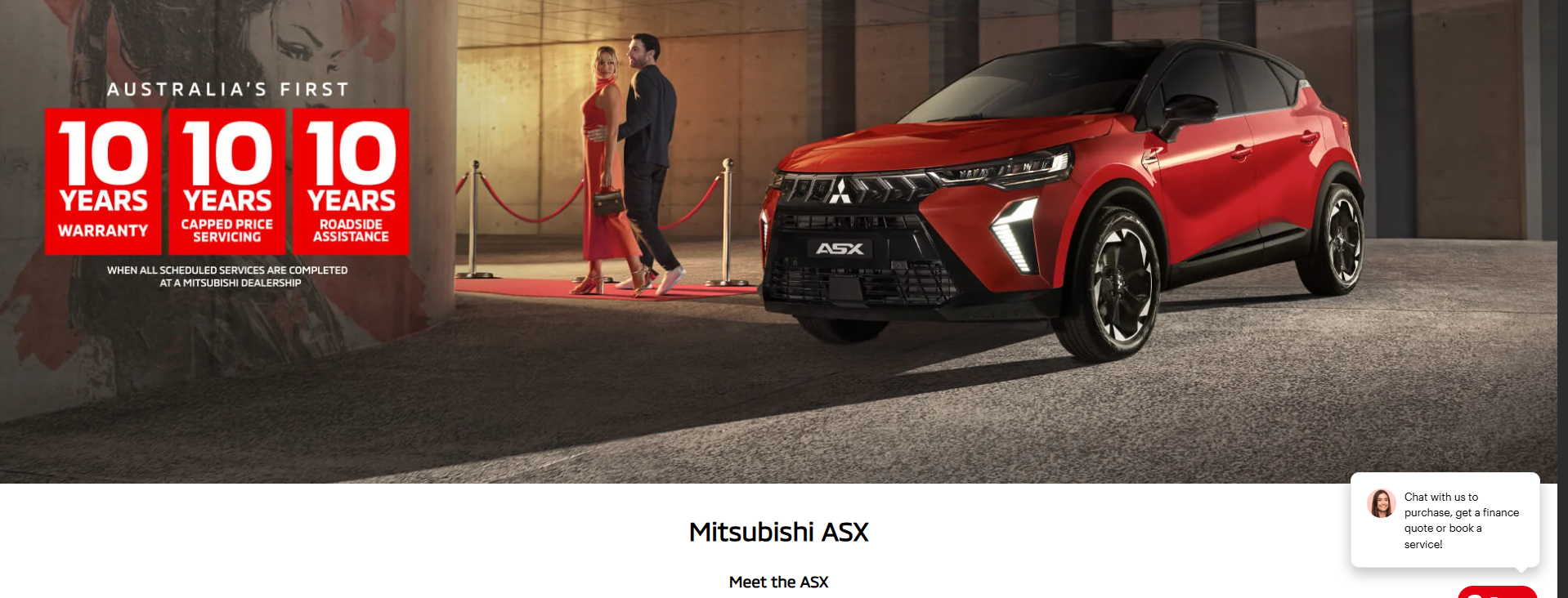
- Hero Image: Image that is advertised at the top of the Model page on Live Site
- Brochure: Vehicle Brochure, Advertising, typically uploaded as a PDF
- Spec Sheet: Information on Dimensions of Vehicles and other pertianant information contained in a PDF
- Hero Video: Less than 7.5MB Accepted for Video size. If a Video is Published, this will be 'primary' over the image banner at the top of the Model Page.
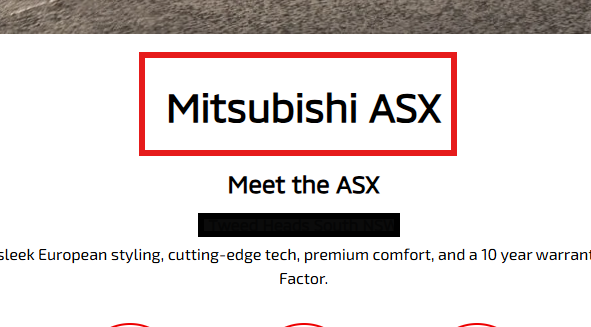
- Model Title Image: This replaces the written model name in the intro on the model page. Use it when the name should appear as a logo or wordmark rather than plain text. Leave it blank and the model name shows as ordinary text, which is the usual setup. Remove the image and the text title comes back. It does not change the hero picture behind it. E.g. in the example below, if you uploaded an image that says 'Mitsubishi ASX' It would replace this heading here:
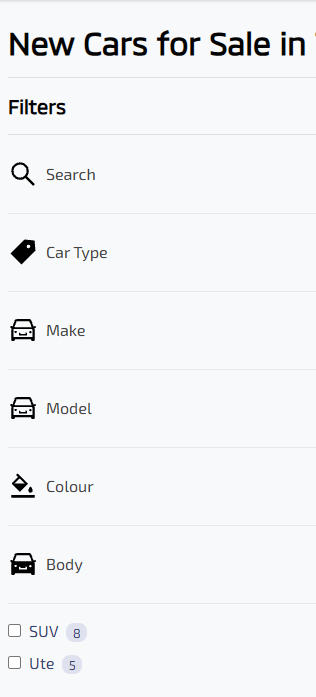
- Body Type: Allows Filtering Via Body Type
- Manufacturer Body (Optional): Provides the Category name for Models to be Sorted into (SUV and 4WD, Range, Coming Soon etc.)
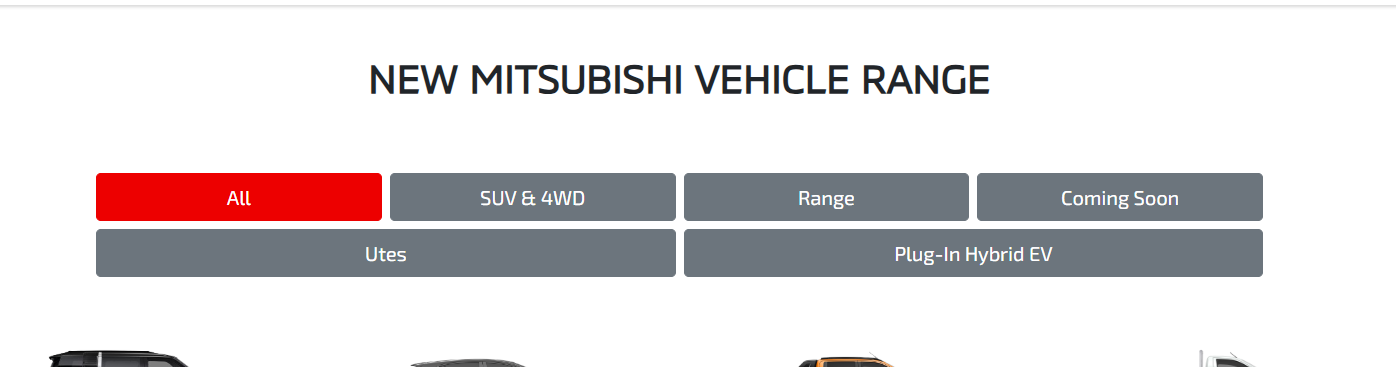
- Example based on Australian Site, they are classified via 'Ute' and 'Range':

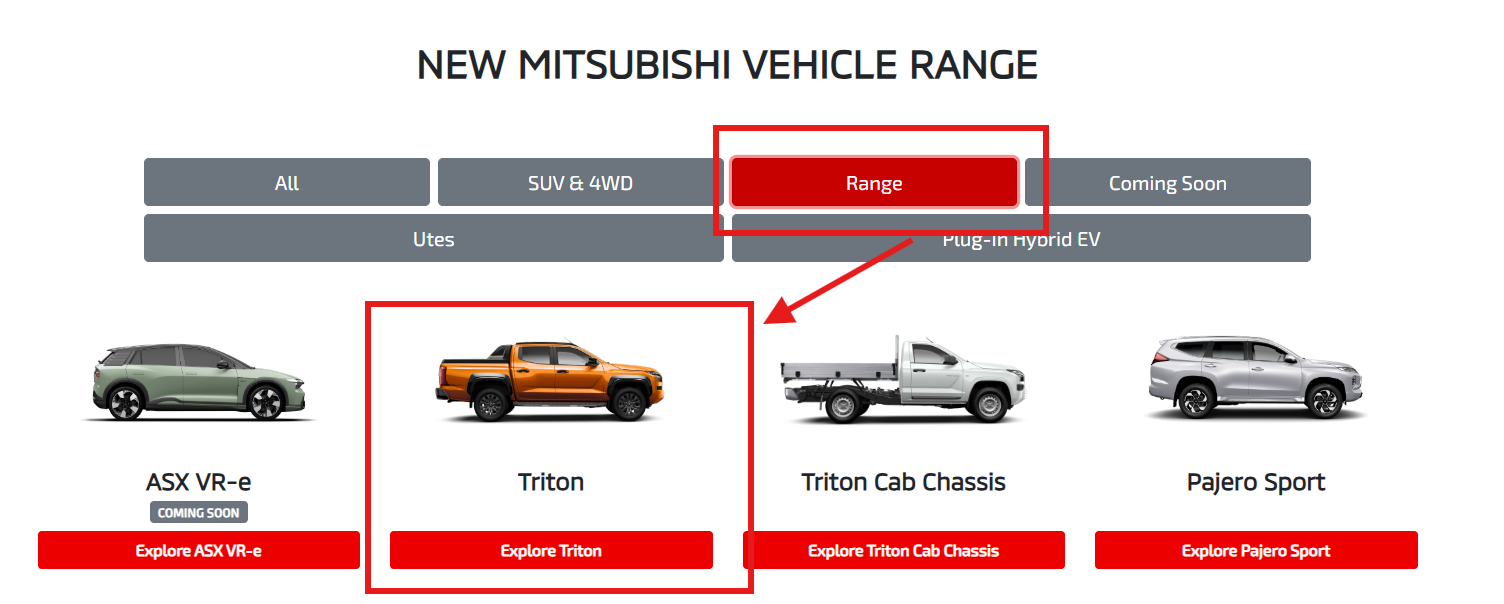
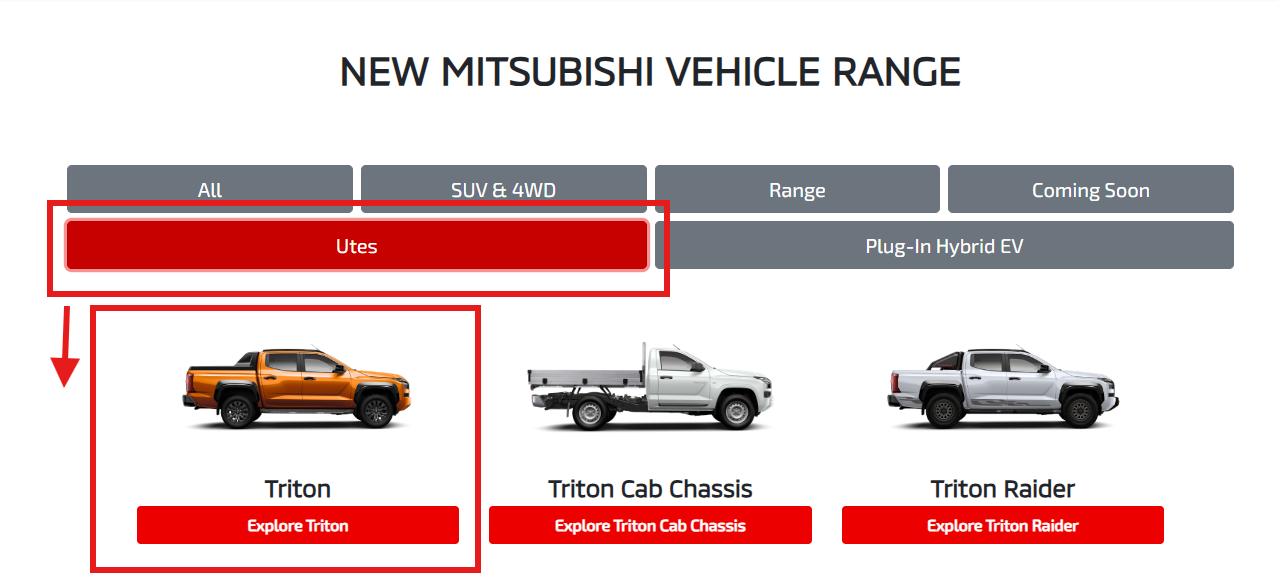
- However Body Type has one more section where the filters apply, and that is on Stock pages. Therefore clicking 'Ute' here will call for a search against base model at OEM, and see that Hilux = Ute
- Youtube ID: If you want a Youtube Video of the Vehicle to be advertised on the page
- MP4 Banner: URL Link to Video on Page (Hosted elsewhere than Youtube
- Override URL and Override Slug is not required in this instance.
- Published Toggle: Published = sending to all your Dealer Sites. Unpublished = is put under 'Unpublished' and is essentially a draft
- Exclude from New Vehicle Sales (Dealer Portal) - Not Required as RDA is not set up for you
- Restricted Model: If you have Restrictions set up, you can toggle on here, and assign which Restriction they are under. A separate article will show you how to set up restrictions
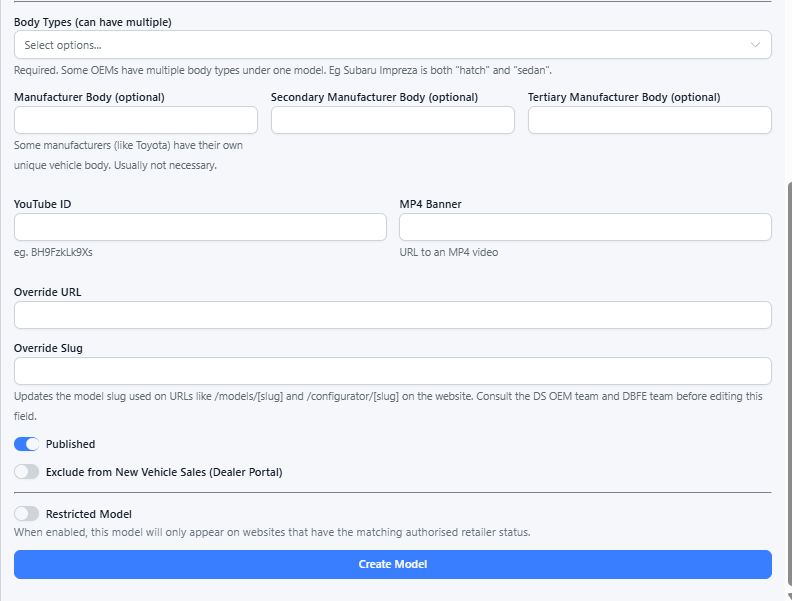


Step 3: Once you have entered all required information for the model, Please click 'Create Model'

4. How to Add in A New Model - 'Brand New Model'
Step 1: If you want to add in an entirely New Model:
- For Example, we will add in a 'New' Model for Mitsubishi NZ.
- You would select '+ New Model'
Step 2: You will then be able to prefill the details as required:
- Name: Ensure you don't include Manufacturer Name here
- e.g. If you enter 'Mitsubishi ABC', then the live site will prefill 'Mitsubishi Mitsubishi ABC'
Step 3: Once you have entered all required information for the model, Please click 'Create Model'
Reminder: This guide covers adding a new model only. It does not include completing all required model information or fields.
Was this article helpful?
That’s Great!
Thank you for your feedback
Sorry! We couldn't be helpful
Thank you for your feedback
Feedback sent
We appreciate your effort and will try to fix the article